
Introduction
The VEVOR P10 Wi-Fi LED Scrolling Sign is a high-resolution electronic message board designed for indoor commercial activities. This manual provides comprehensive instructions for the safe installation, operation, and maintenance of your LED sign. Featuring flexible control options, multiple lighting modes, and energy-efficient SMD technology, this sign is built to deliver clear and bright displays to attract attention.
Safety Information
- Read all instructions carefully before installation and operation.
- This product is designed for indoor use only. Do not expose to moisture or outdoor elements.
- Ensure the power supply voltage matches the product's requirements (110V).
- Do not attempt to open or modify the sign. Refer all servicing to qualified personnel.
- Keep the sign away from heat sources and direct sunlight to prevent overheating.
- Handle with care to avoid damage to the LED panel.
Package Contents
Please check the package contents upon receipt to ensure all items are present and undamaged:
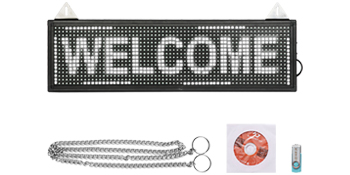
- 1 x VEVOR Wi-Fi LED Scrolling Sign
- 1 x Software CD (for PC programming)
- 1 x USB Drive (for content transfer)
- 1 x Hook Chain (for hanging installation)
- 1 x User Manual
Specifications
| Feature | Specification |
|---|---|
| Type | P10-W68*20 |
| Color | White |
| Material | Aluminum Alloy |
| Voltage | 110V |
| LED Pitch Size | 0.4 in / 10 mm |
| Cabinet Resolution (Pixel) | W64 x H16 |
| Number of Lamp Beads | 1024 |
| Viewing Angle | 120° |
| Brightness | 1000 mcd |
| Theoretic LED Working Life | >100000 hours |
| Control Method | Wi-Fi + USB Control |
| Net Weight | 6.6 lbs / 3 kg |
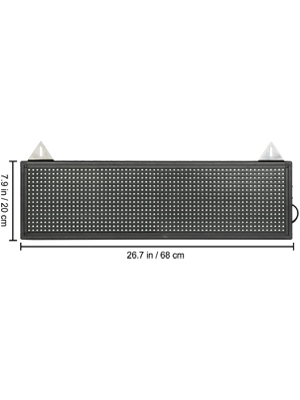
| Product Size | 26.7 x 7.9 x 2 in / 680 x 200 x 50 mm |
| Packing Dimensions | 31.5 x 4.3 x 9.8 in / 800 x 110 x 250 mm |
Setup
1. Unpacking and Inspection
- Carefully remove the LED sign and all accessories from the packaging.
- Inspect the sign for any visible damage. If damaged, do not proceed with installation and contact support.
2. Installation
- The sign is designed for hanging. Use the provided hook chain to suspend the sign securely from a stable fixture.
- Ensure the installation location is indoors, dry, and has adequate ventilation.
3. Power Connection
- Connect the power cable to the sign and then plug it into a standard 110V electrical outlet.
- The sign should power on and display a default message or pattern.
4. Software Installation (PC)
- Insert the provided software CD into your Windows PC (software is not compatible with Mac OS).
- Follow the on-screen instructions to install the programming software. Alternatively, use the provided USB drive if the software is pre-loaded, or download the latest version from the manufacturer's website if available.
Operating Instructions
1. Control Methods
The LED sign offers multiple ways to program and control its content:
- PC Control: Use the installed Windows software to create and upload messages via Wi-Fi or USB.
- Phone Control: Download the dedicated app for Android or iOS devices to manage content wirelessly via Wi-Fi.
- USB Control: Create messages on a PC, save them to a USB drive, and then insert the USB drive into the sign to transfer content.

2. Programming Content
- Open the programming software/app.
- Select the desired display area or create a new program.
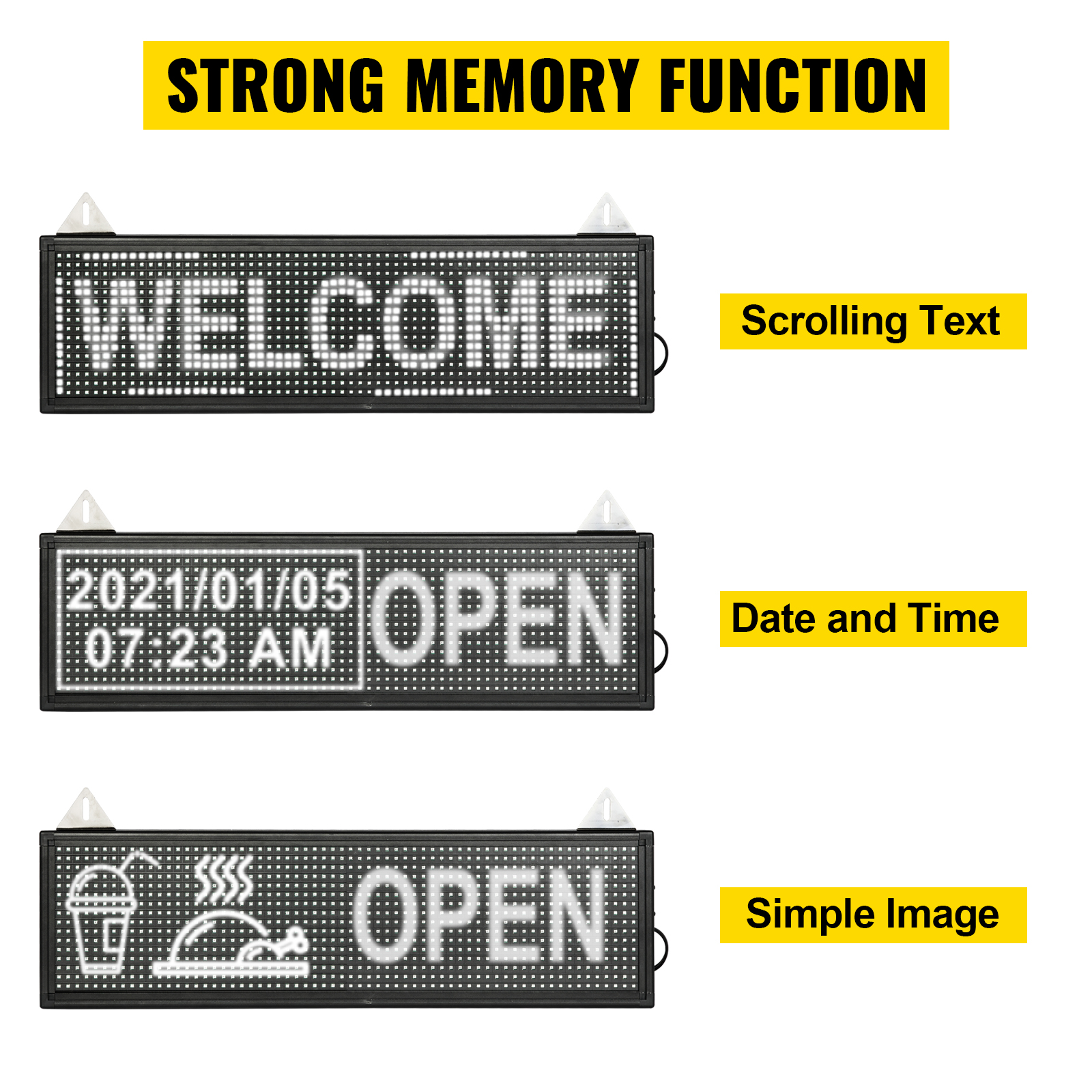
- Enter your text, set the time, or upload simple company logos. The sign supports up to 100 messages.
- Choose display actions such as static, continuous move, cover, or scroll.
- Adjust font size, color (if applicable for multi-color models, though this model is white), and display speed.
- Once programmed, upload the content to the sign using your chosen control method.
3. Memory Function
The sign features a strong built-in memory function. Programmed messages will be retained even when the power is turned off, eliminating the need to reprogram content after a power cycle.
4. Lighting Modes
You can switch between two lighting modes to suit different environments and times of day:
- Steady Lighting: Provides a constant, non-flashing display, ideal for general information during the day.
- Flashing Lighting: The display flashes, designed to attract more attention, especially effective at night or in busy areas.

Maintenance
- Cleaning: Use a soft, dry cloth to gently wipe the surface of the LED sign. Do not use abrasive cleaners, solvents, or excessive moisture, as these can damage the display or electronics.
- Ventilation: Ensure that the sign's ventilation openings are not blocked to prevent overheating.
- Cable Management: Periodically check power and data cables for any signs of wear or damage. Replace damaged cables immediately.
- Storage: If storing the sign for an extended period, disconnect it from power, clean it, and store it in its original packaging or a protective cover in a cool, dry place.
Troubleshooting
| Problem | Possible Cause | Solution |
|---|---|---|
| Sign does not power on | No power supply; faulty cable/outlet | Check power cable connection; try a different outlet; ensure 110V supply. |
| Content not updating | Incorrect upload method; software/app issue; Wi-Fi/USB connection problem | Verify the correct upload procedure for your chosen control method (PC, Phone, USB); restart software/app; check Wi-Fi signal or USB connection. |
| Display is flickering or distorted | Unstable power supply; software glitch | Ensure stable power supply; restart the sign; update software/app if available. |
| Cannot connect via Wi-Fi | Incorrect Wi-Fi password; out of range; network interference | Double-check Wi-Fi password; move closer to the sign; try connecting from a different device. |
| PC software not installing/running | Incompatible OS (Mac); corrupted installation file | Ensure you are using a Windows OS; try reinstalling the software from the CD or a fresh download. |
User Tips
- For optimal visibility, consider using the Steady Lighting mode during daylight hours and switching to Flashing Lighting mode at night or in low-light conditions to maximize attention.
- Always ensure your programming software or mobile app is up-to-date to benefit from the latest features and bug fixes.
- When using the USB control method, ensure the USB drive is properly formatted and the content files are in the correct format as specified by the software.
- Take advantage of the strong memory function by pre-programming multiple messages for different occasions or promotions.
Warranty and Support
VEVOR products are designed for durability and performance. For any issues or questions regarding your LED Scrolling Sign, please contact VEVOR customer support. Keep your purchase receipt as proof of purchase for warranty claims. Detailed warranty information can typically be found on the official VEVOR website or by contacting their support team directly.