
1. Product Overview
The Yoosee E27 Bulb Light WIFI Camera is a 1080P wireless security camera designed for indoor surveillance. It features an E27 standard base for easy installation, offering 360-degree panoramic viewing, two-way audio, night vision, and motion detection with auto-tracking capabilities. This manual provides detailed instructions for setting up, operating, and maintaining your camera.

Figure 1: Yoosee E27 Bulb Light WIFI Camera
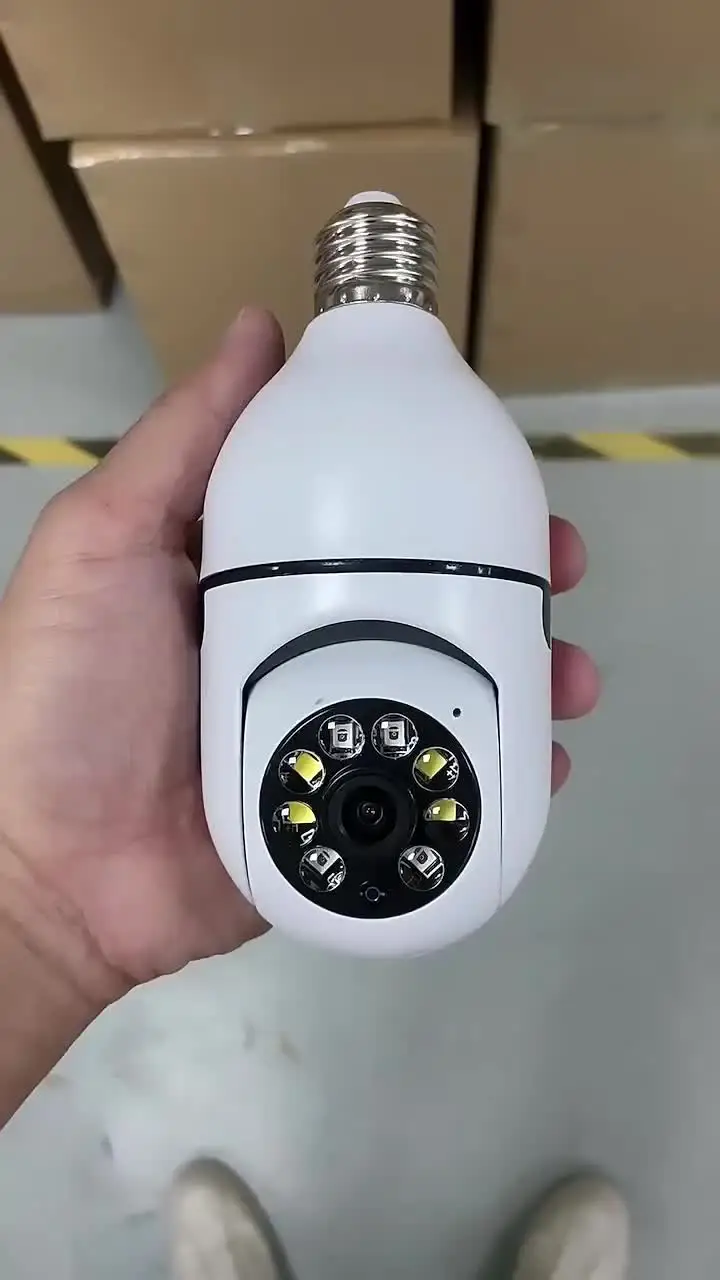
Video 1: Product overview and packaging contents.
2. Features
- High Definition Video: 1080P (Full-HD) resolution for clear video surveillance.
- Day and Night Vision: Equipped with IR LEDs for up to 10 meters of night vision.
- Two-Way Audio: Real-time communication with built-in microphone and speaker.
- Wireless Connectivity: Supports 2.4GHz WIFI connection and hotspot connection for flexible placement.
- Pan & Tilt Functionality: Offers 355 degrees horizontal (Pan) and 90 degrees vertical (Tilt) rotation for comprehensive coverage.
- Auto Tracking: Automatically tracks moving objects and records video, sending notifications to your smartphone.
- Storage Options: Supports local storage via TF (Micro SD) card up to 128GB (not included) and cloud storage.
- Humanoid Intelligent Alert: Features intelligent alerts with double light for enhanced security.
- Preset Positions & Cruise Function: Allows setting specific monitoring points and automatic cruising between them.
- Multi-Platform Viewing: Remote viewing and control via the Yoosee app on Android, iOS devices, and PC.
- Easy Installation: Designed with an E27 standard base for simple screw-in installation.

Figure 2: Camera Pan (355°) and Tilt (90°) movement.

Figure 3: Auto Tracking in action, notifying a smartphone.

Figure 4: Two-way audio for real-time communication.
3. Package Contents
- 1 x Yoosee E27 Bulb Light WIFI Camera
- 1 x User Manual
- 1 x Screw Package (for optional mounting)

Figure 5: Product packaging.

Figure 6: Contents of the package.
4. Installation and Setup
4.1 Physical Installation
- Ensure the power to the light socket is turned off before installation.
- Screw the Yoosee E27 Bulb Light WIFI Camera into a standard E27 light bulb socket.
- Alternatively, use the provided screw package to mount the camera to a ceiling or wall, then connect it to an E27 socket or adapter.
- Turn on the power to the light socket. The camera will power on and initiate its startup sequence.

Figure 7: Simple E27 base installation.
4.2 App Installation and Camera Connection
The Yoosee app is required to set up and control your camera. It is compatible with Android and iOS mobile systems.
- Download the "Yoosee" app from your device's app store (Google Play Store for Android or Apple App Store for iOS).
- Open the Yoosee app.
- Click the "+" icon or "Add new device" to begin the setup process.
- Choose "Smartlink" for indoor models or "Wired connection" / "AP connection" if applicable (Smartlink is generally recommended for initial setup).
- Connect your mobile device to a 2.4GHz Wi-Fi network. The camera does not support 5GHz Wi-Fi.
- Enter your Wi-Fi password in the app.
- Ensure the device is ready and a prompt tone is heard. Keep your phone within 30 cm of the camera during connection.
- The camera will connect to Wi-Fi. This may take 1-2 minutes.
- Once connected, improve setting information by setting a password for your camera.
- The setup is complete, and you can now view your camera feed.

Figure 8: Yoosee App Setup Steps 1-3.

Figure 9: Yoosee App Setup Steps 4-6.

Figure 10: Yoosee App Setup Steps 7-9.
4.3 TF Card Installation (Optional)
To enable local video recording, install a TF (Micro SD) card (up to 128GB, not included) into the designated slot on the camera. Ensure the camera is powered off before inserting or removing the TF card.

Figure 11: Inserting a TF card for local storage.
5. Operating Instructions
5.1 Live View and Pan/Tilt Control
- Open the Yoosee app and select your camera from the device list.
- The live video feed will appear.
- Use the on-screen controls to pan (rotate horizontally up to 355°) and tilt (rotate vertically up to 90°) the camera lens to adjust the viewing angle.
5.2 Two-Way Audio
- In the live view interface, tap the microphone icon to speak through the camera's speaker.
- Tap the speaker icon to listen to audio from the camera's surroundings.
5.3 Motion Detection and Auto Tracking
- Enable motion detection in the app settings.
- When motion is detected, the camera will automatically track the moving object and record video.
- You will receive push notifications on your smartphone when an event is triggered.
5.4 Night Vision
- The camera automatically switches to night vision mode in low-light conditions.
- The IR LEDs provide clear black and white video up to 10 meters.

Figure 12: Night vision for security in low light.
5.5 Recording and Playback
- Recordings are stored on the installed TF card or in cloud storage (if subscribed).
- Access recorded footage through the Yoosee app's playback function.
6. Specifications
| Attribute | Value |
|---|---|
| Type | Light WIFI Camera |
| High Definition | 1080P (Full-HD), 2MP |
| Resolution | 1920*1080P |
| Lens (mm) | 3.6mm |
| Viewing Angle | 90° |
| Color | White |
| Sensor | CMOS (Sony Brand) |
| Alarm Type | Phone Alarm (telefon Alarm) |
| Video Compression Format | H.265 |
| Power Supply | E27 110-240V AC |
| Power Consumption | 6W |
| Minimum Illumination | 0.0001 Lux |
| Connectivity | WIFI (2.4GHz) |
| TF Card Support | Up to 128GB (Not included) |
| IR Distance | 10 Meters |
| Operating Temperature | -10°C to 60°C |
| Movement Range (Pan) | 355° |
| Movement Range (Tilt) | 90° |
| Supported Mobile Systems | Android, iOS |
| App | Yoosee |
| ONVIF | Yes |
| Night Vision | Yes; IR Night Vision |
| Waterproof | No; Indoor Use |
| Audio | Two Ways AUDIO |
| Installation | Ceiling, Normal, Pendant Mount |
| Dimensions (L x W) | 150mm x 65mm |
| Weight | 290g |

Figure 13: Camera dimensions.
7. Maintenance
- Cleaning: Gently wipe the camera lens and body with a soft, dry cloth. Avoid using harsh chemicals or abrasive materials.
- Firmware Updates: Regularly check the Yoosee app for available firmware updates to ensure optimal performance and security. Follow the in-app instructions for updating.
- Power Cycle: If the camera experiences issues, try power cycling it by turning off the light switch for a few seconds and then turning it back on.
- Indoor Use Only: This camera is not waterproof. Ensure it is used strictly indoors to prevent damage from moisture or extreme weather conditions.
8. Troubleshooting
| Problem | Possible Solution |
|---|---|
| Camera not connecting to Wi-Fi |
|
| No video feed in the app |
|
| Motion detection not working |
|
| TF card not recording |
|
| Two-way audio issues |
|
9. User Tips
- For optimal performance, place the camera in a central location within its intended monitoring area.
- Regularly review recorded footage to ensure the camera is capturing desired events.
- Utilize the multi-user viewing feature to share access with trusted family members.
- Consider cloud storage for an additional layer of data backup and accessibility.
10. Warranty and Support
For warranty information, technical support, or service inquiries, please contact the seller or manufacturer directly. Keep your purchase receipt as proof of purchase.