1. Product Overview
The HUAWEI MatePad Paper HMW-W09 is a 10.3-inch E-Ink tablet designed for reading, note-taking, and productivity. It runs on HarmonyOS 2 and offers a paper-like reading and writing experience.

Figure 1: HUAWEI MatePad Paper HMW-W09 (Front View)

Figure 2: HUAWEI MatePad Paper HMW-W09 (Side View)
2. Setup Guide
-
2.1 Unboxing and Initial Inspection
Carefully remove the tablet and any accessories from the packaging. Check for any visible damage or missing components. The package typically includes the MatePad Paper tablet, a USB Type-C cable, and a quick start guide.
-
2.2 Charging the Device
Before first use, fully charge your MatePad Paper. Connect the provided USB Type-C cable to the tablet's USB-C port and the other end to a compatible power adapter (22.5W fast charging supported). The battery indicator on the screen will show charging status. A full charge provides up to 28 days of standby time.
-
2.3 Powering On/Off
- Power On: Press and hold the fingerprint power key (located on the side) until the HUAWEI logo appears on the screen.
- Power Off: Press and hold the fingerprint power key, then select 'Power Off' from the options that appear on the screen.
- Restart: Press and hold the fingerprint power key, then select 'Restart'.
-
2.4 Initial System Setup
Upon first power-on, follow the on-screen prompts to configure your device:
- Language Selection: Choose your preferred language.
- Wi-Fi Connection: Select your Wi-Fi network and enter the password to connect to the internet. The device supports IEEE 802.11 a/b/g/n/ac/ax (Wi-Fi 6+), 2.4GHz/5GHz.
- HarmonyOS Account: Log in or create a HUAWEI ID to access cloud services and app store.
- Fingerprint Recognition: Follow the instructions to register your fingerprint for secure and quick unlocking using the fingerprint power key.
-
2.5 M-Pencil Pairing (if applicable)
If your MatePad Paper comes with an M-Pencil (2nd Gen), attach it magnetically to the designated side of the tablet to automatically pair and charge it. The M-Pencil offers 4096 levels of pressure sensitivity and supports double-tap to switch functions.
3. Operating Instructions
-
3.1 HarmonyOS 2 Interface
Navigate the HarmonyOS 2 interface using touch gestures. Swipe down from the top for notifications and quick settings, swipe up from the bottom for the app drawer, and use multi-finger gestures for multitasking.
-
3.2 Note-taking and Document Management
Utilize the M-Pencil for a natural writing experience on the E-Ink screen. Features include:
- Handwriting Recognition: Convert handwritten notes to text.
- Split-Screen: View two applications simultaneously for enhanced productivity.
- Document Annotation: Mark up PDFs and other documents directly with the M-Pencil.
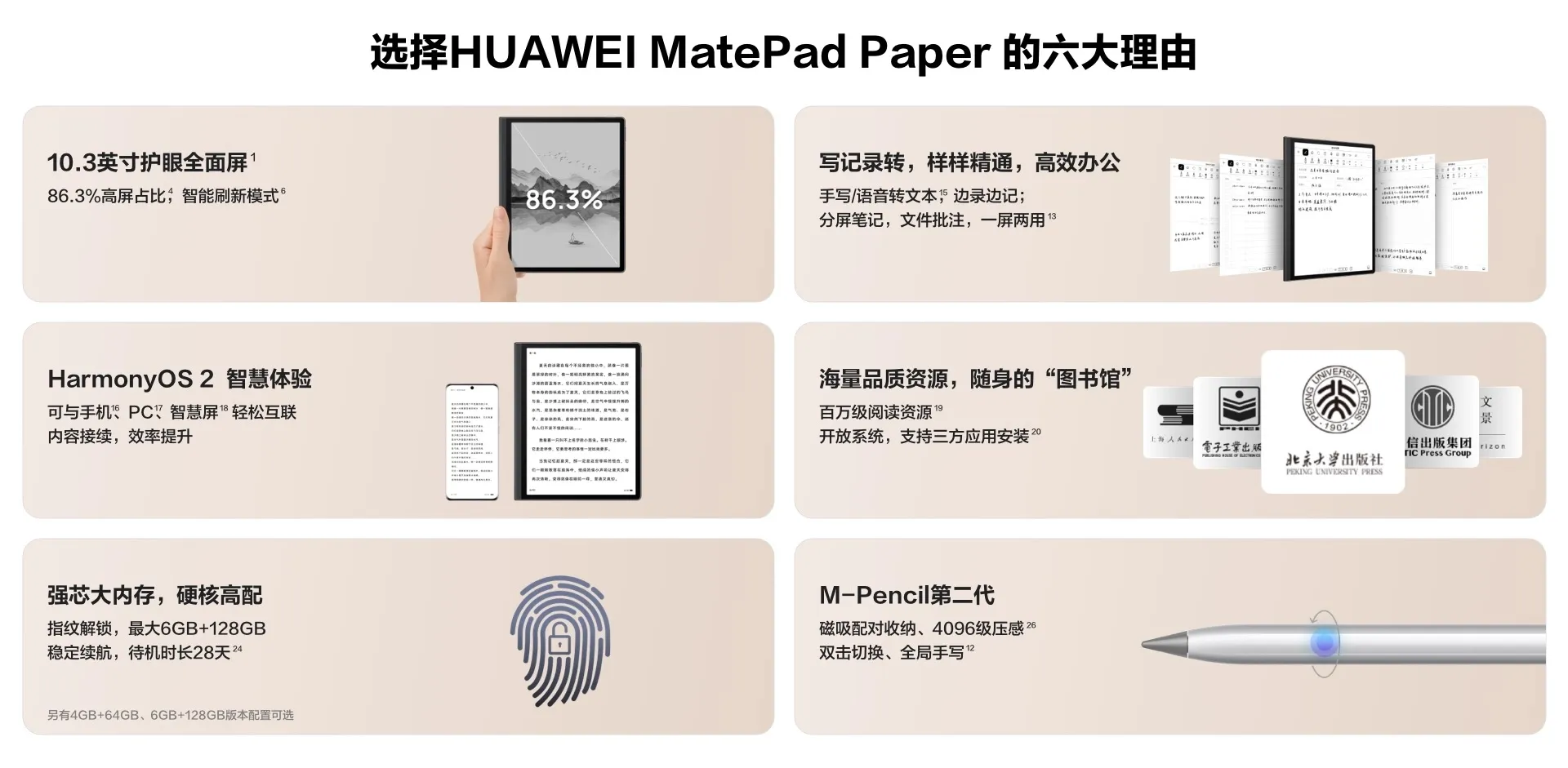
Figure 3: Key Features of HUAWEI MatePad Paper
-
3.3 Connectivity
- Wi-Fi: Connect to wireless networks via Settings > Wi-Fi. Supports 2.4GHz and 5GHz bands.
- Bluetooth: Pair with Bluetooth devices (e.g., headphones, keyboards) via Settings > Bluetooth. Supports Bluetooth 5.2.
- USB Type-C: Use the USB-C port for charging, data transfer, and connecting external accessories like flash drives (with a compatible adapter).
-
3.4 Audio
The device features Histen 7.0 sound technology for an enhanced audio experience. Adjust volume using the dedicated volume keys on the side of the tablet.
-
3.5 Storage and Memory
The MatePad Paper comes with either 4GB or 6GB of RAM and 64GB or 128GB of internal storage (ROM). Manage your files and applications to optimize performance. You can expand storage via the USB Type-C port with external storage devices.
-
3.6 Applications
The tablet supports a rich ecosystem of third-party applications. Please note that Google Play services are not supported on this device.
4. Maintenance
-
4.1 Cleaning the Screen
Use a soft, lint-free cloth slightly dampened with water or a screen cleaner specifically designed for electronic displays. Avoid harsh chemicals or abrasive materials that could damage the E-Ink screen.
-
4.2 Battery Care
To prolong battery life (3625mAh capacity), avoid exposing the device to extreme temperatures. For optimal performance, try to keep the battery charge between 20% and 80% when possible. Use the original or certified charging accessories.
-
4.3 Software Updates
Regularly check for and install system updates for HarmonyOS 2 to ensure your device has the latest features, security patches, and performance improvements. Go to Settings > System & updates > Software update.
-
4.4 Storage Management
Periodically review and delete unnecessary files, apps, or media to free up storage space and maintain optimal device performance. You can find storage usage details in Settings > Storage.
5. Troubleshooting
-
5.1 Device Not Turning On
Ensure the device has sufficient battery charge. Connect it to the charger for at least 15-30 minutes, then try pressing and holding the power key again. If the issue persists, contact support.
-
5.2 Wi-Fi Connection Issues
If you cannot connect to Wi-Fi, try restarting your MatePad Paper and your Wi-Fi router. Verify that you are entering the correct Wi-Fi password. Ensure the device is within range of the Wi-Fi signal.
-
5.3 M-Pencil Not Responding
Check if the M-Pencil is charged by attaching it to the tablet. If it's charged but still not responding, try re-pairing it by reattaching it or checking Bluetooth settings.
-
5.4 Slow Performance
If the tablet is running slowly, try closing unused applications running in the background. Clear the cache of frequently used apps. Check your available storage space; low storage can affect performance.
-
5.5 External Storage (Flash Drive)
The MatePad Paper supports flash drives via its USB Type-C port. You will need a compatible USB-C to USB-A adapter if your flash drive uses a standard USB-A connector. Ensure the flash drive is formatted in a compatible file system (e.g., FAT32, exFAT).
6. Specifications
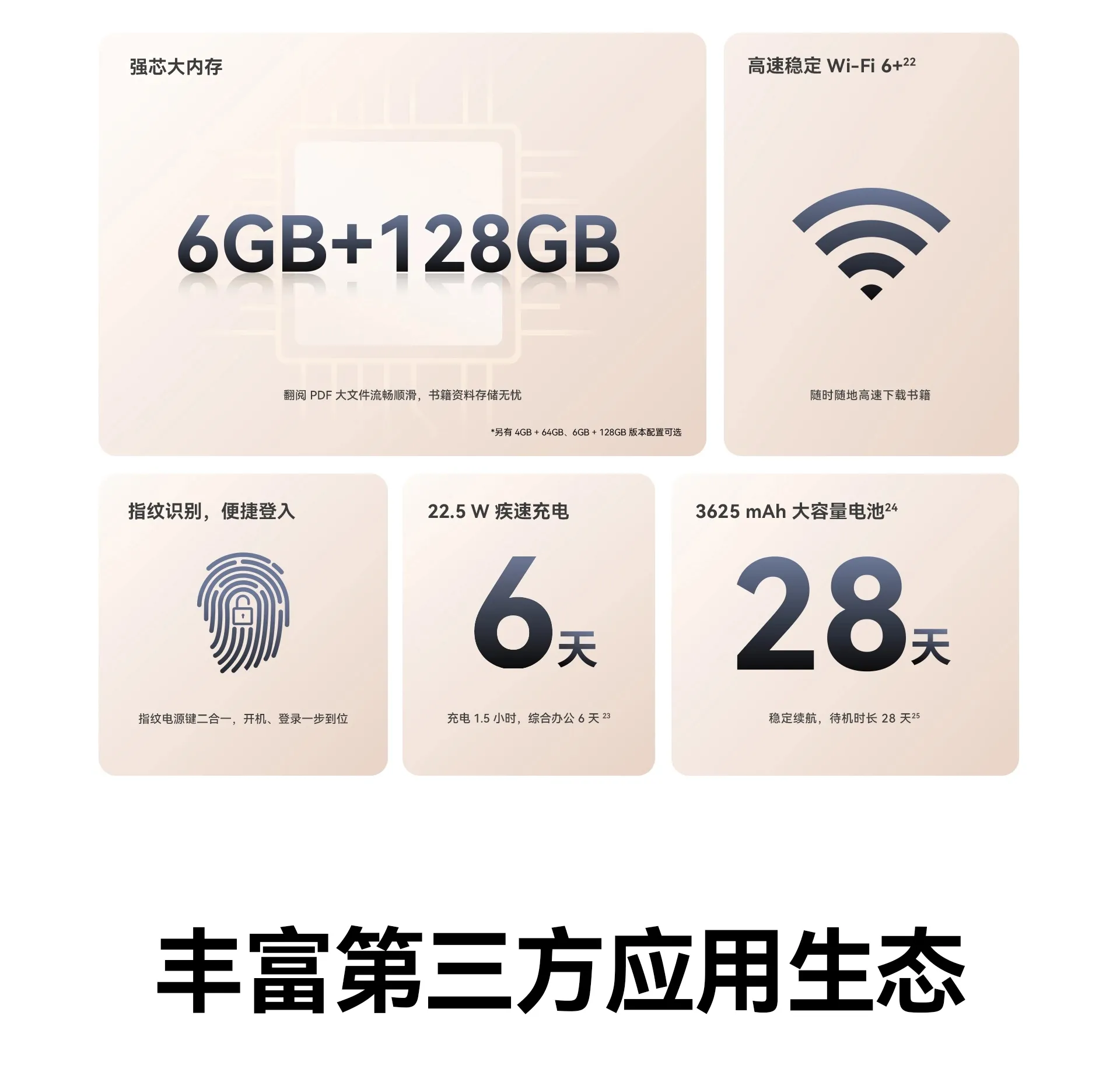
Figure 4: Key Specifications Overview
| Feature | Detail |
|---|---|
| Brand | HUAWEI |
| Model | HMW-W09 |
| Operating System | HarmonyOS 2 |
| Processor Core | Hexa Core |
| Display Size | 10.3 inches |
| Screen Type | Ink Screen |
| Resolution | 1872×1404 |
| PPI | 227 |
| Screen Ratio | 4:3 (display), 86.3% (screen-to-body) |
| RAM | 4GB / 6GB |
| ROM | 64GB / 128GB |
| Sensors | Hall sensor, Fingerprint sensor, Gravity sensor |
| Bluetooth | Bluetooth 5.2 |
| WLAN | IEEE 802.11 a/b/g/n/ac/ax, 2.4GHz/5GHz |
| Sound | Histen 7.0 sound |
| Battery Capacity | 3625mAh (typical) |
| Keys | Fingerprint power key, Volume up key, Volume down key |
| Data Interface | USB Type-C |
| Body Dimensions | 225.2mm × 182.7mm × 6.65mm |
| Body Weight | Approximately 360g (including battery) |
| Camera | Second Webcam (Other), Front Webcam (Other) |
| Google Play Support | No |
| Supporting Languages | English, Russian, Spanish, Swedish, Portuguese, Turkish, Italian, German, Chinese, French, Japanese, Polish, Ukrainian, Greek, Hebrew |
| Origin | Mainland China |
7. User Tips
-
Efficient Note-taking: Leverage the M-Pencil's pressure sensitivity and double-tap function for quick and precise note-taking. Experiment with different brush types and colors in the note-taking app.
-
Multitasking with Split-Screen: Use the split-screen feature to view documents while taking notes or browsing the web, enhancing your productivity.
-
External Storage: If you need more storage than the built-in 64GB/128GB, utilize the USB Type-C port with a compatible adapter to connect flash drives for easy file transfer and access.
-
Regular Updates: Keep your HarmonyOS 2 updated to benefit from the latest features, security enhancements, and performance optimizations.
8. Warranty & Support
For warranty information, please refer to the specific terms and conditions provided at the time of purchase or contact your seller directly. HUAWEI offers customer support for technical assistance and service inquiries.
This product is eligible for free returns within 90 days of purchase, subject to the seller's return policy.
For further assistance, please visit the official HUAWEI support website or contact their customer service.