
1. Product Overview
The MINIEYE C1 is an advanced AI-powered collision avoidance device and smart dash camera designed to enhance driving safety. It integrates a high-resolution camera with an Advanced Driver Assistance System (ADAS) to provide real-time warnings and recording capabilities.

Figure 1: MINIEYE C1 Smart DashCam and Monitor
Key Features:
- High-Resolution Recording: Up to 1944P UHD image quality with Sony Starlight Night Vision Camera and HDR Image Algorithm.
- Advanced Driver Assistance System (ADAS): Includes Lane Departure Warning (LDW), Pedestrian Collision Warning (PCW), Forward Collision Warning (FCW), Urban Forward Collision Warning (UFCW), Headway Monitoring Warning (HMW), and Forward Vehicle Start Alert (FVSA).
- Ambarella 10nm Automotive-Grade Chip: Ensures strong performance and efficient processing.
- Mobile App Control: Connect via built-in Wi-Fi for real-time footage, video playback, settings adjustment, and OTA updates.
- Loop Recording & G-Sensor: Automatic overwriting of old footage and collision detection for emergency locking.
2. Package Contents
Please check the package to ensure all items are present and in good condition:
- Packing Box x1
- Anti-Collision Device (Main Unit) x1
- Monitor x1
- Host Base x1
- User Manual x1
- GPS Module x1
- Car Charger x1
- Power Cable x1
- Monitor Cable x1
- 32G TF card x1

Figure 2: Included Components
3. Setup and Installation
Follow these steps for proper installation of your MINIEYE C1 Smart DashCam:
- Mount the Main Unit: Secure the Anti-Collision Device (main unit) and the monitor to your windshield using the provided host base. Ensure the host base is completely combined with the main unit and centered, unable to slide further.
- Connect Cables: Connect the monitor to the main unit using the monitor cable. Connect the power cable to the main unit and then to the car charger.
- Install GPS Module: Place the GPS module face up, at least 20 cm (7.87 inches) away from the monitor, to ensure accurate warning functions.
- Insert TF Card: Insert the provided 32GB Class 10 high-speed TF card into the main unit. The device supports up to 128GB memory cards.
- Power On: Plug the car charger into your vehicle's power outlet. The car charger indicator should show a blue light. The monitor will automatically turn on once power is supplied. The main unit indicator should also show a blue light.

Figure 3: Installation Diagram and Confirmation Steps
For a visual guide, please refer to the official installation video:
Video 1: MINIEYE Product Overview and Features
4. Operating Instructions
4.1 ADAS Functions
The MINIEYE C1 provides real-time voice alerts for various driving conditions:
- Lane Departure Warning (LDW): Alerts if the vehicle drifts out of its lane without signaling.
- Pedestrian Collision Warning (PCW): Warns of potential collisions with pedestrians.
- Forward Collision Warning (FCW): Alerts of potential front-end collisions with other vehicles.
- Urban Forward Collision Warning (UFCW): Optimized collision warning for urban driving environments.
- Headway Monitoring Warning (HMW): Helps maintain a safe distance from the vehicle ahead.
- Forward Vehicle Start Alert (FVSA): Notifies you when the vehicle in front starts moving after a stop.

Figure 4: Advanced Driver Assistance System (ADAS) Features
4.2 Recording Modes
- Continuous Recording: The dash cam continuously records footage while powered on.
- Loop Recording: When the memory card reaches its capacity, the oldest unlocked recordings are automatically overwritten to make space for new footage.
- G-Sensor (Emergency Recording): In the event of a sudden collision or impact, the built-in G-sensor detects the event and automatically locks the current video segment to prevent it from being overwritten.
- Night Vision: Equipped with a Sony Starlight Night Vision Camera and HDR Image Algorithm for clear recordings in low-light conditions.

Figure 5: Driving Record Quality (Daytime and Nighttime)
4.3 Display Modes
The monitor can display either a 3D road condition view or real-time footage:
- 3D Road Condition: Provides a dynamic, three-dimensional representation of the road and surrounding traffic.
- Real-time Footage: Shows the live camera feed.
To switch between 3D road condition and real-time footage, double-click the button on the top of the display. The real-time footage display also shows current recording status, mobile phone connection, memory card status, and GPS signal status.

Figure 6: 3D Dynamic Traffic Presentation
4.4 Mobile App Control
The MINIEYE app (available for Android 5.0+ and iOS 10+) connects to the dash cam via built-in Wi-Fi, allowing you to:
- View real-time footage.
- Watch and download recorded videos to your phone.
- Change settings (video resolution, volume, collision functions).
- Receive OTA (Over-The-Air) updates for software and bug fixes.
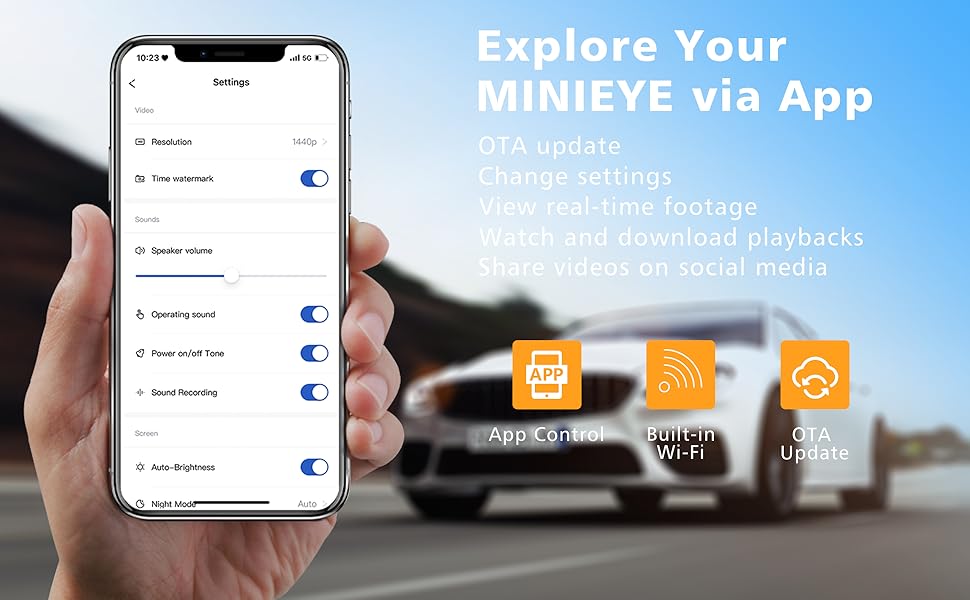
Figure 7: Explore Your MINIEYE via App
5. Maintenance
5.1 Memory Card Management
- The included 32GB TF card is pre-formatted for use.
- For optimal performance, it is recommended to format the memory card periodically (e.g., once a month) using the device settings or the mobile app.
- Replace the memory card if you experience frequent errors or degraded performance. Use only Class 10 high-speed memory cards up to 128GB.
5.2 Cleaning
- Gently wipe the camera lens and monitor screen with a soft, lint-free cloth.
- Do not use abrasive cleaners or solvents, as they may damage the device.
- Ensure the windshield area where the camera is mounted is clean and free from obstructions for optimal ADAS performance.
6. Troubleshooting
Common Issues and Solutions:
- Device not powering on:
- Ensure the car charger is properly plugged into the vehicle's power outlet and the car charger indicator is blue.
- Check if the power cable is securely connected to the main unit.
- MINIEYE fails to recognize vehicles, lanes, or proximity:
- Verify that the host base is completely combined with the main unit and centered.
- Ensure the GPS module is placed face up and at least 20 cm (7.87 inches) away from the monitor.
- Confirm the camera lens is clean and unobstructed.
- Failed to download or connect to the MINIEYE App:
- Check if your mobile device's operating system is Android 5.0 or above, or iOS 10 or above. Update your phone's system if necessary.
- Ensure Wi-Fi is enabled on your phone and connected to the MINIEYE device's Wi-Fi network.
- Memory card errors or recording issues:
- Format the memory card through the device settings or app.
- Ensure you are using a Class 10 high-speed memory card.
- If issues persist, try a different compatible memory card.
7. Specifications
| Feature | Detail |
|---|---|
| Model | C1 |
| Video Resolution | 1944P, 1600P, 1440P, 1080P UHD |
| Wide Angle | 140° |
| Night Vision | Sony Starlight Night Vision Camera + HDR Image Algorithm |
| Processor | Ambarella 10nm Automotive-Grade AI Chip |
| OSD Language | English, Chinese (Simplified) |
| Detection Mode | Radar Signal And GPS Information Detection |
| Special Features | Multiple Warning Reminder |
| Alarm Distance | 100m |
| Type | Fixed & Flow Velocity |
| Certifications | CE, FCC |
| App Compatibility | Android 5.0+, iOS 10+ |
| Memory Card Support | Class 10 high-speed, up to 128GB (32GB TF card included) |
| Package Dimensions (L x W x H) | 20cm x 15cm x 10cm |
| Package Weight | 1.5 kg |
8. User Tips
- Use Original Accessories: To avoid compatibility issues and ensure optimal performance, always use the original accessories provided in the package.
- Proper GPS Module Placement: For accurate warning of dangerous road conditions, ensure the GPS module is placed face up and at least 20 cm (7.87 inches) away from the monitor.
- Secure Main Unit: Double-check that the host base is completely combined with the device's main unit and securely in place during installation.
- App Compatibility: Before downloading the MINIEYE app, confirm your phone's operating system is Android 5.0 or above, or iOS 10 or above.
- Regular Formatting: Periodically format your memory card to maintain optimal recording performance and prevent data corruption.
9. Warranty and Support
For any questions, technical support, or warranty inquiries regarding your MINIEYE C1 Smart DashCam, please contact the seller or manufacturer's customer service. Ensure you have your product model and purchase details ready for faster assistance.