
Introduction
This manual provides detailed instructions for the QANBA Q5 Dragon Arcade Stick, a premium joystick designed for fighting games. It is compatible with PlayStation 3, PlayStation 4, and PC. Please read this manual thoroughly before using the product to ensure proper operation and longevity.
Video: Overview of the QANBA Q5 Dragon Arcade Stick features and design.
Features
The QANBA Q5 Dragon Arcade Stick is equipped with high-quality components and thoughtful design elements:
- Opening latches
- Sanwa joystick
- Sanwa buttons
- USB cord cable management
- LED lighting
- Mini buttons
- 3.5mm headphone jack
- PS button
- Turbo LED indicator
- TURBO button
- L3 button
- LED lighting indicator
- SHARE button (SELECT on PlayStation®3)
- LED button
- R3 button
- OPTIONS button (START on PlayStation®3)
- PlayStation®4/PlayStation®3/PC switch
- MODE switch DP/LS/RS
- Touch pad (PlayStation®4 only)

Image: Top view of the QANBA Q5 Dragon Arcade Stick, showing the joystick and buttons.
Setup
- Power On System: Turn on your PlayStation® system (PS3 or PS4) or PC.
- Select Platform: Use the toggle switch (labeled 17 in the features diagram) to select the appropriate PlayStation®4, PlayStation®3, or PC setting.
- Connect Joystick: Plug the USB cable of the arcade stick into an available USB port on your PlayStation® system or PC.
- Initialize Joystick (PlayStation): For PlayStation systems, press the PS button (labeled 8) to initialize the joystick.
- Change Player Assignment (Optional): If you need to change the player assignment number on PlayStation, press and hold the PS button (labeled 8).

Image: Detail of the control panel, showing the platform selection switch (PS4, PS3, PC) and other mini buttons.
Operating Instructions
Mode Switch (DP/LS/RS)
The Sanwa joystick can operate in three distinct control modes:
- Directional Pad (DP): Functions as the D-pad.
- Left Analog Stick (LS): Functions as the left analog stick.
- Right Analog Stick (RS): Functions as the right analog stick.
To switch between these modes, slide the MODE switch (labeled 18 in the features diagram).
Turbo Button
Each of the eight Sanwa buttons can be set to one of three turbo modes:
- Turbo Off: (Default) The button functions normally. The associated LED is off.
- Push for Turbo: The button provides rapid fire when pressed and held. The associated LED flashes red when the button is pressed.
- Auto Turbo: The button provides continuous rapid fire without needing to be held. The associated LED flashes continuously.
To cycle through these turbo modes for a specific button, simultaneously press the TURBO button (labeled 10) and the desired Sanwa button, then release both.
LED Button (Mood Lighting)
The LED mood lighting (labeled 5) offers four unique glow modes:
- Push/Move to Glow: (Default) LEDs illuminate when buttons are pressed or the joystick is moved.
- Vibration Triggers Glow: LEDs illuminate in response to in-game vibrations. Ensure vibration is enabled in both the game and controller settings.
- Constant Glow: LEDs remain constantly illuminated.
- LEDs Off: All LED lighting is turned off.
Press the LED button (labeled 14) to cycle through these four glow modes.
Note: If the joystick is left idle for 5 minutes, a special LED lighting sequence will begin in the mini buttons.
Maintenance
- Cleaning: Do not clean the joystick with alcohol or other fluids. Use a dry, soft cloth to wipe down the surface.
- Storage: Keep the joystick in a cool, dry place, away from liquids, smoke, and harsh chemicals. Avoid prolonged exposure to hot climates, such as leaving it in a car trunk during summer.
- Handling: Do not stack other items on top of the joystick to prevent damage.
- Internal Access: To access the internal components for maintenance or modification, press and hold both opening latches (labeled 1) and lift the top panel upwards.
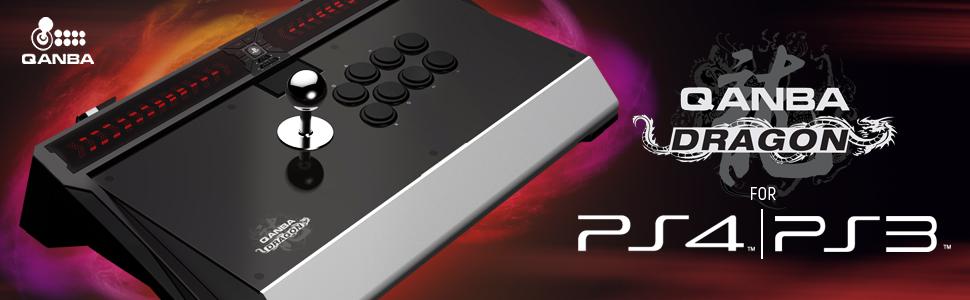
Image: The QANBA Q5 Dragon Arcade Stick with its top panel open, revealing the internal joystick and button wiring for maintenance or customization.
Troubleshooting
If you encounter issues with your QANBA Q5 Dragon Arcade Stick, consider the following:
- Joystick Not Responding:
- Ensure the USB cable is securely plugged into both the arcade stick and your system.
- Verify the platform toggle switch (PS4/PS3/PC) is set correctly for your system.
- On PlayStation, press the PS button to ensure the joystick is initialized.
- Try connecting to a different USB port.
- Restart your gaming system or PC.
- Buttons Not Responding:
- Check if the buttons are stuck or obstructed.
- If using turbo mode, ensure it's configured as desired.
- LED Lighting Issues:
- Press the LED button to cycle through the different lighting modes.
- If using "Vibration Triggers Glow," ensure vibration is enabled in your game and system settings.
- Audio Issues (Headphone Jack):
- Ensure headphones are fully plugged into the 3.5mm jack.
- Check your system's audio settings to ensure output is directed to the headset.
For further assistance, please contact customer support.
Specifications
| Attribute | Detail |
|---|---|
| Product Name | Qanba Dragon Arcade Joystick |
| Model | Q5-PS4-01 |
| Buttons | 8x Sanwa Buttons |
| Joystick | Sanwa Joystick |
| Dimensions | 500mm x 310mm x 137mm (19.6in x 12.2in x 5.4in) |
| Weight | 5.5 kg (12.1 pounds) |
| Wired USB Cable Length | 2.7m (8.8ft) |
| Product Color | Black and Silver |
| Interface Type | USB |
| Compatible Brand/Model | Sony (PS5, PS4, PS3), PC |
| Certification | CE |
| Origin | Mainland China |
User Tips
- The QANBA Dragon is an officially licensed Sony product, ensuring maximum compatibility with PlayStation systems.
- The uniquely engineered top panel allows for quick and effortless swapping of components, making customization easy.
- The built-in component casing keeps the stick's interior tidy and protects installed parts.
- The arcade stick features anti-slip padding for stability during intense gameplay.
Warranty & Support
Qanba USA, LLC offers a warranty for repair or replacement of the product at its discretion for 12 months from the purchase date.
For customer service inquiries, please contact:
Qanba USA, LLC
7411 Central Avenue
Newark, CA 94560
United States
Customer Service Telephone Number: +86 755 29171459
For more information, visit: www.qanbausa.com
Please note that joystick design and specifications are subject to change without notice.
This product is not suitable for children under 12 years of age.
Compliance Information
This product complies with the following compliance and safety testing standards:
- USB: 2.0 Compliant
- FCC: This device complies with part 15 of the FCC Rules. Operation is subject to the following two conditions:
- This device may not cause harmful interference.
- This device must accept any interference received, including interference that may cause undesired operation.
- CE: The product holds CE certification.
Additional Resources
A user manual in PDF format is available for download. This document contains detailed guides and information:


