1. Introduction
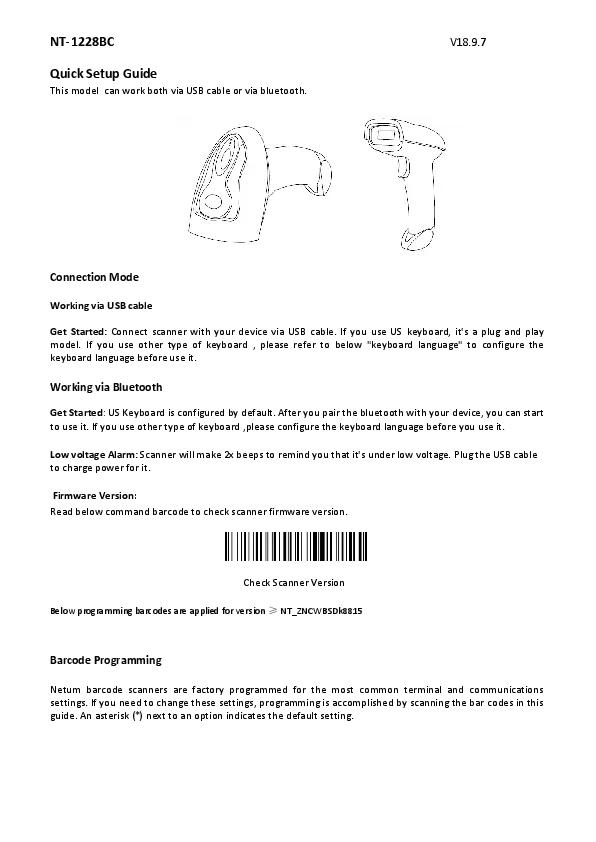
The NETUM NT-1228BC is a versatile handheld CCD barcode scanner designed for efficient data capture in various environments, including POS systems and inventory management. It offers both wireless Bluetooth and wired USB connectivity, allowing for flexible operation with a wide range of devices.

Figure 1: NETUM NT-1228BC Barcode Scanner with Bluetooth and USB wired connection options.
Package Contents
- NETUM NT-1228BC Barcode Scanner
- USB Charging/Data Cable
- Bluetooth Receiver (if applicable to specific variant)
- Quick Start Guide
- Certificate

Figure 2: Package contents of the barcode scanner.
2. Setup
2.1 Wired Connection (USB)
- Connect the USB cable to the scanner's port.
- Plug the other end of the USB cable into an available USB port on your computer.
- The scanner is plug-and-play and typically requires no additional driver installation. It will function as a keyboard input device.
- The scanner will emit a beep indicating it is ready for use.

Figure 3: Connecting the scanner via USB to a laptop.
2.2 Wireless Connection (Bluetooth)
The NT-1228BC supports Bluetooth connectivity for wireless operation with compatible devices.
- Power On: Ensure the scanner is charged and powered on.
- Enter Pairing Mode: Press and hold the scan button for approximately 5-10 seconds until the scanner emits a specific tone or its indicator light flashes rapidly, indicating it is in pairing mode.
- Enable Bluetooth on Host Device: On your computer, smartphone, or tablet (e.g., Mac OS X, Android, Windows 10, iOS 9/11), enable Bluetooth.
- Search for Devices: Search for available Bluetooth devices. The scanner should appear as 'NETUM Barcode Scanner' or a similar name.
- Pair: Select the scanner from the list to initiate pairing. Once successfully paired, the scanner will emit a confirmation tone, and the indicator light will change (e.g., solid blue).
- Test Connection: Open a text editor or spreadsheet application and scan a barcode to verify the connection.

Figure 4: Bluetooth connectivity with various devices.
3. Operating Instructions
3.1 Basic Scanning
- Point the scanner's window at the barcode you wish to scan.
- Press the trigger button. A red light will illuminate, indicating the scanner is active.
- Once the barcode is successfully read, the scanner will emit a beep, and the data will be transmitted to your connected device.

Figure 5: Scanning a physical barcode.
3.2 Scanning from Screens
The NT-1228BC's CCD sensor engine is capable of reading 1D barcodes directly from computer screens and mobile phone displays, making it suitable for mobile payment applications.

Figure 6: Scanning a barcode from a digital screen.
3.3 Working Modes
- Instant Upload Mode: Barcode data is transmitted immediately to the connected device upon scanning.
- Storage Mode: The scanner can store up to 256 KB of data (more than 2600 codes) internally when out of wireless range. Data can be uploaded to the host device later when a connection is re-established.
3.4 Advanced Settings (via Configuration Barcodes)
The scanner's behavior can be customized by scanning specific configuration barcodes found in the full user manual (not provided here). Common customizable features include:
- Adding prefixes/suffixes to scanned data.
- Deleting characters from scanned data.
- Adding keyboard keys (e.g., TAB, CR&LF for carriage return/line feed) to the scanning operation.
- Enabling or disabling specific barcode types.
- Turning the buzzer sound on/off.
4. Maintenance
4.1 Battery Management
- The scanner features a built-in 2000mAh Li-Ion battery.
- A full charge provides up to 30 hours of continuous scanning.
- Recharging takes approximately 2 hours using the provided USB cable.
- Charge the scanner when the battery indicator is low or performance degrades.
4.2 Cleaning
- Use a soft, dry, lint-free cloth to clean the scanner's exterior.
- For the scanning window, use a soft cloth lightly dampened with water or a mild, non-abrasive cleaner.
- Avoid using harsh chemicals, solvents, or abrasive materials, as these can damage the device.
5. Troubleshooting
- Scanner not connecting via Bluetooth: Ensure the scanner is in pairing mode (indicator light flashing rapidly). Check that Bluetooth is enabled on your host device and try re-pairing. If issues persist, try restarting both the scanner and the host device.
- No data transmitted after scanning: Verify the scanner is successfully connected (wired or wireless). Ensure the cursor is active in the target application (e.g., text editor, spreadsheet).
- Scanner not reading barcodes: Ensure the barcode is clean and undamaged. Adjust the distance and angle of the scanner to the barcode. Check if the barcode type is enabled in the scanner's settings (refer to the full manual for configuration barcodes).
- Slow scanning or intermittent connection: Ensure the scanner is fully charged. For wireless connections, reduce the distance between the scanner and the host device or clear any obstructions.
6. Specifications
| Feature | Specification |
|---|---|
| Model Number | NT-1228BC |
| Product Type | Bar Code Scanner |
| Scanning Light Source | CCD Sensor Engine |
| Scan Element Type | Barcode Scanner |
| Optical Resolution | 300*300 |
| Scan Speed | 100 scans/second |
| Colour Depth | 32 Bit |
| Interface Type | USB, Bluetooth |
| Signal Connection Type | Bluetooth |
| Precision | 4mil |
| Depth of Scan Field | 10-500 mm |
| Driver | Plug and play, no driver |
| Certification | CE, FCC, RoHS |
| Battery | 2000mAh Li-Ion |
| Operating Time | Up to 30 hours (continuous scanning) |
| Recharge Time | Approx. 2 hours |
| Memory | 256 KB (stores >2600 codes in offline mode) |
| Compatible Systems | Windows (XP/7/8/10), Mac OS X, Android (4.0+), iOS (9/11+), Mobile6/Wince, Linux |
| Supported Symbologies (1D) | UPC A / UPC E, EAN 8 / EAN 13, Code 128, Code 39, Code 93, Code 32, Code11, Codabar, Plessey, MSI, Interleaved 2 of 5, IATA 2 of 5, Matrix 2 of 5, Straight 2 of 5, Pharmacode, RSS-14, RSS-14 Expanded, RSS-14 Limited, Composite Code -A, Composite Code -B, Composite Code |
7. User Tips
No specific user tips are available from provided reviews or Q&A content.
8. Warranty and Support
For warranty information and technical support, please refer to the documentation included with your product or contact the manufacturer directly. Keep your proof of purchase for warranty claims.