
1. Introduction
This manual provides detailed instructions for the installation, operation, and maintenance of your Srnubi Universal 2-Din Android Car Multimedia Player. Please read this manual thoroughly before using the product to ensure proper functionality and safety. This device integrates advanced features such as Android 12, Carplay, Android Auto, GPS navigation, and multimedia playback to enhance your driving experience.
2. Safety Information
Always prioritize safety while operating your vehicle. Do not attempt to operate the device in a way that distracts you from driving. Ensure all wiring is correctly installed to prevent electrical hazards. Consult a professional for installation if you are unsure about any steps. Keep the device away from water and extreme temperatures.
3. Package Contents
Verify that all items are present in your package:
- Main Unit (Car Multimedia Player)
- GPS Antenna
- Power Cable
- RCA Cable
- USB Cable * 2
- Video Input Cable
- Installation Tool
- Instruction Manual (QR code card for digital version)
Note: For 4G versions (T10 models), an additional 4G SIM cable and 4G module are included.

4. Product Overview and Features
The Srnubi Universal 2-Din Android Car Multimedia Player offers a range of features for an enhanced in-car experience:
- Operating System: Android 12 (or Android 10.0 for K3 models)
- Processor: 8-core CPU (T10: 2*A75+6*A55, 1.8GHz) or 4-core CPU (T3L, K3)
- Memory (RAM/ROM): Various configurations available (e.g., 1G+16G, 2G+32G, 4G+64G, 8G+128G, 8G+256G)
- Display: 7, 9, or 10.1-inch IPS/QLED/TN screen with resolutions up to 1280*720P
- Connectivity: Built-in WiFi, 4G Network support (for T10/S18 models), Bluetooth 5.0
- Navigation: Built-in GPS with support for online and offline maps (IGO pre-installed)
- Multimedia: FM/AM Radio, MP3/MP4/WMA/JPEG support, DSP with 48EQ (T10/S18) or 32EQ (T3L Max) or 12/4 EQ (T3L)
- Smart Features: Wireless Carplay/Android Auto, Voice Control (optional), Split Screen, Floating Screen, Steering Wheel Control, ADAS DVR, AHD Camera, USB TPMS, OBD2 support
- Cooling: Free cooling fan included with most models (except K3) for improved heat dissipation.


5. Specifications
| Attribute | Value |
|---|---|
| Brand Name | srnubi |
| Category | Car multimedia player |
| Operating System | Android 12 |
| RAM | 8G/6G/4G/2G/1G |
| ROM | 128G (Max External Memory 256G) |
| Display Size | 9", 10.1" |
| Resolution | 1024*600/1280*720P |
| Processor Type | T10:Octa-UIS7862 (8 core 2*A75+6*A55) |
| Processor Speed | T10: 1.8GHZ |
| Chipset | T10: 8 core 2*A75+6*A55 |
| Out Power | 4 x 45W |
| Voltage | 12 V |
| Item Weight | 1.3kg |
| Item Size | 178mm*102mm*50mm |
| Material Type | Aluminum alloy + ABS + 2.5D capacitive touch screen |
| Tuner Type | T10: FM/AM |
| Preset Station | FM 87.50 |
| Digital Media Format | Mp3, MP4, WMA, JPEG |
| OSD Language | Chinese (Simplified), Chinese (Traditional), Arabic, Belarusian, Polish, German, Russian, French, Finnish, Korean, Dutch, Czech, Romanian, Malay, Macedonian, Norwegian, Portuguese, Japanese, Swedish, Turkish, Ukrainian, Hebrew, Spanish, Hungarian, Italian, English, Vietnamese |
| Special Features | Built-In Speaker/Microphone, WiFi function, Support steering wheel control, Support 3G Network, Support 4G Network, Built-in GPS, Charger, Mobile Phone, MP3 players, Voice control, DSP, CarPlay, Android Auto, Reversing Input, Split Screen |
| Built-in DVD Player | No |
| Built-in CD player | No |
| Is touch screen | Yes |
| Built-in Screen | Yes |
| TF/Micro SD Slot | 1 |
| Din | Double Din |
| Interface | USB |
| Origin | Mainland China |
| For Vehicle Brands/Model | Universal |
| Accessory Type | Frame / Power Cable / GPS / RCA Cable |
| Certification | CE |
| Warranty | 365 days |

6. Installation
The Srnubi multimedia player is designed for universal 2-Din installation. Depending on your vehicle, you may need a specific frame for a perfect fit. The product does not include the frame by default.
6.1. Dimensions
Before installation, verify the dimensions of the head unit to ensure compatibility with your car's dashboard opening.
- 7-inch model: 178mm (width) x 102mm (height)
- 9-inch model: 230mm (width) x 130mm (height)
- General-purpose 9"/10.1" screen: Main unit dimensions 178mm (width) x 125mm (depth) x 70mm (height), with mounting brackets extending 25mm on each side and 75mm depth.


6.2. Wiring Diagram
Refer to the following diagram for connecting the various cables and accessories to your multimedia player. Ensure all connections are secure before powering on the device.


Important: The power cable must be connected correctly. ACC (G3) and 12V (G2) should connect to the positive side of the car's 12V power supply, and G1 to the negative pole. Use the provided power cables; do not insert the original car plug directly into the unit.
6.3. Cooling Fan Installation
Most models (except K3) include a cooling fan to prevent overheating during prolonged use, especially in hot climates. Install the cooling fan as shown in the diagram to ensure proper heat dissipation for the CPU.

6.4. SIM Card Installation (for 4G versions)
For models supporting 4G connectivity (T10/S18), an external SIM card slot is provided. Insert your 4G SIM card into the designated slot as shown.

7. Operating Instructions
Your Srnubi multimedia player features an intuitive Android interface. The following sections detail its main functions.
7.1. Basic UI Navigation
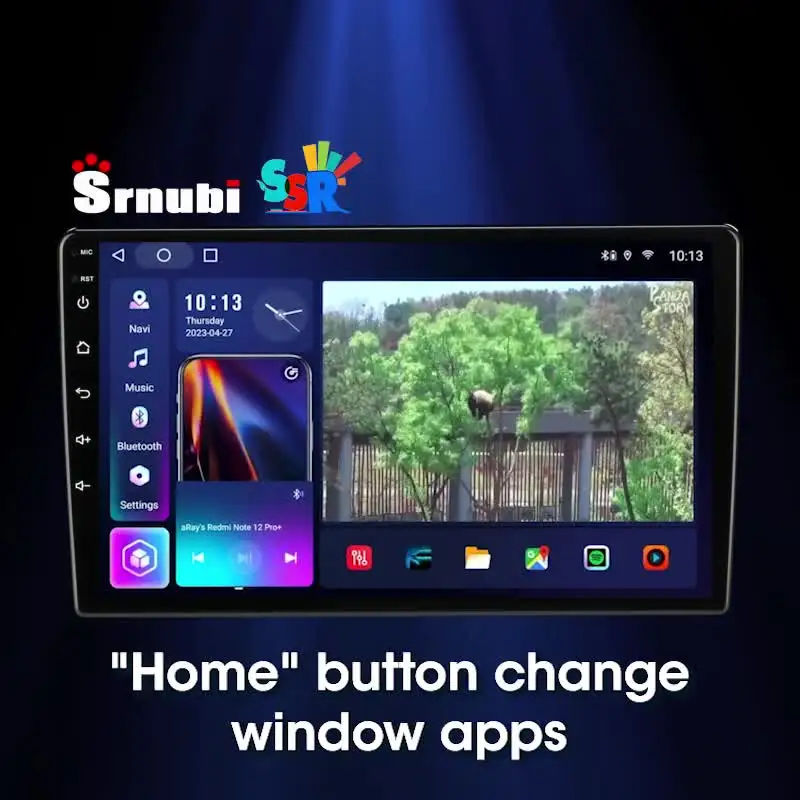
The system supports day and night mode switching, which can be automatic or manual. The 'Home' button allows you to change between different window applications, and you can customize multimedia widget shortcuts for quick access.
7.2. CarPlay / Android Auto
The T10 models support wireless CarPlay and Android Auto, mirroring your phone's screen to the radio for convenient and intelligent driving. Connect your iOS or Android device via WiFi or USB cable.


7.3. Bluetooth 5.0
Utilize Bluetooth 5.0 for stable, long-distance data transmission. Features include hands-free calling, contact synchronization, call records, and Bluetooth music streaming.

7.4. FM Radio
The device includes an FM/AM tuner. You can scan and save your favorite radio stations. The interface displays frequency and band information.
7.5. GPS Navigation
The player supports various map applications, including IGO offline maps (pre-installed), Google Maps, Navitel, Waze, and more. Map files are updated regularly.

7.6. Multimedia Playback
Enjoy music and video playback from various sources. The device supports MP3, MP4, WMA, and JPEG formats. You can also use apps like YouTube and TikTok.
7.7. Split Screen & Floating Screen
Display two applications simultaneously, such as navigation and a video player, for a more convenient driving experience. The floating screen feature allows for flexible window management.

7.8. Steering Wheel Control
The unit supports original car steering wheel controls. For versions without CANBUS, manual key learning is required. For CANBUS versions, it can be used after checking and connecting the CANBUS.

7.9. Voice AI Control (Optional)
Voice AI control software supports offline calls, simplifying operations and improving driving safety. This feature may require a separate purchase.

7.10. DSP Sound Effects
T10 models feature a DSP+48EQ sound effect algorithm for comprehensive audio output, supporting 5.1 channels and advanced sound customization.

7.11. Adjustable Button Color
The T10 models offer personalized settings for RGB adjustable button colors, with 7 options to match your car's interior or personal preference.

8. Advanced Features
8.1. AHD Camera Support
Supports AHD cameras for high-definition reversing images. You can independently set whether to play music when reversing and adjust the volume.

8.2. ADAS DVR Support
ADAS DVR (Advanced Driver-Assistance Systems Digital Video Recorder) has built-in multiple assisted driving technologies. Insert a TF memory card to record video, capturing every moment on the road.

8.3. USB TPMS Support
Supports USB TPMS (Tire Pressure Monitoring System) for real-time feedback on your tire status. This feature is crucial for safety as many national automobile manufacturing standards require tire pressure alarm devices.

8.4. OBD2 Support
Supports OBD2 scanner car diagnostic tools to read error codes, clear error codes, display engine revolutions, coolant temperature, fuel system status, and more, helping you identify and address car faults.

9. Maintenance
To ensure the longevity and optimal performance of your Srnubi multimedia player, follow these maintenance guidelines:
- Cleaning: Use a soft, dry cloth to clean the screen and exterior. Avoid abrasive cleaners or solvents.
- Temperature: Do not expose the device to extreme temperatures. The cooling fan helps manage internal temperatures during operation.
- Software Updates: Regularly check for and install software updates to ensure the best performance and access to new features.
- Wiring: Periodically check all wiring connections to ensure they are secure and free from damage.
10. Troubleshooting
If you encounter issues with your multimedia player, refer to the following troubleshooting guide:
10.1. Common Issues and Solutions
- Device does not turn on:
- Check the car's voltage (should be 12V).
- Ensure red (ACC, G3) and yellow (12V, G2) wires are connected to the positive side of the 12V power supply, and the black wire (G1) to the negative.
- Verify the fuse.
- Confirm that the power cables provided with the unit are used.
- If the radio was shipped, check for loose internal connecting wires by opening the back cover.
- "No Signal" when reversing:
- Ensure the camera's video line is properly connected to the "CAMIN" port on the car radio.
- "Can't watch video while driving" message:
- Turn off the "Video Warning" function in the device settings.
- Cannot search FM radio stations:
- Ensure the radio antenna is properly inserted and making good contact.
- Check the signal strength in your location.
- Inspect the car's radio antenna for damage and replace if necessary.
- Cannot connect Bluetooth:
- In your phone's Bluetooth settings, search for the player's Bluetooth model. Common pairing codes are 0000, 1234, or 123456.
- Try pairing with a different mobile phone.
- Check if the Bluetooth receiving antenna is properly connected.
- If issues persist, unplug the player's power for 3 minutes and reconnect.
- Weak Bluetooth or WiFi signal:
- Check and reconnect the yellow rear camera input connector. There are two short cables that serve as extension cords for the Bluetooth and WiFi antennas; extend them if needed to enhance the signal.
- Navigation map not working:
- Check if the GPS has a signal (use GPS signal detection).
- Reinstall the map software or open a mobile WiFi hotspot.
- If no GPS signal, test the GPS interface voltage (should be 3.3V). Replace the GPS antenna if voltage is incorrect.
- Screen display abnormal:
- Try the one-key recovery button.
- If unresolved, check for loose screen cables by removing the back cover and reconnecting.
- Abnormal sound:
- Check if the original car cable has been modified. Inspect and reconnect speaker cables.
- Radio setting interface password:
- For T6 models: 111333, 1234, 1617, 16176699.
- For K3/T10/T3L/T3L Plus models: 123456, 8888, 7890, 000000.
- Programmer interface password: 7890 + current time (e.g., 789011 for 11 o'clock).
- Cannot log in to Google account:
- Ensure stable internet connection. Check Google account settings or try clearing cache for Google Play Services.
- Hard reset for overloaded memory:
- If the device is stuck on the Android splash screen due to overloaded memory, a hard reset might be necessary. Consult customer support for specific instructions as this may vary by model.
11. User Tips
- Split Screen Functionality: The device supports split-screen mode, allowing you to run navigation and radio or other applications simultaneously.
- Playback Memory: The system is designed to remember the last playback position for music or audiobooks, allowing you to continue from where you left off.
- Microphone Performance: Users generally report good microphone performance for hands-free calls.
- Adjustable Button Colors: If your model supports adjustable button colors (like T10), you can customize them in the settings menu. If buttons are stuck on white, check settings for color options.
12. Warranty and Support
Your Srnubi Universal 2-Din Android Car Multimedia Player comes with a 365-day warranty.
For technical support, warranty claims, or any questions not covered in this manual, please contact Srnubi customer service. You can find contact information on the official product page or through the seller.
Note: The product includes a QR code card in the package. Scan the QR code to obtain the instruction manual download link for the most up-to-date information.