Introduction
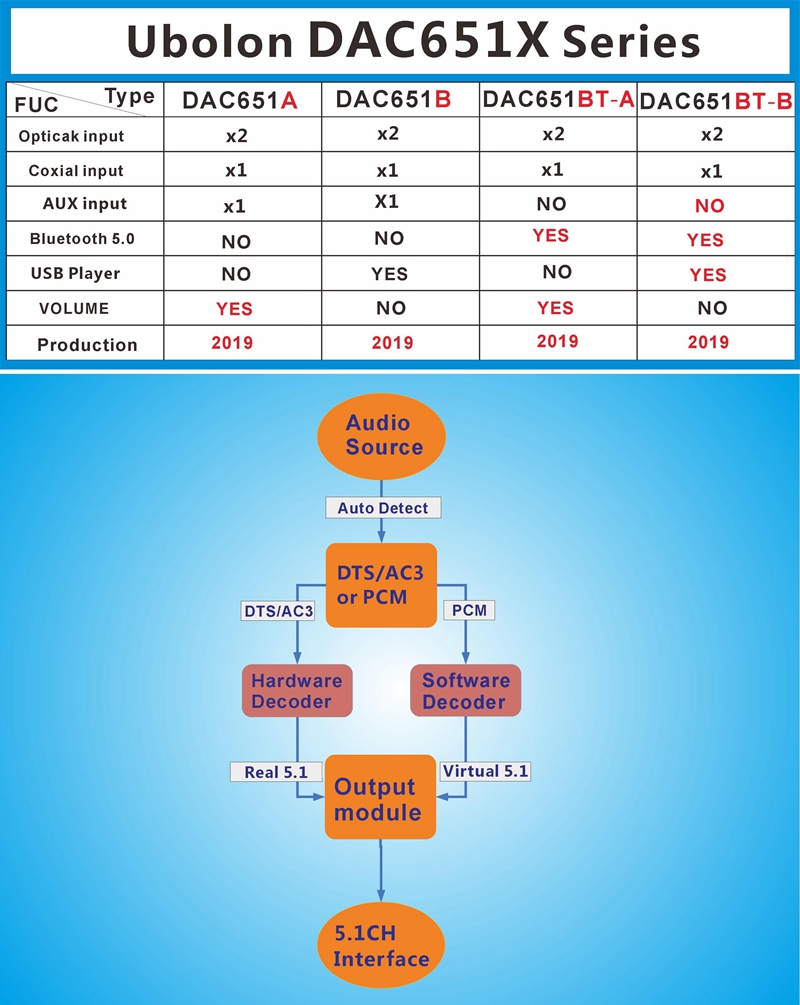
The TZT DAC615 is a versatile 5.1 channel digital audio decoder designed to convert digital audio signals (DTS, AC3, PCM) into analog 5.1 channel or 2.0 channel audio. It supports multiple input sources including Optical, Coaxial, AUX, Bluetooth 5.0, and a USB 2.0 player (on specific models). This manual provides detailed instructions for setting up, operating, and maintaining your audio decoder, ensuring you get the best audio experience.
Package Contents
Please check the package carefully to ensure all items are present and in good condition:
- 1 x 5.1CH Audio Decoder Unit
- 1 x DC-5V Power Adapter
- 1 x Optical Cable
- 1 x Bluetooth Antenna
- 1 x User Manual (this document)
Key Features
- Supports two Optical inputs, one Coaxial input, one Bluetooth 5.0 input, and one USB 2.0 input (DAC651BT-B model only).
- Allows switching between different signal sources via a button.
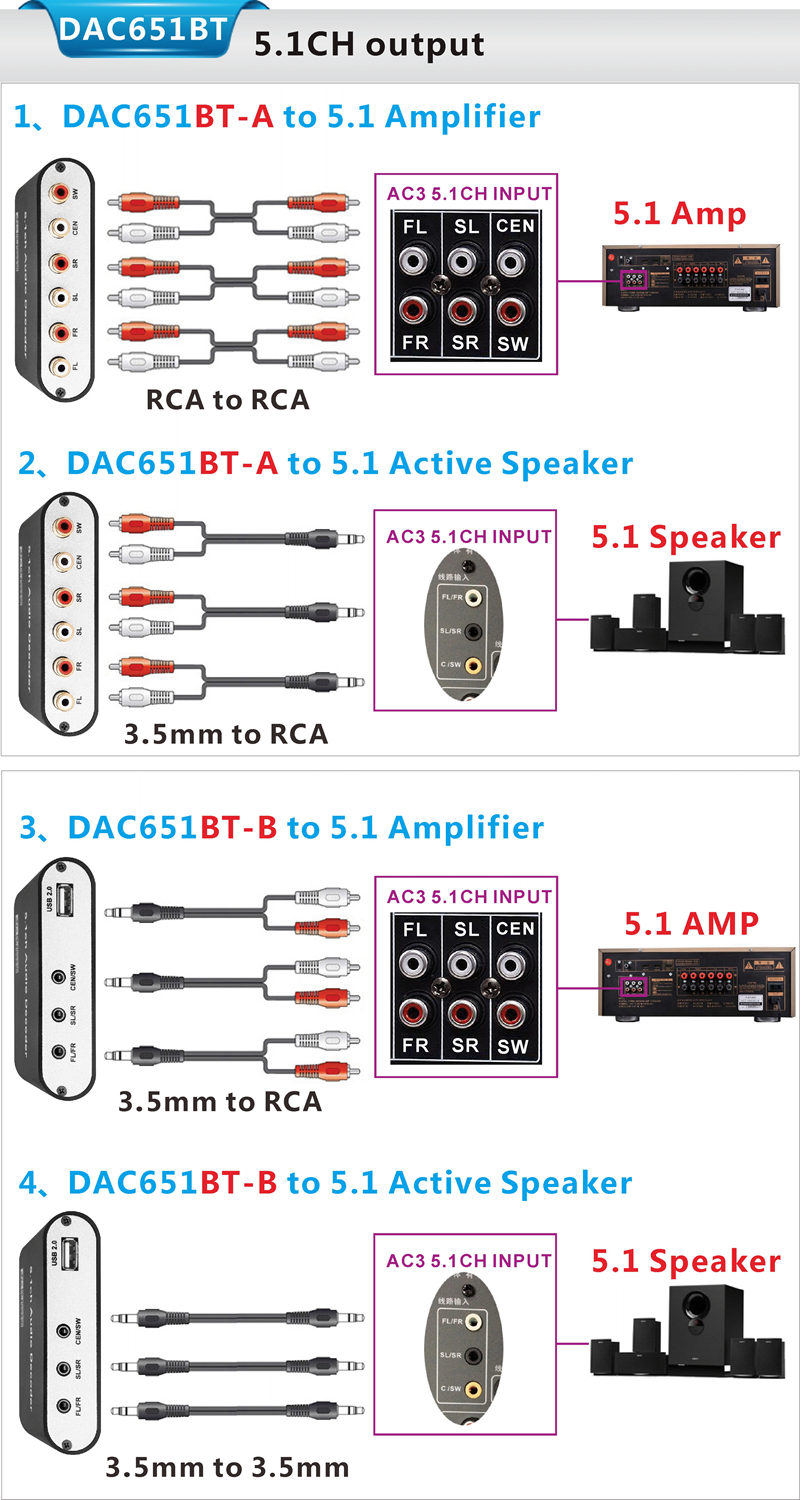
- Provides one 5.1ch analog audio output. DAC651BT-A outputs via RCA connectors, DAC651BT-B outputs via 3.5mm phone connectors.
- Audio format support: DTS, DTS-ES, AC3, WAV, FLAC, APE, AAC, WMA, MP3, M4A, etc.
- Integrated Bluetooth V5.0 receiver.
- Supports 5.1ch/2.0ch output mode selection. Front Left/Front Right (FL/FR) channels are active in 2.0ch output mode.
- Button for input source switching with corresponding LED indicators.
- Supports DTS/AC3 hardware decoding for true 5.1 channel separation.
- Supports PCM software decoding (2.0ch to virtual 5.1ch).
- USB player and input source selection power-off memory function.
- DC-5V/1A external power adapter power supply.
Panel Definition
Front Panel View (DAC651BT-A/B)
- DC-5V Power input
- Optical input 1
- Optical input 2
- Coaxial input
- AUX input
- 5.1ch/2.0ch switch button
- Input source switch button
- LED of Power
- LED of Optical input 1 mode
- LED of Optical input 2 mode
- LED of Coaxial mode
- LED of 5.1ch/2.0ch mode
Rear Panel View (DAC651BT-A)

- Front Left channel (FL)
- Front Right channel (FR)
- Surround Left channel (SL)
- Surround Right channel (SR)
- Center channel (CEN)
- Subwoofer channel (SW)
Rear Panel View (DAC651BT-B)
- Front Left/Right channel (FL/FR)
- Surround Left/Right channel (SL/SR)
- Center/Subwoofer channel (CEN/SW)
- USB 2.0 port
Setup and Installation
Follow these steps to set up your TZT DAC615 audio decoder:
- Connect Bluetooth Antenna: If you plan to use Bluetooth, screw the provided Bluetooth antenna into the "ANT" connector on the rear panel of the decoder.

Figure 1.5: DAC615 with Bluetooth antenna. - Connect Input Source:
Connect your audio source (e.g., HDTV, Blu-ray player, PC) to the decoder using one of the available input ports:
- Optical: Use an optical fiber cable to connect to OPT1 or OPT2.
- Coaxial: Use a coaxial cable to connect to COX.
- AUX: Use a 3.5mm audio cable to connect to AUX.
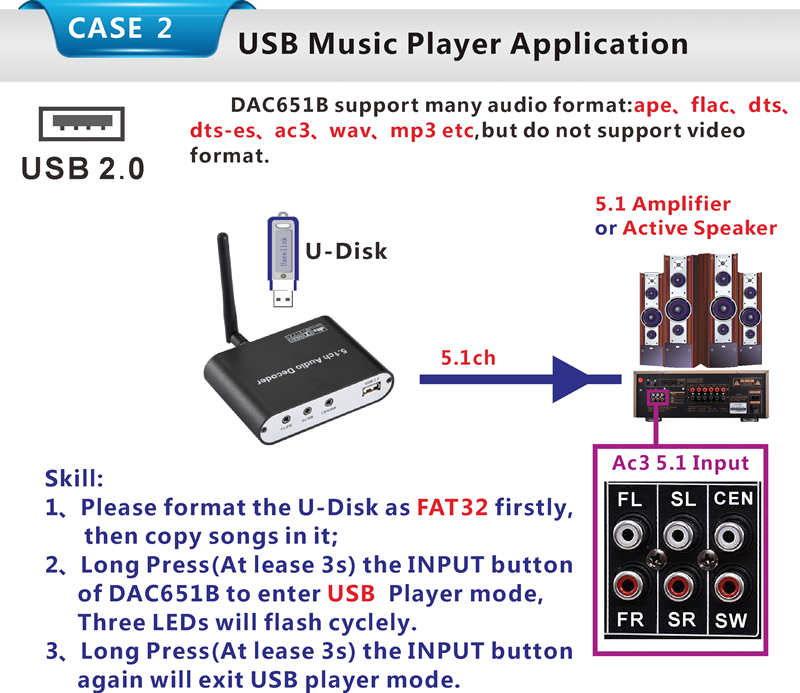
- USB (DAC651BT-B only): Insert a FAT32 formatted U-Disk into the USB 2.0 port.
For Optical/Coaxial inputs, ensure your player's audio output is set to "Raw" or "Digital output" for DTS/Dolby signals. For HDTVs/Projectors, set the audio output to "External Speaker" or "Digital output" to ensure sound is routed through the decoder.

Figure 1.6: Connecting various digital and analog audio sources. - Connect Output to Amplifier/Speakers:
Connect the decoder's 5.1CH analog audio output to your 5.1 amplifier or active speakers.
- For DAC651BT-A: Use RCA to RCA cables for each channel (FL, FR, SL, SR, CEN, SW).
- For DAC651BT-B: Use 3.5mm to RCA cables or 3.5mm to 3.5mm cables depending on your amplifier/speaker inputs.

Figure 1.7: Various 5.1CH output connection scenarios. - Connect Power: Connect the DC-5V power adapter to the "DC-5V" input on the front panel of the decoder, then plug the adapter into a power outlet. The Power LED will illuminate.
Operating Instructions
1. Power On/Off
The device powers on automatically when connected to power. There is no dedicated power button; disconnect the power adapter to turn off.
2. Switching Input Sources
Press the "INPUT" button on the front panel to cycle through the available input sources: Optical 1, Optical 2, Coaxial, AUX, Bluetooth, and USB (if applicable). The corresponding LED indicator (OPT1, OPT2, COX) will light up to show the active input.
3. 5.1ch/2.0ch Output Mode Selection
Press the "5.1CH/2.0CH" switch button to toggle between 5.1 channel and 2.0 channel output modes. The corresponding LED will indicate the selected mode.
4. USB Music Player Application (DAC651BT-B only)
If you have the DAC651BT-B model:
- Format your U-Disk to FAT32.
- Copy your desired audio files (APE, FLAC, DTS, DTS-ES, AC3, WAV, MP3, M4A, etc.) to the U-Disk.
- Insert the U-Disk into the USB 2.0 port.
- Long press (at least 3 seconds) the "INPUT" button to enter USB Player mode. The OPT1/OPT2/COX LEDs will flash cyclically.
- Long press the "INPUT" button again to exit USB Player mode.

5. Bluetooth Application
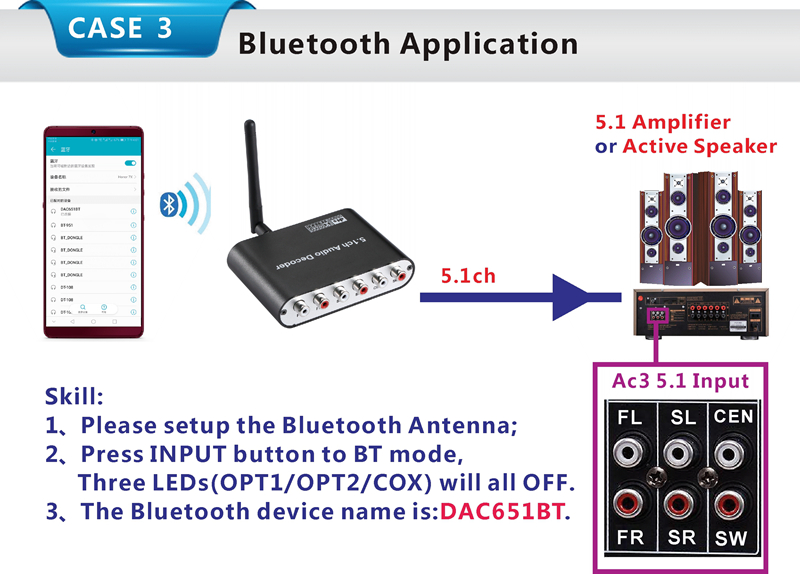
To use the Bluetooth function:
- Ensure the Bluetooth antenna is properly installed.
- Press the "INPUT" button to switch to BT mode. The OPT1/OPT2/COX LEDs will all turn OFF.
- On your Bluetooth device (e.g., smartphone), search for Bluetooth devices. The decoder's device name is "DAC651BT".
- Select "DAC651BT" to pair and connect.

Specifications
| Parameter | Value |
|---|---|
| Supported formats | DTS, DTS-ES, AC3, WAV, FLAC, APE, AAC, WMA, MP3, M4A, etc. |
| DSP sample frequency range | 24-192 KHz |
| DSP Bit rate range | 16-24 Bit |
| Digital input level | 0.1~2Volts p-p |
| Analog output level (1KHz@0dB) | ≥2V RMS |
| THD+N | -90dB |
| Dynamic Range | 105dB |
| Frequency response | 20Hz~20KHz |
| Bluetooth Version | V5.0 |
| Bluetooth working distance | 15m |
| Max working current | 400mA |
| Power adapter Input | AC100V~240V 50HZ/60HZ, DC-5V/1A |
| Operating Temperature range | -10 to +60°C |
| Storage Temperature range | -20 to +60°C |
| Operating Humidity range | 10 to 90%RH (No Condensation) |
| Storage Humidity range | 5 to 95%RH (No Condensation) |
| Product Dimension (L x W x H) | 108x88x27 (mm) |
| Product Weight | 160g |
Troubleshooting
- No sound output:
- Ensure the power adapter is correctly connected and the Power LED is on.
- Verify that the input source is correctly selected using the "INPUT" button and the corresponding LED is lit.
- Check all audio cables (Optical, Coaxial, AUX, 5.1CH output) for secure connections.
- Confirm your amplifier/active speakers are powered on and set to the correct input.
- For digital inputs (Optical/Coaxial), ensure your source device's audio output is set to "Raw" or "Digital output" (not PCM stereo) for DTS/AC3 signals.
- Try switching between 5.1ch and 2.0ch output modes.
- Distorted or poor quality sound:
- Check cable quality and connections. Try different cables if possible.
- Ensure the volume levels on both the source device and the amplifier are not excessively high, which could cause clipping.
- Verify that the audio format from the source is supported by the decoder.
- Bluetooth pairing issues:
- Ensure the Bluetooth antenna is properly installed.
- Make sure the decoder is in Bluetooth input mode (OPT1/OPT2/COX LEDs OFF).
- Ensure your Bluetooth device is within the 15m working distance.
- Try restarting both the decoder and your Bluetooth device.
- Forget "DAC651BT" from your device's Bluetooth settings and try pairing again.
- USB Player not working (DAC651BT-B only):
- Ensure the U-Disk is formatted to FAT32.
- Verify that the audio files on the U-Disk are supported formats.
- Confirm you have long-pressed the "INPUT" button to enter USB Player mode (LEDs flashing cyclically).
- Try a different U-Disk.
Maintenance
- Keep the device in a cool, dry place, away from direct sunlight, heat sources, and moisture.
- Clean the device with a soft, dry cloth. Do not use liquid cleaners or aerosols.
- Avoid blocking ventilation openings to prevent overheating.
- Do not attempt to open or repair the device yourself, as this will void the warranty and may cause damage.
User Tips
- For the best 5.1 channel experience, ensure your source material is encoded in DTS or AC3 and your player is configured to output these formats directly (raw/bitstream).
- When using the USB player, organize your music files in folders for easier navigation if the device supports it.
- If experiencing intermittent audio, check for electromagnetic interference from other electronic devices nearby.
Warranty and Support
For warranty information, technical support, or service inquiries, please contact your retailer or the manufacturer directly. Keep your purchase receipt as proof of purchase.

