1. Introduction
The miniDSP UMIK1 is an omnidirectional USB measurement microphone designed for plug-and-play acoustic measurements. It is suitable for a wide range of applications, from loudspeaker and room acoustic measurements to high-quality recording. The UMIK1 provides low noise and reliable, accurate results without the need for complex driver installations or concerns about operating system compatibility.
As a USB audio class 1 device, the UMIK1 is automatically recognized by most operating systems, including Windows, Mac, and Linux, as well as iPads with a camera connection kit. Each UMIK1 microphone comes with a unique calibration file, based on its serial number, to ensure precise measurements. When used with recommended acoustic measurement software, the UMIK1 offers a seamless plug-and-play acoustic measurement experience.

2. Setup
-
Unpack the UMIK1: Carefully remove the microphone, mini-tripod, and USB cable from the packaging.
-
Assemble the Microphone: Attach the UMIK1 microphone to the included mini-tripod for stable positioning.

Figure 2: UMIK1 assembled on its stand -
Connect to Computer: Connect the UMIK1 to your computer using the provided USB cable. The UMIK1 features either a Mini USB or a newer USB Type-C interface, depending on the model. The microphone is powered via the USB connection (5V), and a blue LED will illuminate to indicate that the device is powered on.

Figure 3: UMIK1 USB Interface (Mini USB vs. Type-C) -
Driver Installation: No specific drivers are required for the UMIK1, as it is a USB audio class 1 device and will be automatically recognized by your operating system (Windows, Mac, Linux) or iPad.
-
Download Calibration File: Each UMIK1 has a unique calibration file. Locate the serial number on your microphone and visit the miniDSP website (miniDSP.com) to download the corresponding calibration data. This file is crucial for accurate measurements.
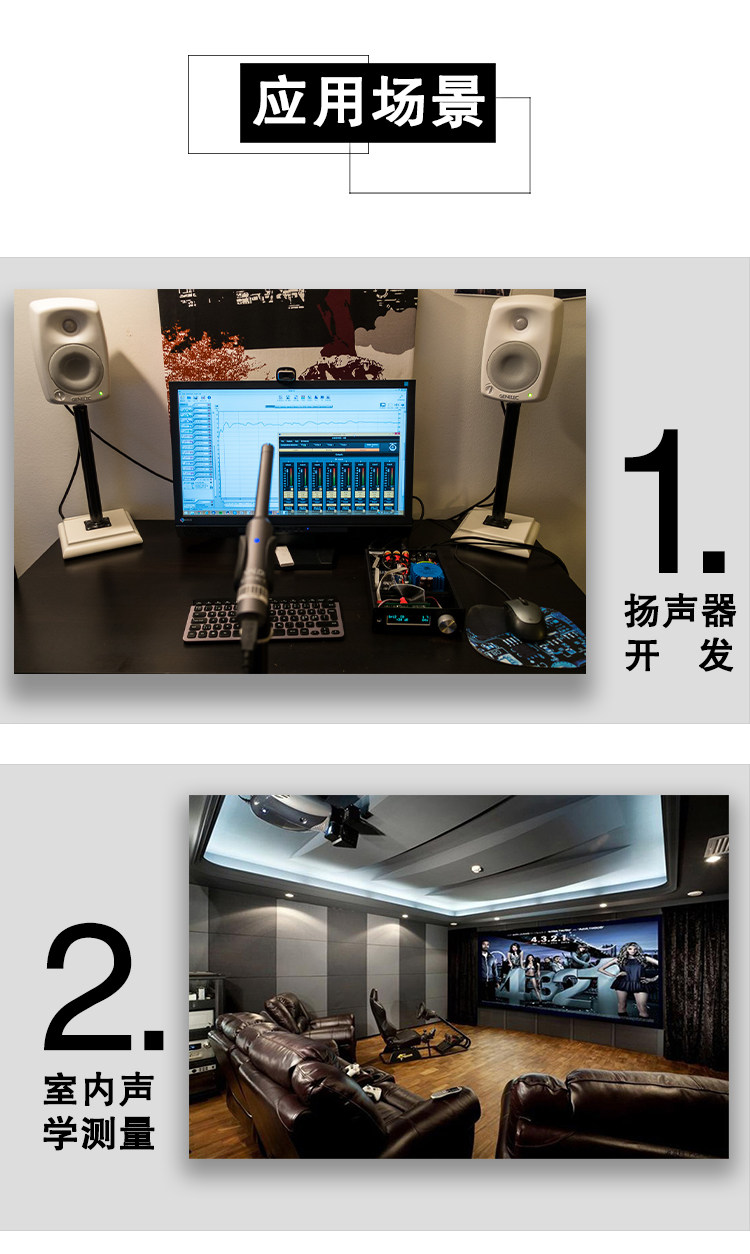
Figure 4: Importing UMIK1 Calibration File into Software
3. Operating the UMIK1
The UMIK1 is designed for versatile acoustic measurements and recording. Here are key aspects of its operation:
3.1. Software Compatibility
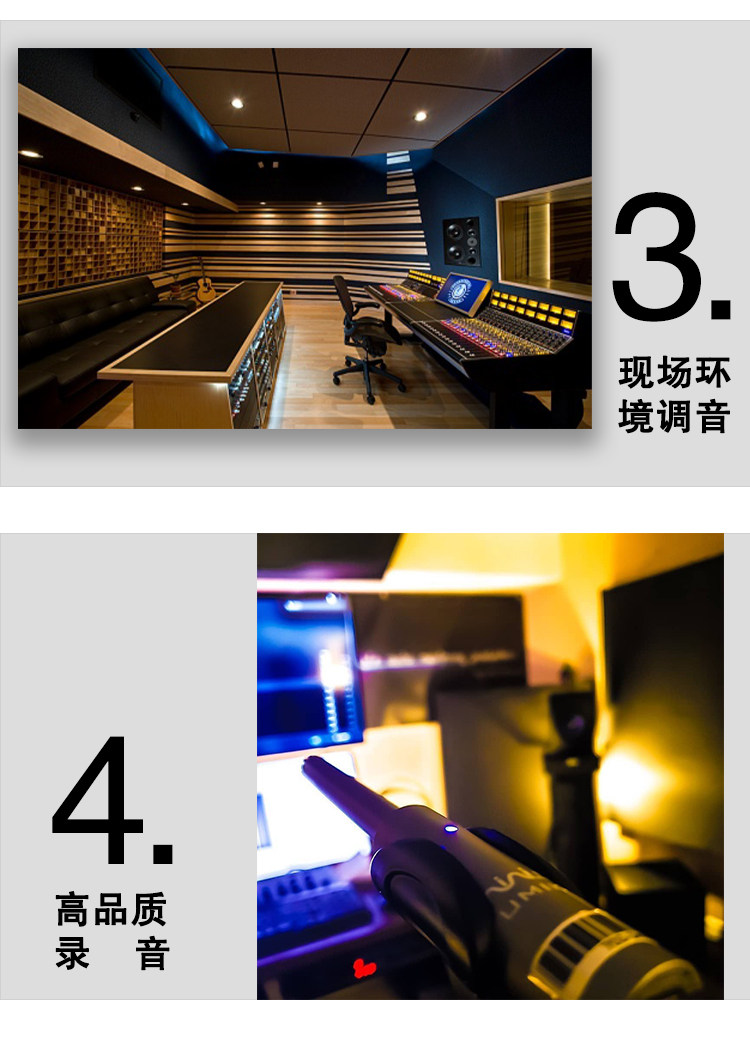
The UMIK1 is compatible with various acoustic measurement software on Windows, Mac, and Linux. Popular options include:
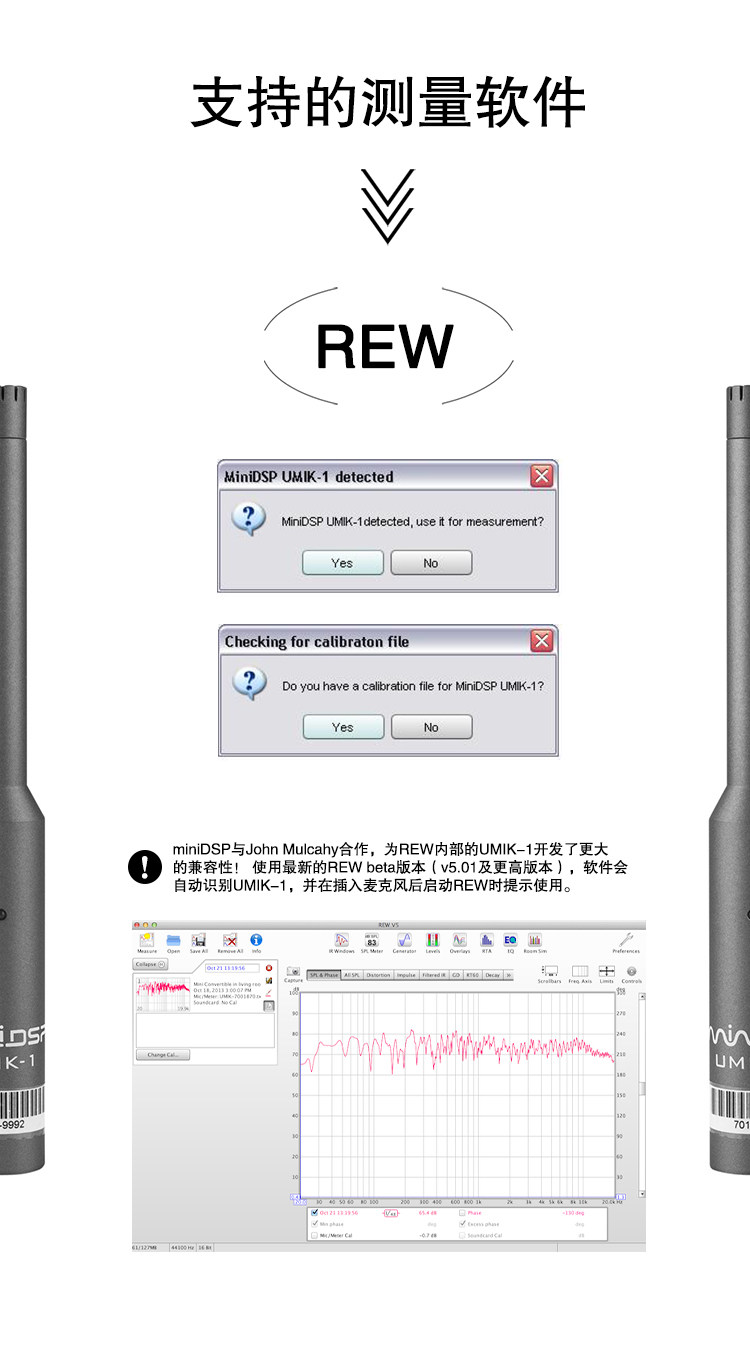
- Room EQ Wizard (REW): A free software for room acoustics and loudspeaker measurement. The UMIK1 is well-integrated with REW, often detected automatically.
- Fuzz Measure Pro v4: A comprehensive Mac-only software that supports UMIK1 calibration import and SPL calibration.
- Amara Symphony: Used for Apple Mac systems, offering advanced features for acoustic analysis.
- Dirac RCS: A renowned reference in room correction for high-end audio and automotive applications, often used with miniDSP products.

3.2. Using Calibration Files
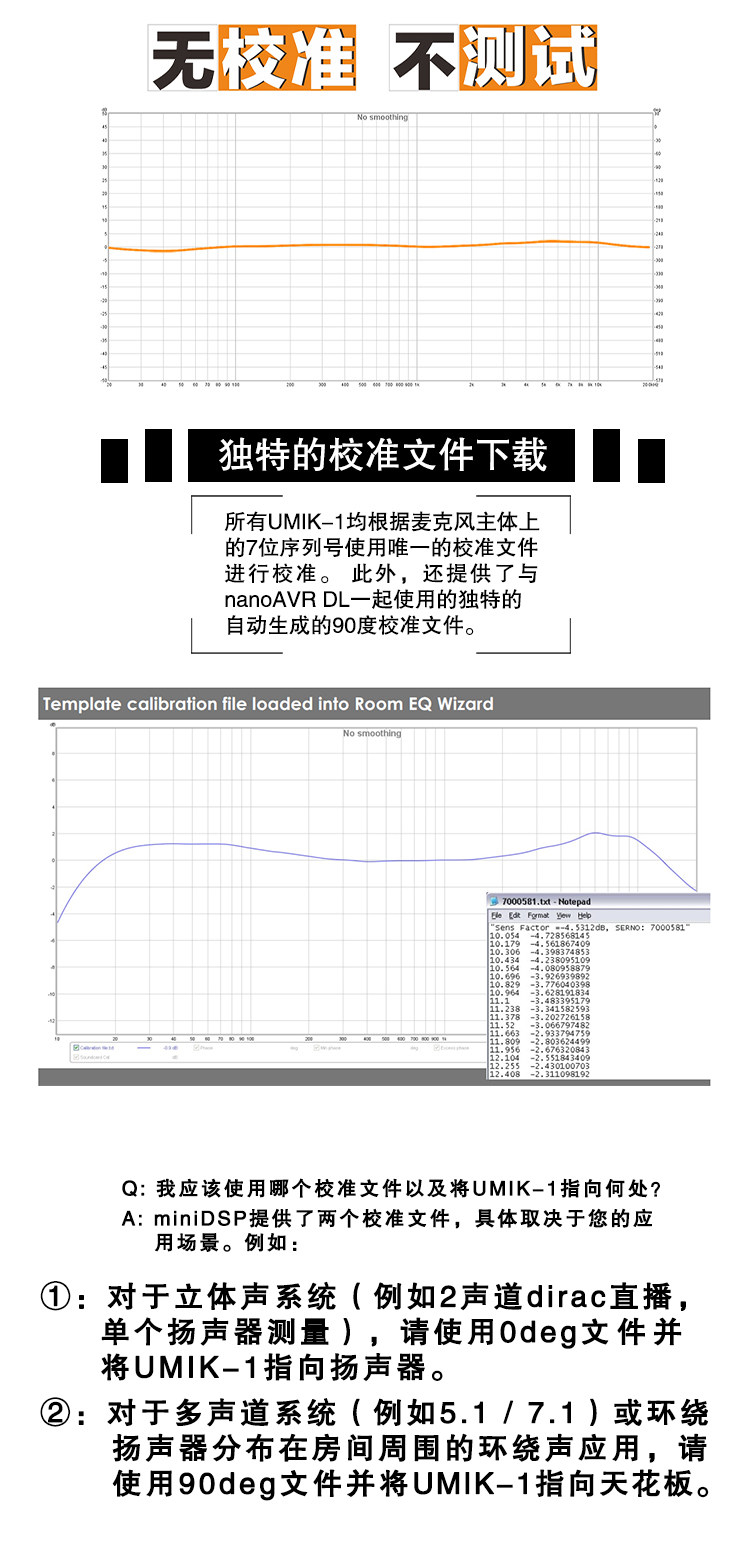
The UMIK1 provides two types of calibration files: on-axis (0-degree) and 90-degree. The choice depends on your application:
- For Stereo Systems (e.g., 2-channel Dirac Live): Use the 0-degree calibration file and point the UMIK1 directly at the speaker you are measuring.
- For Multi-channel Systems (e.g., 5.1/7.1) or Ambient Room Sound Measurement: Use the 90-degree calibration file and point the UMIK1 towards the ceiling. This orientation helps capture the overall room acoustics more effectively.
3.3. Application Scenarios
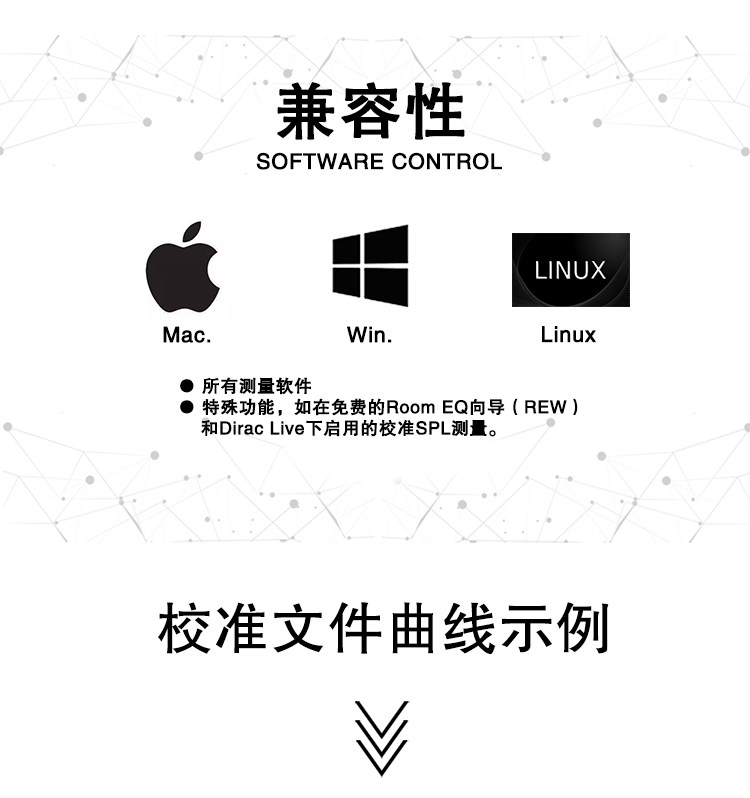
The UMIK1 is ideal for various professional and enthusiast applications:
- Loudspeaker Development: Accurate measurements for designing and testing loudspeakers.
- Indoor Acoustics Measurement: Analyzing room modes, reflections, and overall sound characteristics in a listening space.
- On-site Environmental Tuning: Optimizing audio systems in live venues or studios.
- High-Quality Recording: Capturing clear and accurate audio for various purposes.
4. Maintenance
To ensure the longevity and optimal performance of your UMIK1 microphone, follow these simple maintenance guidelines:
- Cleaning: Use a soft, dry cloth to gently wipe the microphone body. Avoid using harsh chemicals or abrasive materials that could damage the finish or internal components.
- Storage: When not in use, store the UMIK1 in a clean, dry place, preferably in its original packaging or a protective case, to prevent dust accumulation and physical damage.
- Handle with Care: The UMIK1 is a precision instrument. Avoid dropping it or subjecting it to strong impacts.
5. Troubleshooting
If you encounter issues with your UMIK1, consider the following:
- Microphone Not Recognized:
- Ensure the USB cable is securely connected to both the microphone and your computer.
- Try a different USB port on your computer.
- Verify that the blue LED on the microphone is illuminated, indicating it is receiving power. If not, check the USB connection or try a different USB cable.
- Restart your computer.
- No Sound or Incorrect Readings:
- Confirm that the UMIK1 is selected as the input device in your operating system's sound settings and within your measurement software.
- Ensure your unique calibration file has been correctly downloaded and loaded into your measurement software. Incorrect or missing calibration files will lead to inaccurate results.
- Check the microphone's orientation (0-degree vs. 90-degree) as per the operating instructions for your specific measurement scenario.
- Software Issues:
- Refer to the documentation for your specific measurement software (e.g., REW, Fuzz Measure Pro) for software-related troubleshooting.
- Ensure your software is up to date.
6. Specifications
| Feature | Description |
|---|---|
| Capsule Type & Polarity | 6mm electret, omnidirectional |
| Microphone Body | Die-cast aluminum |
| Frequency Response | 20 Hz - 20 KHz +/- 1dB (with calibration loaded) |
| USB Audio | USB audio class 1.0 (driverless for Windows, Mac, Linux) |
| Resolution & Sampling Rate | 24-bit ADC @ 48kHz |
| Max SPL for 1% THD @ 1kHz | 133 dB SPL @ 0dB analog gain setting |
| Calibration File | Unique per serial number, includes on-axis and 90-degree frequency/amplitude/sensitivity drift data |
| Power | USB power supply (5V), blue LED indicator |
| Weight | Microphone: 120g; Complete kit: 600g |
| Connector | Mini USB (older models) or USB Type-C (newer models) |
| Certification | CE, FCC, RoHS |
| Origin | Mainland China |
7. User Tips
- Check USB Connector Type: Be aware that UMIK1 models may come with either a Mini USB or a USB Type-C connector. Ensure you use the correct cable for your specific microphone model.
- Always Use Calibration File: For the most accurate measurements, always download and load the unique calibration file corresponding to your microphone's serial number into your measurement software.
- Experiment with Placement: Microphone placement significantly impacts measurement results. Experiment with different positions and orientations (0-degree vs. 90-degree) to find what works best for your specific acoustic analysis goals.
8. Warranty and Support
For warranty information, technical support, and further assistance, please refer to the official miniDSP website or contact their customer service directly. Keep your purchase receipt and microphone serial number handy for any support inquiries.