
1. Introduction
This manual provides comprehensive instructions for the KEFAR L8BL and S8 series barcode scanners. These versatile devices support various barcode types, including 1D, 2D, QR, and PDF417, and offer multiple connection options: wired USB, 2.4G wireless, and Bluetooth (for specific models). Designed for efficiency and durability, these scanners are compatible with a wide range of operating systems and applications.
Demonstration of KEFAR Barcode Scanner features and scanning capabilities.
2. Safety Information
- Do not stare directly into the scanner's light beam to avoid eye injury.
- Keep the device away from water or other liquids to prevent damage.
- Avoid dropping the scanner from excessive heights, although it is designed for durability.
- Use only approved charging cables and accessories.
3. Package Contents
Please check the box for the following items:
- Barcode Scanner Unit
- USB Cable (for charging and wired connection)
- 2.4G Wireless Receiver (for wireless models)
- Instruction Manual (this document)
- Charging Base (for KR-H8 model)

Typical package contents for a KEFAR barcode scanner with a charging base.
4. Product Overview
The KEFAR barcode scanners are designed for efficient and accurate data capture. Key features include:
- Multiple Connection Modes: Wired USB, 2.4G Wireless, and Bluetooth (available on KR-L8BL, A66DZ, KR-H3CB models).
- Versatile Scanning: Supports 1D and 2D barcodes, including QR Code, PDF417, and Data Matrix. Capable of scanning codes from paper and digital screens (e.g., mobile phones, tablets).
- Durable Design: Constructed with high-strength ABS material and TPU glue for anti-shock and fall-proof protection, withstanding drops up to 1.2 meters.
- Long Battery Life: Built-in 2000mAh Li-Ion battery provides extended operation.
- Plug and Play: No drivers required for most operating systems.
- Wide Compatibility: Works with Windows, Android, iOS/MacOS, and Linux systems.

KEFAR Barcode Scanner highlighting supported code types and connectivity.
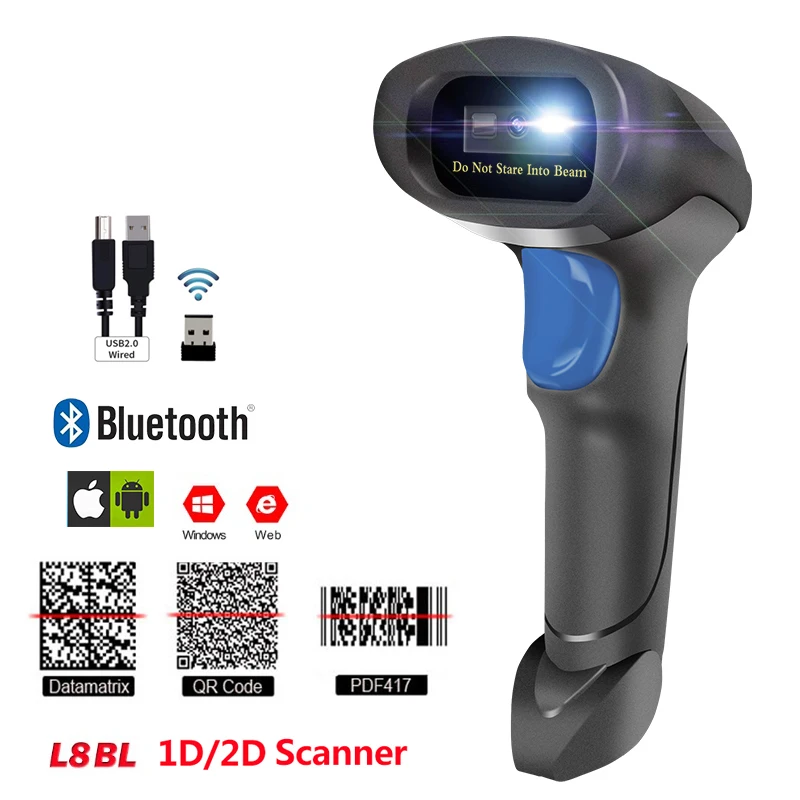
KEFAR KR-L8BL Bluetooth 2D Scanner with multiple connection options.
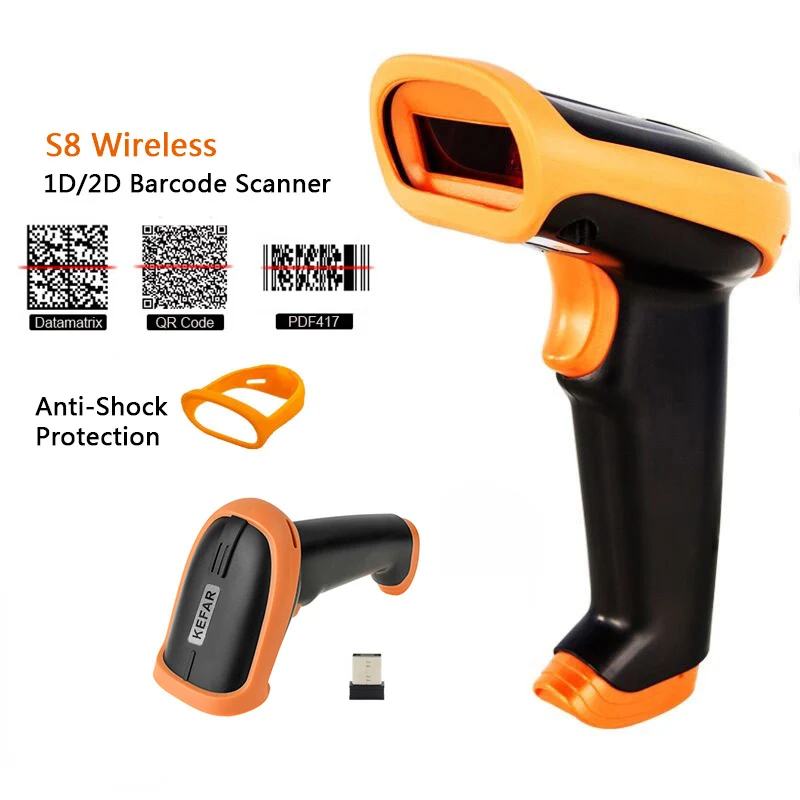
KEFAR S8 Wireless 2D Barcode Scanner.
5. Setup and Connection
5.1 Wired USB Connection
For wired operation, simply connect the scanner to your computer or POS system using the provided USB cable. The device is plug-and-play and typically requires no additional drivers.

Plug and Play: Connect the scanner via USB cable.
5.2 2.4G Wireless Connection
For wireless operation, insert the 2.4G mini USB receiver into an available USB port on your computer. The scanner will automatically pair with the receiver. The wireless range is up to 100 meters in open space, and 20-30 meters indoors, depending on the environment.

Wireless Scanning: Insert the 2.4G receiver into your device.
5.3 Bluetooth Connection (for KR-L8BL, A66DZ, KR-H3CB models)
To connect via Bluetooth:
- Ensure your scanner model supports Bluetooth.
- Turn on the scanner and activate Bluetooth pairing mode (refer to the full manual for specific instructions if needed).
- On your host device (mobile phone, iPad, laptop), enable Bluetooth and search for available devices.
- Select the KEFAR scanner from the list to pair.

Bluetooth connectivity for compatible models.
5.4 Charging the Battery
The scanner is equipped with a 2000mAh Li-Ion battery. Charge the scanner using the provided USB cable. For models with a charging base (e.g., KR-H8), place the scanner on the base for convenient charging.

USB Charging and Battery Capacity.
6. Operating Instructions
6.1 Scanning Modes
The scanner supports both manual and automatic scanning modes. You can switch between these modes by scanning specific configuration barcodes found in the full instruction manual.
- Manual Scan Mode: Press the trigger button to initiate a scan.
- Automatic Scan Mode: The scanner continuously scans without needing to press the trigger.

Scan these codes to switch between Manual and Automatic Scan Modes.
6.2 Supported Barcode Symbologies
The scanner can identify a wide range of 1D and 2D barcodes:
- 1D Codes: UPC-A, UPC-E, EAN-13, EAN-8, ISBN, Code 39, Code 32, Trioptic Code 39, Interleaved 2 of 5, Industrial 2 of 5, Matrix 2 of 5, Codabar, Code 128, ISBT 128, Code 93, Code 11, MSI/Plessey, UK/Plessey, UCC/EAN 128, China Post, China Finance, GS1 DataBar.
- 2D Codes: PDF417, MicroPDF417, QR Code, Data Matrix.

The scanner supports a wide range of 1D and 2D barcodes.
6.3 Scanning Performance
The scanner features a high-precision scanning head with a high-performance flash lamp, ensuring fast and accurate recognition even in dim light or on codes with micro-defects. It supports scanning from both physical labels and digital screens.

High Performance Flash Lamp for optimal scanning.
6.4 LED Indicators
The scanner features a two-color LED indicator to show its operational status:
- Blue (constant bright): Standby state.
- Green (flashing): Successful code recognition.

Two-color LED indicator for clear work status.
6.5 Data Upload Modes
The scanner supports two data upload modes:
- Instant Upload: Syncs scanned data directly to your computer in real-time.
- Offline Storage (Inventory Mode): Stores up to 5000 barcodes in its internal memory. Data can be uploaded to your computer later when needed. This is convenient for inventory tracking when away from the host device.

Two Upload Modes: Instant and Offline Storage.
7. Maintenance
7.1 Cleaning
To clean the scanner, use a soft, dry cloth. Do not use abrasive cleaners or solvents, as these may damage the device's surface or internal components.
7.2 Durability and Handling
The scanner is built with a composite fuselage made of PC ABS material and features TPU glue on the top and tail for enhanced durability. It is designed to be anti-seismic and anti-fall, capable of withstanding impacts from a 1.2m height onto a cement floor.

Anti-fall Height Test: Designed to withstand drops from 1.2 meters.
The trigger button is designed for comfort and durability, with a service life of up to 8 million presses.

Durable rebound button for long-lasting use.
8. Troubleshooting
- Scanner not reading white barcodes on black background: Some models may have limitations with inverted color codes. Please refer to the full manual or contact support for specific model capabilities.
- Difficulty reading DataMatrix codes: Ensure your scanner model (e.g., 2D scanner) supports DataMatrix. If settings were changed, reset to factory defaults or reconfigure using the codes in the full manual.
- Scanner not recognized as a keyboard (COM port mode): If the scanner is configured for COM port mode, it may not input data directly as a keyboard. Refer to the full manual for instructions on switching to HID-Keyboard mode if desired.
- Bluetooth connection issues: Ensure the scanner is in Bluetooth pairing mode and your device's Bluetooth is enabled and searching. If issues persist, try unpairing and re-pairing the device.
- Incorrect keyboard layout (e.g., Spanish): The scanner's output language can be configured. Refer to the full manual for specific barcodes to set the desired keyboard layout.
- Need to add prefix/suffix (e.g., F7, Enter): Custom prefixes and suffixes can be programmed by scanning specific configuration codes. These are detailed in the full manual.
- Scanner not working with specific software (e.g., 1C Retail, Evotor): Most scanners operate as a keyboard input device. Ensure the software is configured to accept input from a barcode scanner. For COM port mode, specific software integration might be required.
9. Specifications
| Attribute | Value |
|---|---|
| High-concerned chemical | None |
| Scanning Light Source | Natural Light + LED |
| Time to market | Mar-13 |
| Novelty | New |
| Product Type | Bar Code Scanner |
| Model Number | L8BL S8 |
| Colour Depth | 32 Bit |
| Signal Connection Type | Bluetooth |
| Scan Breadth | A4+ |
| Type | Barcode Scanner |
| Interface Type | USB |
| Scan Element Type | CMOS |
| Scan Speed | 200 scans/second |
| Optical Resolution | 600*1200 |
| Brand Name | HONOURWOLF |
| Origin | Mainland China |
| Certification | CE,FCC,RoHS |
| Depth of Scan Field | 10-800 mm |
| Decode mode | by trigger or continuous mode |
| Decode Error Rate | less than 1/ 8 million |
| Supported Symbologies | All Common 2D/1D codes |
| Precision | 5 mil (0.10mm) |
| Battery capacity | 2000mAh |
| Decode error rate | Less than 1/8 million |
| Wireless Barcode scanner | 2D Wired bar code reader |
| Barcode Reader | Bluetooth 2.4G USB Barcode Scanner |
10. Warranty and Support
All KEFAR products come with a warranty of not less than 12 months, with some models extending up to 24 months. In case of any product defects within 30 days of shipment, the item will be replaced.
For any inquiries, technical support, or to request the full manual for advanced settings (e.g., prefix/suffix, COM port configuration, language settings), please contact KEFAR customer service. Our team provides 7*12 hours online services, responding within 12 hours on working days and 24 hours on rest days.
Email: ranny001@aliyun.com

Warranty and After Sales Service Overview.
11. User Tips
- For complex or curved codes: If you frequently scan codes on curved surfaces or unusual formats, it is recommended to test the scanner's capability with your specific codes before purchase.
- Advanced Configuration: For detailed settings such as COM port mode, specific keyboard layouts (e.g., Spanish), or custom prefix/suffix additions, always refer to the full instruction manual. This can often be obtained by emailing the provided support address.
- DataMatrix Codes: While many models support DataMatrix, some users report issues with very small or specific DataMatrix codes (e.g., on cigarettes). Ensure your model is optimized for these if they are critical to your use case.
- Compatibility with POS Systems: The scanner generally works as a keyboard input device. For specific POS software like 1C Retail or Evotor, ensure the software is configured to accept input from a barcode scanner. If using COM port mode, additional setup may be required.
- Wireless Connectivity: If experiencing issues with 2.4G wireless, ensure the USB dongle is securely inserted and within range. For Bluetooth models, confirm the scanner is in pairing mode and your device's Bluetooth is active.