
1. Product Overview
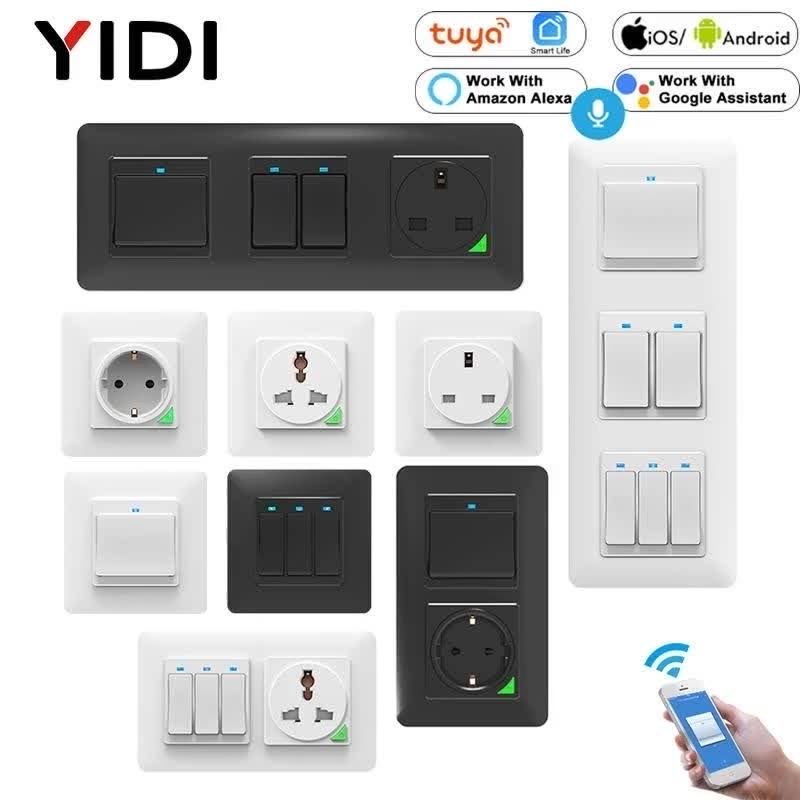
The YIDI Tuya WiFi Smart Wall Light Switch and Outlet offers a modern solution to convert your home's lighting system into a smart, controllable environment. This device allows for flexible configurations with removable and detachable switch and socket modules within a single wall panel. It integrates seamlessly with the Smart Life/Tuya smartphone application, enabling wireless remote control, scheduling, and voice control through popular smart assistants like Amazon Alexa and Google Home.


2. Specifications
2.1 General Properties
- Brand Name: YIDI
- Item Type: SWITCHES
- Material: Plastic
- Is Smart Device: Yes
- Origin: Mainland China
- Certification: RoHS, CE
- High-concerned chemical: None
- EU LVD Voltage: High voltage: Above 50Vac or 75Vdc
2.2 WiFi Switch Parameters
- Working Voltage: AC 110-240V (50/60Hz)
- Normal Load Power: ≤800W
- Output: 10A (Max)
- Maximum Peak Power: 1100W
- Wireless Protocol: WiFi 2.4GHz
- Wireless Standard: IEEE802.11.b/g/n
- APP: Smart Life/Tuya
- Voice Control: Amazon Alexa / Echo / Google Assistant
2.3 WiFi Socket Parameters (EU UK UN)
- Working Voltage: AC 110-240V (50/60Hz)
- Normal Load Power: ≤3000W
- Output: 16A (Max)
- Maximum Peak Power: 3600W
- Wireless Protocol: WiFi 2.4GHz
- Wireless Standard: IEEE802.11.b/g/n
- APP: Smart Life/Tuya
- Voice Control: Alexa/Google Home
2.4 Dimensions


3. Setup
3.1 Safety Information
WARNING: Risk of electric shock. Installation should be performed by a qualified electrician. Disconnect power at the circuit breaker before installation. Ensure all wiring is compliant with local electrical codes.
3.2 Package Contents (Inferred)
- YIDI Smart Wall Switch/Socket Unit (selected configuration)
- User Manual (this document)
- Mounting Screws
- Magnet installation accessories (for better wall installation)
3.3 Installation Guide
Live wire (L) and Neutral wire (N) are required for installation. Ensure power is off before proceeding.


3.4 App Installation
To download the Smart Life/Tuya APP:
- Scan the QR code below using your phone's camera or a QR code scanner app.
- Alternatively, search for "Smart Life" or "Tuya" in the Apple App Store (for iOS) or Google Play Store (for Android) and download the application.

3.5 Add New Device
- Connect your phone to a 2.4GHz Wi-Fi network.
- Press the switch button for 20 seconds until the indicator light flashes rapidly to reset the device.
- On the Smart Life APP homepage, tap on the "+" icon.
- Select "Wall Switch" or the appropriate device type.
- Input your Wi-Fi password and confirm.
- Wait for successful configuration.
4. Operating Instructions
4.1 Control via App
After successful configuration, you can control your Wi-Fi switch/socket directly from the Smart Life/Tuya App. You can open/close the switch/socket by tapping the corresponding icon in the app.
4.2 Timer and Scheduling
You can set schedules to automatically turn your connected devices on or off at specific times. This feature allows you to automate your home's lighting or appliances according to your daily routine.


4.3 Voice Control (Amazon Alexa & Google Home)
The smart switch and socket are compatible with Amazon Alexa and Google Home for hands-free voice control.
For Amazon Alexa:
- Open the Amazon Alexa APP.
- Go to "Home" and select "Skills".
- Search for "Smart Life" and tap on "Enable" to add the skill.
- Enter your Smart Life APP account name and password, then tap "Link Now".
- After successful linking, close the window and return to the Alexa APP.
- Tap on "Smart Home", select "Devices", then tap "Discover". Alexa will discover your devices. After about 20 seconds, the devices will show in the list.
- You can now use voice commands like: "Alexa, turn on the light."

For Google Home:
- Open the Google Home or Google Assistant APP.
- Go to "Home" and select "Home Control".
- Tap on the "+" icon in the lower right corner to add a skill.
- Find "Smart Life" in the "Add devices" list.
- Select your country code. Enter your Smart Life APP account name and password, then tap "Link Now".
- After successful linking, you can assign rooms for your smart devices.
- You can now use voice commands like: "Ok Google, turn on/off bedroom switch/socket."
4.4 Device Sharing
You can share control of your smart devices with family members:
- In the Smart Life/Tuya App, go to "Profile".
- Select "Device Sharing" and tap on "Add".
- Input the cell phone number or email address of the person you want to share with.
- The device will automatically be listed in their shared account.

5. Maintenance
- Cleaning: Use a soft, dry cloth to clean the surface of the switch/socket. Do not use abrasive cleaners or solvents.
- General Care: Ensure the device is not exposed to excessive moisture or extreme temperatures. Avoid physical impact.
6. Troubleshooting & FAQ
6.1 Common Questions
- Q: Is a hub required to connect the switch & socket?
- A: No, there is no need for a hub. The devices connect directly to your Wi-Fi network.
- Q: Does it work with Amazon or Google Home?
- A: Yes, it is compatible with Amazon Alexa and Google Assistant for easy voice control.
- Q: May I replace and install two sockets or two switches together?
- A: Yes, the EU switch and EU socket are able to share one same wall plate. You can install two sockets or two switches in one wall panel at the same time, with 1/2/3 Gang options available for the switch.
- Q: Can I connect it to my 5G Wi-Fi network?
- A: No, our smart switch can only work with a 2.4GHz Wi-Fi protocol.
- Q: Can I control the two (e.g., a switch and a socket on the same panel) separately?
- A: Yes, you need to make independent and separate settings for each module in the app, but you can control them all via one App.
6.2 Device Reset
If you need to reset the device or if it's not responding:
- Press the physical button on the switch/socket for 5 seconds (for recovery reset) or 20 seconds (for full reset).
- The signal indicator light will flash quickly or slowly, indicating the reset process.
7. User Tips
- For optimal performance, ensure your Wi-Fi router is within a reasonable range of the smart switch/outlet.
- Regularly check the Smart Life/Tuya app for firmware updates to ensure your device has the latest features and security patches.
- When setting up voice control, use clear and concise commands for better recognition by Alexa or Google Home.
- Consider grouping multiple smart devices in the app for easier control of entire rooms or scenarios.
8. Warranty and Support
For detailed warranty information and customer support, please refer to the official YIDI website or contact your retailer. You may also find additional guides and documents, including a PDF user manual, available for download from the product page or manufacturer's support section.
Reference: A comprehensive user manual (PDF) is available for download. Please visit the product support page for access.