
1. Introduction
The LIUTIANFEI Bluetooth Wireless Remote Controller is a versatile device designed to enhance your mobile phone and tablet experience. It provides hands-free control for various functions, including capturing selfies, recording videos, navigating social media apps like TikTok and Kuai, controlling media playback, and reading e-books. With its wireless Bluetooth connection, it offers convenience and zero shutter lag for seamless operation.
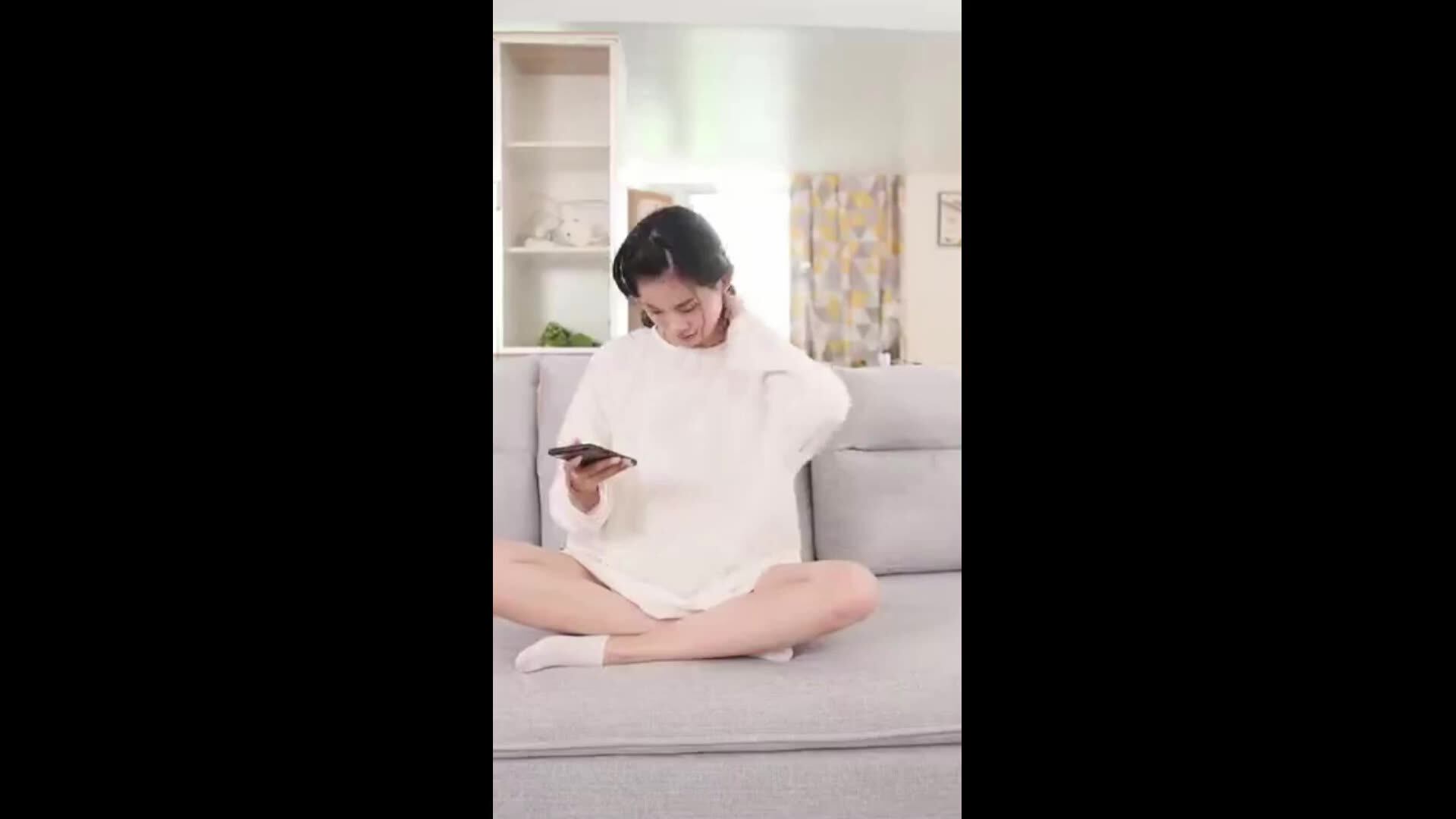
Product Demonstration Video: Shows the remote in use for various functions like scrolling, taking photos, and controlling media.
2. Package Contents
Please check the package for the following items:
- 1 x Bluetooth Wireless Remote Controller
- (Additional accessories may vary based on specific product bundle)
3. Specifications
| Feature | Specification |
|---|---|
| Brand Name | LIUTIANFEI |
| Wireless Communication | Bluetooth |
| Frequency | 433 MHz |
| Support APP | Yes |
| Use | Universal |
| Compatible with | Android phone / TV box / smart TV |
| For | TIKTOK, Kuai, E-book, Camera |
| Connection | Bluetooth wireless |
| Channel | 1 |
| Package | Yes |
| Origin | Mainland China |
| Certification | CE |

Remote Controller Dimensions: Detailed measurements of the device.
4. Setup Instructions
4.1 Pairing with Your Device
- Ensure your mobile phone or tablet's Bluetooth is turned on.
- Power on the remote controller. (Specific power-on method not provided, assume a button press or automatic activation).
- On your mobile device, search for available Bluetooth devices.
- Select the remote controller from the list (the name might appear as 'Bluetooth Remote' or similar).
- Once paired, the remote is ready for use.

Remote Control with Smartphone: Illustrates the wireless connection between the remote and a mobile device.
5. Operating Instructions
The remote controller features a 3-button design for intuitive control:

Remote Control Button Functions: Diagram showing the layout and primary functions of each button.
5.1 General Functions
- Top Button (Douyin Video Switch / Switch Recording Interface):
- In video apps (e.g., TikTok, Kuai), this button may switch between videos or interfaces.
- In camera mode, it can switch to the recording interface.
- Middle Button (Douyin Video Switch / Shoot/Record Video):
- In video apps, this button may also switch between videos.
- In camera mode, it acts as a shutter button to take photos or start/stop video recording.
- Bottom Button (Switch):
- This button serves as a general switch or mode changer, depending on the application.
5.2 Specific Application Usage
- Selfie & Video Recording: Use the middle button as a remote shutter for photos or to start/stop video recording in your camera app.
- Social Media (TikTok, Kuai): Navigate videos by pressing the top or middle buttons. The remote allows for hands-free scrolling and interaction (e.g., liking videos).
- Media Playback: Control music and video playback (play/pause, skip tracks, adjust volume) in compatible media players.
- E-book Reading: Turn pages in e-book applications.

App Compatibility Overview: Shows various camera and social media apps compatible with the remote.

Selfie Remote Usage: Demonstrates using the remote for selfies with a phone on a tripod, highlighting iOS/Android compatibility.

Video Control Functionality: Shows the remote controlling video playback, including scrolling and liking.
6. Maintenance
- Cleaning: Wipe the remote with a soft, dry cloth. Do not use harsh chemicals or abrasive cleaners.
- Storage: Store the remote in a cool, dry place away from direct sunlight and extreme temperatures.
- Battery: If the remote uses replaceable batteries, ensure they are inserted correctly and replace them when power is low. (Battery type not specified, assume standard small battery).
- Water Exposure: Avoid exposing the remote to water or excessive moisture.
7. Troubleshooting
| Problem | Possible Solution |
|---|---|
| Remote not pairing | Ensure Bluetooth is enabled on your device. Make sure the remote is powered on and within range. Try restarting both the remote and your device. |
| Buttons not responding | Check if the remote is properly paired. Ensure the battery is not depleted. Some apps may require specific settings or may not fully support all remote functions. |
| Limited functionality with certain apps (e.g., Insta360, Google Maps) | The remote is designed for general media and camera control. Specific app compatibility can vary. Check the app's settings for external controller support or consult the app's documentation. Not all apps, such as Insta360 or Google Maps, may fully integrate with generic Bluetooth remotes for all functions. |
8. User Tips
- For optimal performance, keep your device and remote within a 10-meter range.
- Experiment with different button presses in various applications to discover all compatible functions.
- Ensure your device's operating system (Android 4.2.2+ or iOS 6.0+) is up to date for best compatibility.
9. Warranty and Support
This product comes with a standard manufacturer's warranty. For any technical support or warranty claims, please contact the seller or refer to the product's official support channels. Keep your purchase receipt as proof of purchase.