
typecase KB206129
Ikesi lekhibhodi yohlobo lwe-iPad Pro 12.9 (6th, 5th, 4th, 3rd Gen) Incwadi Yeziqondiso
Imodeli: KB206129
Isingeniso
This manual provides detailed instructions for the setup, operation, maintenance, and troubleshooting of your typecase Keyboard Case for iPad Pro 12.9. Please read this manual thoroughly before using the product to ensure optimal performance and longevity.
The typecase Keyboard Case is designed to enhance your iPad Pro 12.9 experience, offering a versatile keyboard with a trackpad and backlit keys. It is compatible with iPad Pro 12.9-inch (6th, 5th, 4th, 3rd Generation) models.
Okuqukethwe Kwephakheji
- 1 x typecase Keyboard Case (for iPad Pro 12.9 6th/5th/4th/3rd Gen)
- 1 x Ikhebula lokushaja le-USB-C
- 1 x Incwadi Yomsebenzisi
Setha
1. Ukushaja Ikhibhodi
Before initial use, fully charge the keyboard. Connect the provided USB-C charging cable to the charging port on the side of the keyboard and to a USB power adapter (not included). The charging indicator light will show the charging status.
- Charging Port Location: Typically on the right side of the keyboard.
- Impilo Yebhethri: The keyboard features a built-in rechargeable lithium polymer battery. Battery level can be checked on your iPad (like other connected Bluetooth devices) or via a shortcut key (Fn + Spacebar, if available, to show 1/3, 2/3, 3/3 battery life).
2. Ukunamathisela i-iPad Pro yakho
The keyboard case features a magnetic attachment system. Align your iPad Pro 12.9 with the magnetic panel on the case. The magnets will securely hold the iPad in place.
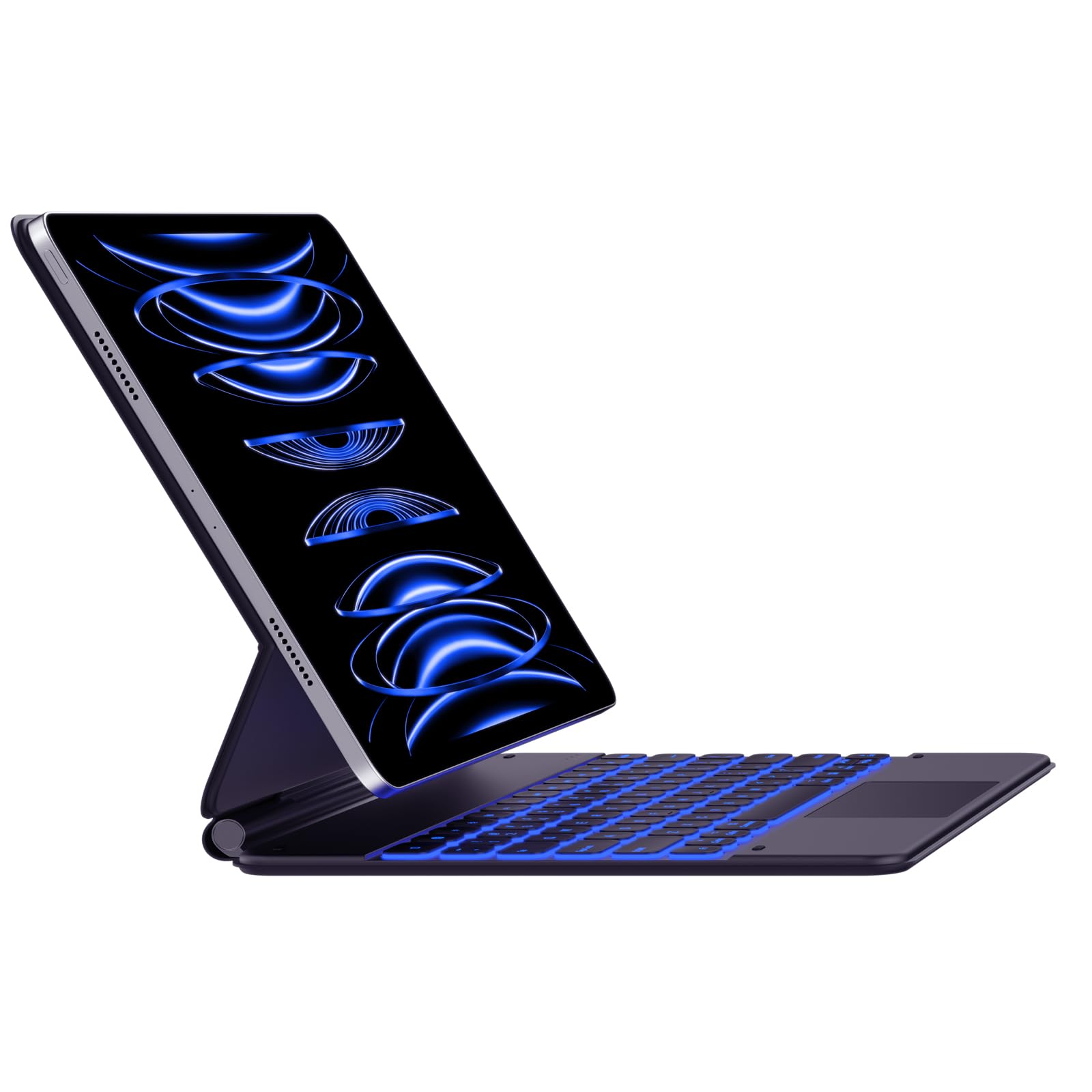
Image: The typecase Keyboard Case with an iPad Pro magnetically attached, displaying blue backlit keys and a vibrant screen.
- Ensure the camera cutout on the case aligns with your iPad's camera.
- The magnetic connection is designed to be strong, but always handle with care.
3. Pairing with Your iPad (Bluetooth Connection)
- Vula: Thola inkinobho yokuvula ohlangothini lwekhibhodi bese uyislayida uye endaweni ethi "VULIWE".
- Yenza kusebenze Imodi yokumatanisa: Cindezela bese ubamba i Xhuma button (or a similar Bluetooth pairing key, often indicated by a Bluetooth icon) on the keyboard. The Bluetooth indicator light will start blinking, indicating it's in pairing mode.
- On Your iPad: Iya ku Izilungiselelo > I-Bluetooth.
- Khetha Idivayisi: In the Bluetooth devices list, you should see "typecase Keyboard" or a similar name. Tap on it to connect.
- Ukuqinisekisa: Once paired, the Bluetooth indicator light on the keyboard will stop blinking and remain solid (or turn off), and your iPad will show the keyboard as "Connected."
Note: The keyboard will automatically attempt to reconnect to the last paired device when powered on. If connection issues occur, repeat the pairing steps.
Imiyalelo yokusebenza
Keyboard Layout and Function Keys
The keyboard features a standard QWERTY layout with an additional row of function keys at the top for quick access to iPad features.
- Escape (Esc): Functions as a Home button.
- Brightness Keys: Adjust iPad screen brightness.
- Keyboard Backlight Keys: Adjust backlight color and brightness.
- Okhiye Bokulawula Imidiya: Dlala/Misa isikhashana, Ithrekhi Yangaphambilini, Ithrekhi Elandelayo.
- Okhiye bevolumu: Thulisa, Yehlisa ivolumu, Yenyusa ivolumu.
- Lock Key: Locks the iPad screen.
- Globe Key: Used for switching between keyboard languages or emoji keyboard (functionality may vary based on iPadOS settings).
Ukulawula Ukukhanya Kwasemuva
The keyboard offers 11 backlight colors and 3 levels of brightness. Use the dedicated backlight keys (often marked with a light bulb icon or similar) in the function row to cycle through colors and adjust brightness.
- Press the backlight key once to change color.
- Press the brightness key (often combined with backlight key or separate) to cycle through brightness levels.
Trackpad Usage
The integrated trackpad supports multi-touch gestures, similar to a laptop trackpad. Ensure your iPadOS is updated to support trackpad functionality.
| Ukuthinta | Isenzo |
|---|---|
| Ukuthepha Komunwe Owodwa | Click, select item. |
| Two Fingers Swipe | Scroll up/down/left/right. |
| Two Fingers Pinch | Sondeza / phuma. |
| Iminwe Emithathu Swayiphela Phezulu | Iya kusikrini sasekhaya. |
| Iminwe Emithathu Swayipha Kwesokunxele/Kwesokudla | Shintsha phakathi kwezinhlelo zokusebenza ezivulekile. |
Note: Trackpad precision and responsiveness are optimized for general use. For specific settings or advanced gestures, refer to your iPad's accessibility settings.
Umsebenzi Wokulala Okuzenzakalelayo
The keyboard case is designed with an auto-sleep feature to conserve battery. If inactive for a period, the keyboard will enter sleep mode. Press any key to wake it up and reconnect to your iPad.
Isondlo
- Ukuhlanza: Sebenzisa okuthambile, damp, lint-free cloth to clean the keyboard and case. Avoid harsh chemicals or abrasive materials.
- Isitoreji: When not in use, close the case to protect both the iPad and the keyboard. Store in a cool, dry place away from direct sunlight.
- Ukunakekelwa kwebhethri: To prolong battery life, avoid fully discharging the keyboard frequently. Charge it regularly, even if not completely depleted.
- Isibambo SikaMagnetic: Ensure the magnetic clasp is free from debris to maintain a secure closure.
Ukuxazulula inkinga
- Ikhibhodi Ayixhumi:
- Qinisekisa ukuthi ikhibhodi ivuliwe futhi ishajwe.
- Check that Bluetooth is enabled on your iPad.
- Forget the device in your iPad's Bluetooth settings and re-pair it.
- Restart both the keyboard and your iPad.
- Okhiye Abaphenduli:
- Verify the keyboard is connected via Bluetooth.
- Ensure the keyboard is not in sleep mode.
- Check for any physical obstructions under the keys.
- Trackpad Issues:
- Confirm the keyboard is connected.
- Hlola izilungiselelo ze-iPadOS ukuze ubone ukusebenza kwe-trackpad.
- Clean the trackpad surface.
- iPad Slipping from Magnetic Mount:
- Ensure the iPad is correctly aligned with the magnetic panel.
- Check for any debris between the iPad and the magnetic surface.
- Avoid excessive force or sudden movements that could dislodge the iPad.
Imininingwane
| Isici | Imininingwane |
|---|---|
| Inombolo Yemodeli | KB206129 |
| Ukuhambisana | iPad Pro 12.9-inch (6th, 5th, 4th, 3rd Gen) |
| Ukuxhumana | I-Bluetooth |
| Uhlobo Lwebhethri | I-Lithium Polymer (ifakiwe) |
| Imbobo yokushaja | I-USB-C |
| Ukukhanya kwangemuva | 11 Colors, 3 Brightness Levels (RGB support) |
| Izici ezikhethekile | Backlit, Lightweight, Integrated Trackpad, Magnetic Clasp |
| Okubalulekile | I-Acrylonitrile Butadiene Styrene |
| Isisindo sento | 1.13 kg |
| Ubukhulu bephakheji | 30.48 x 25.4 x 3.56 cm |
Iwaranti kanye Nokusekela
Your typecase Keyboard Case is covered by a limited warranty against manufacturing defects. For specific warranty terms and conditions, please refer to the documentation included with your purchase or visit the official typecase webindawo.
For technical support, troubleshooting assistance, or warranty claims, please contact typecase customer service through their official support channels. Contact information can typically be found on the product packaging or the brand's webindawo.
Ask a question about this manual
Ask about setup, troubleshooting, compatibility, parts, safety, or missing instructions. Manuals+ will review the question and use this page’s manual context to help answer it.