
1. Isingeniso
Thank you for choosing the Leopold FC650MDS 65% Mechanical Keyboard. This manual provides essential information for setting up, operating, and maintaining your new keyboard. The FC650MDS is designed for durability and a superior typing experience, featuring Cherry MX Black mechanical switches, high-quality PBT double shot keycaps, and a sound-absorbing pad for enhanced acoustics.
2. Okuqukethwe Kwephakheji
- Leopold FC650MDS Mechanical Keyboard
- Ikhebula le-USB-C kuya ku-USB-A
- I-Keycap Puller
- Incwadi Yomsebenzisi (le dokhumenti)
3. Umkhiqizo Uphelileview
The Leopold FC650MDS is a compact 65% layout mechanical keyboard, offering a balance between functionality and desk space. It features durable PBT double shot keycaps and Cherry MX Black switches for a linear, non-tactile typing feel. The keyboard also includes a sound-absorbing pad to reduce typing noise and Cherry System Stabilizers for consistent keypresses on larger keys.
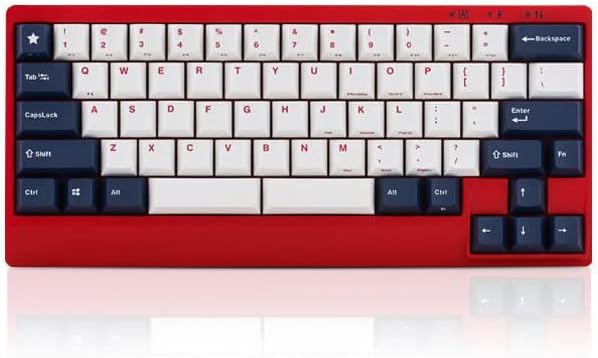
Umfanekiso 1: Ngaphambili view of the Leopold FC650MDS keyboard. The keyboard features a red case with a 'White Blue Star PD' keycap set, consisting of white alphanumeric keys and dark blue modifier keys. The compact 65% layout is visible, including arrow keys and a few navigation keys on the right side.
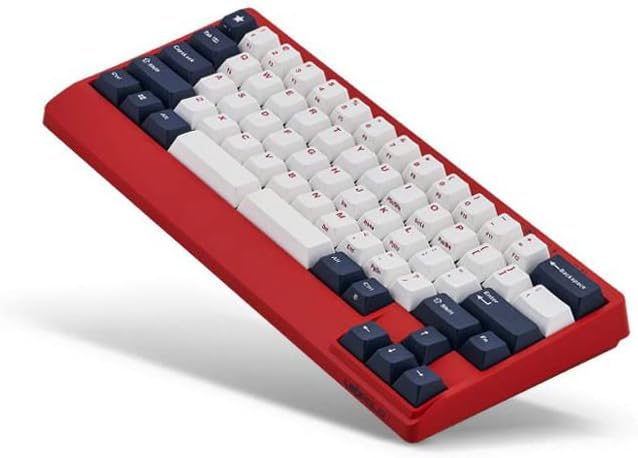
Umfanekiso 2: I-engeli view of the Leopold FC650MDS keyboard, highlighting the ergonomic 'Step Sculpture 2' keycap profile. The red case and the white and dark blue PBT double shot keycaps are clearly visible, demonstrating the keyboard's build quality and design.
Izici Eziyinhloko:
- Mini 65-key layout with double space bar support.
- 1.5mm thick PBT Double Shot keycaps for durability and legend longevity.
- Integrated sound-absorbing pad to enhance typing acoustics.
- Step Sculpture 2 ergonomic keycap profile for comfortable typing.
- Cherry System Stabilizers on larger keys (Shift, Space bar, Enter, Backspace) for consistent keypresses.
- Cherry MX Black mechanical switches.
4. Setha
- Khipha ikhibhodi: Susa ikhibhodi kanye nezesekeli zayo ngokucophelela ephaketheni.
- Xhuma Ikhebula le-USB: Insert the USB-C end of the provided cable into the port on the back of the keyboard. Connect the USB-A end to an available USB port on your computer.
- Ukufakwa komshayeli: The keyboard is plug-and-play and typically does not require special drivers. Your operating system should automatically detect and install the necessary drivers.
- Ukubekwa: Place the keyboard on a stable, flat surface. Adjust the keyboard feet on the underside for your preferred typing angle.
5. Iziqondiso Zokusebenza
Standard Key Functions:
The FC650MDS operates as a standard QWERTY keyboard for alphanumeric input. The 65% layout includes dedicated arrow keys and a few navigation keys (e.g., Delete, Page Up, Page Down) for convenience.
Izinhlanganisela Zezihluthulelo ze-FN:
The 'FN' (Function) key, typically located near the right Ctrl key, allows access to secondary functions printed on the front or side of certain keycaps. Common FN key combinations on 65% keyboards include:
- FN + F-keys (F1-F12): Accessing F-key functionality (e.g., FN + 1 for F1, FN + 2 for F2, etc.).
- FN + Media Keys: Play/Pause, Stop, Previous Track, Next Track, Volume Up, Volume Down, Mute.
- FN + Brightness/Backlight Control: Adjusting keyboard backlight brightness or modes (if applicable, this model has single-color backlighting).
- FN + Home/End: Accessing Home and End functions.
Please refer to the legends on your specific keycaps for the exact FN key combinations available on your FC650MDS keyboard. Some functions may vary.
Ukushintsha kwe-DIP:
Leopold keyboards often feature DIP switches on the underside to customize key functions (e.g., swapping Caps Lock and Left Ctrl, changing the position of the FN key). Consult the diagram on the underside of your keyboard or a separate quick start guide for specific DIP switch configurations and their effects.
6. Isondlo
Ukuhlanza Ikhibhodi:
- Ukuhlanza Okujwayelekile: Sebenzisa indwangu ethambile, engenalinti kancane dampened with water or a mild cleaning solution to wipe down the keyboard case. Avoid harsh chemicals.
- Ukuhlanza ikepisi: For deeper cleaning, you can remove the keycaps using the provided keycap puller. Wash keycaps with mild soap and water, rinse thoroughly, and ensure they are completely dry before reattaching.
- Ukususa Uthuli: Use compressed air to blow away dust and debris from between the keycaps and switches.
Ukunakekelwa Okuvamile:
- Gwema ukuchitha uketshezi kukhibhodi.
- Do not expose the keyboard to extreme temperatures or direct sunlight for extended periods.
- Handle the USB cable carefully to prevent damage to the connector.
7. Ukuxazulula izinkinga
- Ikhibhodi Ayiphenduli:
- Qinisekisa ukuthi ikhebula le-USB lixhumeke ngokuphephile kukho kokubili ikhibhodi nekhompyutha.
- Zama ukuxhuma ikhibhodi embobeni ehlukile ye-USB kukhompuyutha yakho.
- Hlola ikhibhodi kwenye ikhompuyutha ukuze ukhiphe inkinga eqondene nekhompyutha.
- Qala kabusha ikhompuyutha yakho.
- Okhiye Abathize Abasebenzi:
- Susa isivalo sekhiye bese uhlola ukuthi akukho yini udoti noma ukuvinjelwa okuzungeze iswishi. Sebenzisa umoya ocindezelwe ukuze uyisuse.
- Uma inkinga iqhubeka, xhumana nokwesekwa kwamakhasimende.
- Ukukhishwa Okungalungile Kokhiye:
- Check the DIP switch settings on the underside of the keyboard, as they can alter key functions.
- Ensure your operating system's keyboard layout settings are correct.
8. Imininingwane
| Ibhrendi | Leopold |
| Inombolo Yemodeli | FC650MDSS/EWBPD(R) |
| Uhlobo Lwekhibhodi | Omakhenikha |
| Shintsha Uhlobo | I-Cherry MX Emnyama |
| Izinto ze-Keycap | 1.5mm PBT Double Shot |
| Isakhiwo | 65% (Mini 65 keys) |
| Ukuxhumana | I-USB-C |
| Izici ezikhethekile | Sound Absorbing Pad, Step Sculpture 2, Cherry System Stabilizer, Single Color Backlit |
| Ubukhulu (L x W x H) | 12.64 x 5.67 x 2.76 amayintshi |
| Isisindo sento | 2.18 amakhilogremu |
| Umbala | Red case with White Blue Star PD keycaps |
9. Iwaranti kanye Nokusekela
For warranty information and technical support, please refer to the documentation provided with your purchase or contact the retailer or manufacturer directly. Keep your proof of purchase for warranty claims.