
1. Ifihan
This manual provides essential information for setting up, operating, maintaining, and troubleshooting your TCL TAB A1 Plus tablet. Please read this manual thoroughly before using your device to ensure proper and safe operation.
The TCL TAB A1 Plus features a large 12.2-inch 2.4K display with a 120 Hz refresh rate, powered by a 4 nm Qualcomm Snapdragon 4 Gen 2 processor. It boasts a slim metal unibody design and integrates AI features like Google Gemini for enhanced productivity and an intuitive user interface for seamless multitasking.
2. Eto
2.1 Unboxing ati Ibẹrẹ ayewo
Carefully remove all components from the packaging. Verify that all items are present and undamaged. If any items are missing or damaged, contact your retailer.
2.2 Ngba agbara si Ẹrọ
Before first use, fully charge your TCL TAB A1 Plus. Connect the provided USB cable to the tablet's charging port and the other end to a compatible power adapter. Plug the adapter into a wall outlet. The charging indicator will show the charging status.
2.3 Agbara Lori ati Iṣeto ni ibẹrẹ
- Tẹ bọtini agbara ki o si dimu titi ti aami TCL yoo fi han.
- Tẹle awọn itọnisọna loju iboju lati yan ede rẹ, sopọ si nẹtiwọki Wi-Fi, ki o si ṣeto akọọlẹ Google rẹ.
- Complete the initial setup steps, including setting up security features like a PIN, pattern, or fingerprint.
3. Ṣiṣẹ tabulẹti
3.1 Ifihan ati Iriri wiwo
The TCL TAB A1 Plus features a 12.2-inch 2.4K display with a 120 Hz refresh rate, providing a sharp, fluid, and natural viewing experience for videos, browsing, and multitasking.

Image: The TCL TAB A1 Plus display showcasing vibrant colors and a large screen. This image highlights the immersive visual experience.

Image: A visual representation of the 120Hz refresh rate on the TCL TAB A1 Plus, indicating smooth motion and responsiveness.
3.2 Performance and Processor
Powered by a Qualcomm Snapdragon 4 Gen 2 (4 nm) processor, the tablet delivers quick responses, stable performance, and efficient power consumption, suitable for daily tasks, entertainment, and multitasking.

Image: A close-up of the Snapdragon 4 Gen 2 processor, illustrating the advanced technology powering the tablet.
3.3 AI Features with Google Gemini
The integrated Google Gemini AI assistant enhances daily activities, making them smoother and smarter. Features like Circle to Search, Writing Assist, Text Assist, and Smart Translator assist with research, writing, summarizing, and translation.
3.4 User Interface and Multitasking
The intuitive user interface includes Magic Hub, Sidebar, and Large Folders for organization. Quick-launch Split Screen and Floating Window features enable seamless multitasking, allowing you to work, watch, and interact simultaneously.

Image: A screenshot of the Magic Hub feature on the TCL TAB A1 Plus, demonstrating its organizational capabilities for saving and sharing content.
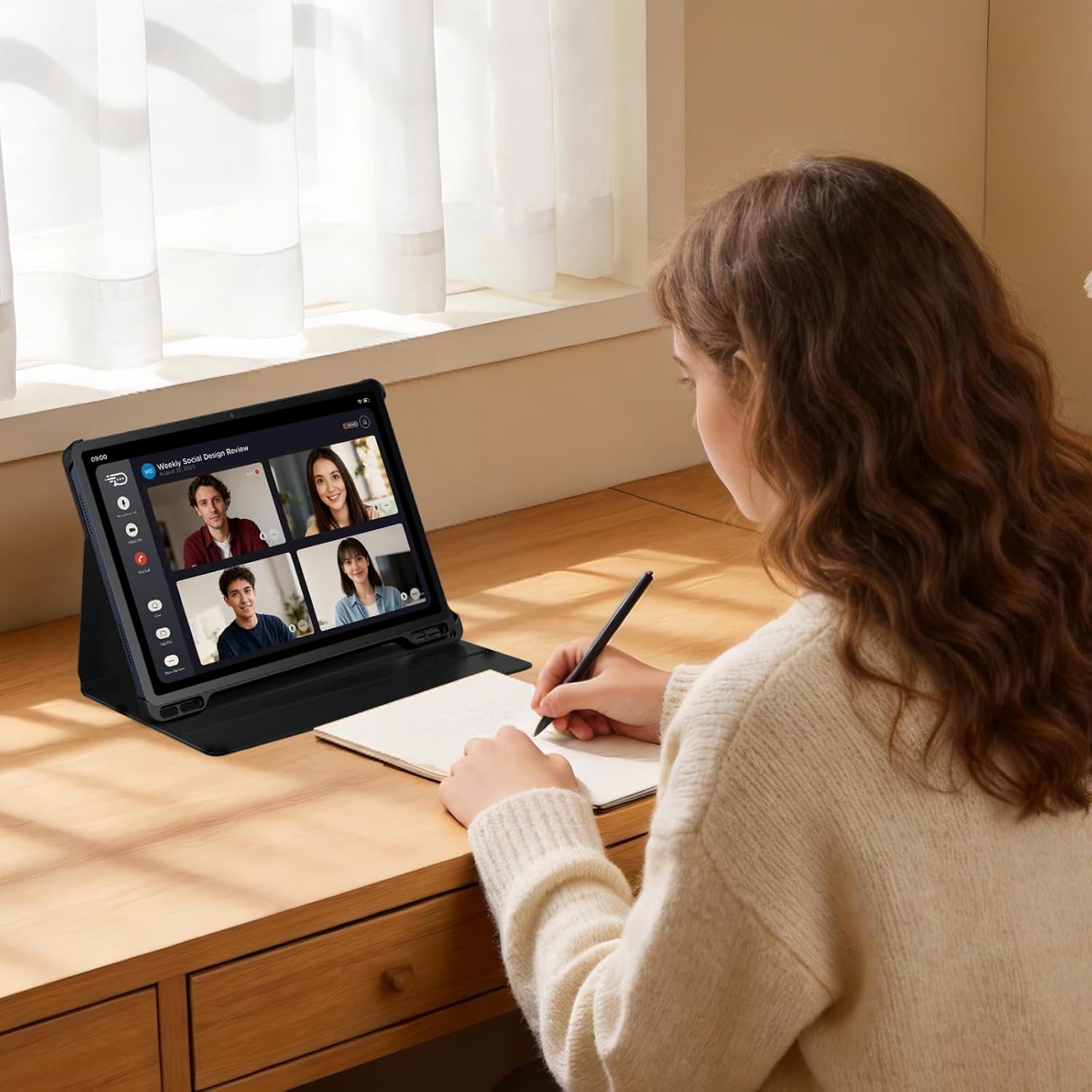
Image: A user participating in a video call on the TCL TAB A1 Plus, illustrating its use for communication and productivity.

Image: A user interacting with the TCL TAB A1 Plus using a T-Pen, demonstrating its suitability for creative and note-taking tasks.
4. Itọju
4.1 Ninu tabulẹti
Lati nu tabulẹti rẹ, lo asọ ti ko ni lint. Fun agidi smudges, die-die dampen the cloth with water or a screen cleaner specifically designed for electronics. Avoid using harsh chemicals, abrasive materials, or aerosol sprays.
4.2 batiri Itọju
To prolong battery life, avoid exposing the tablet to extreme temperatures. Do not leave it fully charged or fully discharged for extended periods. For optimal performance, keep the battery charge between 20% and 80% when possible.
4.3 Software imudojuiwọn
Regularly check for and install software updates to ensure your tablet has the latest features, security patches, and performance improvements. You can usually find this option in the tablet's settings under "System" or "About tablet."
5. Laasigbotitusita
5.1 Ẹrọ Ko Nṣiṣẹ Tan-an
- Ensure the battery is sufficiently charged. Connect the tablet to a charger and wait a few minutes before attempting to power it on again.
- Tẹ mọlẹ bọtini Agbara fun o kere ju iṣẹju 10-15 lati tun fi agbara mu bẹrẹ.
5.2 Iboju ko dahun
- Tun tabulẹti bẹrẹ.
- If the screen remains unresponsive, try a factory reset (note: this will erase all data). Consult the TCL support webAaye fun alaye awọn ilana lori sise a factory si ipilẹ.
5.3 Wi-Fi Asopọ oran
- Rii daju pe Wi-Fi ti ṣiṣẹ lori tabulẹti rẹ.
- Tun olulana Wi-Fi rẹ bẹrẹ.
- Forget the network in your tablet's Wi-Fi settings and reconnect.
5.4 Gbogbogbo Performance Oran
- Pa awọn ohun elo ti ko lo ti nṣiṣẹ ni abẹlẹ.
- Clear cache data for apps that are slowing down.
- Rii daju pe aaye ipamọ to wa.
6. Awọn pato

Aworan: An loriview graphic highlighting key features of the TCL TAB A1 Plus, including 120Hz refresh rate, 2.4K display, Snapdragon 4 Gen 2 processor, metal unibody design, 8000mAh battery, and Google Gemini integration.
| Ẹya ara ẹrọ | Ẹ̀kúnrẹ́rẹ́ |
|---|---|
| Brand | TCL |
| Orukọ awoṣe | TCL TAB A1 Plus |
| Agbara ipamọ | 128 GB |
| Iwon iboju | 12.2 inches |
| Ìpinnu Ìfihàn Púpọ̀ Jùlọ | 2560 Pixels (2.4K) |
| Eto isesise | Android 16 |
| Àwọ̀ | Space Blue |
| Ramu Iwon | 6 GB |
| Pataki Awọn ẹya ara ẹrọ | 2.4K Display with 120 Hz, Advanced 4 nm Processor, AI with Google Gemini, Intuitive User Interface |
| Odun awoṣe | 2026 |
7. Atilẹyin ọja ati Support
Fun alaye alaye atilẹyin ọja, jọwọ wo kaadi atilẹyin ọja ti o wa pẹlu ọja rẹ tabi ṣabẹwo si atilẹyin TCL osise website. You can find support resources, FAQs, and contact information for customer service there.
TCL Official Support: https://www.tcl.com/global/en/support