
1. Ọja Ipariview
The Philips 55MLED610/94 is a 55-inch 4K Ultra HD QLED Smart QD-Mini LED Google TV. It features advanced display technology, smart connectivity, and integrated audio solutions for an enhanced viewiriri iriri.

Iwaju view of the Philips 55MLED610/94 55-inch 4K QD-Mini LED Google TV.
Awọn ẹya pataki:
- Ifihan: 4K QD-Mini LED Panel, Philips Halo Control Technology, Dolby Vision, Local Dimming, 120 Hz Motion Clarity HSR, HDR 10+, 178 Degree Wide Viewing Angle, MEMC, ALLM.
- Smart TV: Google TV operating system, 2GB RAM, 32GB ROM, Quad Core Processor, Dual band WIFI 5, Hands-Free Voice Control, Screen Mirroring, Google Assistant compatibility.
- Ohun: 36 Watts Output, Dolby Atmos, Dolby Audio.
- Asopọmọra: 3 HDMI Ports (including HDMI 2.1), 2 USB Ports, 1 LAN Port, 1 Antenna Input, 1 Satellite Input, 1 Digital Audio Out (Optical), 1 AV-IN, 1 Earphone port.
2. Eto ati fifi sori
2.1 Unpacking ati Awọn akoonu
Carefully unpack the television and ensure all components are present.
- 1N TV Unit
- 2N Stand Bases
- 1N Quick Bẹrẹ Itọsọna
- 1N Kaadi atilẹyin ọja
- 1N Isakoṣo latọna jijin
- 2N AAA Batteries (for remote)
- Okùn Agbára 1N
- 4N Screws (for stand/mount)
- 1N AV Converting Cable

Illustration showing the TV unit and its included accessories for setup.
2.2 Duro fifi sori tabi odi iṣagbesori
The television supports both table-top stand installation and wall mounting.
- Oke Tabili: Attach the provided stand bases to the bottom of the TV unit using the included screws. Ensure the stand is stable on a flat surface.
- Odi Odi: For wall mounting, use a compatible VESA wall mount (not included) and follow the instructions provided with the wall mount. Refer to the TV's back panel for mounting points.

Ẹyìn view of the television, highlighting the mounting points and various input/output ports.
2.3 Nsopọ Peripherals
Connect your external devices such as set-top boxes, gaming consoles, and audio systems to the TV using the appropriate ports.
- HDMI: Use HDMI ports for high-definition video and audio from devices like Blu-ray players or gaming consoles. HDMI 2.1 supports advanced features.
- USB: Connect USB drives for media playback or external storage.
- Lan: Fun asopọ intanẹẹti onirin iduroṣinṣin.
- Eriali/Satẹlaiti: Connect your antenna or satellite dish for broadcast TV.
- Ohun Dijital Jade (Opiti): Fun sopọ si ita ohun awọn ọna šiše.
- AV-IN: Fun awọn ẹrọ agbalagba nipa lilo fidio akojọpọ ati ohun sitẹrio.
- Agbekọri: Fun ikọkọ gbigbọ.

Alaye view of the television's input and output ports, including HDMI, USB, LAN, and audio connections.
3. Awọn ilana Iṣiṣẹ
3.1 Agbára Àkọ́kọ́ àti Ṣíṣeto Google TV
After connecting the power cord, press the power button on the remote control or TV. Follow the on-screen instructions to complete the initial setup, including language selection, network connection (Wi-Fi or LAN), and Google account sign-in.

The Google TV interface, showing various streaming applications and content recommendations.
3.2 Latọna Iṣakoso Awọn iṣẹ
The provided remote control uses both IR and Bluetooth technology. Insert the two AAA batteries as indicated.

The remote control for the Philips 55MLED610/94 TV, featuring dedicated buttons for streaming services and Google Assistant.
- Bọtini agbara: Tan TV si tan tabi paa.
- Paadi Lilọ kiri: Fun lilọ kiri akojọ aṣayan ati yiyan.
- Bọtini Iranlọwọ Google: Mu iṣakoso ohun ṣiṣẹ fun awọn pipaṣẹ ati wiwa.
- Iwọn didun/Awọn bọtini ikanni: Ṣe atunṣe iwọn didun ati yi awọn ikanni pada.
- Awọn bọtini Ọna abuja App: Direct access to popular streaming services like Netflix and Prime Video.
3.3 Smart TV Awọn ẹya ara ẹrọ ati Awọn ohun elo
The Google TV platform provides access to a wide range of applications and services.
- Awọn ohun elo ti a ti fi sii tẹlẹ: Access popular streaming services such as Prime Video, Netflix, Hotstar, Zee5, YouTube, Eros Now, Hungama, JioCinema, and SonyLiv.
- Oluranlọwọ Google: Use hands-free voice control to search for content, control smart home devices, and get information.
- Iboju iboju (Miracast): Cast content from compatible mobile devices to the TV screen.
- Web Aṣàwákiri: Lọ kiri lori intanẹẹti taara lori TV rẹ.
3.4 Ìfihàn àti Ètò Ohùn
Satunṣe aworan ati eto ohun lati je ki rẹ viewing ati gbigbọ iriri.
- Awọn ọna aworan: Select from various picture modes (e.g., Standard, Vivid, Movie, Game) or customize settings like brightness, contrast, color, and sharpness.
- Dolby Vision & HDR10+: The TV automatically detects and optimizes content for Dolby Vision and HDR10+ for enhanced dynamic range and color.
- Awọn ọna ohun: Choose sound modes (e.g., Standard, Music, Movie) or adjust equalizer settings. Dolby Atmos provides immersive audio.
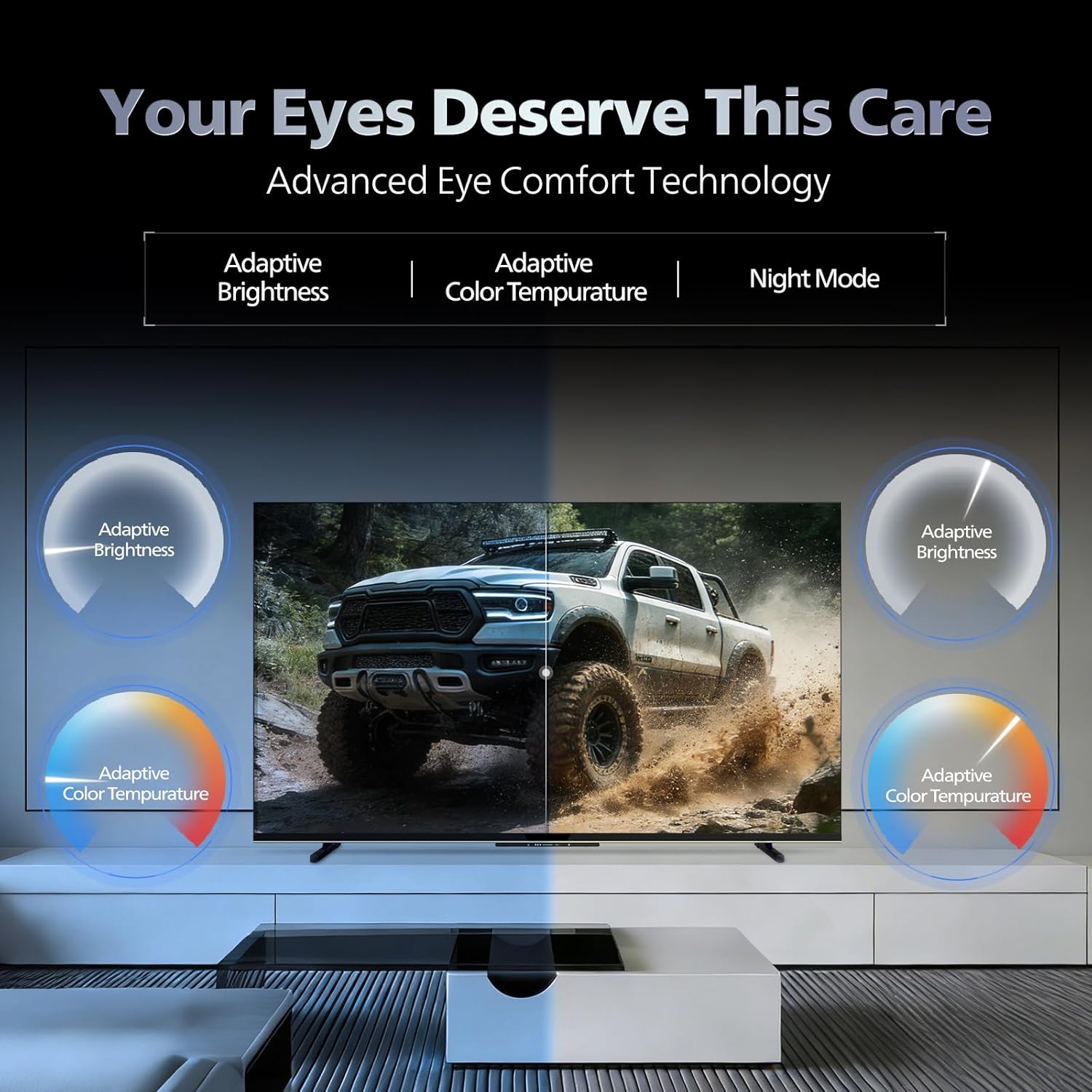
- Imọ-ẹrọ Itunu Oju: Features like Adaptive Brightness, Adaptive Color Temperature, and Night Mode are available to reduce eye strain.

Visual representation of the TV's advanced eye comfort technology, including adaptive brightness and color temperature.

A visual demonstrating the immersive multi-dimensional audio experience provided by Dolby Atmos on the television.
4. Itọju
4.1 Ninu TV
To clean the screen and cabinet, first unplug the power cord. Use a soft, lint-free cloth. For stubborn marks, lightly dampen asọ pẹlu omi tabi kan ìwọnba, ti kii-abrasive iboju regede. Maṣe fun sokiri regede taara sori iboju.
Pataki: The television is ko omi sooro. Avoid exposing it to liquids.
4.2 Software imudojuiwọn
Ensure your TV's software is up to date for optimal performance and security. The TV will typically prompt you for available updates. You can also manually check for updates in the settings menu.
5. Laasigbotitusita
If you encounter issues with your television, try the following basic troubleshooting steps before contacting support.
- Ko si Agbara: Ensure the power cord is securely plugged into both the TV and a working power outlet. Try a different outlet.
- Ko si Aworan/Ohun: Check all cable connections (HDMI, AV, Antenna). Ensure the correct input source is selected on the TV.
- Latọna jijin Ko Ṣiṣẹ: Rọpo awọn batiri ni isakoṣo latọna jijin. Rii daju pe ko si awọn idena laarin isakoṣo latọna jijin ati sensọ IR ti TV.
- Awọn iṣoro Asopọmọra Intanẹẹti: Restart your Wi-Fi router. Check the TV's network settings and ensure it's connected to the correct network. Try a wired LAN connection if possible.
- Awọn ọran Didara Aworan: Ṣatunṣe awọn eto aworan (imọlẹ, itansan, didasilẹ). Rii daju pe orisun akoonu jẹ didara ga.
The television displaying a fast-paced gaming scene, highlighting its 120Hz refresh rate and gaming optimization features.
6. Awọn pato
| Ẹya ara ẹrọ | Ẹ̀kúnrẹ́rẹ́ |
|---|---|
| Nọmba awoṣe | 55MLED610/94 |
| Iwon iboju | 55 inches (138 cm) |
| Ifihan ọna ẹrọ | QD-Mini LED |
| Ipinnu | 4K Ultra HD (3840 x 2160) |
| Oṣuwọn sọtun | 120 Hz HSR |
| HDR kika Atilẹyin | HDR10+, Dolby Vision |
| Viewigun igun | Awọn iwọn 178 |
| Ijade ohun | 36 Wattis |
| Iyipada ohun | Dolby Atmos, Dolby Audio |
| Eto isesise | Google TV |
| Àgbo | 2GB |
| ROM | 32GB |
| Asopọmọra | Wi-Fi (Dual band WIFI 5), Bluetooth 5.1, 3 HDMI (1x HDMI 2.1 eARC), 2 USB, 1 LAN, 1 Antenna, 1 Satellite, 1 Digital Audio Out (Optical), 1 AV-IN, 1 Earphone |
| Awọn iwọn Ọja (D x W x H) | 8D x 144.5W x 84H |
| Item Weight Without Stand | 9.4 kilo |
| Agbara agbara | 130 Wattis |
| Agbara Rating | 3 Irawo |
| Lododun Lilo Lilo | 182 kWh / Odun |
| Awọn irinše to wa | TV Unit, Stand Bases, Quick Start Guide, Warranty Card, Remote, Batteries, Power cord, Screws, AV Converting Cable |

Dimensional drawing of the Philips 55MLED610/94 TV, showing height, width, and depth measurements.
7. Atilẹyin ọja ati Support
7.1 atilẹyin ọja Alaye
A 1-year warranty is provided by the manufacturer from the date of purchase. Warranty claims can be processed using your Amazon e-invoice.
The warranty covers manufacturing defects but does not cover spares.
7.2 Onibara Support
For assistance, contact the brand's toll-free number: 18004256396. Please provide the product's model name (55MLED610/94) and seller's details from your invoice. The service center will schedule a convenient service slot.
Olupese: Radiant Appliances And Electronics Private Limited
Survey No. 111, 112, S-2 A 1, Ecity, Fabcity, Maheshwaram Mandal Raviryala Village, Ranga Reddy, Telangana- 501141
Olukowọle: TPV Technology India Private Limited
Unit No. 307-308 3rd Floor, SEWA Corporate Park MG Road Gurugram Haryana 122002