
1. Ifihan
The Black & Decker Smart Wi-Fi Water Sensor (Model WS) provides real-time water leak detection and alerts to help prevent potential water damage in your home. This manual provides essential information for the proper setup, operation, and maintenance of your water sensors.
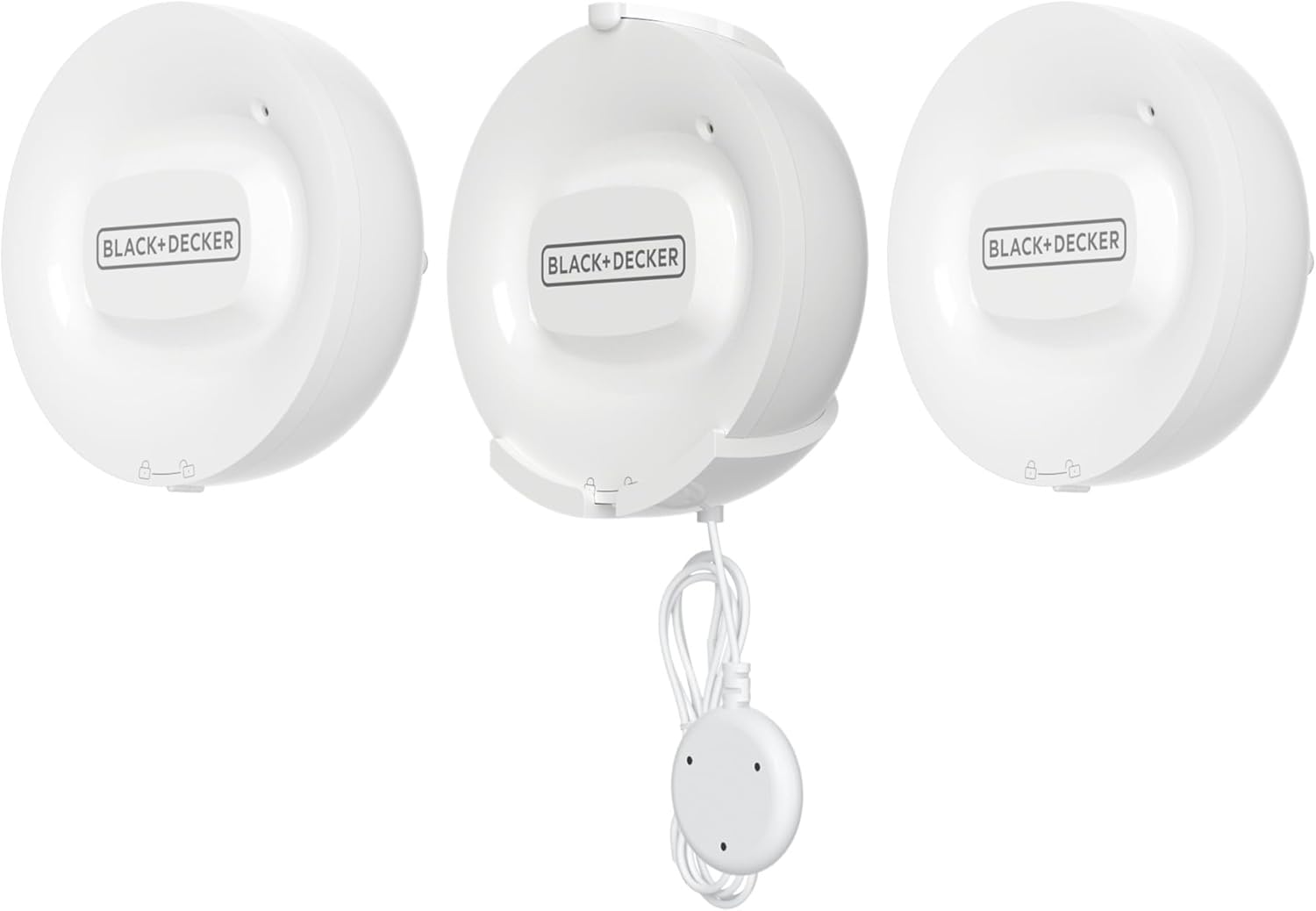
Image 1: Black & Decker Smart Wi-Fi Water Sensor (3-piece set)
2. Ọja Ipariview
2.1 irinše
- 3 x Smart Wi-Fi Water Sensors (Model WS)
- 3 x 46-inch extended probes
- Batteries (1 C battery per sensor, included)
- Itọsọna olumulo
2.2 Key Awọn ẹya ara ẹrọ
- Real-Time Leak Detection: Instantly detects water leaks and sends alerts.
- Awọn titaniji Smart: Receive notifications directly on your smartphone via the BLACK+DECKER Home App.
- Extended Probe: Each sensor includes a 46-inch probe for reaching difficult or confined spaces.
- Ko si Ibudo beere: Connects directly to your home's 2.4 GHz Wi-Fi network.
- Gbigbe Rọ: Compact, battery-powered design allows for versatile installation in various locations.

Image 2: Close-up of the water sensor and its probe
3. Alaye Aabo
Jọ̀wọ́ ka gbogbo ìlànà ààbò kí o sì lóye wọn kí o tó lo ọjà yìí. Àìtẹ̀lé àwọn ìlànà wọ̀nyí lè yọrí sí ìkọlù iná mànàmáná, iná, tàbí ìpalára ńlá.
- Do not immerse the main sensor unit in water. Only the probe is designed for contact with water.
- Rii daju pe awọn batiri ti wa ni fi sii pẹlu polarity to pe.
- Replace batteries with the specified type (1 C battery).
- Jeki ẹrọ naa kuro ni iwọn otutu ti o ga julọ ati oorun taara.
- Ẹrọ yii wa fun lilo inu ile nikan.
- Do not attempt to disassemble or repair the device. Contact customer support for assistance.
4. Eto ati fifi sori
4.1 App Download ati Account Creation
Gba awọn BLACK+DECKER Home App from the Apple App Store or Google Play Store. Create an account or log in if you already have one.
4.2 Fifi sori batiri
Open the battery compartment on the back of each sensor unit. Insert one C battery, ensuring correct polarity. Close the compartment securely.
4.3 Wi-Fi Pairing
The sensors connect directly to your home's 2.4 GHz Wi-Fi nẹtiwọki. Ensure your smartphone is connected to a 2.4 GHz network during the pairing process. Follow the in-app instructions to add each sensor. If you have a dual-band router, you may need to temporarily disable the 5 GHz band or ensure your phone is connected to the 2.4 GHz band specifically.
4.4 Sensọ Placement
Place the water sensors in areas prone to water leaks. The main sensor unit can be placed on a flat surface or mounted on a wall. Position the 46-inch probe to detect water at the lowest point or in specific areas where leaks are likely to occur.
- Awọn ipilẹ ile: Near sump pumps, water heaters, or basement windows.
- Laundry Rooms: Behind or next to washing machines.
- Awọn idana: Under sinks, near dishwashers, or refrigerators with water lines.
- Awọn yara iwẹ: Near toilets, bathtubs, or showers.

Image 3: Sensor placed near a water heater

Image 4: Sensor placed near a washing machine

Image 5: Sensor placed near a dishwasher
4.5 Oṣo Video Itọsọna
Watch this video for a visual guide on setting up and understanding the functionality of the Black & Decker Smart Water Leak Sensor. Note that the video also demonstrates the Smart Valve Controller, which is a separate, complementary product.
Video 1: Black+Decker Water Sensor and Smart Valve Overview. This video demonstrates the setup and operation of the water leak sensor, including placement examples and how it integrates with the BLACK+DECKER Home App. It also shows the optional Smart Valve Controller.
5. Awọn ilana Iṣiṣẹ
5.1 Receiving Alerts
When a water leak is detected by the sensor's probe, the sensor will emit an audible alarm, and you will receive an immediate notification on your smartphone via the BLACK+DECKER Home App. The app alert will specify which sensor detected the leak and the time of detection.

Aworan 6: Example of a water leakage alarm notification in the app
5.2 Monitoring Devices in the App
The BLACK+DECKER Home App allows you to monitor the status of all your connected water sensors. You can view a list of your devices, check their status, and customize settings remotely. This provides peace of mind and allows you to manage your home's water safety from anywhere.

Image 7: Device list in the BLACK+DECKER Home App
5.3 Integration with Smart Valve Controller (Optional)
For enhanced protection, the Smart Wi-Fi Water Sensor can be integrated with a Black & Decker Smart Valve Controller (sold separately). When a leak is detected, the system can be configured to automatically shut off your main water supply, preventing further damage. This feature provides an additional layer of security, especially when you are away from home.
6. Itọju
6.1 Batiri Rirọpo
The sensor is powered by one C battery. The BLACK+DECKER Home App will notify you when the battery level is low. To replace, open the battery compartment, remove the old battery, and insert a new C battery with the correct polarity. Dispose of old batteries responsibly.
6.2 Ninu
Wipe the sensor unit and probe with a soft, dry cloth. Do not use abrasive cleaners or immerse the main unit in water.
6.3 deede sọwedowo
Periodically check the sensor's placement and the condition of the probe to ensure optimal performance. Test the sensor by placing the probe in a small amount of water to confirm it triggers an alert.
7. Laasigbotitusita
- Sensor not connecting to Wi-Fi: Ensure your router is broadcasting a 2.4 GHz Wi-Fi network. The sensor does not support 5 GHz Wi-Fi. Temporarily disable the 5 GHz band on your router during setup if you encounter issues, or ensure your smartphone is connected to the 2.4 GHz network.
- Ko si awọn iwifunni ti a gba: Check if the sensor has sufficient battery power. Verify that the BLACK+DECKER Home App has notification permissions enabled on your smartphone. Ensure the sensor is within range of your Wi-Fi network.
- Àwọn ìkìlọ̀ èké: Ensure the sensor probe is not in an area where it might accidentally come into contact with moisture (e.g., condensation, high humidity). Clean the probe if it appears dirty.
- Sensor not detecting water: Confirm the probe is positioned correctly to make contact with water. Ensure the probe is clean and free of debris.
If you continue to experience issues, please refer to the support section or contact customer service.
8. Awọn pato
| Brand | BLACK+DECKER |
| Nọmba awoṣe | WS |
| Orisun agbara | Agbara Batiri |
| Batiri Iru | 1 C battery (Lithium-Ion, included) |
| Asopọmọra | Wi-Fi (2.4 GHz nikan) |
| Ọna Iṣakoso | App (BLACK+DECKER Home App) |
| Ọna ẹrọ | Conductive Sensor |
| Awọn iwọn Ọja (L x W x H) | 3"L x 1.12"W x 3.12"H |
| Iṣagbesori Iru | Ògiri Ògiri |
9. Atilẹyin ọja ati Support
9.1 atilẹyin ọja Alaye
For detailed warranty information, please refer to the official BLACK+DECKER webaaye tabi kaadi atilẹyin ọja ti o wa pẹlu ọja rẹ. Tọju iwe-ẹri rira rẹ bi ẹri rira.
9.2 Onibara Support
If you have any questions, require technical assistance, or need to report an issue, please contact BLACK+DECKER customer support. Contact information can typically be found on the manufacturer's webaaye tabi apoti ọja.