
1. Ifihan
O ṣeun fun riraasing the LG 27G411A UltraGear Gaming Monitor. This manual provides essential information for the safe and efficient use of your monitor. Please read it thoroughly before operating the product and retain it for future reference. This 27-inch Full HD (1920 x 1080) IPS display is designed for an immersive gaming experience, featuring a 144Hz refresh rate, 1ms Motion Blur Reduction (MBR), HDR10 support, and compatibility with NVIDIA G-Sync and AMD FreeSync technologies.
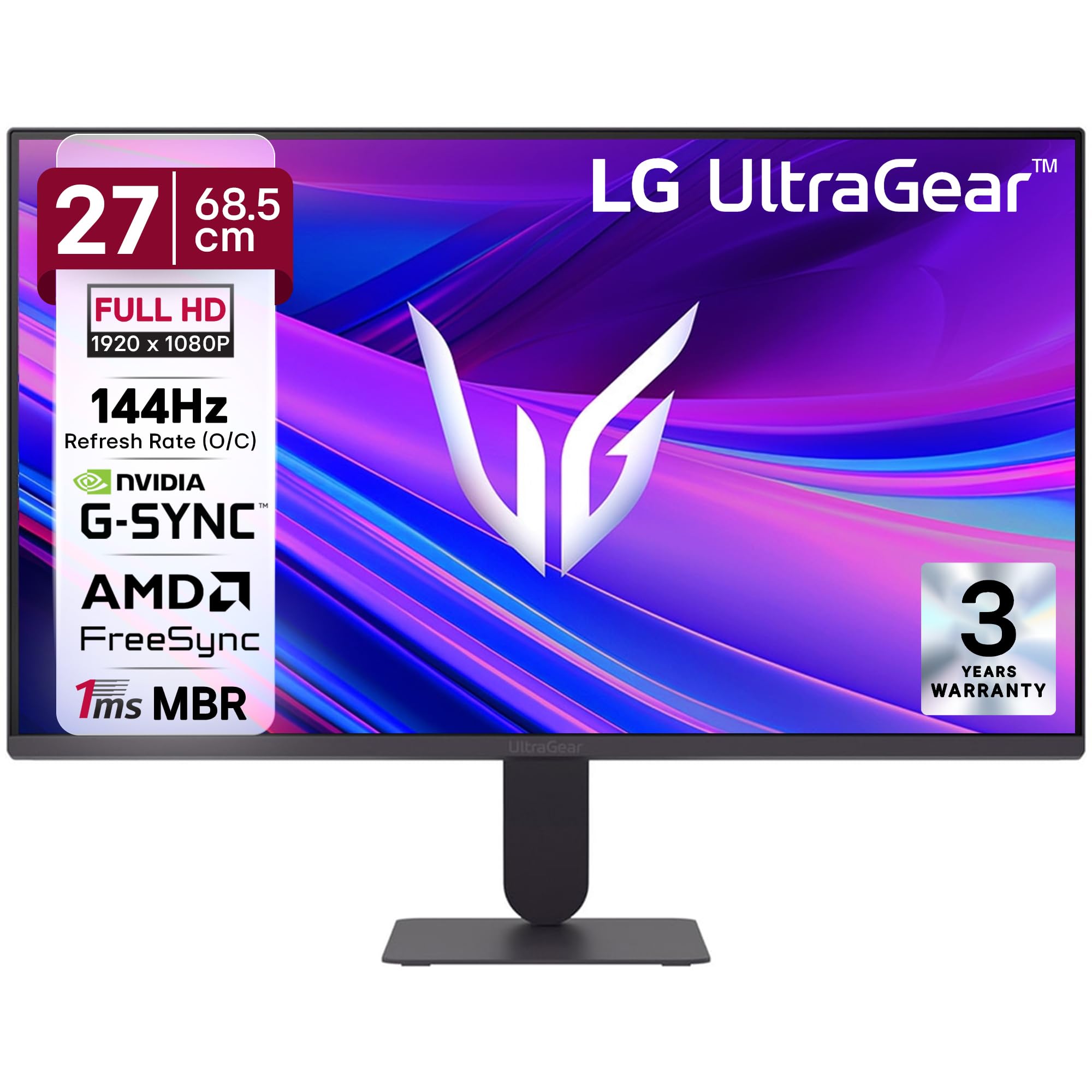
olusin 1: Iwaju view of the LG 27G411A UltraGear Gaming Monitor.
2. Alaye Aabo
Ṣe akiyesi awọn iṣọra aabo wọnyi lati yago fun ibajẹ si ọja tabi ipalara si ara rẹ ati awọn miiran.
- Agbara: Use only the power cord and adapter supplied with the monitor. Do not overload power outlets.
- Ibi: Place the monitor on a stable, level surface. Avoid direct sunlight, heat sources, and areas with high humidity or dust. Ensure adequate ventilation around the monitor.
- Mimu: Do not drop the monitor or subject it to strong impacts. Avoid touching the screen with sharp objects.
- Ninu: Ge asopọ okun agbara ṣaaju ṣiṣe mimọ. Lo asọ asọ ti o gbẹ. Maṣe lo awọn olutọpa olomi tabi awọn sprays aerosol.
- Awọn atunṣe: Maṣe gbiyanju lati ṣiṣẹ ọja yi funrararẹ. Tọkasi gbogbo iṣẹ si oṣiṣẹ oṣiṣẹ ti o peye.
3. Package Awọn akoonu
Daju pe gbogbo awọn nkan wa ninu apoti ọja rẹ:
- LG 27G411A UltraGear Monitor
- Okun agbara
- Okun HDMI
- Iduro Iduro (Ipilẹ ati Ọrun)
- Afowoyi Olumulo (iwe-ipamọ yii)
4. Eto
4.1 Apejọ atẹle
Follow these steps to assemble the monitor stand and attach it to the display panel.
- Carefully place the monitor face down on a soft cloth or cushion to prevent scratches.
- Attach the stand neck to the base, securing it with the captive screw.
- Align the assembled stand with the mounting slot on the back of the monitor panel and push until it clicks into place.
- Alternatively, the monitor supports VESA 100x100mm wall mounting. Remove the stand if using a wall mount.

Figure 2: Illustration of the monitor's ultra-slim design, tilt adjustment, and VESA wall mount compatibility.
4.2 Nsopọ Atẹle
So awọn ẹrọ rẹ pọ si atẹle nipa lilo awọn kebulu ti o yẹ.
- Asopọ agbara: So okun agbara pọ si titẹ agbara atẹle ati lẹhinna si iṣan odi kan.
- HDMI Asopọ: Use the supplied HDMI cable to connect your computer or gaming console to the HDMI port on the monitor.
- Isopọ PortPort: For optimal performance, especially for 144Hz refresh rate, connect your computer to the DisplayPort (DP) on the monitor using a DisplayPort cable (not always included).
- Agbekọri Jade: Connect headphones or external speakers to the 3-pole headphone out port for audio output.

olusin 3: Ẹyìn view of the monitor displaying the power input, HDMI, DisplayPort, and headphone out ports.

Nọmba 4: Alaye view of the DisplayPort (DP-IN), HDMI, and Headphone (HP) ports.
5. Awọn ilana Iṣiṣẹ
5.1 Agbara Tan / Pa
Press the joystick button located at the bottom center of the monitor to turn it on or off. A short press will bring up the OSD menu, while a long press will power off the monitor.
5.2 Lori-iboju Ifihan (OSD) Akojọ aṣyn
The OSD menu allows you to adjust various monitor settings. Use the joystick button to navigate:
- Gbe joystick soke/isalẹ/osi/ọtun lati lọ kiri nipasẹ awọn aṣayan akojọ aṣayan.
- Tẹ joystick lati yan aṣayan kan tabi jẹrisi eto kan.
5.3 Àwọn Ìgbésẹ̀ Àwòrán
The monitor offers several preset picture modes optimized for different content types:
- Aṣa: Allows manual adjustment of all picture settings.
- Gamer1/Gamer2: User-configurable modes for gaming preferences.
- FPS/RTS: Optimized for First-Person Shooter and Real-Time Strategy games.
- Fihanhan: Enhances color and contrast for general viewing.
- Oluka: Reduces blue light for comfortable reading.
- Ipa HDR: Simulates HDR content for non-HDR sources.
- Ailagbara awọ: Adjusts color settings to assist users with color vision deficiency.
5.4 Gaming Enhancements
The LG 27G411A is equipped with features to enhance your gaming experience:
- Oṣuwọn isọdọtun 144Hz & 1ms MBR: Experience fluid motion and reduced ghosting. The monitor supports a native 120Hz refresh rate and up to 144Hz in overclock mode via DisplayPort 1.4 (HDMI 2.0 supports up to 144Hz).
- AMD FreeSync & NVIDIA G-Sync Compatible: Ó ń mú kí ìwọ̀n ìtúnṣe àwòjìji náà dọ́gba pẹ̀lú ìwọ̀n férémù GPU rẹ láti mú kí ìfọ́ àti ìfọ́jú kúrò.
- Amuduro Dudu: Ó ń mú kí àwọn ibi òkùnkùn mọ́lẹ̀ láti ràn ọ́ lọ́wọ́ láti rí àwọn ọ̀tá tí wọ́n fara pamọ́ sí òjìji.
- Ìṣiṣẹ́pọ̀ Ìgbésẹ̀ Onígbàdíẹ̀ (DAS): Minimizes input lag for real-time action.
- Crosshair: Places a fixed crosshair in the center of the screen for improved aiming in FPS games.
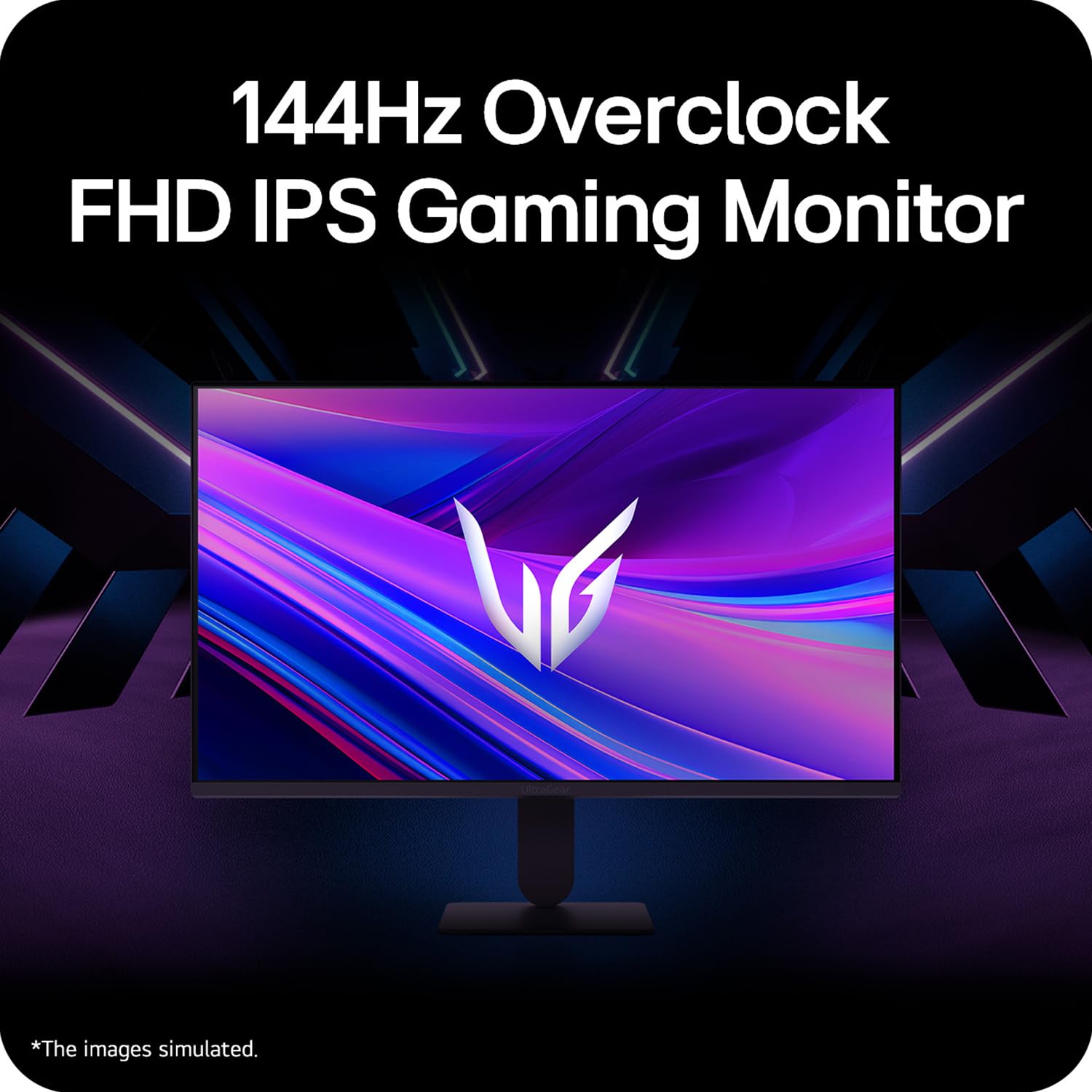
Figure 5: Visual representation of 144Hz overclock for fluid gaming motion.

Figure 6: Illustration of 1ms Motion Blur Reduction (MBR) for fast-paced gaming. Note: 1ms MBR causes lowered luminance and cannot be used with AMD FreeSync/DAS. Flicker may occur during 1ms MBR operation.

Figure 7: The monitor is certified compatible with NVIDIA G-Sync and AMD FreeSync technologies.

Figure 8: Precision Gaming Mode features: Dynamic Action Sync (DAS), Black Stabilizer, and Crosshair.
5.5 Àwọn Ẹ̀yà Ìtọ́jú Ojú
Láti dín ìfúnpá ojú kù nígbà lílo fún ìgbà pípẹ́, àtẹ̀lé náà ní:
- Flicker ailewu: Ó dín ìfọ́jú ojú kù láti dín àárẹ̀ ojú kù.
- Ipo kika: Adjusts color temperature and brightness to simulate paper, making it easier on the eyes for reading tasks.
- Ailagbara awọ: Provides color adjustments for users with color vision deficiencies.
5.6 Smart Convenience (LG Switch App)
The LG Switch app offers enhanced control and customization options for your monitor directly from your computer. Features include Dual mode, Smart screen split, Launch a video call, and Personalized Picture Wizard.

Figure 9: The LG Switch app provides smarter control and seamless switching between various display modes and settings.
6. Itọju
6.1 Ninu Atẹle
Láti mú kí ìrísí àti iṣẹ́ àtẹ̀lé náà máa ṣiṣẹ́ dáadáa:
- Nigbagbogbo yọọ atẹle naa kuro ni iṣan agbara ṣaaju ṣiṣe mimọ.
- Lo aṣọ rirọ, ti ko ni awọ lati nu iboju ati awọn oju ita rẹ pẹlu rọra.
- Fun awọn ami alagidi, fẹẹrẹ dampen asọ pẹlu omi tabi kan ìwọnba, ti kii-abrasive iboju regede. Ma ṣe fun sokiri omi taara sori iboju.
- Avoid using benzene, alcohol, or other volatile solvents, as they may damage the monitor.
7. Laasigbotitusita
Ti o ba pade awọn ọran pẹlu atẹle rẹ, tọka si awọn solusan ti o wọpọ wọnyi:
| Isoro | Owun to le Fa / Solusan |
|---|---|
| Ko si agbara | Ensure the power cable is securely connected to the monitor and a working power outlet. Check if the power outlet is functional. |
| Ko si ifihan agbara / Iboju òfo | Verify that the video cable (HDMI or DisplayPort) is securely connected to both the monitor and your computer/device. Ensure the correct input source is selected in the OSD menu. Check if the computer is powered on and not in sleep mode. |
| Flicker tabi aworan ti o daru | Check the video cable for damage or loose connections. Try a different video cable or port. Adjust the refresh rate settings on your computer. Disable 1ms MBR if flicker is observed. |
| Backlight leakage on corners | Minor backlight leakage can be a characteristic of IPS panels, especially visible on a completely black screen in a dark environment. This is generally not considered a defect unless it significantly impacts normal viewing. |
| Monitor not recognized by PC | Update your graphics card drivers. Restart your computer. |
8. Awọn pato
Key technical specifications for the LG 27G411A UltraGear Gaming Monitor:
- Iwọn iboju: 27 inches (68.5 cm)
- Iru igbimọ: IPS
- Ipinnu: FHD (1920 x 1080)
- Ipin Ipin: 16:9
- Oṣuwọn isọdọtun: 144 Hz (Overclock)
- Akoko Idahun: 1ms MBR (5ms GTG)
- Imọlẹ: 250 cd/m² (aṣoju)
- Ipin Itansan: 1500:1
- Awọ awọ: sRGB 99%
- HDR atilẹyin: HDR10
- Amuṣiṣẹpọ Amuṣiṣẹpọ: Ibamu NVIDIA G-Sync, AMD FreeSync
- Viewigun Angle: 178° (H/V)
- Asopọmọra: 1 x HDMI, 1 x DisplayPort, 1 x Agbekọri Tita
- Dimensions (with stand, WxHxD): 61.2 x 45.2 x 22 cm (24.07 x 17.81 x 8.66 inches)
- Iwọn (pẹlu iduro): 3.8 kg
- Lilo Agbara: 20W (aṣoju)
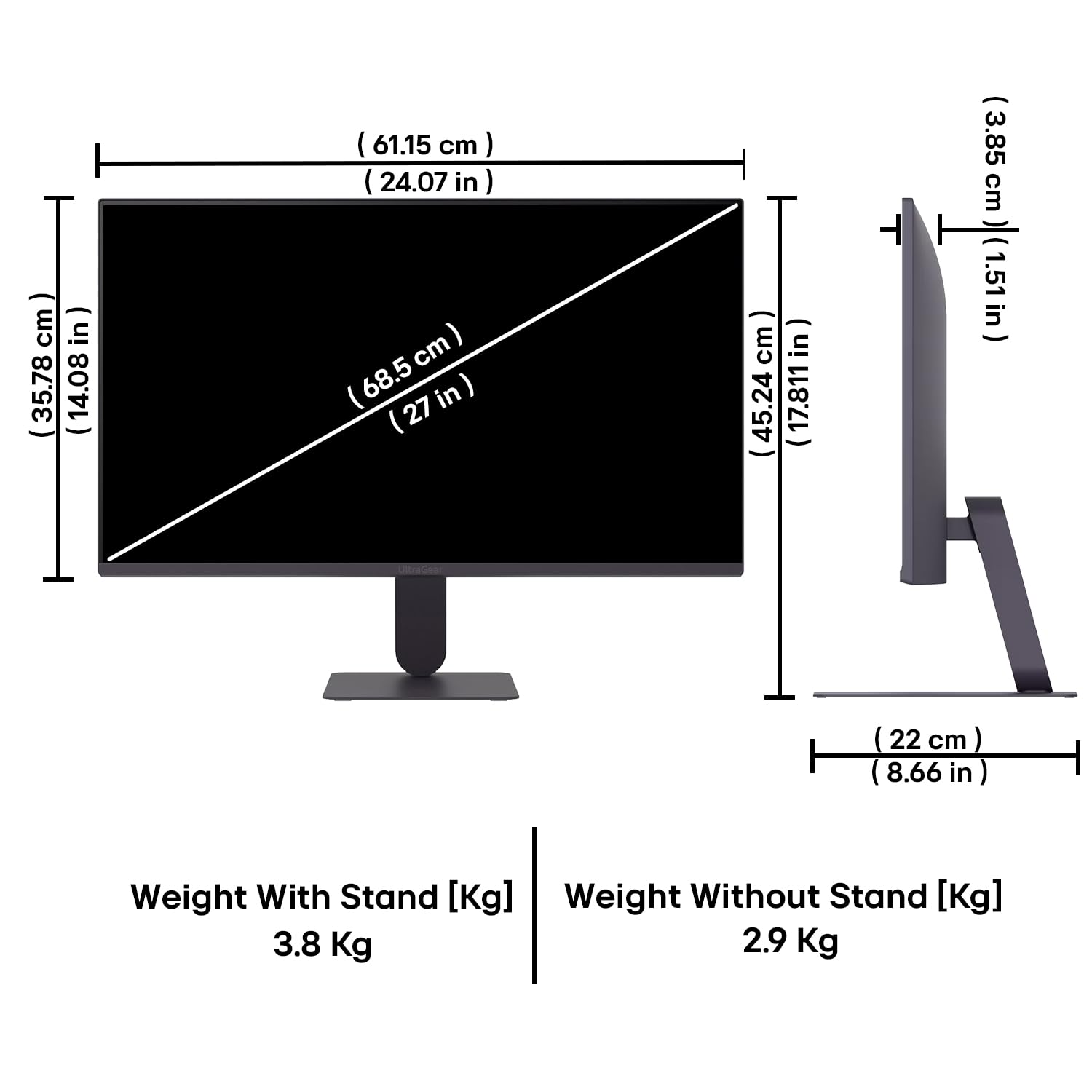
Figure 10: Physical dimensions and weight of the LG 27G411A monitor with and without the stand.
9. atilẹyin ọja Information
This LG 27G411A UltraGear Gaming Monitor comes with a Atilẹyin ọja Olupese Ọdun 3 covering parts and labor. Please retain your proof of purchase for warranty claims. For detailed terms and conditions, refer to the warranty card included in your product packaging or visit the official LG webojula.
10. Onibara Support
For further assistance, technical support, or service inquiries, please contact LG Customer Service. You can find contact information on the official LG webojú-òpó wẹ́ẹ̀bù tàbí nínú àwọn ìwé tí a pèsè pẹ̀lú àtẹ̀lé rẹ.
LG Electronics India Pvt. Ltd.
PLOT NO. A-5, MIDC RANJANGAON.
TALUKA SHIRUR, PUNE, MAHRASHTRA (INDIA), 412220