
1. Introduction
This manual provides essential instructions for the safe and efficient use of your Samsung Smart FHD 43'' TV, model LS43F6000FGXZD. Please read this manual thoroughly before operating the device and retain it for future reference. Your new television features Full HD resolution, HDR technology, PurColor, and the Tizen™ operating system for a rich viewing experience.
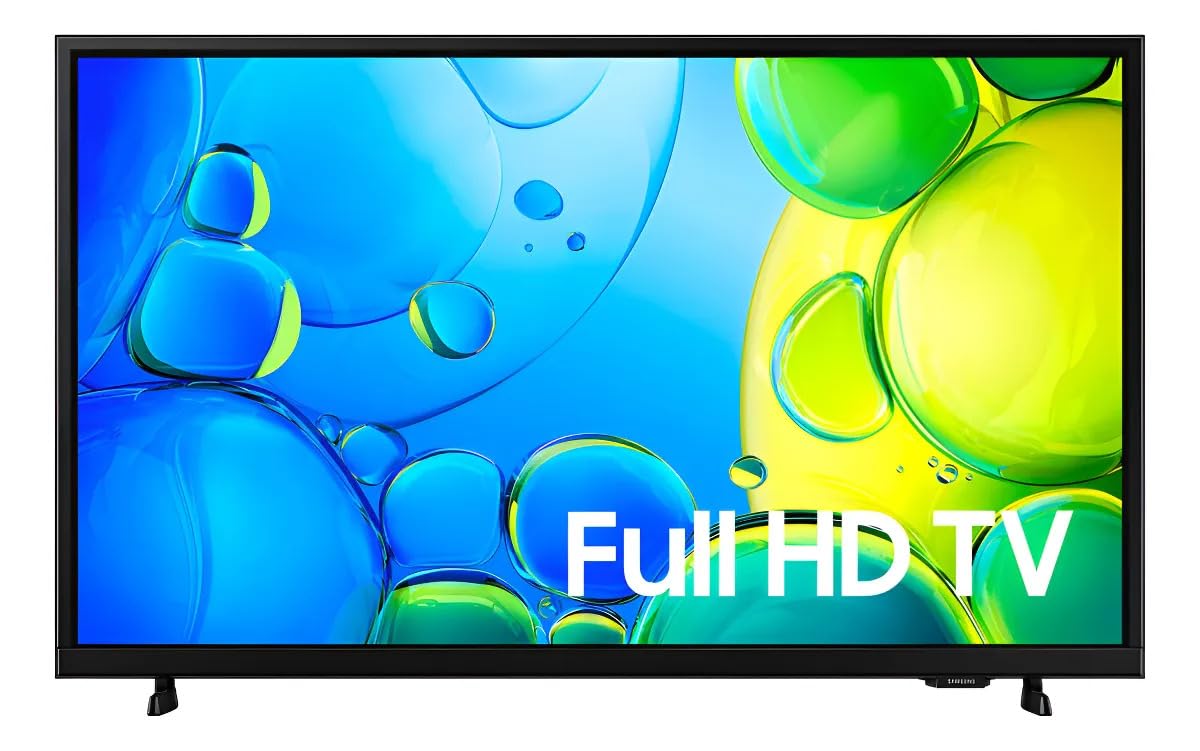
Figure 1: Front view of the Samsung Smart FHD 43'' TV.
2. Safety Information
Always follow these basic safety precautions to reduce the risk of fire, electric shock, and injury.
- Do not expose this apparatus to rain or moisture.
- Do not block any ventilation openings. Install in accordance with the manufacturer's instructions.
- Do not install near any heat sources such as radiators, heat registers, stoves, or other apparatus (including amplifiers) that produce heat.
- Protect the power cord from being walked on or pinched, particularly at plugs, convenience receptacles, and the point where they exit from the apparatus.
- Only use attachments/accessories specified by the manufacturer.
- Refer all servicing to qualified service personnel. Servicing is required when the apparatus has been damaged in any way.
- Ensure the TV is placed on a stable surface or securely mounted to prevent tipping.
3. What's in the Box
Carefully unpack your TV and ensure all components are present. If any items are missing or damaged, contact your retailer.
- Samsung Smart FHD 43'' TV
- Remote Control (requires 2 AA batteries, not always included)
- Power Cable
- Video Adapter (if applicable)
- Stand Components (Base/Feet)
- User Manual (this document)
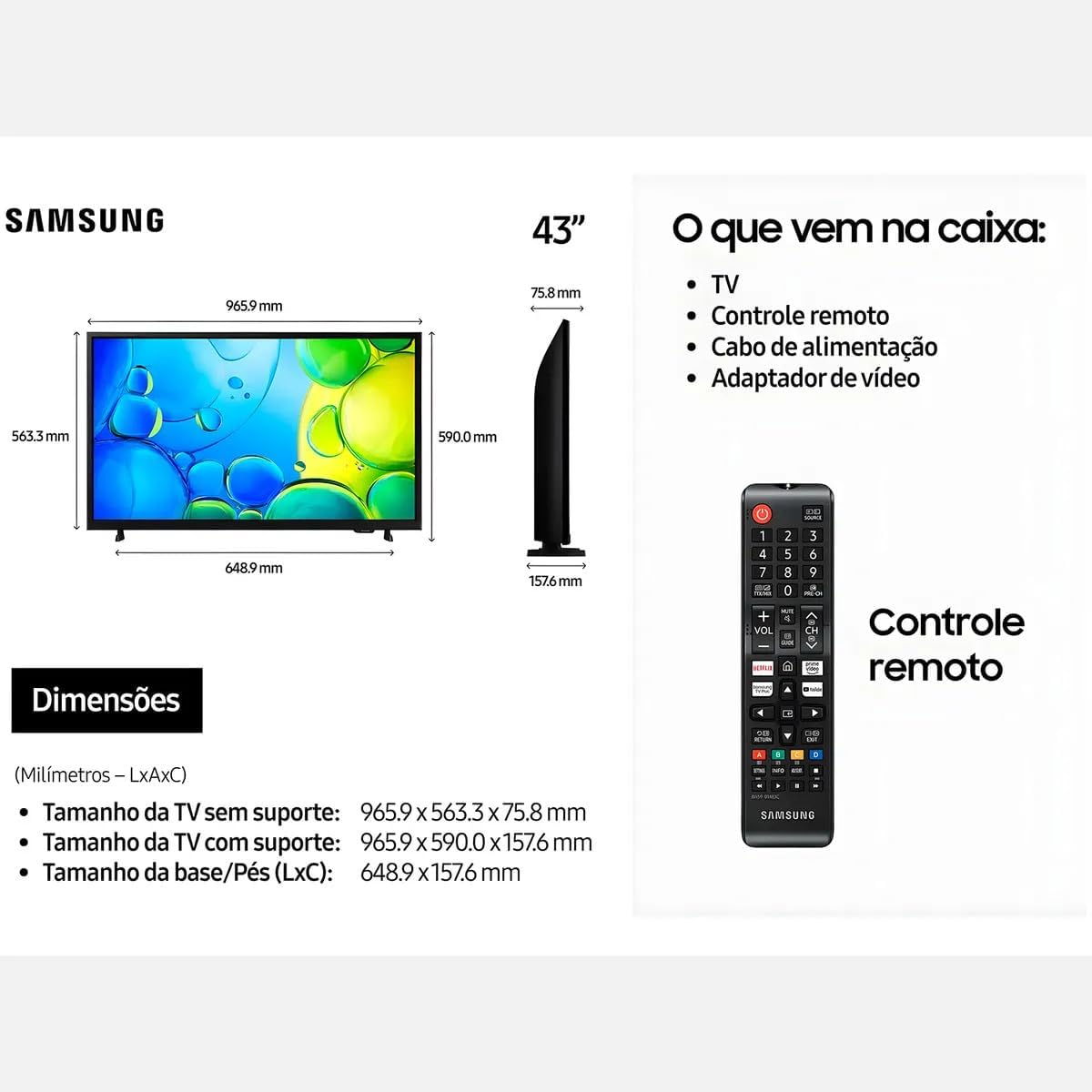
Figure 2: Illustration of items typically included in the product packaging, along with TV dimensions.
4. Setup
4.1 Unpacking
Remove the TV and all accessories from the packaging. It is recommended to keep the original packaging for future transport or servicing.
4.2 Attaching the Stand
If you are placing the TV on a table or cabinet, attach the included stand. Follow the instructions provided in the stand assembly guide. Ensure all screws are tightened securely.
4.3 Wall Mounting
For wall mounting, use a VESA-compliant wall mount kit (100 x 200 mm, sold separately). Consult a professional for wall mounting to ensure proper installation and safety.
4.4 Connecting Peripherals
Connect your external devices to the TV using the appropriate ports.
- HDMI: Connect Blu-ray players, game consoles, or set-top boxes to the HDMI ports. This TV has 2 HDMI ports.
- USB: Connect USB storage devices for media playback to the USB 3.0 port. This TV has 1 USB 3.0 port.
- Network (LAN): For a wired internet connection, connect an Ethernet cable to the LAN port.
- Antenna/Cable: Connect your antenna or cable TV feed.
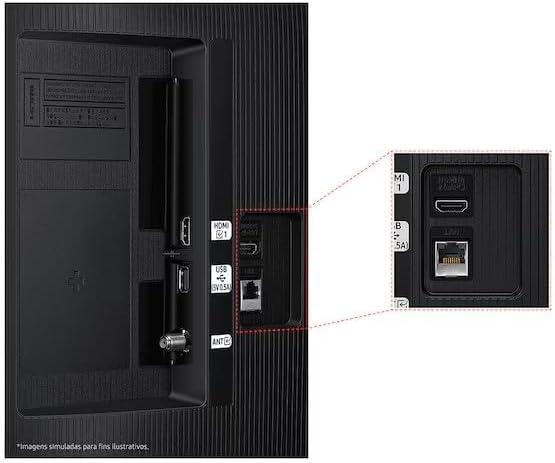
Figure 3: Rear panel connections, highlighting HDMI, USB, and LAN ports.
4.5 Initial Power On and Setup Wizard
After connecting all necessary cables, plug the power cord into an electrical outlet. The TV will power on and guide you through the initial setup wizard, which includes language selection, network connection (Wi-Fi or wired), channel scanning, and smart features configuration.
5. Operating the TV
5.1 Remote Control Overview
Insert two AA batteries into the remote control. The remote allows you to navigate menus, change channels, adjust volume, and access smart features. Refer to the diagram on the remote control for button functions.
5.2 Basic TV Functions
- Power: Press the power button on the remote to turn the TV on or off.
- Volume: Use the Volume Up/Down buttons to adjust the sound level.
- Channel: Use the Channel Up/Down buttons to change channels.
- Source: Press the Source button to switch between connected input devices (HDMI 1, HDMI 2, TV, etc.).
5.3 Smart TV Features (Tizen OS)
Your Samsung Smart TV runs on the Tizen™ operating system, providing access to a wide range of applications and services. Connect your TV to the internet via Wi-Fi or Ethernet to utilize these features.
- App Store: Download and install various applications like Netflix, YouTube, and Amazon Prime Video.
- Web Browser: Browse the internet directly from your TV.
- Smart Hub: Access all your smart features, apps, and connected devices from one central location.

Figure 4: The Tizen operating system interface, showing available applications.
The TV also features Knox Security, ensuring your data and privacy are protected.
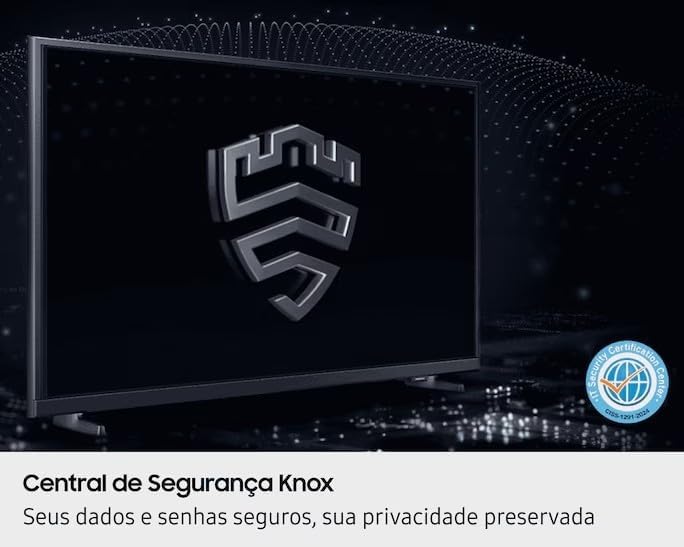
Figure 5: Knox Security Central, highlighting data and privacy protection.
5.4 Picture Settings
Adjust picture settings to optimize your viewing experience.
- Picture Mode: Select from various preset modes (Standard, Dynamic, Movie, etc.) or customize your own.
- Brightness/Contrast: Adjust these settings to suit your environment.
- HDR Technology: This TV supports HDR10+, providing greater depth in details, even in very bright or dark scenes.
- PurColor: Enhances color accuracy and vibrancy for a more lifelike image.
- Contrast Enhancer: Automatically adjusts contrast for improved picture depth.

Figure 6: HDR Technology in action, showing enhanced detail in both bright and dark areas.
5.5 Sound Settings
Customize audio output through the sound settings menu. Options may include sound modes, equalizer settings, and audio output selection (TV speakers, external soundbar, Bluetooth audio).
5.6 Connectivity
- Bluetooth: Connect compatible Bluetooth devices such as headphones or soundbars wirelessly.
- Wi-Fi: Connect to your home wireless network for internet access and smart features.
6. Maintenance
6.1 Cleaning the TV
- Screen: Gently wipe the screen with a soft, lint-free cloth. For stubborn marks, slightly dampen the cloth with water or a specialized screen cleaner. Never spray liquid directly onto the screen.
- TV Body: Use a soft, dry cloth to wipe dust from the TV's frame and back panel.
- Important: Always unplug the TV from the power outlet before cleaning.
6.2 Software Updates
Your TV may receive software updates to improve performance and add new features. You can usually configure the TV to update automatically or check for updates manually through the settings menu (typically under Support > Software Update).
7. Troubleshooting
If you encounter issues with your TV, refer to the following common solutions before contacting support.
| Problem | Possible Solution |
|---|---|
| No power | Ensure the power cord is securely plugged into both the TV and a working electrical outlet. Test the outlet with another device. |
| No picture, but sound is present | Check the input source. Ensure the connected device is powered on and functioning correctly. Try a different HDMI cable. |
| No sound, but picture is present | Check the volume level and ensure the TV is not muted. Verify audio output settings. If using external speakers, check their connections and power. |
| Remote control not working | Replace the batteries (AA type). Ensure there are no obstructions between the remote and the TV's IR sensor. |
| Cannot connect to Wi-Fi | Ensure your router is on and functioning. Re-enter the Wi-Fi password. Try restarting both the TV and your router. |
| Picture quality issues (e.g., blurry, distorted) | Check the source resolution. Adjust picture settings (brightness, contrast, sharpness). Ensure cables are securely connected. |
8. Specifications
Key technical specifications for the Samsung Smart FHD 43'' TV (Model: LS43F6000FGXZD).
| Feature | Detail |
|---|---|
| Model Number | LS43F6000FGXZD |
| Screen Size | 43 Inches |
| Display Technology | FHD (Full High Definition) |
| Resolution | FHD (1920 x 1080 pixels) |
| Refresh Rate | 60 Hz |
| Operating System | Tizen™ |
| HDR Support | HDR10+ |
| Picture Enhancement | HDR Technology, PurColor, Contrast Enhancer |
| Connectivity | Bluetooth, Wi-Fi, 2x HDMI, 1x USB 3.0 |
| Internet Services Supported | Netflix, YouTube, Amazon Prime |
| VESA Mount Standard | 100 x 200 mm |
| Dimensions (W x D x H) without stand | 965.9 x 75.8 x 563.3 mm |
| Dimensions (W x D x H) with stand | 965.9 x 157.6 x 590.0 mm |
| Weight (without stand) | 6.5 kg |
| Voltage | 110-220 Volts (check product label for specific range) |
| Remote Control Battery Type | AA (x2) |
9. Warranty and Support
9.1 Product Warranty
This Samsung Smart FHD 43'' TV (Model: LS43F6000FGXZD) comes with a 12-month limited warranty from the date of purchase. This warranty covers manufacturing defects and malfunctions under normal use. Please retain your proof of purchase for warranty claims. For detailed terms and conditions, refer to the warranty card included with your product or visit the official Samsung support website.
9.2 Customer Support
For technical assistance, troubleshooting beyond this manual, or warranty service, please contact Samsung Customer Support. You can find contact information (phone numbers, chat support, service center locations) on the official Samsung website for your region.
When contacting support, please have your TV's model number (LS43F6000FGXZD) and serial number ready. The serial number is typically located on a sticker on the back of the TV.


