
1. Ifihan
This manual provides detailed instructions for the setup, operation, and maintenance of your MOKiN 13-in-1 USB-C Docking Station. Please read this manual thoroughly before using the device to ensure proper functionality and to prevent damage.
Awọn Itọsọna Aabo
- Ma ṣe fi ẹrọ naa han si omi, ọrinrin, tabi awọn iwọn otutu to gaju.
- Yago fun sisọ silẹ tabi tẹriba ẹrọ si awọn ipa to lagbara.
- Lo oluyipada agbara ti a pese nikan tabi orisun agbara ibaramu.
- Pa ẹrọ kuro lati awọn ọmọde.
- Do not attempt to disassemble or repair the device yourself. Contact customer support if service is required.
2. Ọja Ipariview
The MOKiN 13-in-1 USB-C Docking Station is designed to expand the connectivity of your USB-C enabled laptop, providing multiple ports for display, data transfer, network, and charging.
Key Awọn ẹya ara ẹrọ
- 13-in-1 Expansion: Includes 2 HDMI ports, 2 USB-C data ports, 1 USB-A data port, 1 USB-A 2.0 port, 3 USB-C charging ports (including host), 1 USB-A charging port, Gigabit Ethernet, AC power port, and a screen-lock button.
- Atilẹyin Ifihan Meji: Extends your display in up to 4K resolution via HDMI ports. Supports dual-display mode for macOS and Windows.
- Gbigbe Data Iyara Giga: USB 3.2 Gen 2 ports (2 USB-C and 1 USB-A) offer up to 10Gbps data transfer speeds.
- Ìmújáde Agbára Púpọ̀ Jùlọ 160W: Capable of charging up to four devices simultaneously, with individual ports supporting up to 100W (USB-C) and 12W (USB-A).
- 2.26" LCD Smart Display: Provides real-time monitoring of charging status, power output, display resolution, and refresh rate.
- Gigabit-Eternet: Ensures fast and stable wired network connection up to 1000Mbps.
- Apẹrẹ tuntun: Compact vertical design with an aluminum finish, 80cm host cable, and a magnetic base.
- Ẹya Aṣiri: Built-in screen-lock button for securing sensitive information.
Port Ìfilélẹ

Detailed diagram illustrating the front and rear ports of the MOKiN Docking Station, including USB-C, USB-A, HDMI, Ethernet, and power input.
Awọn ibudo iwaju:
- Bọtini agbara
- 3 x USB 3.2 Gen 2 Data Ports (2x USB-C, 1x USB-A) - 10Gbps
- 2 x USB-C Charging Ports
- 1 x USB-A Charging Port
Awọn ibudo ẹhin:
- 1 x USB-C Host Port (20Gbps/100W PD)
- 1 x USB-A 2.0 Port
- 2 x HDMI Ports (up to 4K@60Hz)
- 1 x Gigabit àjọlò Port
- Input Agbara AC
3. Awọn ilana iṣeto
Igbesẹ 1: Asopọ agbara
- Connect the provided AC power adapter to the AC Power Input port on the rear of the docking station.
- Pulọọgi ohun ti nmu badọgba agbara sinu iṣan ogiri kan.
Step 2: Connecting to Host Device
- Connect the integrated USB-C host cable from the docking station to a compatible USB-C, USB4, or Thunderbolt port on your laptop.
- Ensure your laptop supports DP Alt Mode and Power Delivery for full functionality.
Igbesẹ 3: Sisopọ Awọn Agbeegbe
- Awọn ifihan: Connect your monitors to the HDMI ports on the rear of the docking station using HDMI cables.
- Awọn ẹrọ USB: Connect USB peripherals such as keyboards, mice, external hard drives, or USB flash drives to the available USB-A and USB-C data ports.
- Nẹtiwọọki: For a wired internet connection, connect an Ethernet cable from your router or modem to the Gigabit Ethernet port on the rear.
- Awọn Ẹrọ gbigba agbara: Use the dedicated USB-C and USB-A charging ports on the front to charge your smartphones, tablets, or other compatible devices.
4. Awọn ilana Iṣiṣẹ
Lilo gbogbogbo
Once all connections are made, the docking station should automatically be recognized by your laptop. Drivers are typically installed automatically by your operating system (Windows, macOS, ChromeOS).
LCD Smart Ifihan
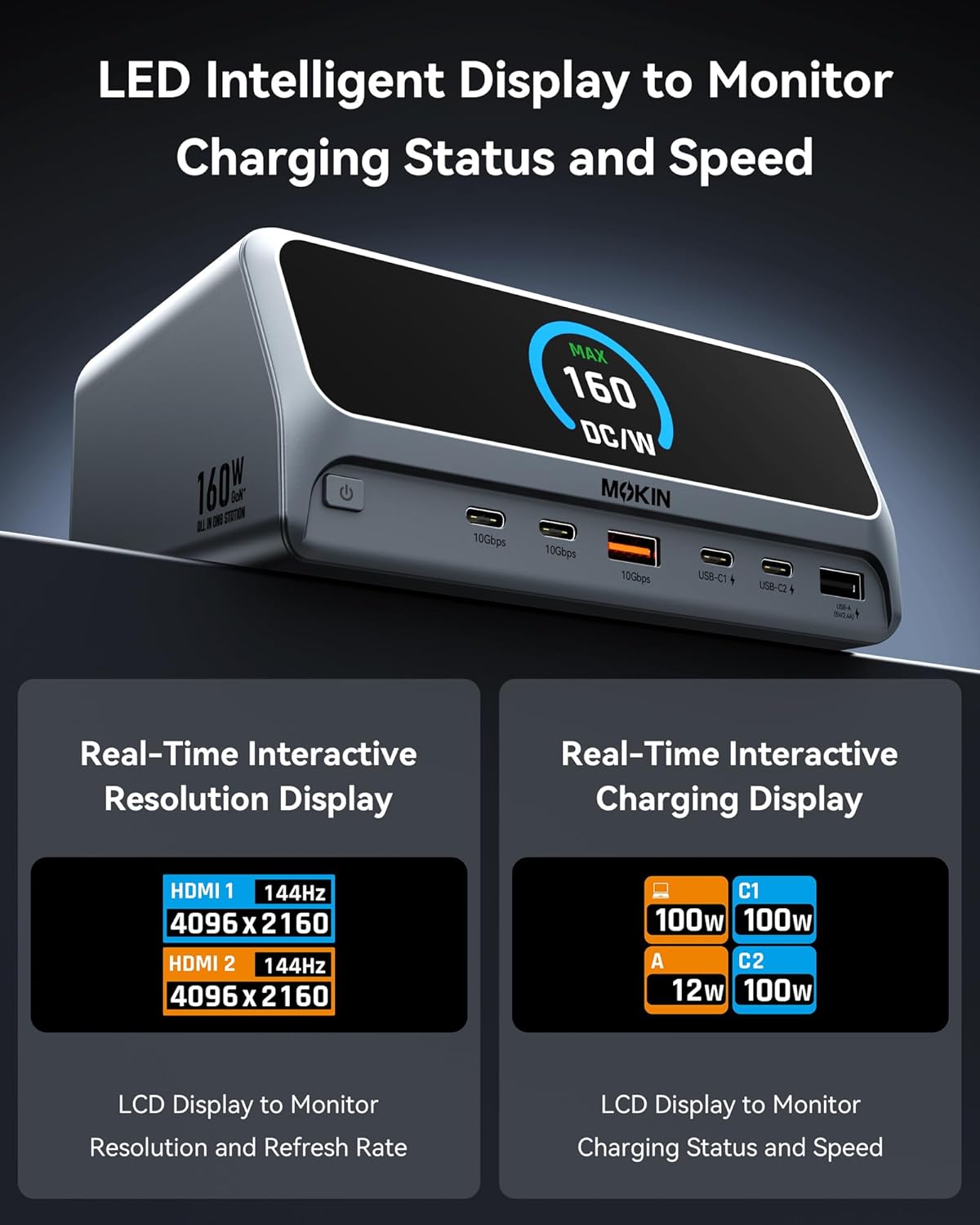
Close-up of the docking station's LCD smart display, showing real-time information such as charging status, power output, and display resolution.
The 2.26-inch LCD smart display provides real-time information:
- Ipo gbigba agbara: Displays the power output (in Watts) for each connected charging port (USB-C1, USB-C2, USB-A).
- Ipinnu Ifihan: Shows the resolution and refresh rate of connected HDMI monitors (e.g., HDMI 1: 144Hz 4096x2160).
- Lapapọ Abajade Agbara: Indicates the maximum total power being drawn from the docking station.
Screen-Lock Button
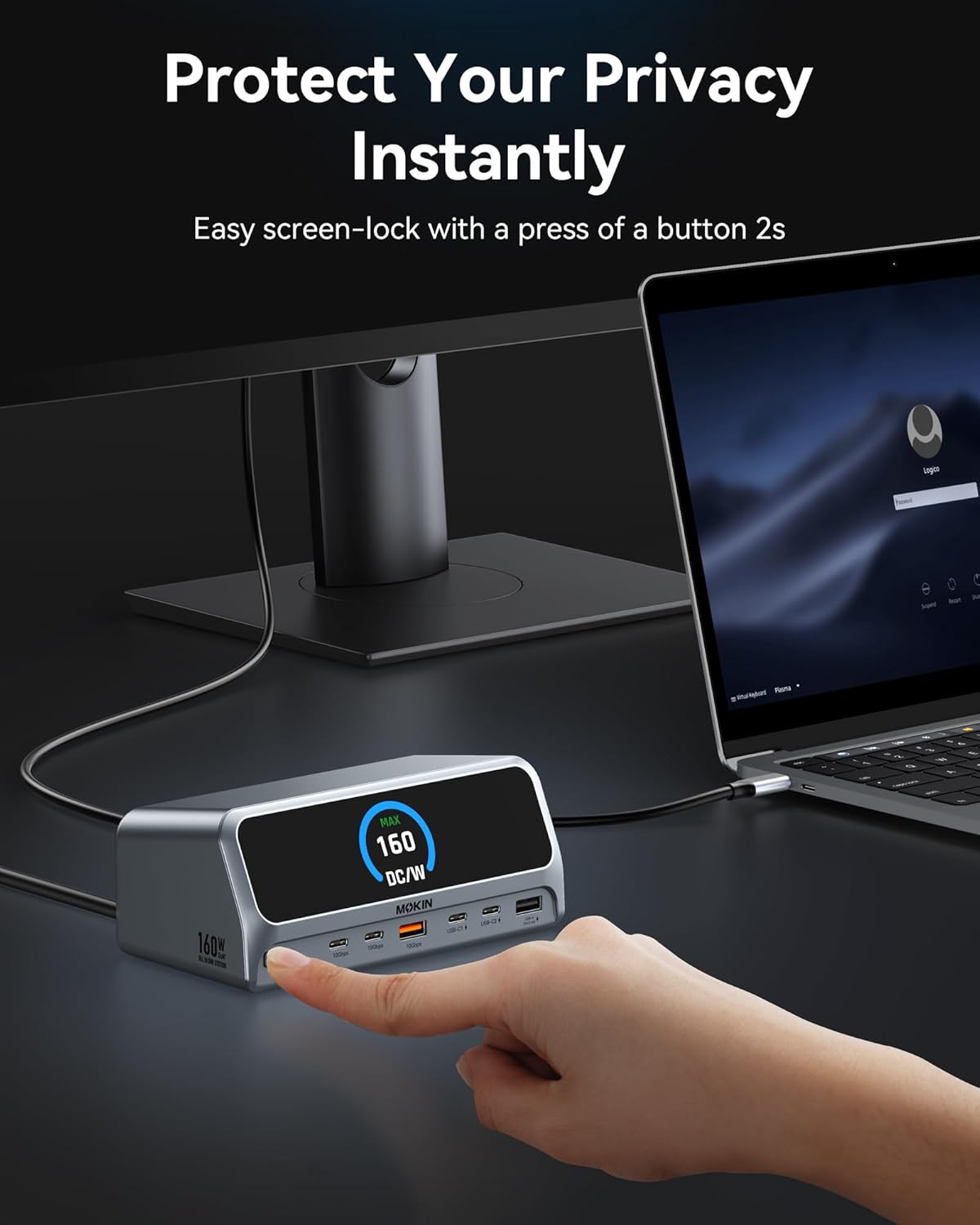
A hand pressing the screen-lock button on the docking station, demonstrating the privacy feature.
Press and hold the screen-lock button for approximately 2 seconds to instantly turn off the connected displays. This feature is useful for privacy or when you need to quickly disable external monitors without disconnecting them.
5. Ṣíṣeto Àfihàn

Visual guide demonstrating various dual 4K display configurations supported by the docking station for both Windows and macOS operating systems.
The docking station supports dual 4K displays. The behavior of extended displays varies slightly between Windows and macOS.
- Awọn eto Windows: Support Multi-Stream Transport (MST) for dual independent displays (A+B, A+B+C, etc.).
- Awọn eto macOS: Support dual-display mode, typically mirroring the primary display or extending it with a single additional desktop (A+A, A+B).
Lati tunto awọn ifihan rẹ, wọle si awọn eto ifihan ẹrọ ṣiṣe rẹ:
- Windows: Tẹ-ọtun lori tabili tabili> Awọn eto ifihan.
- MacOS: Eto Eto> Awọn ifihan.
6. Charging Capabilities

Image showing the MOKiN Docking Station charging multiple devices simultaneously, highlighting its 160W total power output capability.
The docking station delivers a total of 160W power output, distributed across its charging ports:
- Host Port (USB-C): Up to 100W Power Delivery to your laptop.
- Dedicated USB-C Charging Ports: Each supports up to 100W max output.
- Dedicated USB-A Charging Port: Supports up to 12W max output.
Note: The dedicated charging ports do not support data transmission or display extension functions.
7. Data Gbigbe
The docking station is equipped with high-speed data transfer ports:
- USB 3.2 Gen 2 Ports (2x USB-C, 1x USB-A): Provide data transfer speeds of up to 10Gbps, allowing for rapid file awọn gbigbe.
- USB 2.0 Port (1x USB-A): Suitable for connecting standard peripherals like keyboards, mice, or printers.
8. Asopọ nẹtiwọki
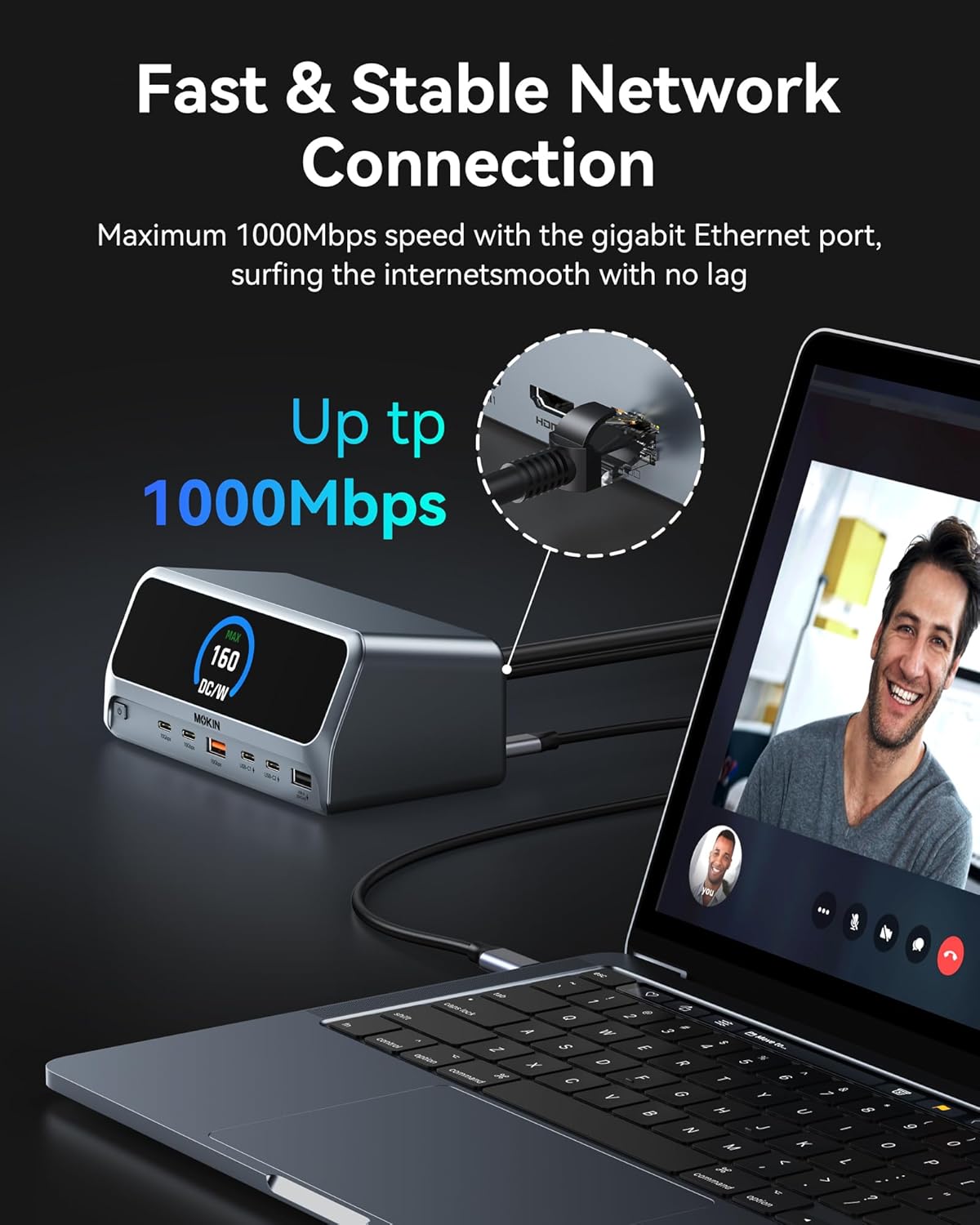
A laptop connected to the docking station via an Ethernet cable, illustrating the stable gigabit network connection.
Ibudo Gigabit Ethernet ti a ṣepọ n pese asopọ nẹtiwọọki ti a firanṣẹ ni iduroṣinṣin ati iyara, atilẹyin awọn iyara to 1000Mbps. Eyi jẹ apẹrẹ fun iraye si intanẹẹti igbẹkẹle ati nla file awọn gbigbe, paapaa ni awọn agbegbe nibiti Wi-Fi le jẹ alaiduro tabi lọra.
9. Awọn pato
| Ẹya ara ẹrọ | Sipesifikesonu |
|---|---|
| Awoṣe | 13 ni Ibusọ gbigba agbara 1 |
| Brand | MOKiN |
| Asopọ Gbalejo | USB Type-C (USB-C, USB4, Thunderbolt compatible) |
| Lapapọ Awọn ibudo USB | 7 (3x 10Gbps data, 1x USB 2.0 data, 3x charging) |
| Ijade fidio | 2 x HDMI (up to 4K@60Hz) |
| Àjọlò | Gigabit Ethernet (10/100/1000Mbps) |
| Ijade agbara (Lapapọ) | Iye ti o ga julọ ti 160W |
| Power Output (Host) | Titi di Ifijiṣẹ Agbara 100W |
| Power Output (Charging Ports) | USB-C: 100W Max each; USB-A: 12W Max |
| Iyara Gbigbe Data | 10Gbps (USB 3.2 Gen 2 ports) |
| Ifihan | 2.26" LCD Smart Display |
| OS ibaramu | Windows 10/11, macOS, ChromeOS |
| Iwọn Nkan | 2.48 iwon |
| Package Mefa | 7.83 x 7.28 x 3.11 inches |
10. Laasigbotitusita
Wọpọ Oran ati Solusan
- Ko si Abajade Ifihan:
- Ensure the docking station is powered on and connected to your laptop's USB-C port.
- Verify that your laptop's USB-C port supports DisplayPort Alternate Mode (DP Alt Mode).
- Check HDMI cable connections to both the docking station and the monitor.
- Confirm that the monitor input source is set correctly (e.g., HDMI 1, HDMI 2).
- Gbiyanju lati ṣe imudojuiwọn awọn awakọ aworan ti kọǹpútà alágbèéká rẹ.
- Tun kọmputa rẹ ati ibudo iduro rẹ bẹrẹ.
- Awọn ẹrọ USB ko mọ:
- Rii daju pe ibudo docking ti sopọ mọ kọǹpútà alágbèéká rẹ daradara.
- Gbiyanju lati so ẹrọ USB pọ si ibudo ti o yatọ lori ibudo docking.
- Connect the USB device directly to your laptop to confirm it functions independently.
- Check your laptop's Device Manager (Windows) or System Information (macOS) for any unrecognized USB devices.
- Gbigba agbara lọra tabi Ko si gbigba agbara:
- Verify that the docking station's power adapter is securely connected and receiving power.
- Rí i dájú pé ibudo USB-C ti kọǹpútà alágbèéká rẹ ṣe atilẹyin fun Ifijiṣẹ Agbara (PD).
- Check the power requirements of your laptop; if it requires more than 100W, it may charge slower or not at all through the docking station.
- Note that the USB-C downstream data ports do not support charging. Use the dedicated charging ports.
- Awọn oran Asopọmọra Ethernet:
- Rii daju pe okun Ethernet ti sopọ ni aabo si mejeeji ibudo docking ati olulana/modẹmu rẹ.
- Check network settings on your laptop.
- Gbiyanju okun Ethernet ti o yatọ.
- Docking Station Not Detected by Laptop:
- Disconnect and reconnect the USB-C host cable.
- Tun kọǹpútà alágbèéká rẹ bẹrẹ.
- Ensure your laptop's operating system is up to date.
11. Itọju
To ensure the longevity and optimal performance of your MOKiN Docking Station, follow these maintenance guidelines:
- Ninu: Use a soft, dry cloth to wipe the exterior of the docking station. Do not use liquid cleaners or abrasive materials.
- Ibi ipamọ: When not in use for extended periods, store the docking station in a cool, dry place away from direct sunlight.
- Afẹfẹ: Ensure the docking station has adequate airflow around it to prevent overheating. Do not block ventilation openings.
12. Atilẹyin ọja ati Support
MOKiN products are designed for reliability and performance. For warranty information and technical support, please refer to the warranty card included with your product or visit the official MOKiN webOju opo wẹẹbu naa. Jọwọ mu awoṣe ọja rẹ ati alaye rira rẹ ṣetan nigbati o ba kan si atilẹyin.