
ZTE S9131037
Ìwé Ìtọ́sọ́nà Olùlò Olùlò Olùdarí ZTE T3000
Awoṣe: S9131037
Ọrọ Iṣaaju
This manual provides comprehensive instructions for the ZTE T3000 Router, designed to offer reliable and high-speed network connectivity for home and professional environments. It covers essential information regarding product features, setup procedures, operational guidelines, maintenance tips, and troubleshooting solutions to ensure optimal performance and user experience.
Alaye Aabo
- Ibi ti ina elekitiriki ti nwa: Use only the power adapter provided with the device. Using an incompatible power adapter may damage the router and void the warranty.
- Afẹfẹ: Rí i dájú pé afẹ́fẹ́ tó péye wà ní àyíká rọ́ọ̀tà náà. Má ṣe dí àwọn ihò afẹ́fẹ́. Má ṣe gbé ẹ̀rọ náà sí àwọn ibi tí a ti há mọ́ tàbí nítòsí àwọn ibi tí a ti ń gbóná.
- Omi ati Ọrinrin: Keep the router away from water, moisture, and high humidity environments. Do not operate the device with wet hands.
- Ninu: Ge asopọ agbara ṣaaju ṣiṣe mimọ. Lo asọ asọ ti o gbẹ. Ma ṣe lo olomi tabi awọn olutọpa aerosol.
- Ibi: Place the router on a stable, flat surface. Avoid placing it in direct sunlight or areas with extreme temperatures.
- Ṣiṣẹ: Do not attempt to disassemble or repair the router yourself. Refer all servicing to qualified personnel.
Package Awọn akoonu
Daju pe gbogbo awọn nkan wa ninu apo rẹ:
- ZTE T3000 Router
- Adapter agbara
- àjọlò Cable
- Itọsọna Ibẹrẹ kiakia (ti o ba wulo)
Ọja Pariview
Familiarize yourself with the components of your ZTE T3000 Router.
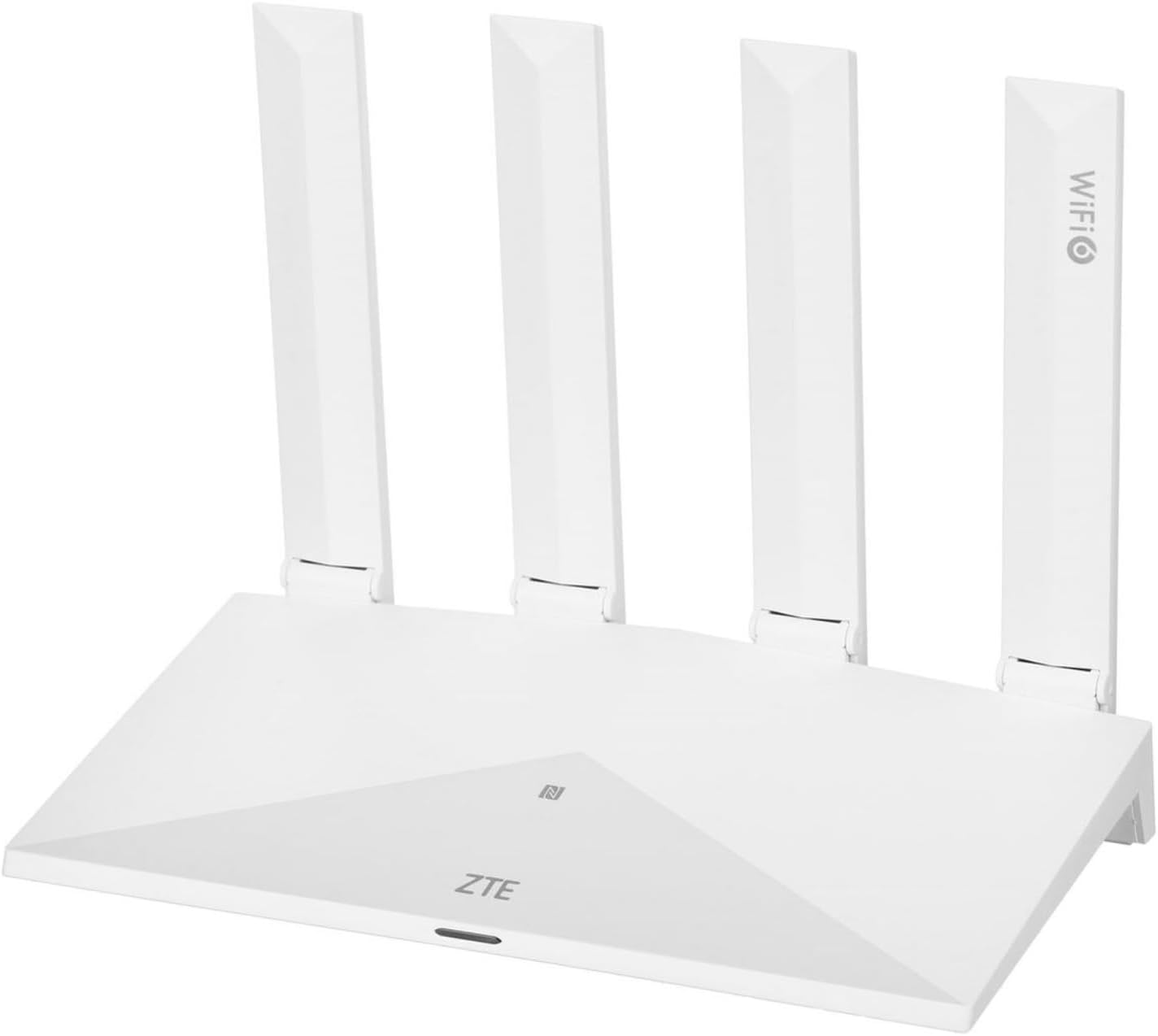
Nọmba 1: Iwaju view of the ZTE T3000 Router. The router is white with four external antennas. The ZTE logo is visible on the front panel, along with an LED indicator and a Wi-Fi 6 logo on one of the antennas.
LED Ifi
| Atọka | Ipo | Apejuwe |
|---|---|---|
| Agbara | Green ri to | Ẹrọ naa wa ni agbara ati pe o n ṣiṣẹ deede. |
| Agbara | Paa | Ẹrọ naa ti wa ni pipa. |
| Ayelujara | Green ri to | Ti sopọ si intanẹẹti. |
| Ayelujara | Green ìmọlẹ | Connecting to the internet or data transmission. |
| Ayelujara | Pupa ti o lagbara | Ko si isopọ Ayelujara. |
| Wi-Fi | Green ri to | Wi-Fi ti ṣiṣẹ. |
| Wi-Fi | Green ìmọlẹ | Wi-Fi Protected Setup (WPS) in progress. |
| Wi-Fi | Paa | Wi-Fi jẹ alaabo. |
Awọn ibudo ati awọn bọtini
- Ibudo Agbara: Sopọ si ohun ti nmu badọgba agbara.
- Ibudo WAN: Ó so mọ́ nẹ́tíwọ́ọ̀kì modem tàbí olùpèsè iṣẹ́ ìkànnì ayélujára (ISP) rẹ.
- Awọn ibudo LAN (RJ-45): Ó sopọ̀ mọ́ àwọn ẹ̀rọ onírin bíi kọ̀ǹpútà, àwọn kọ́ǹpútà eré, tàbí àwọn tẹlifíṣọ̀n onímọ̀.
- Bọtini atunto: A lo lati mu olulana pada si eto aiyipada ile-iṣẹ. Tẹ ki o si mu fun awọn aaya 5-10 lakoko ti olulana naa ba ti n tan.
- Bọ́tìnì WPS/Wi-Fi: Press to activate WPS for easy Wi-Fi connection, or press and hold to toggle Wi-Fi on/off.
Ṣeto
Igbesẹ 1: So Hardware pọ
- Place the router in a central location to maximize Wi-Fi coverage, away from obstructions and electronic devices that may cause interference.
- Connect one end of the provided Ethernet cable to the WAN port on your ZTE T3000 Router.
- Connect the other end of the Ethernet cable to your modem's LAN port or the Ethernet wall jack provided by your ISP.
- Connect the power adapter to the router's power port and then plug the adapter into a power outlet.
- Wait for the router to power on. The Power LED should turn solid green. The Internet LED may flash or turn solid green once a connection is established.
Igbesẹ 2: Sopọ si Nẹtiwọọki naa
You can connect to the router's network via Wi-Fi or a wired connection.
Asopọ Wi-Fi:
- Locate the Wi-Fi network name (SSID) and password printed on the label at the bottom or back of your router.
- Lórí kọ̀mpútà tàbí ẹ̀rọ alágbèéká rẹ, wá àwọn nẹ́tíwọ́ọ̀kì Wi-Fi tó wà.
- Select your router's SSID from the list and enter the Wi-Fi password when prompted.
Asopọ onirin:
- Connect one end of an Ethernet cable to a LAN port on your router.
- Connect the other end of the Ethernet cable to the Ethernet port on your computer or other wired device.
Awọn ilana Iṣiṣẹ
Iwọle si awọn Web Atọka Iṣakoso
- Ṣii a web aṣàwákiri (fún àpẹẹrẹ, Chrome, Firefox, Edge) lórí ẹ̀rọ tí a so mọ́ olulana náà.
- In the address bar, type the default IP address of the router (usually
192.168.1.1or192.168.0.1) kí o sì tẹ Enter. Tọ́ka sí àmì rétíróọ̀tì fún àdírẹ́sì IP pàtó náà. - Enter the default username and password when prompted. These are typically
adminfun awọn mejeeji, tabi ri lori awọn olulana ká aami. - Upon successful login, you will access the router's web management interface, where you can configure various settings.
Basic Wi-Fi Configuration
Lati awọn web management interface, navigate to the Wi-Fi settings section (often labeled "Wireless" or "WLAN").
- Yi SSID pada: You can change the network name (SSID) to something more memorable.
- Tun oruko akowole re se: It is highly recommended to change the default Wi-Fi password to a strong, unique password for security.
- Ipo Aabo: Ensure the security mode is set to WPA2-PSK or WPA3-PSK for optimal security.
- Nẹtiwọọki alejo: If available, consider enabling a guest network for visitors to keep your main network secure.
Ipo Point Access
The ZTE T3000 Router supports Access Point (AP) mode, allowing it to extend an existing wired network's Wi-Fi coverage. To enable AP mode:
- Connect the router's LAN port to a LAN port on your existing main router. Do not use the WAN port.
- Wọle si web ni wiwo isakoso.
- Navigate to the operating mode settings (often under "Operation Mode" or "System Settings").
- Select "Access Point" mode and save the settings. The router will restart.
- Ensure the router's IP address is on the same subnet as your main router but outside its DHCP range to avoid conflicts.
Itoju
- Atunbẹrẹ deede: Periodically restart your router (e.g., once a month) by unplugging it for 10 seconds and plugging it back in. This can resolve minor performance issues.
- Awọn imudojuiwọn famuwia: Check the ZTE official website for firmware updates. Keeping your router's firmware up-to-date ensures optimal performance, security, and new features.
- Ninu ara: Keep the router free from dust. Use a soft, dry cloth to wipe the exterior. Ensure ventilation holes are not blocked.
- Iṣakoso Ọrọigbaniwọle: Regularly change your Wi-Fi and router login passwords to strong, unique combinations.
Laasigbotitusita
| Isoro | Owun to le Fa | Ojutu |
|---|---|---|
| Ko si Wiwọle Ayelujara | Incorrect cable connection; ISP issue; Router/modem malfunction. | Check all cable connections. Restart the modem and router. Contact your ISP if the issue persists. |
| Wi-Fi Signal is Weak or Drops Frequently | Router placement; Interference from other devices; Too many connected devices. | Relocate the router to a central, open area. Avoid placing near microwaves, cordless phones. Reduce the number of active devices. |
| Cannot Access Router Management Page | Incorrect IP address; Device not connected to router; Browser issue. | Ensure your device is connected to the router (wired or Wi-Fi). Verify the correct IP address (e.g., 192.168.1.1). Try a different web kiri ayelujara. |
| Gbagbe Ọrọigbaniwọle Wi-Fi tabi Ọrọigbaniwọle Iwọle | A ti gbagbe ọrọ igbaniwọle. | Perform a factory reset by pressing the Reset button for 5-10 seconds. This will revert all settings to default, including passwords. |
Awọn pato
| Ẹya ara ẹrọ | Ẹ̀kúnrẹ́rẹ́ |
|---|---|
| Brand | ZTE |
| Nọmba awoṣe | S9131037 |
| Àwọ̀ | Funfun |
| Eto isesise | RouterOS |
| Asopọmọra Technology | Wi-Fi, àjọlò |
| Pataki Ẹya | Ipo Point Access |
| Awọn ẹrọ ibaramu | Kọmputa ti ara ẹni |
| Igbohunsafẹfẹ Band Class | Ẹgbẹ meji |
| Alailowaya Ibaraẹnisọrọ Alailowaya | 802.11n |
| Niyanju Lilo | Ilé, Ọjọ́gbọ́n |
Atilẹyin ọja ati Support
ZTE products typically come with a limited warranty. Please refer to the warranty card included in your product package or visit the official ZTE webAaye fun awọn ofin atilẹyin ọja alaye ni pato si agbegbe rẹ.
For technical support, troubleshooting assistance, or to inquire about repairs, please contact ZTE customer support through their official website or the contact information provided in your product documentation. Ensure you have your model number (S9131037) and purchase details ready when contacting support.
Awọn orisun Ayelujara: