
1. Ifihan
This manual provides essential information for the proper installation, operation, and maintenance of your PowerColor Radeon RX 5600 XT 6GB graphics card. Please read this guide thoroughly before proceeding with installation to ensure optimal performance and longevity of your product.
2. Package Awọn akoonu
Daju pe gbogbo awọn ohun ti a ṣe akojọ rẹ si isalẹ wa ninu package ọja rẹ:
- PowerColor Radeon RX 5600 XT 6GB Graphics Card
- Fifi sori Itọsọna

Image: The PowerColor Radeon RX 5600 XT graphics card shown alongside its retail packaging.
3. Ọja Ipariview
3.1 Key Awọn ẹya ara ẹrọ
- Graphics Engine: RX 5600 XT
- Video Memory: 6 GB GDDR6
- Stream Processors: 2304 Units
- Engine Clock: 1420 MHz
- Boost Clock: Up to 1620 MHz
- Memory Clock: 14.0 Gbps
- Memory Interface: 192-bit
- Bus Standard: PCIE 4.0
- Display Connectors: HDMI x1, DisplayPort x3
- Asopọ agbara: 8-pin
3.2 Awọn pato
| Sipesifikesonu | Iye |
|---|---|
| Olupilẹṣẹ Graphics | AMD Radeon RX 5600 XT |
| Iyara Iranti | 14 GHz |
| Eya Kaadi Ramu Iwon | 6 GB |
| Video o wu Interface | DisplayPort, HDMI |
| Nọmba Awoṣe Nkan | AXRX 5600XT 6GBD6-3DH/OC |
| Iwọn Nkan | 2.14 poun (isunmọ 0.97 kg) |
| Awọn iwọn Ọja (LxWxH) | 9.06 x 5.51 x 1.18 inches (iwọn 23 x 14 x 3 cm) |
4. Eto ati fifi sori
4.1 Pre-fifi sori Akojọ ayẹwo
- Ensure your computer's power supply unit (PSU) has sufficient wattage and a free 8-pin PCIe power connector.
- Verify your motherboard has an available PCI Express 4.0 x16 slot (or compatible PCI Express 3.0 x16 slot).
- Ṣe àtìlẹ́yìn fún àwọn ìwífún pàtàkì kí o tó ṣe àtúnṣe ohun èlò.
- Pa kọmputa rẹ kuro ki o ge asopọ okun agbara lati inu iṣan ogiri.
- Gbé ara rẹ kalẹ̀ láti tú iná mànàmáná tí ó wà níbẹ̀ jáde.
4.2 Fifi sori ti ara
- Ṣii apoti kọnputa rẹ.
- Locate an empty PCI Express x16 slot on your motherboard.
- Remove any expansion slot covers that correspond to the graphics card's size.
- Carefully align the graphics card with the PCIe slot and press it down firmly until it is securely seated. A click may be heard.
- Secure the graphics card to the computer case with screws.
- Connect the 8-pin PCIe power connector from your power supply to the corresponding port on the graphics card. Ensure a secure connection.
- Pa ọran kọmputa rẹ.
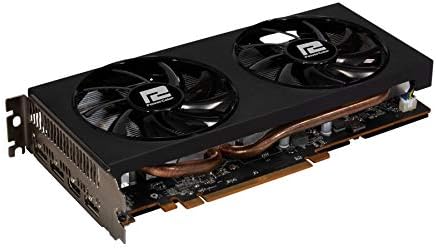
Aworan: A sunmọ-soke view of the PowerColor Radeon RX 5600 XT graphics card, highlighting its dual-fan cooling system and heat pipes.
4.3 Driver fifi sori
- So okùn ìfihàn rẹ (HDMI tàbí DisplayPort) láti inú káàdì àwòrán mọ́ àtẹ ìṣàfihàn rẹ.
- Reconnect the power cable to your computer and turn it on.
- Once your operating system loads, download the latest AMD Radeon drivers from the official AMD webAaye (www.amd.com/en/support).
- Follow the on-screen instructions to install the drivers. A restart may be required.
5. Awọn ilana Iṣiṣẹ
5.1 Nsopọ Awọn ifihan
The PowerColor Radeon RX 5600 XT 6GB graphics card supports up to four displays simultaneously. Use the available HDMI and DisplayPort connectors to connect your monitors. Ensure your display cables are securely connected to both the graphics card and the monitor.
5.2 Software and Settings
After driver installation, you can access the AMD Radeon Software to configure various settings, including display resolution, refresh rate, gaming profiles, and performance monitoring. Refer to the AMD Radeon Software documentation for detailed instructions on using these features.
6. Itọju
6.1 Ninu
Regularly clean your graphics card to prevent dust buildup, which can affect cooling performance. Use compressed air to gently clear dust from the fans and heatsink fins. Ensure the computer is powered off and unplugged before cleaning.
6.2 Driver Updates
Periodically check the official AMD website for updated graphics drivers. Keeping your drivers current ensures optimal performance, stability, and access to the latest features and bug fixes.
7. Laasigbotitusita
7.1 wọpọ oran
- Ko si Abajade Ifihan: Ensure the graphics card is fully seated in the PCIe slot and the 8-pin power connector is securely attached. Verify that your monitor is connected to the graphics card, not the motherboard's integrated graphics port.
- Awọn ọran fifi sori awakọ: If you encounter problems installing drivers, try using AMD's Clean Uninstall Utility to remove any previous graphics drivers before attempting a fresh installation.
- Awọn Iṣoro Iṣe: Ensure your drivers are up to date. Check system temperatures to rule out overheating. Verify that your power supply meets the minimum requirements for the graphics card.
- Aisedeede/iparun eto: This can be caused by outdated drivers, insufficient power, or overheating. Ensure proper ventilation within your PC case.
For further troubleshooting or technical assistance, please refer to the support section of the PowerColor or AMD official webojula.
8. Atilẹyin ọja ati Support
For detailed information regarding warranty coverage, terms, and conditions for your PowerColor Radeon RX 5600 XT 6GB graphics card, please visit the official PowerColor website. You can find support resources, FAQs, and contact information for technical assistance there.
PowerColor Official Webojula: www.powercolor.com