
1. Ifihan
This manual provides comprehensive instructions for the Microsoft Surface Laptop 3, Model VGY-00001. Designed for productivity and portability, this device features a 13.5-inch touchscreen, Intel Core i5 processor, 8GB RAM, and a 128GB Solid State Drive. Please read this manual thoroughly to ensure proper setup, operation, and maintenance of your device.
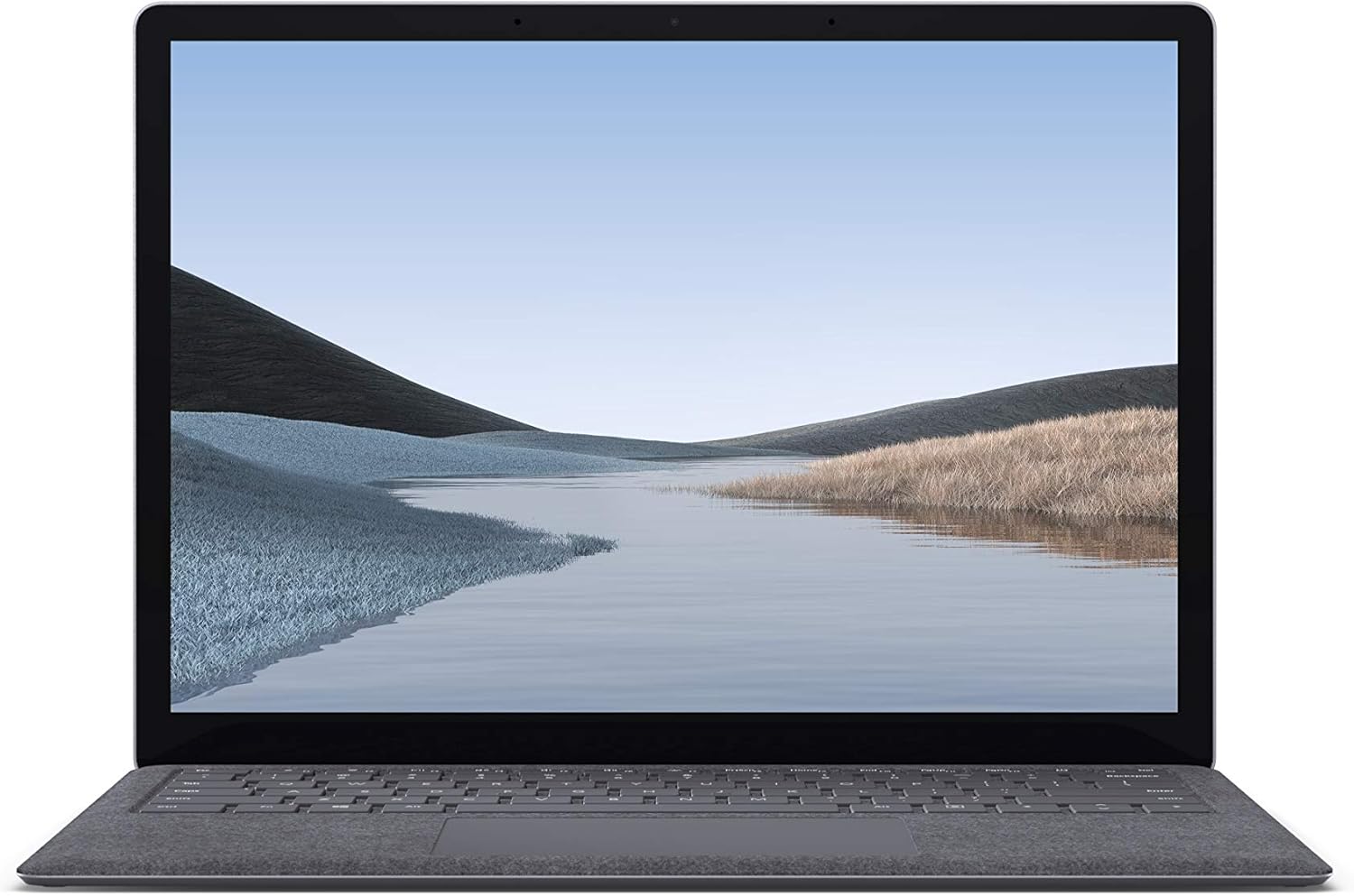
Aworan 1.1: Iwaju view of the Microsoft Surface Laptop 3 with its display active.
The Surface Laptop 3 offers a clean, elegant design, weighing approximately 2.79 pounds, making it easy to carry. It features improved speed and performance with its 10th Gen Intel Core processors, offering up to two times faster performance than previous models. Connectivity options include USB-C and USB-A ports for connecting to displays, docking stations, and accessories. The device provides up to 11.5 hours of battery life and supports fast charging, reaching up to 80% in about one hour.
2. Ohun ti o wa ninu Apoti
Upon unboxing your Microsoft Surface Laptop 3, verify that all the following items are present:
- Microsoft Surface Laptop 3 (Model VGY-00001)
- Itọsọna Ibẹrẹ Yara (QSG)
- Power Supply (AC adapter)
3. Eto
3.1 Ibẹrẹ Agbara Lori
- So agbara: Plug the power supply into a wall outlet and connect the magnetic Surface Connect port to your laptop. The LED indicator on the connector will light up when properly connected.
- Agbara Tan: Ṣí ideri kọ̀ǹpútà alágbèéká náà tàbí kí o tẹ bọ́tìnnì agbára tó wà lórí keyboard náà.
- Eto Windows: Follow the on-screen instructions to complete the Windows 10 Home setup. This includes selecting your region, connecting to a Wi-Fi network, and creating a user account.
- Windows Hello: Configure Windows Hello for secure and fast login using facial recognition.
3.2 Nsopọ Peripherals
Your Surface Laptop 3 includes various ports for connecting external devices:
- Ibudo USB-C: For data transfer, video output, and charging compatible devices.
- Ibudo USB-A: For connecting traditional USB devices like mice, keyboards, and external storage.
- Jack agbekọri 3.5 mm: Fun ifihan ohun si awọn agbekọri tabi awọn agbohunsoke ita.
- Ibudo Isopọ Ilẹ: For the power supply and compatible Surface docking stations.

Aworan 3.1: Apa view illustrating the available ports on the Surface Laptop 3.
4. Operating Your Surface Laptop 3
4.1 Ifihan ati Touchscreen
The 13.5-inch PixelSense touchscreen display offers a resolution of 2256 x 1504 pixels. It supports multi-touch gestures and is compatible with the Surface Pen (sold separately) for writing and drawing directly on the screen.
4.2 Keyboard ati Touchpad
The full-size ergonomic keyboard features backlighting for comfortable typing in various lighting conditions. The large precision touchpad supports multi-finger gestures for navigation and control.
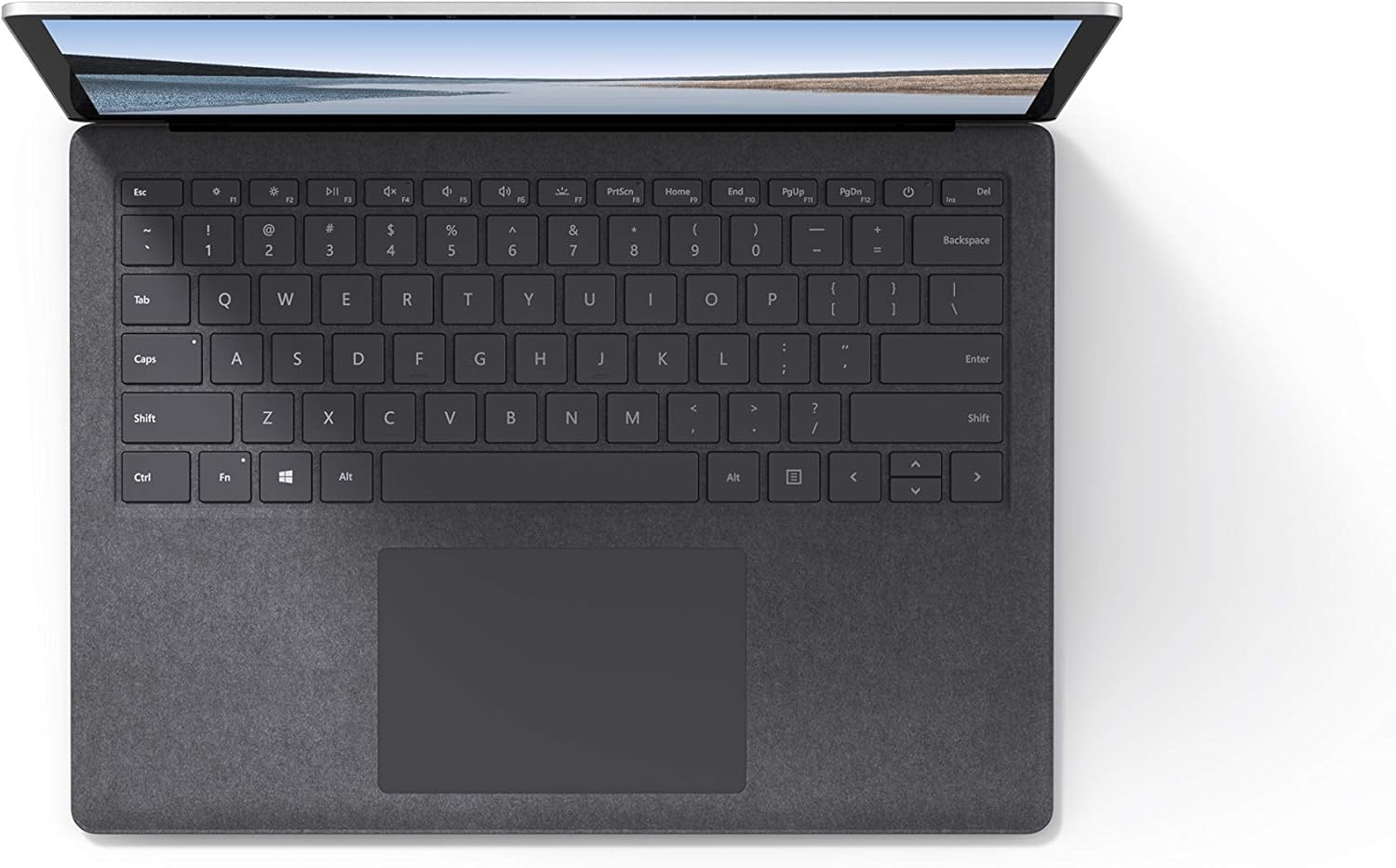
Aworan 4.1: Oke-isalẹ view ti awọn keyboard ati touchpad agbegbe.
4.3 Ohùn àti Kámẹ́rà
The laptop is equipped with Omnisonic Speakers with Dolby Audio Premium for clear sound. Dual far-field Studio Mics enhance voice clarity for calls and recordings. A front-facing 720p HD camera supports video conferencing and Windows Hello facial authentication.
4.4 Asopọmọra Alailowaya
The Surface Laptop 3 supports Wi-Fi 6 (802.11ax) for fast and reliable internet access, and Bluetooth 5.0 for connecting wireless accessories.
Video 4.1: Official Microsoft video showcasing the Surface Laptop 3's features and design.
5. Itọju
5.1 Ninu ẹrọ rẹ
- Lo asọ rirọ, ti ko ni lint dampened with water or an approved screen cleaner to clean the display.
- Fun keyboard ati ẹnjini, lo asọ ti o gbẹ. Yago fun awọn kẹmika lile tabi awọn ohun elo abrasive.
- Jeki awọn ebute oko oju omi laisi eruku ati idoti.
5.2 Software imudojuiwọn
Regularly check for and install Windows updates to ensure optimal performance, security, and access to the latest features. Go to Eto> Imudojuiwọn & Aabo> Imudojuiwọn Windows.
5.3 batiri Itọju
- Yago fun awọn iwọn otutu to gaju.
- For optimal battery longevity, avoid consistently discharging the battery to 0% or keeping it at 100% for extended periods.
- Lo ipese agbara ti a pese nikan.
6. Laasigbotitusita
6.1 Agbara Oran
- Ẹrọ ti ko tan: Ensure the power supply is securely connected and the outlet is functional. Try a forced shutdown by holding the power button for 30 seconds, then release and press again briefly to restart.
- Batiri ko gba agbara: Verify the Surface Connect cable is properly attached. Check for any damage to the cable or port.
6.2 Performance Issues
- Iṣẹ ṣiṣe ti o lọra: Close unnecessary applications. Check Task Manager for resource-intensive processes. Ensure Windows is up to date.
- Igbóná púpọ̀: Ensure ventilation vents are not blocked. Avoid using the laptop on soft surfaces that can obstruct airflow.
6.3 Asopọmọra Isoro
- Wi-Fi ko sopọ: Restart your router and the laptop. Check Wi-Fi settings and ensure the correct network is selected and password entered.
- Ẹrọ Bluetooth ko so pọ: Ensure the Bluetooth device is in pairing mode and within range. Check Bluetooth settings on your laptop.
7. Awọn pato
| Ẹya ara ẹrọ | Ẹ̀kúnrẹ́rẹ́ |
|---|---|
| Brand | Microsoft |
| Orukọ awoṣe | Kọǹpútà alágbèéká 3 |
| Nọmba awoṣe | VGY-00001 |
| Iwon iboju | 13.5 inches |
| Ipinnu | 2256 x 1504 awọn piksẹli |
| Sipiyu Awoṣe | Intel Core i5 (10th Generation) |
| Iyara isise | 1.2 GHz (títí dé 3.7 GHz pẹ̀lú Turbo Boost) |
| Ramu Memory sori iwọn | 8 GB LPDDR4 |
| Lile Disk Iwon | 128 GB SSD |
| Eto isesise | Windows 10 Home (Free Upgrade to Windows 11 when available) |
| Olupilẹṣẹ Graphics | Intel Iris Plus |
| Asopọmọra Technology | 1 x USB-C, 1 x USB-A, 3.5 mm headphone jack, 1 x Surface Connect port |
| Alailowaya Technology | Wi-Fi 6 (802.11ax), Bluetooth 5.0 |
| Igbesi aye batiri | Titi di awọn wakati 11.5 |
| Iwọn Nkan | 2.79 iwon |
| Dimensions (L x W x Thickness) | 8.8"L x 12.1"W x 0.57"Th |
| Kamẹra | Front-facing 720p HD camera with Windows Hello face authentication |
| Ohun | Omnisonic Speakers with Dolby Audio Premium, Dual far-field Studio Mics |
8. Atilẹyin ọja ati Support
8.1 Atilẹyin ọja
The Microsoft Surface Laptop 3 (Model VGY-00001) comes with a Atilẹyin ọja ọdun kan fun olupese. This warranty covers defects in materials and workmanship under normal use. For specific terms and conditions, please refer to the warranty documentation included with your product or visit the official Microsoft support webojula.
8.2 Onibara Support
For technical assistance, troubleshooting, or warranty claims, please contact Microsoft Support. You can find contact information and additional resources on the official Microsoft Surface support website. Keep your proof of purchase and product serial number readily available when contacting support.
Atilẹyin Ayelujara: Ṣabẹwo support.microsoft.com/surface fún àwọn ìbéèrè tó ń wáyé nígbà gbogbo, àwọn awakọ̀, àti àwọn ìgbàsílẹ̀ sọ́fítíwè.