
1. Ifihan
This manual provides comprehensive instructions for the Huawei P Smart Plus 2019 smartphone. It covers essential information regarding product features, setup, operation, maintenance, and troubleshooting to ensure optimal use of your device. Please read this manual thoroughly before using your smartphone.
2. Ọja Ipariview
Familiarize yourself with the physical components of your Huawei P Smart Plus 2019 smartphone.
Nọmba 2.1: Ẹyìn view of the Huawei P Smart Plus 2019 smartphone, showing the triple camera module, fingerprint sensor, and HUAWEI branding.
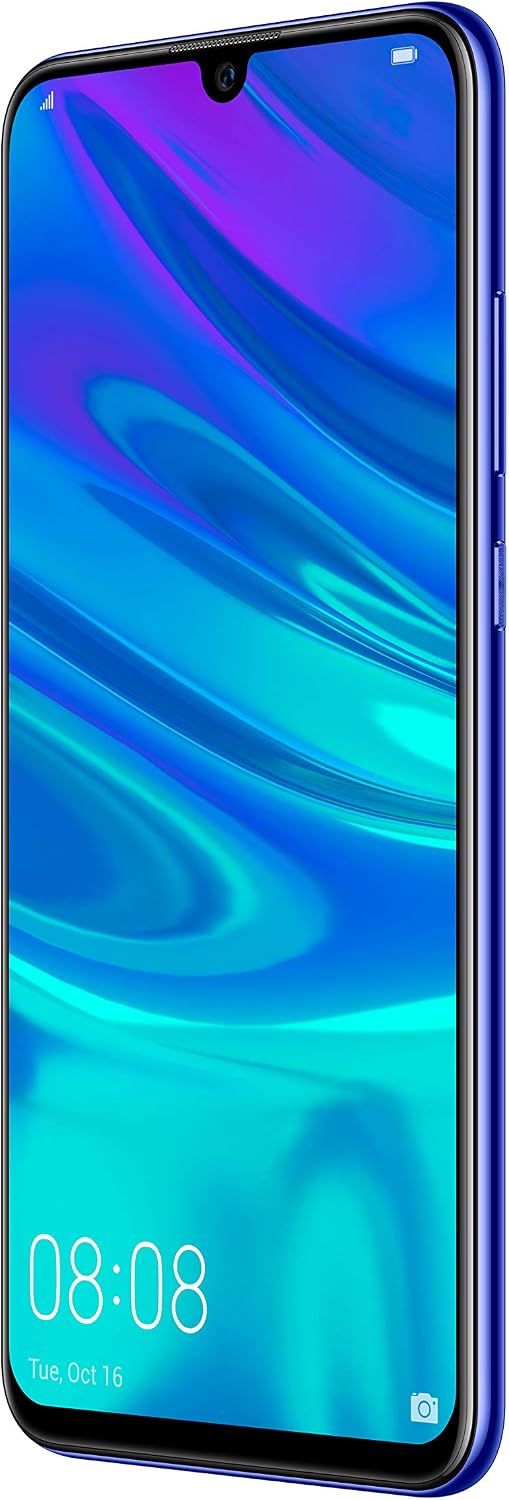
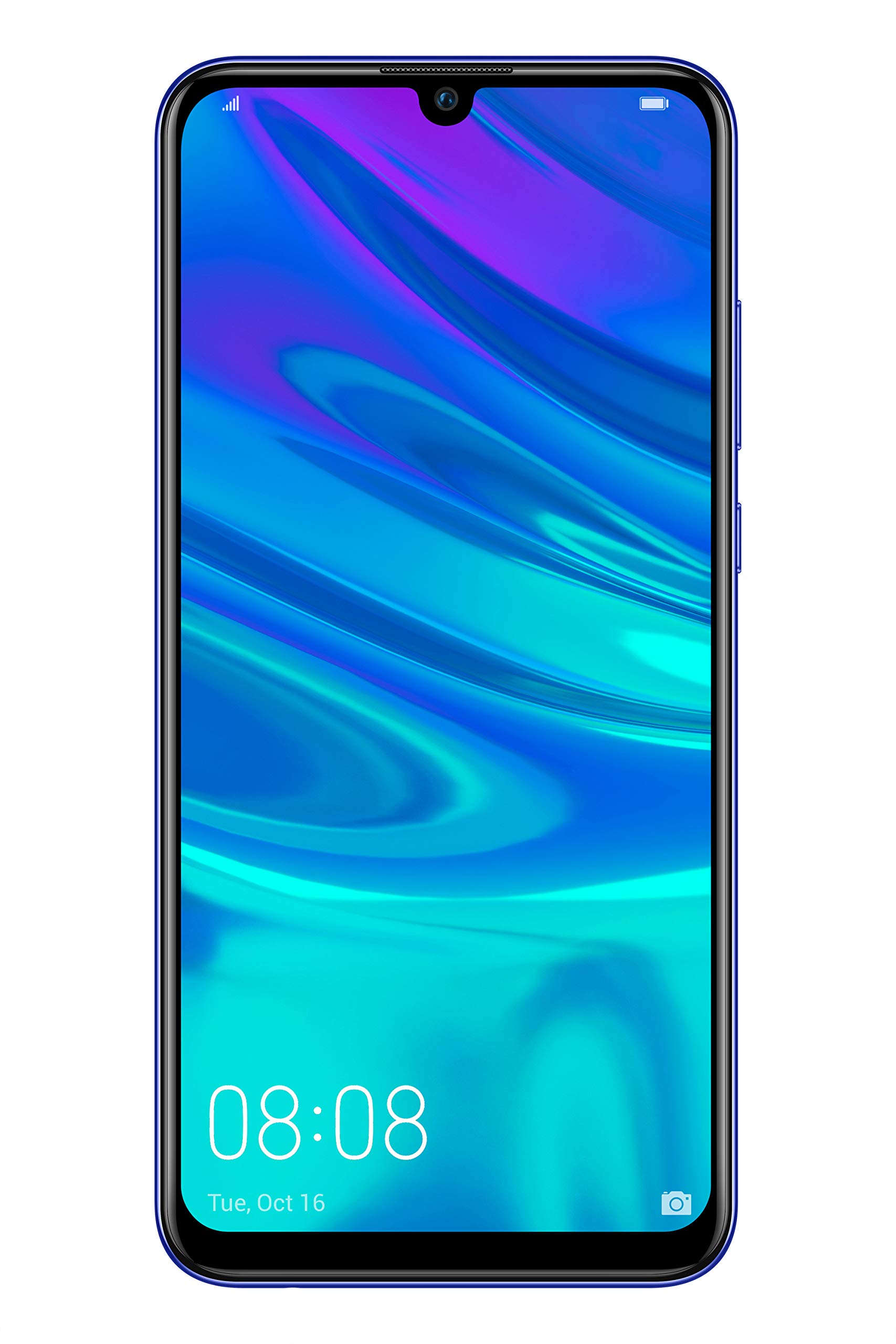
Nọmba 2.2: Iwaju view of the Huawei P Smart Plus 2019 smartphone, displaying the 6.21-inch screen with a small notch for the front camera.

Nọmba 2.3: Apa view of the Huawei P Smart Plus 2019 smartphone, highlighting the power and volume buttons.
Awọn eroja pataki:
- Ifihan: 6.21-inch FHD+ LCD screen.
- Kamẹra iwaju: Located in the display notch.
- Awọn kamẹra ẹhin: Triple camera module on the back.
- Apanirun Itanna ọwọ: Circular sensor on the rear panel.
- Bọtini agbara: Ni apa ọtun ti ẹrọ naa.
- Awọn bọtini iwọn didun: Above the power button on the right side.
- Iho kaadi SIM/MicroSD: Typically on the left side or top edge.
- Ibudo gbigba agbara: USB Type-C, usually at the bottom.
- Agbọrọsọ/gbohungbohun: Ti o wa ni isalẹ.
3. Eto
3.1 Fi sii SIM ati MicroSD Awọn kaadi
- Wa atẹ kaadi SIM ni ẹgbẹ ẹrọ rẹ.
- Fi ohun elo SIM ejector sii sinu iho kekere lẹgbẹẹ atẹ lati ṣii.
- Place your Nano-SIM card(s) and/or microSD card into the tray, ensuring correct orientation as indicated on the tray. This device supports Dual SIM functionality and expandable storage up to 512GB.
- Fara Titari awọn atẹ pada sinu Iho titi ti o ti wa ni fọ danu pẹlu awọn ẹrọ.
3.2 Agbara akọkọ Lori ati gbigba agbara
- To power on, press and hold the Power button until the HUAWEI logo appears.
- Tẹle awọn itọsọna loju iboju lati pari iṣeto akọkọ, pẹlu yiyan ede, asopọ Wi-Fi, ati iṣeto akọọlẹ Google.
- Before first use, it is recommended to fully charge the device. Connect the provided USB Type-C cable to the phone's charging port and the other end to a power adapter.
4. Awọn ilana Iṣiṣẹ
4.1 Ipilẹ Awọn iṣẹ
- Power On/Off/Restart: Press and hold the Power button. Select the desired option from the menu.
- Titiipa iboju/Ṣi silẹ: Press the Power button to lock/unlock the screen. Use Face Recognition or the Fingerprint Sensor for secure unlocking.
- Awọn ipe ati awọn ifiranṣẹ: Use the Phone and Messaging applications for communication.
- Asopọmọra nẹtiwọki: Access Wi-Fi settings from the Quick Settings panel or Settings app. Enable mobile data for internet access via your SIM card.
4.2 kamẹra Lilo
The Huawei P Smart Plus 2019 features a versatile camera system.
- Kamẹra Tẹhin: The triple camera setup includes a 24MP main sensor, a 16MP ultra-wide sensor, and a 2MP bokeh sensor. Open the Camera app and select modes like Automatic, Portrait, or Sport.
- Kamẹra iwaju: An 8MP front camera is available for selfies and video calls. Switch to the front camera within the Camera app.
- Awọn ẹya AI: The camera utilizes AI to optimize scene recognition and enhance photo quality.
4.3 Ibi ipamọ ati Iranti
Your device comes with 64GB of internal storage, which can be expanded up to 512GB using a microSD card. It has 3GB of RAM for smooth multitasking.
4.4 batiri Management
The device is equipped with a 3400 mAh Lithium-Polymer battery. To optimize battery life, manage background apps, adjust screen brightness, and utilize power-saving modes available in the Settings app.
4.5 Eto iṣẹ
The smartphone runs on Android 9 (Pie) with Huawei's EMUI 9 interface, offering a range of features and customization options.
5. Itọju
5.1 Ninu ẹrọ rẹ
Use a soft, lint-free cloth to gently wipe the screen and body of your phone. Avoid using harsh chemicals or abrasive materials, which can damage the device's finish or screen coating.
5.2 Software imudojuiwọn
Regularly check for and install software updates to ensure your device has the latest features, security patches, and performance improvements. You can usually find this option in Settings > System > Software update.
5.3 batiri Itọju
To prolong battery lifespan, avoid extreme temperatures. Do not leave the phone fully charged or fully discharged for extended periods. Use only approved chargers and cables.
5.4 Data Afẹyinti
Máa fi àwọn dátà pàtàkì rẹ (àwọn fọ́tò, àwọn olùbáṣepọ̀, àwọn ìwé) sí iṣẹ́ ìkùukùu tàbí kọ̀ǹpútà láti dènà pípadánù dátà.
6. Laasigbotitusita
This section addresses common issues you might encounter with your Huawei P Smart Plus 2019.
6.1 Ẹrọ Ko Titan
- Rii daju pe batiri ti gba agbara. So ṣaja pọ ki o duro fun iṣẹju diẹ ṣaaju ki o to gbiyanju lati tan-an.
- Tẹ bọtini agbara ki o si mu fun o kere ju awọn aaya 10-15 lati fi agbara mu lati tun bẹrẹ.
6.2 Ko dara batiri Life
- Pa awọn ohun elo ti ko lo ti nṣiṣẹ ni abẹlẹ.
- Dín ìmọ́lẹ̀ ojú ìbojú kù kí o sì ṣètò àkókò ìjáde ojú ìbojú kúkúrú.
- Mu Wi-Fi, Bluetooth, ati GPS ṣiṣẹ nigbati o ko ba wa ni lilo.
- Ṣàyẹ̀wò lílo bátìrì nínú Ètò láti mọ àwọn ohun èlò tí agbára ń fẹ́.
6.3 Network Issues (No Signal/Wi-Fi Disconnection)
- Tun ẹrọ rẹ bẹrẹ.
- Ensure your SIM card is correctly inserted and your mobile data plan is active.
- For Wi-Fi, try restarting your router. Forget the network on your phone and reconnect.
6.4 Apps jamba tabi didi
- Fi ipa mu ohun elo naa ki o tun ṣii.
- Ko kaṣe app ati data rẹ kuro ninu Eto> Awọn ohun elo.
- Rii daju pe ohun elo naa ti ni imudojuiwọn si ẹya tuntun rẹ.
- Tí ìṣòro náà bá ń bá a lọ, ronú nípa yíyọ àti fífi ohun èlò náà sílẹ̀.
6.5 Factory Tunto (Kẹhin ohun asegbeyin ti)
If other troubleshooting steps fail, a factory reset may resolve persistent issues. Ikilọ: This will erase all data on your device. Back up your data before proceeding. Go to Settings > System > Reset > Factory data reset.
7. Awọn pato
| Ẹya ara ẹrọ | Ẹ̀kúnrẹ́rẹ́ |
|---|---|
| Nọmba awoṣe | POT-LX1T, 51093RVX |
| Ifihan | 6.21 inches, LCD, FHD+ (2340 x 1080 pixels), 415 PPI |
| isise | Kirin 710 Octa-core (4 x 2.2 GHz, 4 x 1.7 GHz) |
| Àgbo | 3 GB |
| Ibi ipamọ inu | 64 GB |
| Expandable Ibi ipamọ | MicroSD soke si 512 GB |
| Kamẹra ẹhin | Triple: 24 MP (main) + 16 MP (ultra-wide) + 2 MP (bokeh) |
| Kamẹra iwaju | 8 MP |
| Batiri | 3400 mAh Litiumu-polima |
| Eto isesise | Android 9 (Pie) with EMUI 9 |
| Kaadi SIM Iru | Nano-SIM (Dual SIM support) |
| Asopọmọra | LTE, GSM, Wi-Fi, Bluetooth, USB Type-C |
| Biometric Aabo | Fingerprint Sensor, Face Recognition |
| Awọn iwọn | 8 x 155 x 73 mm |
| Iwọn | 160 giramu |
| Apapọ batiri Life | wakati meji 25 |
8. Alaye Aabo
Please observe the following safety guidelines to prevent injury or damage to your device:
- Ma ṣe fi ẹrọ naa han si awọn iwọn otutu to gaju, oorun taara tabi ọrinrin.
- Lo ṣaja ati awọn ẹya ẹrọ ti a fọwọsi nikan.
- Yago fun sisọ silẹ tabi tẹriba ẹrọ si ipa nla.
- Ma ṣe gbiyanju lati tunto tabi tun ẹrọ naa funrararẹ. Tọkasi awọn oṣiṣẹ iṣẹ ti a fun ni aṣẹ.
- Pa ẹrọ naa mọ kuro ninu awọn ẹrọ iṣoogun lati yago fun idamu.
- Sọ ẹrọ naa ati batiri rẹ ni ifojusọna ni ibamu si awọn ilana agbegbe.
9. Atilẹyin ọja ati Support
Your Huawei P Smart Plus 2019 smartphone is covered by a limited warranty. For detailed warranty terms and conditions, please refer to the warranty card included in the product packaging or visit the official HUAWEI webojula.
For technical support, service, or further assistance, please contact HUAWEI customer service or visit an authorized service center. Contact information can typically be found on the official HUAWEI support webojula.