
1. הקדמה
This manual provides detailed instructions for the HOU Keyboard Case designed for the iPad Pro 13-inch M5/M4 models. Please read this manual carefully before use to ensure proper operation and to maximize the product's lifespan.
1.1 קאַמפּאַטאַבילאַטי
This keyboard case is specifically designed for the iPad Pro 13-inch M5/M4 (2025 models). Compatible iPad models include: A2925, A2926, A3007.
Important: This case is NOT compatible with iPad Air 13 (M2) 2024 (models A2898, A2899, A2900) or iPad Pro 12.9-inch (2017-2022) (6th/5th/4th/3rd/2nd/1st generation).
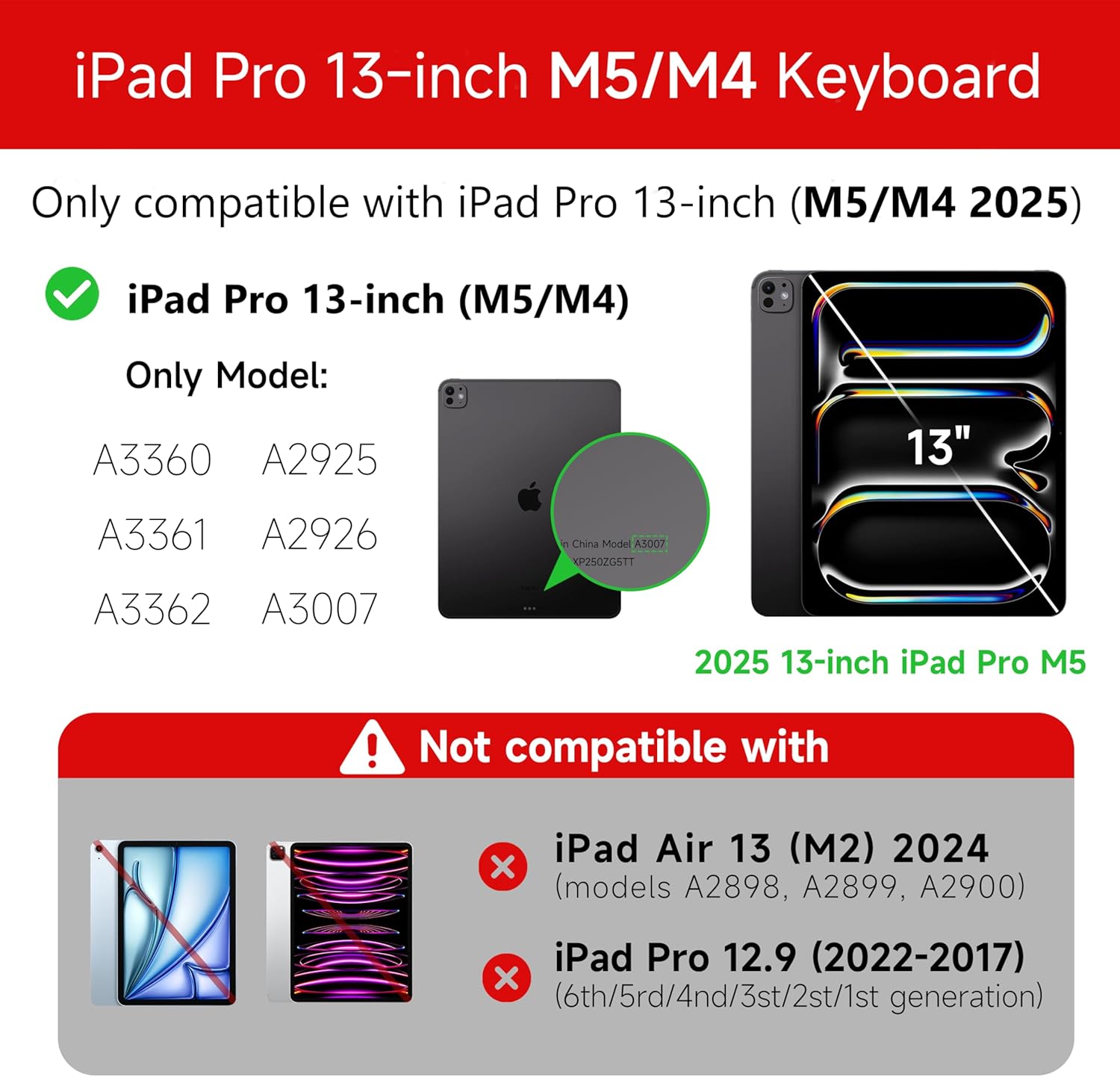
Figure 1: Compatibility details for the HOU iPad Pro 13-inch Keyboard Case.
2. סעטאַפּ
2.1 אויפלאָדן די קלאַוויאַטור
Before initial use, fully charge the keyboard. Connect the provided USB-C cable to the charging port on the keyboard and to a power source. The charging indicator light will show the charging status.
- טשאַרדזשינג פּאָרט: טיפּ-C
- טשאַרדזשינג צייט: Approximately <2 hours
- באַטאַרייע קאַפּאַציטעט: 500 מאַה
2.2 אנשטעלן אייער iPad Pro
The keyboard case features a magnetic design for secure attachment. Align your iPad Pro 13-inch with the magnetic back panel of the case. The strong magnets will securely hold your iPad in place, providing stability.

Figure 2: Magnetic attachment for secure iPad placement.
2.3 בלועטאָאָטה קאַנעקשאַן
To connect the keyboard to your iPad Pro via Bluetooth:
- זייט זיכער אז די קלאַוויאַטור איז אויפגעלאָדן און אנגעצונדן.
- אויף אייער אייפּאַד, גייט צו סעטטינגס> בלועטאָאָטה און אַקטיווירן בלועטוט.
- On the keyboard, press and hold Fn + Control + R for 3 seconds until the indicator light flashes, indicating pairing mode.
- On your iPad, select the keyboard from the list of available devices (e.g., "HOU Keyboard").
- Once connected, the indicator light on the keyboard will stop flashing.
After the initial connection, the keyboard should automatically reconnect to your iPad when both devices are powered on and Bluetooth is enabled.
3. אַפּערייטינג ינסטרוקטיאָנס
3.1 אַדזשאַסטאַבאַל Viewאין אַנגלעס
The keyboard case features a floating design that allows for angle adjustment up to 135 degrees. The keyboard base opens at a 45-degree angle, providing enhanced stability for various viewing and typing positions.
פיגור 3: אַדזשאַסטאַבאַל viewווינקל ביז 135 גראַד.
3.2 באַקלייט פונקציע
The keyboard features an adaptive backlight with 7 different colors and 3 adjustable brightness levels. This allows for comfortable typing in various lighting conditions, including low-light environments.

Figure 4: Keyboard backlight in use for typing at night.
3.3 Multi-Touch Trackpad
The integrated multi-touch trackpad supports full-area press and various swipe gestures, transforming your iPad into a laptop-like experience. It provides responsive controls for scrolling, dragging, input, and media control.
Adjusting Trackpad Sensitivity: You can adjust the trackpad sensitivity directly from your iPad's settings to match your personal preference.
- גיין צו סעטטינגס אויף דיין יפּאַד.
- נאַוויגירן צו אַקסעסאַביליטי.
- Find and adjust טראַקינג סענסיטיוויטי.

Figure 5: Multi-touch trackpad functionality and sensitivity adjustment.
3.4 דורכוועג קיז
The keyboard includes a series of shortcut keys to boost productivity. Refer to the keyboard layout for specific functions.
4. וישאַלט
The exterior of the keyboard case is made from a semi-silicone material, which is wear-resistant and designed to resist fingerprints and stains, making it easy to clean.
- To clean, gently wipe the surface with a soft, damp שטאָף.
- Avoid using harsh chemicals or abrasive materials, as these may damage the finish.
- Ensure the charging port and keys are free from dust and debris.
5. טראָובלעשאָאָטינג
5.1 קלאַוויאַטור פֿאַרבינדט זיך נישט דורך בלועטוט
- זיכער מאַכן אַז די קלאַוויאַטור איז גאָר אויפגעלאָדן.
- זייט זיכער אז בלועטוט איז ענייבאַלד אויף אייער אייפּאַד.
- Re-enter pairing mode on the keyboard by pressing and holding Fn + Control + R פֿאַר 3 סעקונדעס.
- Forget the device in your iPad's Bluetooth settings and attempt to pair again.
- ריסטאַרט ביידע דיין iPad און די קלאַוויאַטור.
5.2 Trackpad Lag or Unresponsiveness
- This can sometimes occur due to Bluetooth connectivity. Try turning the keyboard off and then back on.
- Ensure there are no obstructions between the keyboard and the iPad that might interfere with the Bluetooth signal.
- Check for any available iPadOS updates, as software improvements can sometimes resolve connectivity issues.
5.3 באַקלייט אַרבעט נישט
- זייט זיכער אז די קלאַוויאַטור האט גענוג באַטאַרייע אָפּצאָל.
- Check the keyboard's function keys for backlight control (usually a dedicated key or Fn combination).
6. ספּעסאַפאַקיישאַנז
| שטריך | דעטאַל |
|---|---|
| סאָרט | HOU |
| קאַמפּאַטאַבאַל דעוויסעס | 2025 (M4/M5) iPad Pro 13-inch (A2925/A2926/A3007) |
| קאַנעקטיוויטי טעכנאָלאָגיע | בלועטאָאָטה 5.2 |
| קלאַוויאַטור באַשרייַבונג | Multi-functional with Trackpad |
| רעקאַמענדיד נוצן | פערזענליכע |
| ספּעציעלע פֿעיִקייטן | Trackpad, Backlit, Hot Keys & Media Keys, Rechargeable, Lightweight |
| קאָליר | ווייַס |
| באַקלייט קאָלאָרס | 7 RGB קאָלאָרס |
| פּראָדוקט דימענשאַנז (L x W x H) | 32 X 24.2 X 2.7 סענטימעטער |
| מאַטעריאַל | Aluminum, Metal, ABS, Polyurethane (PU), Semi-silicone |
| פּונקט וואָג | 1.1 קילאָגראַמס |
| מאַכט מקור | באַטאַרייע פּאַוערד |
| באַטאַרייע קאַפּאַציטעט | ~500 מאַה |
| אַפּערייטינג קראַנט | <10mA |
| סטאַנדביי צייט | ≥ 30 טעג |
| אַפּערייטינג דיסטאַנסע | ≤10 ם |
7. שטיצן
For any questions or further assistance, please contact the seller directly through your Amazon account:
- קלאָץ אין צו דיין אַמאַזאָן חשבון.
- Go to "Order History".
- Locate your order for the HOU iPad Pro 13-inch Keyboard Case.
- Click on "Contact Seller".