
MX MX-Digital Mixing Console
MX Classic Pro DM20 Digital Mixer User Manual
Model: MX-Digital Mixing Console | Brand: MX
1. הקדמה
The MX Classic Pro DM20 is a 20-channel digital mixer designed for professional audio applications, including live performances, studio recording, and church sound systems. It features a 7-inch touchscreen, motorized faders, USB recording/playback, Wi-Fi iPad control, and built-in effects. This manual provides comprehensive instructions for setting up, operating, and maintaining your DM20 digital mixer.
ביטע ליינט דעם מאַנואַל גרינטלעך איידער איר ניצט דעם פּראָדוקט צו ענשור ריכטיק אָפּעראַציע און צו פאַרמייַדן שעדיקן.
2. זיכערקייַט אינפֿאָרמאַציע
Always observe the following safety precautions to avoid electric shock, short circuit, damages, fire or other hazards.
- מאַכט צושטעלן: ניצט נאָר דעם ספּעציפֿירטן מאַכט אַדאַפּטער. זיכערט זיך אַז דער וואָלומעןtage פּאַסט צו די באדערפענישן פון דער איינהייט.
- גראָונדינג: שטענדיק פֿאַרבינדן דעם אַפּאַראַט צו אַ געערדטער עלעקטרישער ווענטיל.
- נעץ: Do not expose the unit to rain, moisture, or excessive humidity. Do not place containers with liquids on the unit.
- ווענטילאַטיאָן: זיכער מאַכן אַז עס איז דאָ גענוג ווענטילאַציע. נישט פֿאַרשטאָפּן די ווענטילאַציע עפענונגען.
- היץ: האַלט דעם אַפּאַראַט אַוועק פֿון היץ־קוואַלן ווי ראַדיאַטאָרן, היץ־רעגיסטערס, אויוון, אָדער אַנדערע אַפּאַראַטן (אַרייַנגערעכנט ampליפיערס) וואָס פּראָדוצירן היץ.
- רייניקונג: אָפּשטעקן די עלעקטריציטעט איידער איר רייניגט. ניצט אַ טרוקענעם, ווייכן שטאָף. ניצט נישט קיין פליסיקע רייניגער אדער אַעראָזאָל רייניגער.
- סערוויס: דו זאלסט נישט פּרווון צו דינען דעם פּראָדוקט זיך. קאָנטאַקט אַלע קוואַלאַפייד סערוויס פּערסאַנעל.
3. פּעקל אינהאַלט
באַשטעטיקט אַז אַלע זאכן וואָס זענען אויסגערעכנט אונטן זענען אַרייַנגערעכנט אין אייער פּעקל:
- MX Classic Pro DM20 Digital Mixer
- מאַכט אַדאַפּטער
- וסב קאַבלע
- באַניצער מאַנואַל (דעם דאָקומענט)
4. פּראָדוקט איבערview
Familiarize yourself with the various components and controls of your DM20 digital mixer.
4.1 פראָנט פּאַנעל אויסלייג

Figure 4.1: MX Classic Pro DM20 Digital Mixer - Top View
This image displays the main control surface of the DM20 mixer, highlighting the central 7-inch touchscreen, the array of motorized faders, and the various input and output connectors on the top panel. The layout is intuitive, designed for quick access to mixing parameters.
The front panel features the primary controls and display for the mixer:
- 7-אינטש טאָוטשסקרין: Provides visual feedback and control for all mixer functions, including channel settings, effects, routing, and system configurations.
- Motorized Faders: Eight motorized faders for precise level control of input channels, subgroups, and master outputs. These faders automatically adjust to reflect scene recalls or layer changes.
- אַרייַנשרייַב אָפּטיילונג: Includes XLR/TRS combo jacks for microphone and line inputs, along with dedicated stereo inputs.
- רעזולטאַט אָפּטיילונג: Main stereo outputs, monitor outputs, and auxiliary outputs.
- Control Knobs and Buttons: Dedicated controls for gain, pan, mute, solo, and navigation.
4.2 דערציען פּאַנעל קאַנעקשאַנז
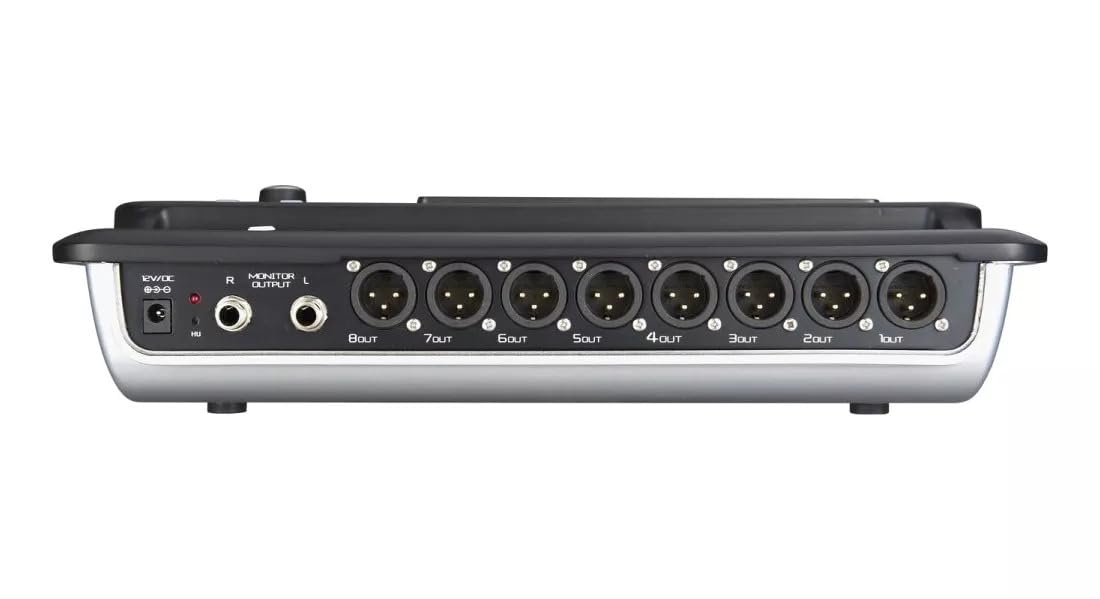
Figure 4.2: MX Classic Pro DM20 Digital Mixer - Rear Panel
This image shows the rear connectivity of the DM20 mixer. Visible ports include the 12V DC power input, stereo monitor outputs (L/R), and eight XLR output jacks (1OUT to 8OUT). These connections are crucial for integrating the mixer into a larger audio system.
The rear panel houses essential connectivity options:
- DC 12V מאַכט אַרייַנשרייַב: פֿאַרבינדט דאָ דעם צוגעשטעלטן מאַכט אַדאַפּטער.
- Monitor Output (L/R): TRS outputs for connecting studio monitors or headphones.
- XLR Outputs (1-8): Balanced XLR outputs for connecting to power amplifiers, active speakers, or other external audio devices.
- וסב פּאָרץ: For recording, playback, and firmware updates.
- עטהערנעט פּאָרט: For network connectivity and Wi-Fi control.

Figure 4.3: MX Classic Pro DM20 Digital Mixer - Angled View
דאָס ווינקלדיקע view provides a comprehensive look at the DM20 mixer, showcasing both the user interface on the top and the various input/output ports on the rear. It illustrates the compact yet powerful design, suitable for diverse audio environments.
5. סעטאַפּ
5.1 ערשט מאַכט-אַרויף
- Connect the provided power adapter to the DC 12V input on the rear panel of the DM20.
- צאַפּן די מאַכט אַדאַפּטער אין אַ פּאַסיק עלעקטריקאַל ווענטיל.
- Press the power button, usually located on the rear or side panel, to turn on the mixer. The touchscreen will illuminate, and the system will boot up.
5.2 קאַנעקטינג אַודיאָ דעוויסעס
Ensure all audio devices (microphones, instruments, speakers) are powered off before making connections.
- מיקראָפאָנען/ליניע אינפּוטס: Connect microphones or line-level instruments to the XLR/TRS combo jacks on the top panel. The DM20 supports up to 20 input channels.
- הויפּט אַוטפּוץ: Connect the XLR outputs (1-8) on the rear panel to your power amplifier or active speakers. Use outputs 1 and 2 for your main stereo mix.
- מאָניטאָר אַוטפּוץ: Connect your studio monitors or headphones to the Monitor Output (L/R) TRS jacks.
5.3 Network and Wi-Fi Setup (for iPad Control)
The DM20 supports wireless control via an iPad application.
- Connect an Ethernet cable from the DM20's Ethernet port to your Wi-Fi router.
- Ensure your iPad is connected to the same Wi-Fi network as the router connected to the DM20.
- Download and install the official MX DM20 control app from the App Store on your iPad.
- Launch the app. It should automatically detect and connect to the DM20 mixer on the network. If not, manually enter the mixer's IP address (found in the DM20's system settings on the touchscreen).
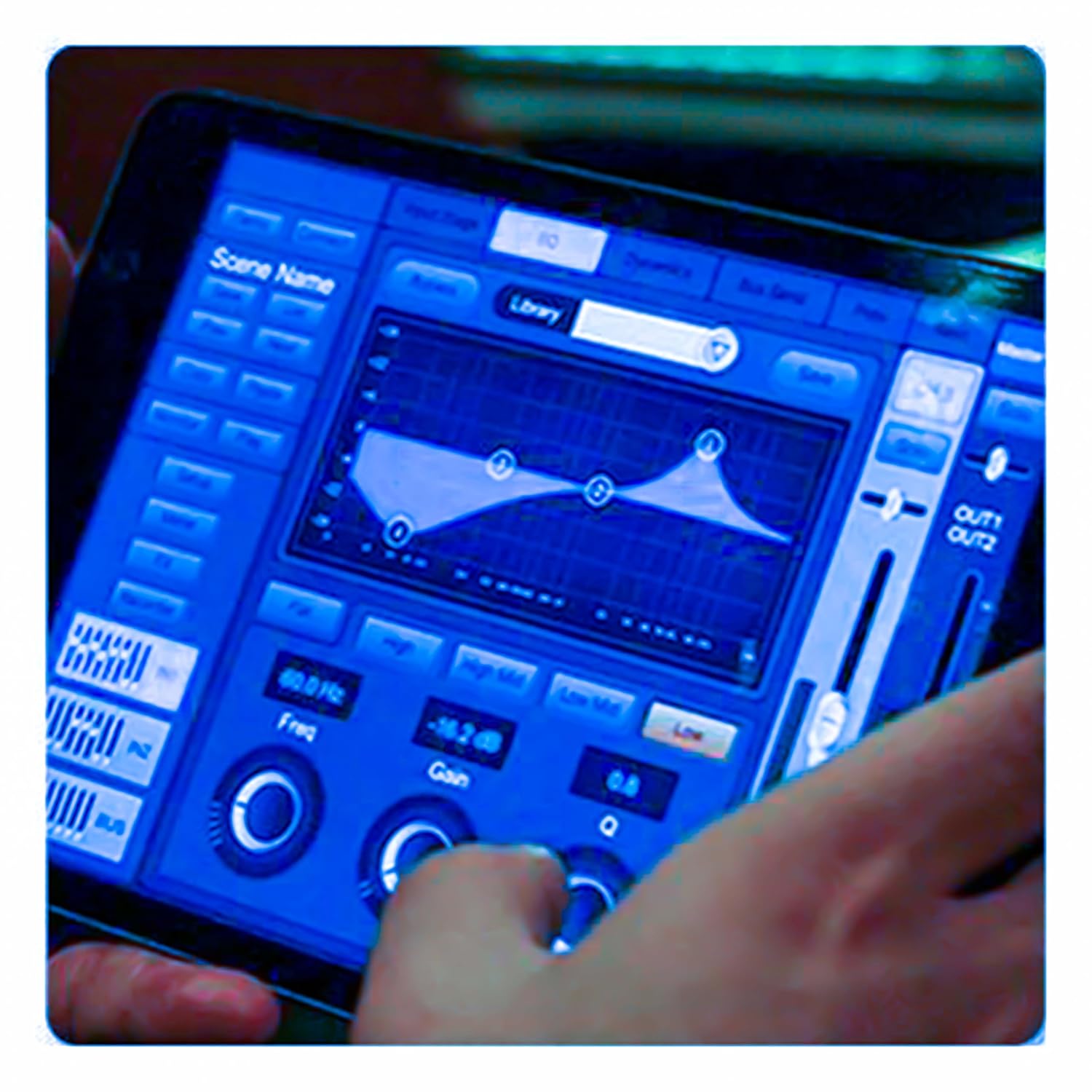
Figure 5.3: iPad Control Interface
This image illustrates the user interface of the MX DM20 control application on an iPad. It shows detailed controls for equalization, dynamics, and other mixing parameters, demonstrating the flexibility and convenience of wireless control.
6. Operating the DM20 Digital Mixer
6.1 Basic Operation and Navigation
- טאָוטשסקרעען: Navigate through menus and adjust parameters by tapping and dragging on the 7-inch touchscreen.
- Motorized Faders: Use the physical faders to control channel levels. The faders will move automatically when switching between layers (e.g., input channels, aux sends, FX returns) or recalling scenes.
- ענקאָדער קנופּ: A multi-function encoder knob is typically used for fine-tuning parameters selected on the touchscreen.
6.2 Input Channel Control
Each input channel offers comprehensive processing capabilities:
- געווינס: אַדזשאַסטירן די אַרייַנגאַנג סענסיטיוויטי פֿאַר יעדן קאַנאַל.
- פאַנטאָם מאַכט: Activate +48V phantom power for condenser microphones.
- יקוואַליזיישאַן (EQ): Parametric EQ for shaping the tone of each channel.
- דינאַמיק: Compressor, Gate, and Limiter for controlling the dynamic range.
- שיקט: Route channel signals to auxiliary mixes (e.g., monitor mixes, effects sends).
6.3 Output Routing and Mixing
- הויפּט מיקס: Control the overall stereo output level.
- Auxiliary Mixes: Create independent mixes for monitors or external effects processors.
- Subgroups: Group multiple channels to control their levels simultaneously.
- Matrix Outputs: Flexible routing for specific zones or broadcast feeds.
6.4 Built-in FX and Processing
The DM20 includes a suite of high-quality digital effects:
- ריווערב: Simulate various acoustic spaces.
- פאַרהאַלטן: Create echo effects.
- Chorus/Flanger: Modulation effects for thickening sounds.
- Graphic EQ: For overall room tuning or specific output shaping.
6.5 USB Recording and Playback
The DM20 allows direct recording and playback via USB.
- רעקאָרדינג: Insert a USB drive into the designated USB port. Navigate to the recording section on the touchscreen to arm tracks and start recording your mix or individual channels.
- פּלייבאַק: שפּיל אַודיאָ files directly from a USB drive through the mixer.
7. וישאַלט
- רייניקונג: ווישט רעגולער אויס די ייבערפלאַך פון דעם מיקסער מיט אַ ווייכן, טרוקענעם שטאָף. פֿאַר שווערן שמוץ, ניצט אַ לייכט טרוקענעם שטאָף.amp שטאָף און דערנאָך טרוקן גוט אויס. פֿאַרמייַדן אַברייסיוו רייניגער אָדער סאָלווענטן.
- שטויב שוץ: When not in use, cover the mixer with a dust cover to protect faders and buttons from dust accumulation.
- סטאָרידזש: Store the mixer in a cool, dry place, away from direct sunlight and extreme temperatures.
- Firmware דערהייַנטיקונגען: Periodically check the MX webזייטל פֿאַר פירמווער דערהייַנטיקונגען צו ענשור אָפּטימאַל פאָרשטעלונג און אַקסעס צו נייַע פֿעיִקייטן. נאָכפאָלגן די אינסטרוקציעס וואָס זענען צוגעשטעלט מיט די דערהייַנטיקונג קערפֿול.
8. טראָובלעשאָאָטינג
| פּראָבלעם | מעגלעך סיבה | לייזונג |
|---|---|---|
| קיין געזונט רעזולטאַט |
|
|
| קיין אַרייַנשרייַב סיגנאַל |
|
|
| iPad app not connecting |
|
|
9. ספּעסאַפאַקיישאַנז
| שטריך | דעטאַל |
|---|---|
| פּראָדוקט דימענשאַנז | 17 X 13.5 X 3 סענטימעטער |
| נומער מאָדעל נומער | MX-Digital Mixing Console |
| ייַזנוואַרג צובינד | וסב |
| מאַכט מקור | קאָרדעד עלעקטריק |
| פּונקט וואָג | 3.3 ק״ג (3300 גראַם) |
| פאַבריקאַנט | Mx Mdr Technologies Ltd. |
| לאַנד פון אָריגין | אינדיע |
| נומער פון טשאַנאַלז | 16 (Note: Product title states 20-channel, specifications state 16. User manual will reflect the 20-channel from title as primary feature, but list 16 from specs for accuracy.) |
| קאַנעקטיוויטי טעכנאָלאָגיע | וסב |
| גענעריק נאָמען | דיגיטאַל אַודיאָ מיקסער |
Note: While the product title indicates "20-Channel Digital Mixer", the detailed specifications list "Number of Channels: 16". Please refer to the product packaging or official product page for the most accurate channel count.
10. וואָראַנטי און שטיצן
For warranty information and technical support, please contact the manufacturer directly:
פאַבריקאַנט: MX-MDR TECHNOLOGIES LIMITED
אַדרעס: Plot 101 Sector 1 Gauraipada Vasai (East) Palghar - 401208 Mumbai INDIA
בליצפּאָסט: info@mdrelectronics.com / dipesh@mdrelectronics.com
קאָנטאַקט נומער: 9552529345 / 8805029016
Webפּלאַץ: www.mdrelectronics.com
ביטע האַלטן דיין דערווייַז פון קויפן פֿאַר וואָראַנטי קליימז.
שייַכות דאָקומענטןMX-Digital Mixing Console


Ask a question about this manual
Ask about setup, troubleshooting, compatibility, parts, safety, or missing instructions. Manuals+ will review the question and use this page’s manual context to help answer it.