
מייקראָסאָפֿט 2026
מייקראָסאָפֿט מאָדערן USB-C כעדפאָונז באַניצער מאַנואַל
מאָדעל: 2026
הקדמה
The Microsoft Modern USB-C Headphones are designed to provide high-quality audio for calls, meetings, and general use, particularly optimized for Microsoft Teams. They offer clear sound, a noise-reducing microphone, and intuitive controls for enhanced productivity and communication.
פּעקל אינהאַלט
- Microsoft Modern USB-C Headset
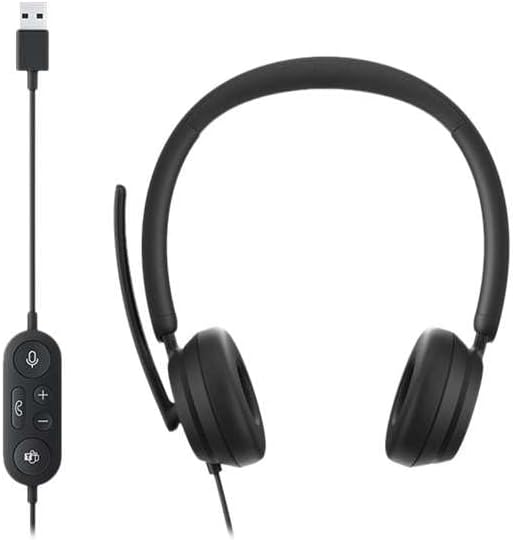
Image: The Microsoft Modern USB-C Headphones, featuring the headset with its attached USB-C cable and inline control unit. The control unit has buttons for mute, volume up/down, call answer/end, and a Microsoft Teams button.
סעטאַפּ
קאַנעקטינג די העאַדסעט
- Locate an available USB-C port on your computer or compatible device.
- Plug the USB-C connector of the headset into the USB-C port.
- Your operating system (Windows 11/10/8.1/8 or Mac OS 11.0/10.15) should automatically detect and install the necessary drivers.
מיקראָפאָן אַדזשאַסטמאַנט
- The microphone boom is flexible. Position it approximately one inch from your mouth for optimal voice pickup.
- The microphone features noise reduction to minimize background distractions during calls.

בילד: א נאָענטע בילד view of the earcups and the adjustable microphone boom of the Microsoft Modern USB-C Headphones.
אַפּערייטינג די כעדסעט
אינליין קאָנטראָלס
The inline control unit provides convenient access to essential functions:
- שטיל קנעפּל: Press to mute or unmute your microphone. An indicator light on the control unit may show mute status.
- באַנד אַרויף / אַראָפּ קנעפּלעך: סטרויערן די צוגעהערט באַנד.
- רופן קנעפּל: דרוק צו ענטפֿערן אָדער פאַרענדיקן אַ רוף.
- מייקראָסאָפֿט טימז קנעפּל: Quickly launch or bring Microsoft Teams to the foreground.

בילד: א דעטאַלירטע view of the inline control unit, showing the microphone mute, volume up/down, call, and Microsoft Teams buttons.
קאָמפאָרט און דיזיין
The headset features padded and lightweight earcups designed for extended wear, ensuring comfort during long calls or work sessions.

Image: A close-up showing the soft, padded earcup of the Microsoft Modern USB-C Headphones, highlighting its comfortable design.
וישאַלט
- רייניקונג: ניצט אַ ווייכע, טרוקענע שטאָף צו רייניקן די כעדסעט. פֿאַרמייַדט ניצן שטרענגע כעמיקאַלן אָדער שרײַבנדיקע מאַטעריאַלן.
- סטאָרידזש: האַלט די כעדסעט אין אַ קיל, טרוקן אָרט ווען נישט אין באַנוץ. פֿאַרמייַדט עקסטרעמע טעמפּעראַטורן.
- קאַבלע זאָרגן: Do not excessively bend or pull the USB-C cable to prevent damage.
טראָובלעשאָאָטינג
| פּראָבלעם | לייזונג |
|---|---|
| קיין קלאַנג פֿון כעדסעט |
|
| מיקראָפאָן טוט נישט אַרבעטן |
|
| Headset not recognized by computer |
|
ספּעסאַפאַקיישאַנז
| סאָרט | מייקראָסאָפֿט |
| מאָדעל נאָמען | I6N-00009 |
| נומער מאָדעל נומער | 2026 |
| קאַנעקטיוויטי טעכנאָלאָגיע | מיט אַ דראָט (USB-C) |
| אויער פּלייסמאַנט | איבער אויער |
| פאָרם פאַקטאָר | אויף אויער |
| מאַטעריאַל | פאָקס לעדער |
| קאָנטראָל טיפּ | רופן קאָנטראָל |
| קאַמפּאַטאַבאַל דעוויסעס | USB-C קאַמפּאַטאַבאַל דעוויסעס |
| אַפּערייטינג סיסטעם קאַמפּאַטאַבילאַטי | Windows 11 / 10 / 8.1 / 8, Mac OS 11.0/10.15 |
| פּראָדוקט דימענשאַנז | 16 X 3.99 X 24.99 סענטימעטער |
| פּונקט וואָג | 390 ג |
| וואַסער קעגנשטעל מדרגה | וואַסער קעגנשטעליק |
וואָראַנטי און שטיצן
For warranty information and technical support, please refer to the official Microsoft support website or contact Microsoft customer service. Details regarding specific warranty periods and terms are typically provided with your purchase documentation or available online.
You can find support resources at the official Microsoft support page: support.microsoft.com