
הקדמה
This manual provides essential information for the proper setup, operation, and maintenance of your Philips 346B1C Curved Monitor. This 34-inch WQHD (3440 x 1440) display features a 100 Hz refresh rate, 5ms response time, and a curved VA panel for an immersive viewing experience. Key features include USB-C docking, MultiView functionality, FreeSync technology, LowBlue Mode, and FlickerFree technology for enhanced user comfort and productivity.

בילד: פראָנט view of the Philips 346B1C curved monitor, showcasing its ultrawide display and key features like WQHD, USB-C Docking, and MultiView.
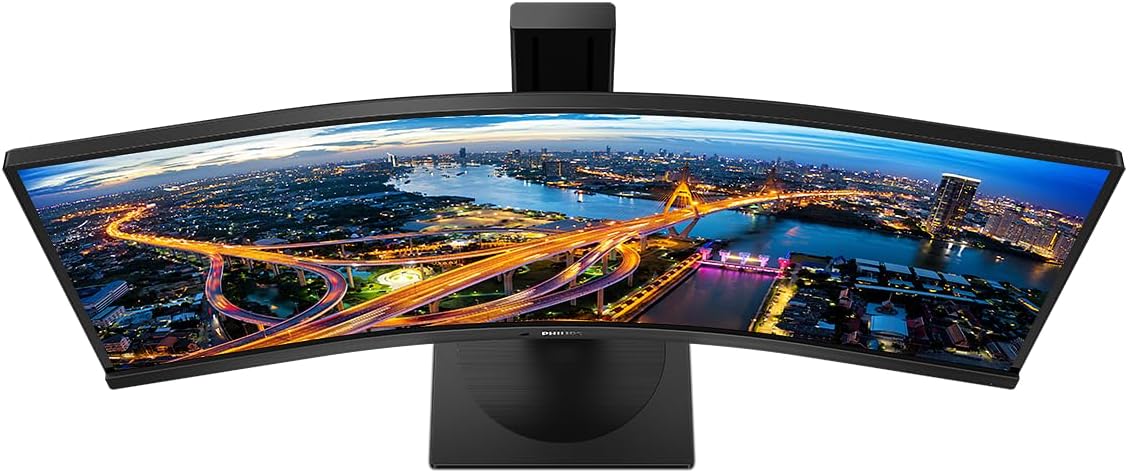
בילד: פון אויבן אַראָפּ view of the Philips 346B1C curved monitor, emphasizing the curvature of the screen.
וואָס איז אין די קעסטל
באַשטעטיקן אַז אַלע קאָמפּאָנענטן זענען פאַראַן איידער איר גייט ווייטער מיט דער סעטאַפּ.
- Philips 346B1C Curved Monitor
- מאָניטאָר שטאַנד (באַזע און האַלדז)
- מאַכט קאַבלע
- HDMI קאַבלע
- DisplayPort קאַבלע
- וסב-C צו וסב-C קאַבלע
- USB-A to USB-B Cable (Upstream)
- Documentation (Quick Start Guide, User Manual CD)
סעטאַפּ אינסטרוקציעס
1. אַסעמבאַל די שטיין
- לייגט דעם מאָניטאָר מיטן פּנים אַראָפּ אויף אַ ווייכער, ריינער ייבערפלאַך צו פאַרמייַדן קראַצן.
- באַפעסטיקט דעם שטאַנד האַלדז צום מאָניטאָר פּאַנעל. מאַכט זיכער אַז עס קליקט זיכער אין פּלאַץ אָדער איז באַפעסטיקט מיט שרויפן אויב עס איז צוגעשטעלט.
- באַפעסטיקט דעם שטאַנד באַזע צום שטאַנד האַלדז. פֿעסט צו דעם גראָבן שרויף אָדער די שרויפן פֿון אונטן פֿון דער באַזע.

בילד: הינטערשטע view of the Philips 346B1C monitor, showing the stand attachment point and VESA mounting holes.
2. זיך פֿאַרבינדן צו דיין קאָמפּיוטער
פֿאַרבינדט דעם מאָניטאָר צו אייער קאָמפּיוטער מיט איינעם פֿון די פֿאָלגנדיקע מעטאָדן:
- HDMI קשר: פֿאַרבינדט איין עק פֿון דעם HDMI קאַבל צום מאָניטאָר'ס HDMI פּאָרט און דעם אַנדערן עק צו אייער קאָמפּיוטער'ס HDMI אַרויסגאַנג.
- DisplayPort קאַנעקשאַן: Connect one end of the DisplayPort cable to the monitor's DisplayPort and the other end to your computer's DisplayPort output.
- USB-C קאַנעקשאַן: Connect one end of the USB-C cable to the monitor's USB-C port and the other end to your computer's USB-C port. This connection supports video, data, and power delivery (up to 90W) to your laptop.
For USB hub functionality, connect the USB-A to USB-B upstream cable from your computer to the monitor's USB-B upstream port.
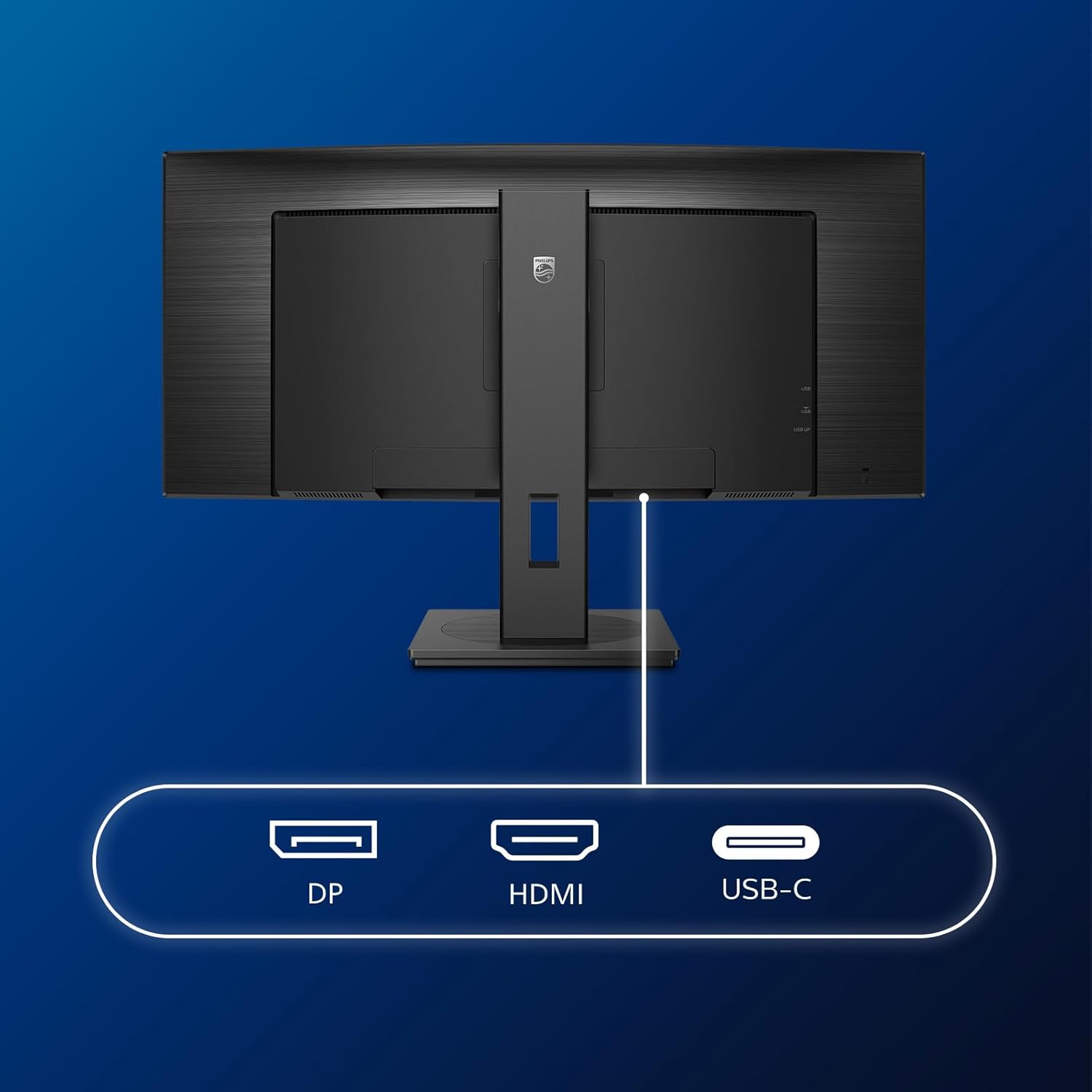
בילד: דעטאַלירט view of the monitor's input ports, including DisplayPort (DP), HDMI, and USB-C, for connecting to various devices.
3. מאַכט קאַנעקשאַן
פֿאַרבינדט דעם מאַכט קאַבל צום מאָניטאָר'ס מאַכט אַרייַנגאַנג און דערנאָך צו אַ געערדטער עלעקטרישער ווענטיל.
4. ערשטע איינשאַלטונג
Press the power button located on the monitor to turn it on. The monitor should automatically detect the input signal. If not, use the On-Screen Display (OSD) menu to select the correct input source.
אַפּערייטינג ינסטראַקשאַנז
אויף-סקרין ווייַז (אָסד) מעניו
The OSD menu allows you to adjust various monitor settings. Use the joystick control located on the back or bottom of the monitor to navigate the menu.
- ברייטנאַס / קאַנטראַסט: אַדזשאַסטירן די אַלגעמיינע לומינאַנס און קאָנטראַסט פון דעם עקראַן.
- קאָליר סעטטינגס: פיין-איינשטעלן קאליר טעמפּעראַטור, גאַמאַ, און קאליר פּלאַץ.
- אַרייַנשרייַב אויסקלייַבן: מאַנועל באַשטימען צווישן HDMI, DisplayPort, און USB-C אינפוטס.
- אַודיאָ: Adjust volume or mute the built-in speakers.
- בילד מאָדע: Select from preset picture modes (e.g., Standard, Gaming, Text).
מולטיView פאַנגקשאַנאַליטי
די מולטיView feature allows you to connect and view content from two different sources simultaneously on the screen. Access this feature through the OSD menu to select Picture-by-Picture (PbP) or Picture-in-Picture (PiP) modes and configure input sources.
וסב-C דאָקקינג
When connected via USB-C, the monitor acts as a docking station, providing video, data transfer through its integrated USB hub, and power delivery to charge your connected laptop (up to 90W).
SmartErgoBase and Adjustability
The monitor's SmartErgoBase allows for ergonomic adjustments including height, swivel, and tilt to optimize your viewאין טרייסט.

Image: Illustrations demonstrating the monitor's adjustable features, including height adjustment, tilt, and swivel capabilities for ergonomic positioning.
אויג טרייסט פֿעיִקייטן
- נידעריק בלו מאָדע: Reduces harmful shortwave blue light emissions to prevent eye strain. Activate this mode via the OSD menu.
- FlickerFree Technology: Regulates brightness and reduces flicker for more comfortable viewינג. די אייגנשאפט איז שטענדיק אקטיוו.
- PowerSensor & LightSensor: These sensors automatically adjust monitor brightness based on ambient light conditions and user presence, saving energy and reducing eye strain.
וישאַלט
רייניקונג די מאָניטאָר
- שטענדיק אָפּשטויסן די מאָניטאָר איידער רייניקונג.
- ניצן אַ ווייך, לינט-פֿרייַ שטאָף לייטלי דampאָפּגעווישט מיט וואַסער אָדער אַ מילד, נישט-אַברייסיוו פאַרשטעלן רייניגער.
- ניצט נישט אַלקאָהאָל, סאָלווענטן, אדער אַמאָניאַק-באַזירטע רייניגער, ווײַל די קענען שאַטן דעם עקראַן-איבערפֿלאַך.
- ווישט דעם עקראַן לײַכט צו באַזײַטיקן שטויב און פֿלעקן.
- רייניקן דעם מאָניטאָר casinג מיט אַ ווייכן, טרוקענעם שטאָף.
אַלגעמיינע קער
- פֿאַרמײַדט צו שטעלן שווערע זאַכן אויף דעם מאָניטאָר אָדער זײַנע קאַבלען.
- שטעלט נישט אויס דעם מאָניטאָר צו דירעקטער זון, איבערגעטריבענער היץ, אדער עקסטרעמער קעלט.
- ענשור געהעריק ווענטאַליישאַן אַרום די מאָניטאָר.
טראָובלעשאָאָטינג
אויב איר טרעפט פּראָבלעמען מיט אייער מאָניטאָר, זעט די פאלגענדע געוויינטלעכע טראָובלעשווטינג טריט:
| פּראָבלעם | מעגלעך סיבה | לייזונג |
|---|---|---|
| קיין בילד אויף פאַרשטעלן | שטראָם קאַבל אָפּגעטיילט; ווידעא קאַבל אָפּגעטיילט; אומרעכט אַרייַנגאַנג מקור אויסגעקליבן. | Ensure power cable is securely connected; Check video cable connections (HDMI, DP, USB-C); Select correct input source via OSD menu. |
| בילד איז פארשוואומען אדער פארדרייט | פאַלשע רעזאָלוציע; גראַפיקס דרייווער פּראָבלעם. | Set display resolution to 3440 x 1440; Update graphics card drivers. |
| קיין געזונט פון ספּיקערז | Volume muted or too low; Incorrect audio output selected on computer. | Adjust monitor volume via OSD; Check computer's audio output settings. |
| וסב פּאָרץ נישט ארבעטן | USB אַפּסטרים קאַבל נישט פארבונדן. | Ensure the USB-A to USB-B upstream cable is connected from the monitor to your computer. |
פֿאַר ווייטערדיקע הילף, ביטע זעט די שטיצע אָפּטייל אָדער קאָנטאַקטירט Philips קונה סערוויס.
ספּעסאַפאַקיישאַנז
| שטריך | דעטאַל |
|---|---|
| סאָרט | פיליפּס |
| מאָדעל נומער | 346B1C |
| פאַרשטעלן גרייס | 34 אינטשעס (86 סענטימעטער) |
| האַכלאָטע | 3440 רענטגענ 1440 (WQHD) |
| אַספּעקט פאַרהעלטעניש | 21:9 |
| פאַרשטעלן ייבערפלאַך | געבויגענע VA פּאַנעל |
| דערפרישן קורס | 100 הז |
| ענטפער צייט | 5 Milliseconds (GtG) |
| קאַנטראַסט פאַרהעלטעניש | 3000:1 (טיפּיש) |
| ברייטנאַס | 300 סי / מ² |
| Viewינג אַנגלע | 178° (H) / 178° (V) |
| קאַנעקטיוויטי | 1x HDMI 2.0, 1x DisplayPort 1.2, 1x USB-C 3.2 Gen 1 (upstream, power up to 90W), 1x USB-B (upstream), 4x USB 3.2 (downstream), RJ45 (Ethernet) |
| אַדאַפּטיוו סינק | FreeSync |
| געבויט-אין ספּיקערז | 2x 5W |
| מאַכט קאַנסאַמשאַן | 5 Watts (Eco mode) |
| וואָג | 7.8 Kilograms (with stand) |
וואָראַנטי און שטיצן
וואָראַנטי אינפֿאָרמאַציע
This Philips monitor comes with a 2-יאָר פאַבריקאַנט ס וואָראַנטי. The specific terms and conditions of the warranty can be found in the detailed documentation provided with your product or on the official Philips support website. Your statutory rights as a consumer are not affected by this warranty.
קונה שטיצן
For technical assistance, product inquiries, or warranty claims, please visit the official Philips support website or contact their customer service department. You may need your monitor's model number (346B1C) and serial number (found on the back of the monitor) when contacting support.
פיליפּס שטיצע Webפּלאַץ: www.philips.com/support