
1. הקדמה
Thank you for choosing the Gembird MUS-6B-01 Optical USB Mouse. This manual provides essential information for setting up, operating, maintaining, and troubleshooting your new mouse. Please read these instructions carefully to ensure optimal performance and longevity of your device.

Image: The official Gembird brand logo, featuring the company name in a stylized font with a geometric design.
2. פּראָדוקט איבערview
The Gembird MUS-6B-01 is a reliable 6-button optical USB mouse designed for comfortable and precise navigation. Its ambidextrous design makes it suitable for both left and right-handed users.
שליסל פֿעיִקייטן:
- אָפּטישע טראַקינג: Provides smooth and accurate cursor control.
- 6 קנעפּלעך: Includes standard left/right click, scroll wheel, DPI adjustment, and two side buttons for enhanced functionality.
- וסב קאַנעקטיוויטי: Simple plug-and-play connection to your computer.
- אַמבידעקסטראָוס פּלאַן: Comfortable for both left and right-handed users.
קאַמפּאָונאַנץ:
- לינקס דריקט קנעפּל
- רעכט גיט קנעפּל
- Scroll Wheel (also functions as a middle click button)
- דפּי אַדזשאַסטמאַנט קנעפּל
- פאָרווערטס קנעפּל (זײַט)
- Backward Button (Side)
- Optical Sensor (underside)
- USB Connector (at the end of the cable)
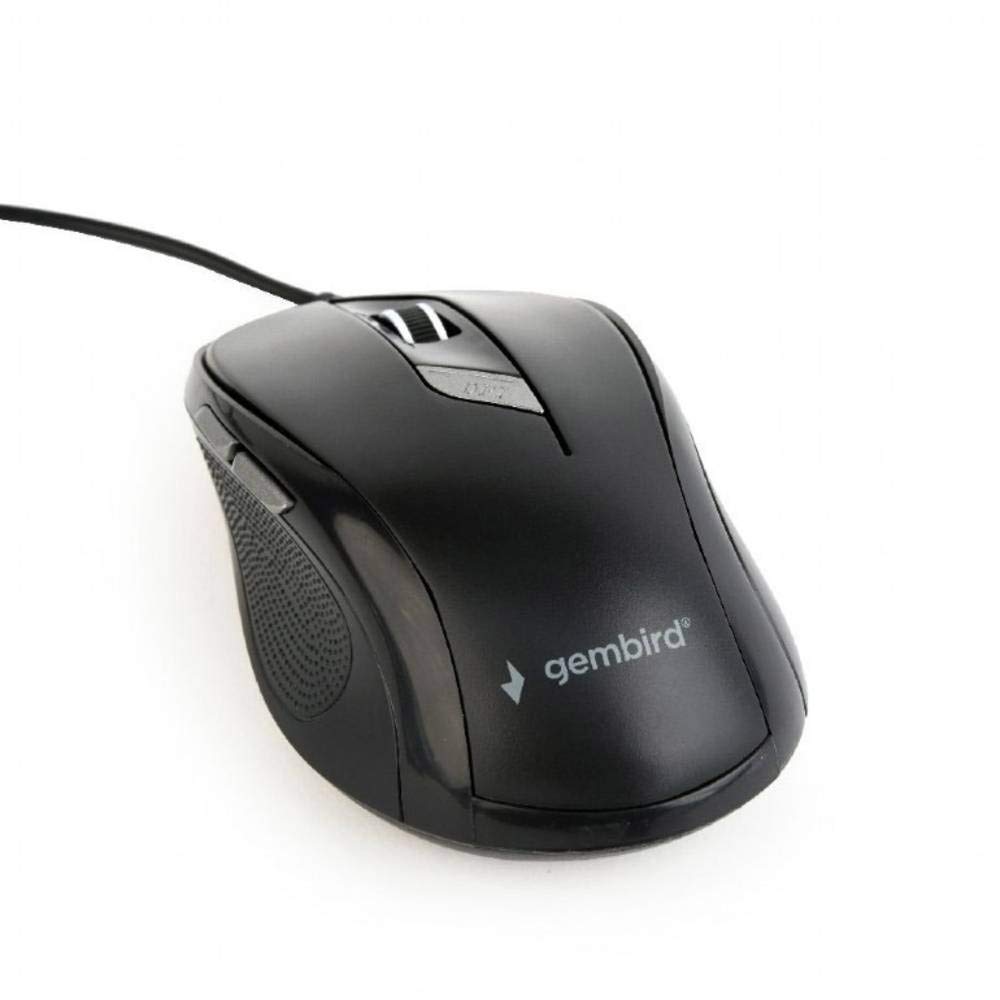
בילד: א פון אויבן אראפ view of the Gembird MUS-6B-01 optical USB mouse. The mouse is black with a matte finish, featuring a scroll wheel, left and right click buttons, a DPI button, and two side buttons. A black USB cable extends from the front of the mouse.
3. סעטאַפּ
Setting up your Gembird MUS-6B-01 mouse is a simple plug-and-play process.
ינסטאַלירונג סטעפּס:
- געפֿינען אַן בנימצא וסב פּאָרט אויף דיין קאָמפּיוטער.
- Plug the USB connector of the Gembird MUS-6B-01 mouse firmly into the USB port.
- Your operating system (Windows, Linux) will automatically detect and install the necessary drivers. This process may take a few moments.
- אַמאָל די דרייווערס זענען אינסטאַלירט, איז די מויז גרייט פֿאַר באַנוץ.
קיין נאָך ווייכווארג אינסטאַלאַציע איז טיפּיש נישט פארלאנגט פֿאַר גרונט פאַנגקשאַנאַליטי.
4. אַפּערייטינג ינסטרוקטיאָנס
Familiarize yourself with the functions of each button on your Gembird MUS-6B-01 mouse.
יקערדיק פאַנגקשאַנז:
- לינק קליקט: Primary action, selecting items, opening files.
- רעכט גיט: Opens context menus, provides additional options.
- סקראָל ראָד: סקראָלן אַרויף אָדער אַראָפּ דורך דאָקומענטן און web בלעטער.
- מיטל קליק (סקראָל ראָד דריקן): Often used to open links in new tabs or for specific application functions.
אַוואַנסירטע פאַנגקשאַנז:
- DPI אַדזשאַסטמענט קנעפּל: Located behind the scroll wheel, this button allows you to cycle through different sensitivity (DPI) settings. Press it to change the cursor speed to suit your preference.
- פאָרווערטס קנעפּל (זײַט): Typically navigates forward in web בראַוזערז אָדער file עקספּלאָרערס.
- צוריק קנעפל (זייט): Typically navigates backward in web בראַוזערז אָדער file עקספּלאָרערס.
The functionality of the side buttons may vary depending on the application or operating system settings. Some operating systems allow customization of these buttons.
5. וישאַלט
Proper care will help extend the life of your Gembird MUS-6B-01 mouse.
רייניקונג:
- אָפּשטעקן די מויז פֿון אייער קאָמפּיוטער איידער איר רייניגט עס.
- ניצן אַ ווייך, אַ ביסל דamp, lint-free cloth to wipe the surface of the mouse.
- For stubborn dirt, a small amount of mild soap solution can be applied to the cloth (not directly to the mouse).
- ניצט אַ וואַטע שטעכל אָדער קאָמפּרעסירטע לופט צו רייניקן אַרום דעם סקראָלל ראָד און צווישן קנעפּלעך.
- Ensure the optical sensor on the underside is clean and free of dust or debris.
- Do not use harsh chemicals, abrasive cleaners, or immerse the mouse in water.
סטאָרידזש:
When not in use for extended periods, store the mouse in a clean, dry environment away from extreme temperatures and direct sunlight.
6. טראָובלעשאָאָטינג
If you encounter issues with your Gembird MUS-6B-01 mouse, try the following troubleshooting steps:
| פּראָבלעם | מעגלעך לייזונג |
|---|---|
| מויז ניט ריספּאַנדינג |
|
| Erratic or jumpy cursor movement |
|
| קנעפּלעך נישט ארבעטן |
|
7. ספּעסאַפאַקיישאַנז
Detailed technical specifications for the Gembird MUS-6B-01 Optical USB Mouse:
| שטריך | באַשרייַבונג |
|---|---|
| סאָרט | Gembird |
| מאָדעל נאָמען | MUS-6B-01 |
| קאַנעקטיוויטי טעכנאָלאָגיע | ווייערד (וסב) |
| באַוועגונג דעטעקשאַן טעכנאָלאָגיע | אָפּטיש |
| קנעפּל קוואַנטיטעט | 6 |
| האַנט אָריענטירונג | אַמבידעקסטראַס |
| קאַמפּאַטאַבאַל אַפּערייטינג סיסטעמס | Linux, Windows 7, Windows XP (and newer versions) |
| ייַזנוואַרג פּלאַטפאָרמע | פערזענלעכע קאָמפּיוטער |
| קאַבלע לענג | 5.0 מעטער |
| פּונקט וואָג | 74 גראַמז |
| מאַטעריאַל | פּלאַסטיק |
| קאָליר | שוואַרץ |
| באַטעריז פארלאנגט | ניין |
8. זיכערקייַט אינפֿאָרמאַציע
ביטע אָבסערווירן די פאלגענדע זיכערקייַט גיידליינז:
- שטעלט נישט אויס די מויז צו וואַסער אָדער צו פיל נעץ.
- ויסמיידן דראַפּינג אָדער אונטערטעניק די מויז צו שטאַרק ימפּאַקץ.
- פרובירט נישט צו צענעמען אדער פאררעכטן די מויז אליין. ווענדט זיך צו קוואַליפֿיצירטע סערוויס פּערסאָנעל.
- האַלטן די מיטל אַוועק פון עקסטרעם טעמפּעראַטורעס און דירעקט זונשייַן.
- באַזייַטיקט עלעקטראָנישן אָפּפאַל פאַראַנטוואָרטלעך לויט די לאָקאַלע רעגולאַציעס.
9. וואָראַנטי און שטיצן
Gembird products are designed for reliability and performance. For specific warranty terms and conditions, please refer to the warranty card included with your product or visit the official Gembird website. For technical support or further assistance, please contact your retailer or the Gembird customer service department.