


XGP Motortcycle Intercom Quick Button Command
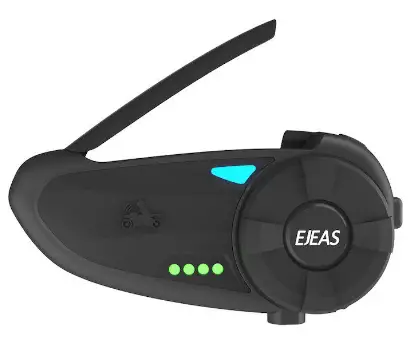
Product Information
This device is designed to comply with part 15 of the FCC Rules, ensuring its safe and efficient operation. It is built with the following features:
- Compliance with FCC regulations: The device meets the requirements set forth by the Federal Communications Commission (FCC) in part 15.
- Interference prevention: The device is designed to minimize harmful interference and ensure reliable performance.Interference acceptance: The device is capable of accepting any interference that may be encountered during operation.
Product Usage Instructions:
To use this device effectively and in compliance with FCC regulations, please follow these instructions:
- Place the device in a suitable location: Ensure that the device is positioned in an area where it is not likely to cause interference to other devices or be affected by external interference.
- Power on the device: Connect the device to a power source according to the provided instructions.
- Check for interference: Once the device is powered on, monitor for any signs of interference, such as disruptions in performance or unusual behavior.
- Minimize interference sources: If interference is detected, try to identify and eliminate possible sources of interference, such as nearby electronic devices or wireless signals.
- Ensure proper connections: Make sure all cables and connections are securely attached and properly installed.
- Contact support if needed: If you experience persistent interference issues or have any questions regarding the device’s compliance, please contact our customer support for assistance.
MUSIC FUNCTION

BASIC FUNCTION


(After factory reset, power off and restart the device. The power button will flash red and blue alternately. At this point, you can directly connect the device to your phone via Bluetooth without entering pairing mode again; For intercom only need to hold the Intercom button till red and blue right flash on either unit to start a talk.)
PHONE CALL


MUSIC FUNCTION


BLUETOOTH INTERCOM FUNCTION
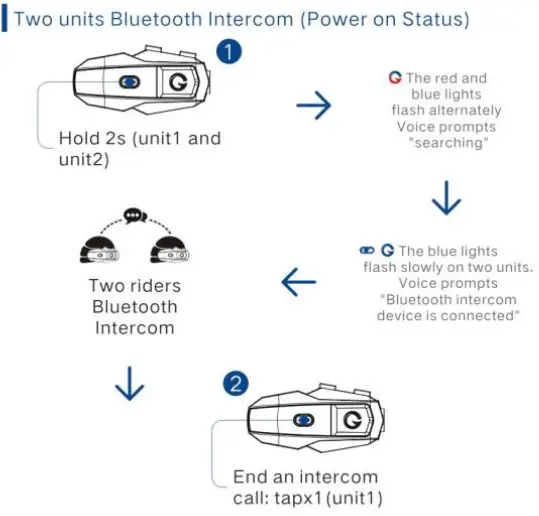
UNIVERSAL PAIRING

FCC Statement
This equipment has been tested and found to comply with the limits for a Class B digital device, pursuant to Part 15 of the FCC Rules. These limits are designed to provide reasonable protection against harmful interference in a residential installation. This equipment generates uses and can radiate radio frequency energy and, if not installed and used in accordance with the instructions, may cause harmful interference to radio communications. However, there is no guarantee that interference will not occur in a particular installation. If this equipment does cause harmful interference to radio or television reception, which can be determined by turning the equipment off and on, the user is encouraged to try to correct the interference by one or more of the following measures:
- Reorient or relocate the receiving antenna.
- Increase the separation between the equipment and receiver.
- Connect the equipment into an outlet on a circuit different from that to which the receiver is connected.
- Consult the dealer or an experienced radio/TV technician for help
This device complies with part 15 of the FCC Rules. Operation is subject to the following two conditions:
- This device may not cause harmful interference,
- This device must accept any interference received, including interference that may cause undesired operation.
Changes or modifications not expressly approved by the party responsible for compliance could void the user’s authority to operate the equipment.
The device has been evaluated to meet general RF exposure requirements. The device can be used in portable exposure condition without restriction
This device complies with Industry Canada licence-exempt RSS standard(s). Operation is subject to the following two conditions:
- This device may not cause interference,
- This device must accept any interference, including interference that may cause undesired operation of the device
Email: XGPTX2023@163.com
Documents / Resources
 | Motortcycle Intercom Quick Button Command |
References
- User Manualmanual.tools
Bonjour, j’ai un intercom cap et je me trouve dans l’impossibilité de le connecter avec l’interface du can am spyder f3s 2025. Le bro a bien enregistré le choix mais impossible de le connecter
Pouvez-vous me dire comment faire ou le produit est il compatible avec le BRP can am
Merci pour votre tetour
Pouvez-vous me dire comment faire ou le produit est il compatible avec le BRP can am
Merci pour votre tetour
How do I connect the XGP intercom to a Can-Am Spyder F3S 2025 interface, and is it compatible?
To connect your XGP intercom to a vehicle interface like the Can-Am Spyder, you must put the device into pairing mode. According to the manual, follow these steps:
Regarding compatibility, the XGP uses standard Bluetooth protocols and features a Universal Pairing mode (holding the Intercom button for 2 seconds) designed to work with other brands, which typically extends to vehicle infotainment systems. If the vehicle recognizes the device but fails to complete the handshake, ensure no other previously paired phones are actively connected to the intercom during the initial setup.
Read the full Q&A page