
Giới thiệu
The Beats Studio Pro are premium wireless Bluetooth noise-cancelling headphones designed to deliver an immersive audio experience. Featuring Beats' custom acoustic platform, these headphones offer rich, balanced sound, personalized spatial audio, and versatile connectivity options for both Apple and Android devices. This manual provides detailed instructions for setting up, operating, maintaining, and troubleshooting your Beats Studio Pro headphones.
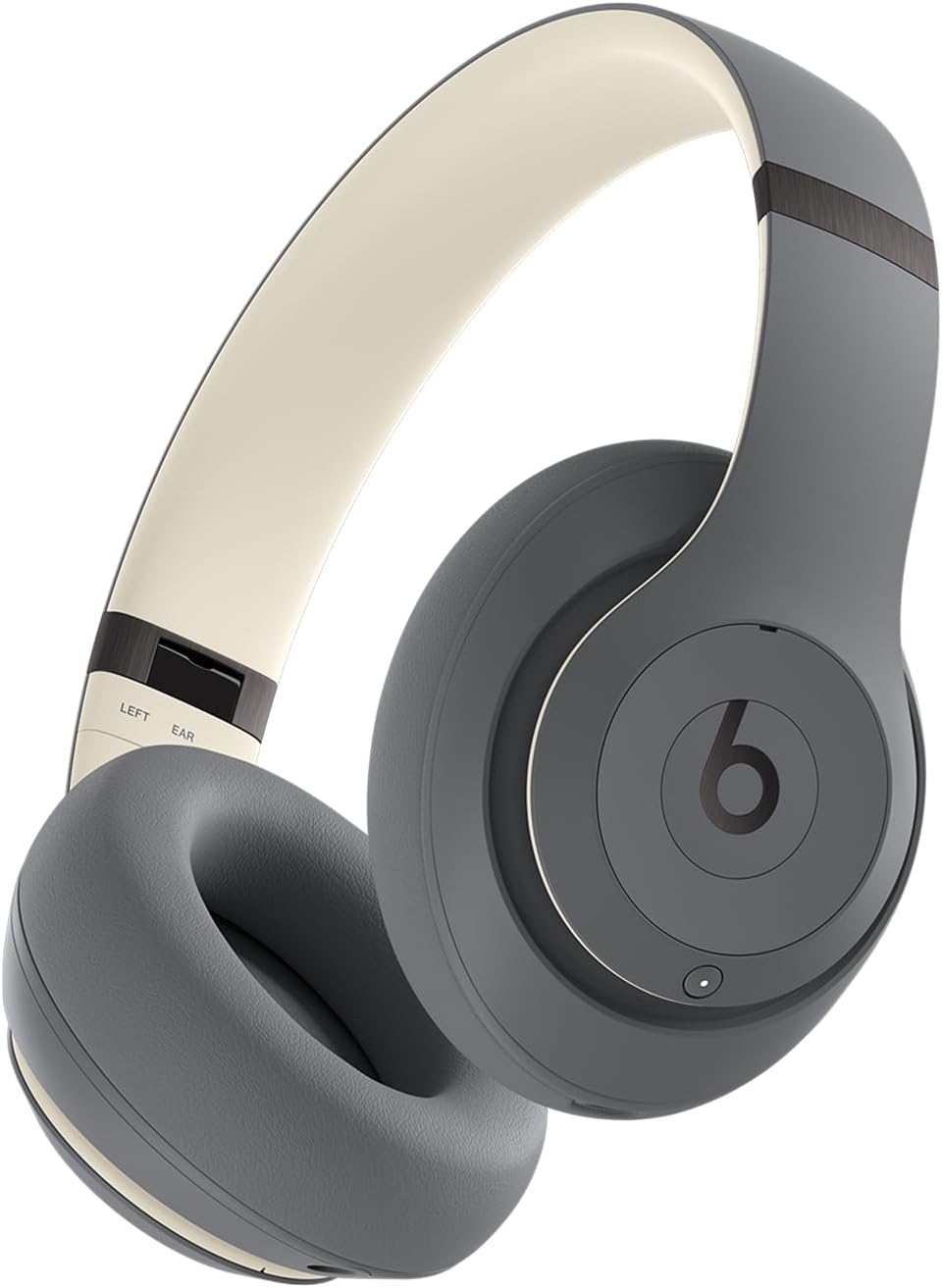
Một góc phía trước view of the Beats Studio Pro wireless headphones in Sand Gray, showcasing chụp tai và băng đô.
Có gì trong hộp
Your Beats Studio Pro package includes the following components:
- Tai nghe không dây Beats Studio Pro
- Hộp đựng bảo vệ
- USB-C to USB-C Cable (for charging and audio)
- Cáp âm thanh tương tự 3.5 mm
- Hướng dẫn bắt đầu nhanh và thẻ bảo hành

An image displaying the Beats Studio Pro headphones alongside their protective carrying case, USB-C charging cable, and 3.5mm analog audio cable, representing the items included in the product packaging.
Bắt đầu
Sạc tai nghe của bạn
Before first use, ensure your Beats Studio Pro headphones are fully charged. Connect the included USB-C to USB-C cable to the headphone's USB-C port and to a compatible USB-C power adapter (not included) or a computer's USB-C port. The LED indicator lights on the right earcup will show the charging status.
- Thời gian sạc: A 10-minute Fast Fuel charge provides up to 4 hours of additional playback.
- Sạc đầy: Provides up to 40 hours of total battery life.

A graphic illustrating the impressive 40-hour battery life of the Beats Studio Pro headphones, with a large '40 hours' text overlaid on a headphone icon.
Ghép nối với thiết bị của bạn (Bluetooth)
- Bật nguồn: Press and hold the power button on the right earcup until the LED indicator lights illuminate.
- Chế độ ghép nối: Press and hold the system button on the right earcup for 3 seconds until the LED indicator lights begin to flash, indicating pairing mode.
- Kết nối: Trên thiết bị của bạn, hãy vào cài đặt Bluetooth và chọn "Beats Studio Pro" từ danh sách các thiết bị khả dụng.
For Apple users, one-touch pairing is available for seamless integration across your iCloud-connected devices. For Android users, download the Beats app for enhanced features and quick pairing.

A person wearing the Beats Studio Pro headphones, emphasizing their enhanced compatibility with both Apple and Android devices for seamless integration.
Connecting via USB-C
The Beats Studio Pro supports lossless audio playback when connected via the included USB-C cable to a compatible audio source device. This connection also allows for charging.
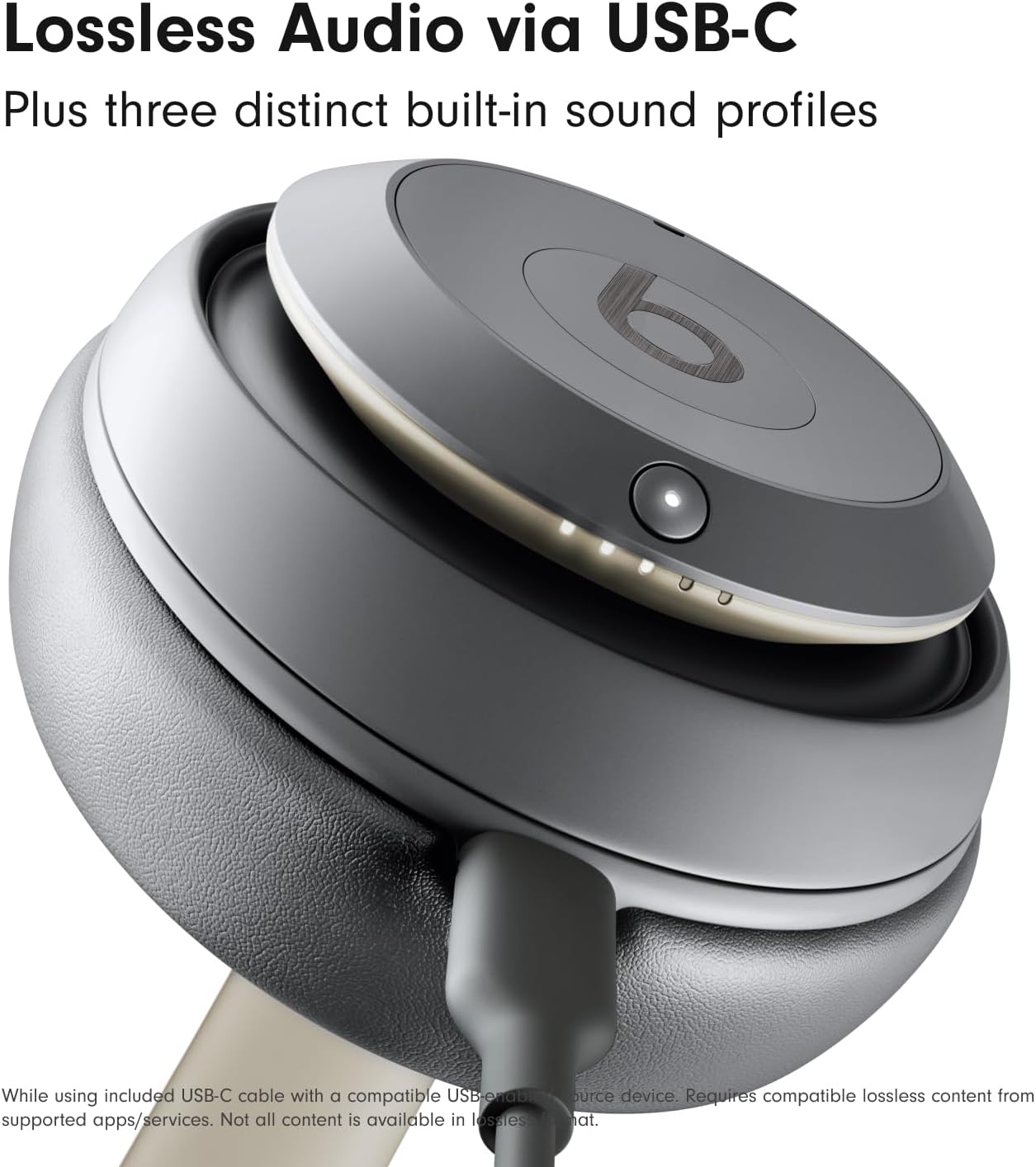
cận cảnh view of the Beats Studio Pro earcup with a USB-C cable connected, illustrating the lossless audio capability when used with a compatible device.
Sử dụng tai nghe của bạn
Kiểm soát trên thiết bị
Các nút điều khiển đa chức năng trên tai nghe cho phép bạn quản lý âm thanh và cuộc gọi:
- Nút 'b' (Tai nghe bên trái): Press once to play/pause audio or answer/end calls. Press twice to skip forward. Press three times to skip backward.
- Nút tăng giảm âm lượng (Tai nghe bên trái): Press the top button to increase volume, and the bottom button to decrease volume.
- System Button (Right Earcup): Press once to switch between Active Noise Cancelling and Transparency mode. Press and hold to activate voice assistant (Siri, Google Assistant).
Chế độ khử tiếng ồn chủ động (ANC) và chế độ trong suốt
The Beats Studio Pro offers two distinct listening modes:
- Chống ồn chủ động (ANC): Fully adaptive noise cancellation that continuously monitors and blocks external noise for an immersive listening experience.
- Chế độ trong suốt: Allows you to hear your surroundings while still enjoying your audio, ideal for staying aware of your environment.
Toggle between these modes using the system button on the right earcup.
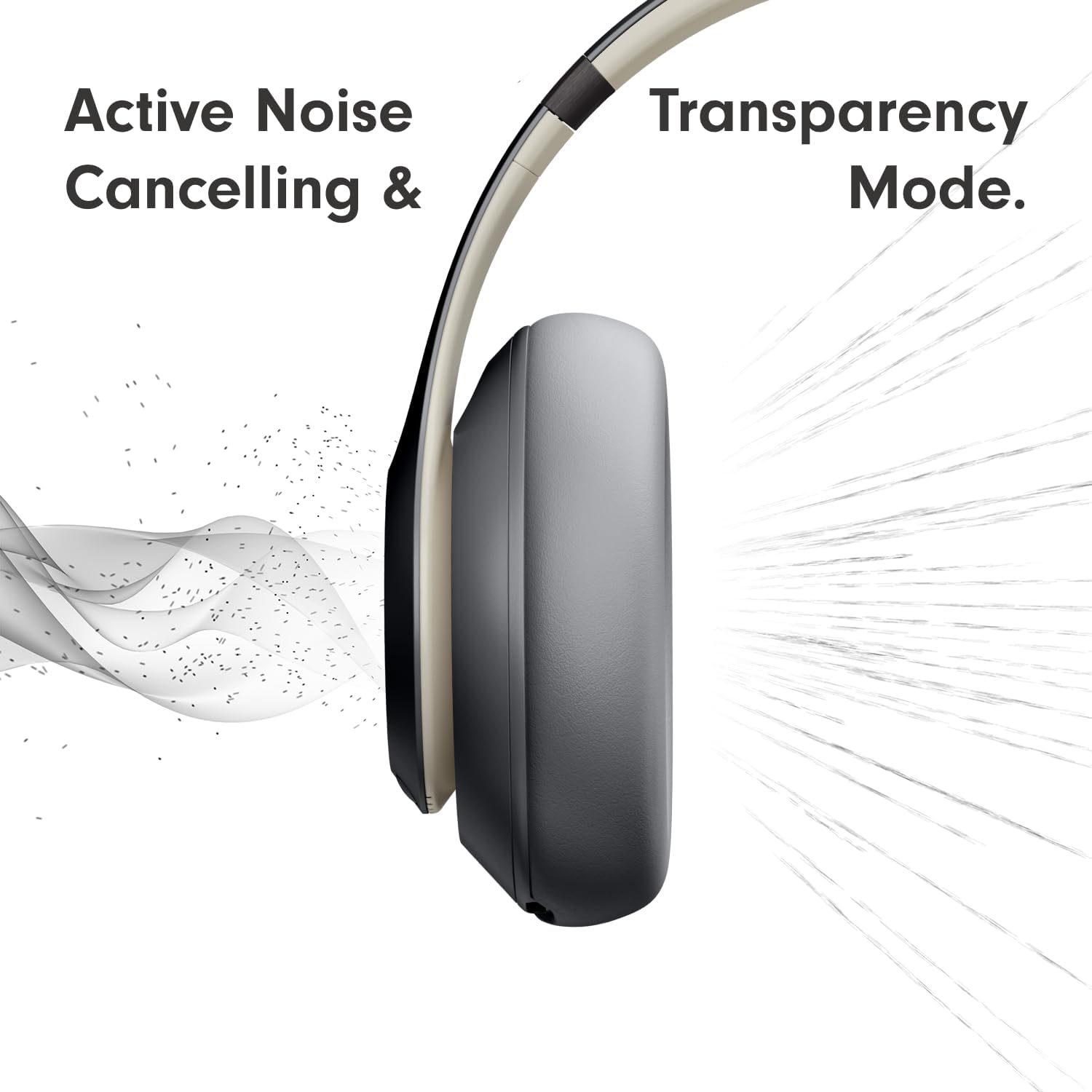
A visual representation demonstrating the Active Noise Cancelling (ANC) and Transparency Mode functionalities of the headphones, showing sound waves being blocked or allowed through.
Âm thanh không gian cá nhân hóa
Experience an immersive 360-degree listening environment with Personalized Spatial Audio and dynamic head tracking. This feature places you at the center of the sound, adapting the audio as you move your head for a truly captivating experience. This feature is available with compatible content and devices.
Hiệu suất cuộc gọi
Microphone chuyên dụng cho giọng nói lọc bỏ chính xác tiếng ồn xung quanh, đảm bảo chất lượng cuộc gọi rõ ràng và sắc nét ngay cả trong môi trường ồn ào.
Chăm sóc và bảo dưỡng
Để đảm bảo độ bền và hiệu suất tối ưu của tai nghe Beats Studio Pro, hãy làm theo các hướng dẫn chăm sóc sau:
- Vệ sinh: Use a soft, dry, lint-free cloth to clean the earcups and headband. Do not use abrasive cleaners or solvents.
- Kho: When not in use, store your headphones in the provided protective carrying case to prevent scratches and damage.
- Tránh độ ẩm: The headphones are not water resistant. Avoid exposure to liquids, high humidity, or extreme temperatures.
- Chăm sóc cáp: Handle the USB-C and 3.5mm audio cables carefully. Avoid sharp bends or excessive pulling.
Xử lý sự cố
Nếu bạn gặp sự cố với tai nghe Beats Studio Pro, hãy thử các giải pháp sau:
- Không có điện: Hãy đảm bảo tai nghe đã được sạc đầy. Kết nối tai nghe với nguồn điện bằng cáp USB-C.
- Không thể ghép nối: Make sure the headphones are in pairing mode (flashing LED lights). Turn off and on Bluetooth on your device. Try unpairing and re-pairing the headphones.
- Không có âm thanh: Check the volume levels on both the headphones and your connected device. Ensure the headphones are properly connected via Bluetooth or USB-C.
- Chất lượng âm thanh kém: Move closer to your connected device to reduce interference. Ensure no physical obstructions are between the headphones and the device. If using USB-C, ensure the audio source supports lossless audio.
- ANC không hoạt động: Ensure ANC mode is activated. Check for any physical obstructions on the headphone microphones.
- Cài lại: If issues persist, you may need to reset your headphones. Refer to the Quick Start Guide for specific reset instructions.
Thông số kỹ thuật
| Tính năng | Đặc điểm kỹ thuật |
|---|---|
| Tên mẫu | Beats Studio chuyên nghiệp |
| Công nghệ kết nối | Wireless (Bluetooth 5.3), Wired (USB-C, 3.5mm Jack) |
| Kiểm soát tiếng ồn | Khử tiếng ồn chủ động, Chế độ trong suốt |
| Tuổi thọ pin | Lên đến 40 giờ |
| Sạc nhiên liệu nhanh | Sạc 10 phút cho thời gian phát nhạc lên đến 4 giờ. |
| Loại trình điều khiển âm thanh | Trình điều khiển động |
| Phạm vi Bluetooth | Up to 100 Meters (Class 1) |
| Kiểm soát | Volume, App Control, Button Control, Siri, Touch Control, Voice Control |
| Thiết bị tương thích | Cellphones, Desktops, Gaming Consoles, Laptops, Tablets (Apple & Android) |
| Cân nặng | 1.39 pound (khoảng 630 gram) |
| Kích thước | 8.81 x 6.33 x 3.97 inch |
| Chống nước | Không chống nước |
| Hình dạng ống nghe | Hình bầu dục |
| Vật liệu | Metal, Engineered Leather, Plastic |
Bảo hành và Hỗ trợ
Your Beats Studio Pro headphones come with a limited manufacturer's warranty. Please refer to the Warranty Card included in your product packaging for detailed terms and conditions. For technical support, product registration, or further assistance, please visit the official Beats support webtrang web hoặc liên hệ với dịch vụ khách hàng của họ.
You can find more information and support resources on the official Beats webđịa điểm: www.beatsbydre.com/support