
1. Sản phẩm hếtview
The QRD Junior E5 Wireless Controller is a compact and versatile gaming controller designed for a wide range of platforms, including Nintendo Switch, Switch Lite, Switch OLED, PC (Windows), Mac, iOS, and Android devices. Its ergonomic design and advanced features provide an enhanced gaming experience.

Hình ảnh 1.1: Mặt trước view of two QRD Junior E5 Wireless Controllers.

Image 1.2: Back and front views of the QRD Junior E5 Wireless Controller, highlighting its design.
2. Nội dung gói hàng
- QRD Junior E5 Wireless Controller (2 units for this package)
- Cáp sạc USB-C
- Hướng dẫn sử dụng (tài liệu này)
3. Thiết lập và kết nối
3.1 Sạc bộ điều khiển
Before first use, fully charge the controller. Connect the provided USB-C cable to the controller's charging port and the other end to a USB power source (e.g., console, PC, or USB wall adapter). The indicator lights will show charging status and turn off when fully charged.
3.2 Kết nối với Nintendo Switch
- On the Nintendo Switch HOME Menu, select Bộ điều khiển > Thay đổi cách cầm/thứ tự.
- Nhấn và giữ Nút trang chủ on the QRD Junior E5 controller for 3-5 seconds until the indicator lights start flashing rapidly.
- Sau khi kết nối, đèn báo hiệu người chơi tương ứng trên bộ điều khiển sẽ sáng liên tục.
3.3 Connecting to PC (Windows/Mac)
The controller supports both wireless Bluetooth and wired USB-C connections for PC and Mac.
3.3.1 Kết nối Bluetooth không dây
- Ensure your PC/Mac has Bluetooth enabled.
- On your PC/Mac, go to Bluetooth settings and search for new devices.
- Nhấn và giữ Nút trang chủ on the QRD Junior E5 controller for 3-5 seconds until the indicator lights start flashing rapidly.
- Select "QRD Controller" or similar from the list of available devices to pair.
- The controller supports Đầu vào X for PC games.
3.3.2 Kết nối USB-C có dây
Connect the controller to your PC/Mac using the provided USB-C cable. The controller will be automatically recognized, and no driver installation is required.
3.4 Kết nối với thiết bị iOS/Android
- Bật Bluetooth trên thiết bị iOS/Android của bạn.
- Nhấn và giữ Nút trang chủ on the QRD Junior E5 controller for 3-5 seconds until the indicator lights start flashing rapidly.
- Tìm kiếm "QRD Controller" or similar in your device's Bluetooth settings and pair.
4. Hướng dẫn sử dụng và các tính năng
4.1 Điều khiển cơ bản
The QRD Junior E5 controller features standard button layouts including A/B/X/Y buttons, D-pad, Left/Right joysticks, L/R/ZL/ZR triggers, Home button, and +/- buttons.
4.2 Chức năng TURBO
The TURBO function allows for continuous or automatic rapid firing of buttons. This feature can be customized for different games and play styles.
- To set TURBO: Press and hold the desired action button (e.g., A) and then press the Nút TURBO once. The button will now continuously fire when held.
- To set Auto-TURBO: Press and hold the desired action button and then press the Nút TURBO a second time. The button will automatically fire without being held.
- To clear TURBO: Press and hold the desired action button and then press the Nút TURBO lần thứ ba.
- Điều chỉnh tốc độ TURBO: Nhấn nút Nút TURBO và Up/Down D-pad simultaneously to cycle through speeds: 8 times/sec, 15 times/sec, 25 times/sec.

Image 4.1: Illustration of the Turbo function for rapid actions in games.
4.3 6-Axis Gyro Motion Sensor
The controller is equipped with an advanced 6-axis gyro motion sensor, allowing for precise viewpoint and tilt operations in compatible games. Tilt, turn, and twist the controller to interact with game environments dynamically.

Image 4.2: Demonstrating the 6-Axis Gyro motion sensor capability.
4.4 Adjustable Vibration Feedback
Dual vibration motors provide immersive haptic feedback. The vibration intensity can be adjusted to suit personal preference and game requirements.
- Vibration modes: 0% (no vibration), 30% (weak), 70% (medium), and 100% (strong).
- To adjust vibration: Press the Nút rung (if present, or a combination like TURBO + Left/Right joystick click) to cycle through intensity levels. Refer to the quick start guide for specific button combinations.

Image 4.3: Visual representation of the adjustable vibration feature.
5. Bảo trì và chăm sóc
- Giữ bộ điều khiển khô ráo và tránh xa nhiệt độ quá cao hoặc quá thấp.
- Vệ sinh bộ điều khiển bằng vải mềm, khô. Không sử dụng hóa chất mạnh hoặc vật liệu mài mòn.
- Tránh làm rơi hoặc va đập mạnh vào bộ điều khiển.
- Hãy cất giữ bộ điều khiển ở nơi an toàn khi không sử dụng để tránh hư hỏng.
KHAI THÁC. Xử lý sự cố
6.1 Bộ điều khiển không kết nối
- Đảm bảo bộ điều khiển được sạc đầy.
- Verify Bluetooth is enabled on your device (Switch, PC, Mac, iOS, Android).
- Hãy đảm bảo bộ điều khiển đang ở chế độ ghép nối (đèn báo nhấp nháy nhanh).
- Hãy thử khởi động lại cả bộ điều khiển và thiết bị mà bạn đang cố gắng kết nối.
- If connecting to Switch, ensure you are on the "Change Grip/Order" screen.
- For PC/Mac, try a wired USB-C connection to rule out Bluetooth issues.
6.2 Độ trễ đầu vào hoặc các nút không phản hồi
- Ensure the controller is within range of the connected device.
- Kiểm tra sự can thiệp từ các thiết bị không dây khác.
- Confirm the controller is fully charged. Low battery can affect performance.
- Khởi động lại bộ điều khiển và trò chơi/thiết bị.
6.3 Vibration Not Working or Incorrect
- Check the vibration settings on the controller (refer to section 4.4) to ensure it's not set to 0%.
- Hãy kiểm tra xem trò chơi bạn đang chơi có hỗ trợ phản hồi rung hay không.
- Ensure the controller's firmware is up to date (if applicable, check the manufacturer's webĐịa điểm).
7. Thông số kỹ thuật
| Người mẫu | Junior E5 |
| Thương hiệu | QRD |
| Kết nối | Wireless Bluetooth, Wired USB-C |
| Khả năng tương thích | Nintendo Switch, Switch Lite, Switch OLED, PC (Windows), Mac, iOS, Android |
| Chế độ đầu vào | X-input (PC), Switch-input (Nintendo Switch) |
| Tính năng đặc biệt | 6-Axis Gyro Motion Sensor, Adjustable Vibration, TURBO Function |
| Kích thước (xấp xỉ) | 5 x 3.31 x 2.13 inch (12.7 x 8.4 x 5.4 cm) |
| Trọng lượng (xấp xỉ) | 1.06 pound (0.48 kg) |
| Ắc quy | 2 Nonstandard Battery batteries required (internal, rechargeable) |

Image 7.1: Physical dimensions of the QRD Junior E5 Wireless Controller.
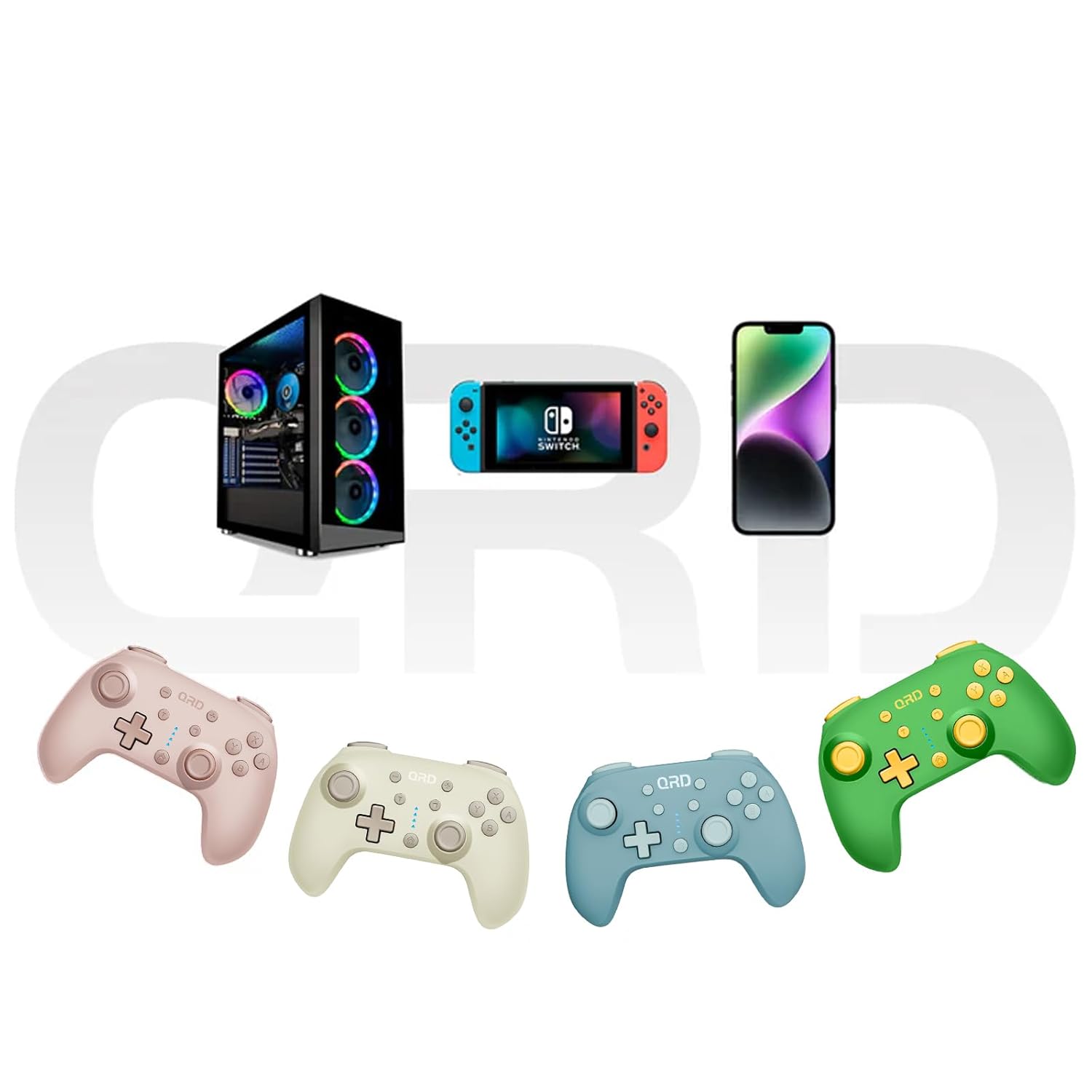
Image 7.2: Multi-platform compatibility of the QRD Junior E5 Wireless Controller.
8. Bảo hành và Hỗ trợ
QRD products are designed for reliability and performance. For warranty information, technical support, or service inquiries, please refer to the contact information provided with your purchase or visit the official QRD webtrang web. Vui lòng giữ lại bằng chứng mua hàng để yêu cầu bảo hành.
Để được hỗ trợ thêm, bạn có thể truy cập QRD Store on Amazon.