
Giới thiệu
This manual provides detailed instructions for the setup, operation, maintenance, and troubleshooting of your ZTE MC888 Ultra 5G Router. The MC888 Ultra is a high-performance 5G router designed to deliver fast and reliable internet connectivity. It supports download speeds up to 3.8 Gbps and upload speeds up to 280 Mbps, features dual Gigabit LAN/WAN ports, and includes an RJ11 port for voice calls via VoIP, VoLTE, or VoNR.
Thông tin an toàn
- Đọc kỹ tất cả các hướng dẫn trước khi sử dụng thiết bị.
- Do not open or modify the device. Unauthorized modifications can void your warranty and create safety hazards.
- Use only the power adapter and accessories supplied with the router.
- Giữ thiết bị tránh xa nước, độ ẩm và nhiệt độ khắc nghiệt.
- Hãy đảm bảo thông gió tốt xung quanh bộ định tuyến để tránh quá nhiệt.
- Tránh đặt bộ định tuyến gần các trường điện từ mạnh.
Nội dung gói
Xác minh rằng tất cả các mục đều có trong gói hàng của bạn:
- Bộ định tuyến ZTE MC888 Ultra 5G
- Bộ đổi nguồn
- Cáp Ethernet
- Hướng dẫn bắt đầu nhanh (không bao gồm trong sách hướng dẫn này)
Hết thiết bịview
Familiarize yourself with the ports and indicators on your ZTE MC888 Ultra 5G Router.
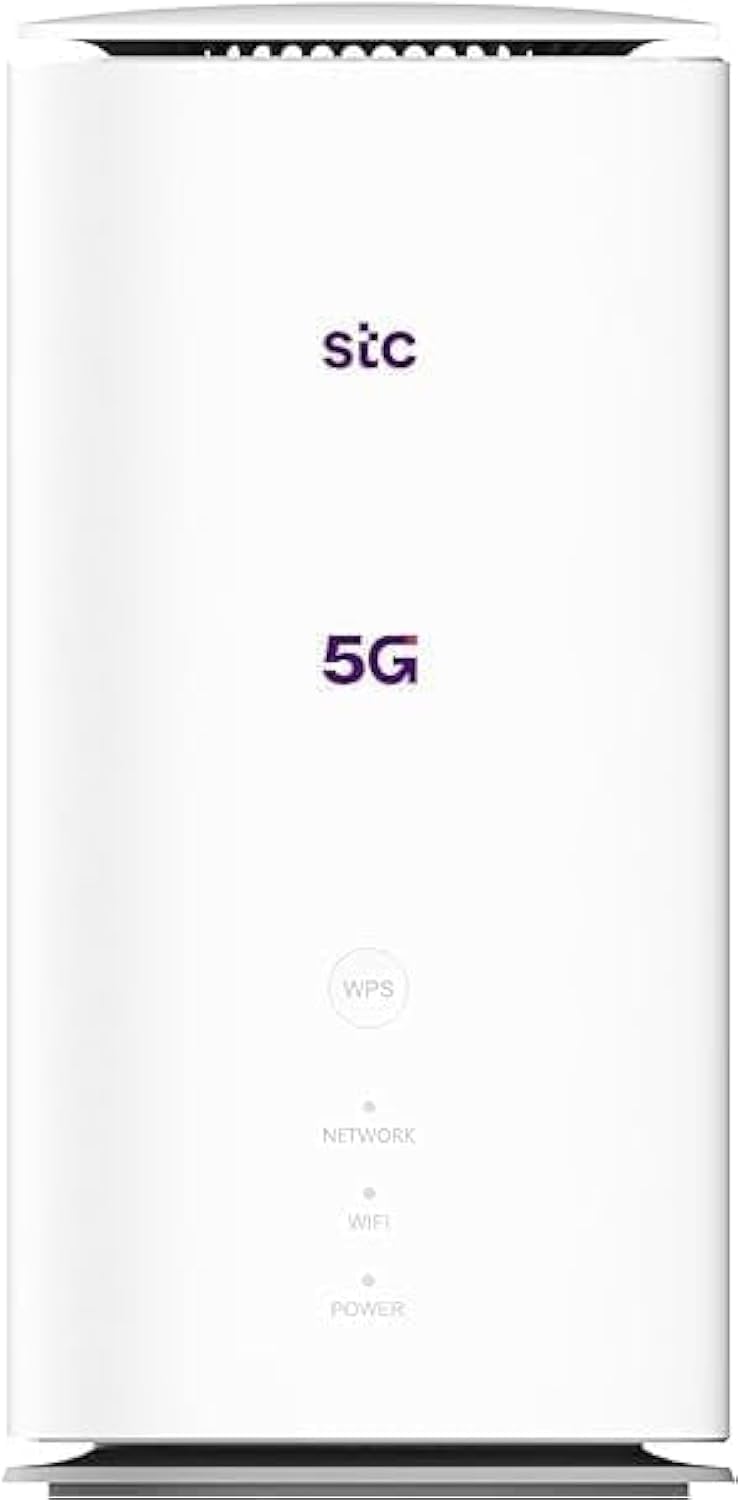
Hình ảnh: Mặt trước và mặt sau view of the ZTE MC888 Ultra 5G Router, showing LED indicators, SIM card slot, power port, LAN/WAN ports, and RJ11 port.
Bảng chỉ dẫn mặt trước:
- Đèn LED nguồn: Cho biết trạng thái nguồn điện.
- Đèn LED mạng: Hiển thị trạng thái kết nối mạng 5G/4G.
- Đèn LED WiFi: Cho biết hoạt động của Wi-Fi.
Cổng bảng điều khiển phía sau:
- Cổng điện: Kết nối với bộ đổi nguồn.
- LAN/WAN Ports (x2): Gigabit Ethernet ports for wired connections or WAN input.
- Cổng RJ11: For connecting a telephone for VoIP, VoLTE, or VoNR calls.
- Khe cắm thẻ SIM: Để lắp thẻ SIM 5G/4G của bạn.
- Nút Đặt lại: Được sử dụng để khôi phục cài đặt mặc định của nhà sản xuất.
Cài đặt
1. Lắp thẻ SIM
- Đảm bảo đã tắt nguồn bộ định tuyến.
- Xác định vị trí khe cắm thẻ SIM ở mặt sau.
- Lắp thẻ Nano-SIM chuẩn vào khe cắm sao cho các chân tiếp xúc vàng hướng xuống dưới và góc khía được đặt đúng hướng. Đẩy thẻ vào vị trí cho đến khi nghe tiếng tách.
2. Kết nối nguồn
- Connect the supplied power adapter to the router's power port.
- Cắm đầu kia của bộ đổi nguồn vào ổ cắm trên tường.
3. Bật nguồn
- The router will automatically power on. Wait for the Power LED to turn solid, and the Network LED to indicate a stable 5G/4G connection. This may take a few minutes.
4. Kết nối thiết bị
- Kết nối Wi-Fi: Find the Wi-Fi network name (SSID) and password printed on the label at the bottom of the router. Select this network on your device (smartphone, laptop, etc.) and enter the password.
- Kết nối Ethernet: Use the provided Ethernet cable to connect your computer or other network device to one of the LAN/WAN ports on the router.
Hoạt động
Truy cập vào Web Giao diện
- Mở một web trình duyệt trên thiết bị được kết nối với bộ định tuyến.
- Nhập địa chỉ IP mặc định của bộ định tuyến (ví dụ: 192.168.0.1 or 192.168.1.1) into the address bar and press Enter. The exact IP address is usually found on the router's label.
- Enter the default username and password (also found on the router's label) to log in.
Changing Wi-Fi Settings
Từ web interface, navigate to the Wi-Fi settings section to change your SSID, password, security type, or enable/disable guest networks.
RJ11 Voice Call Functionality
The RJ11 port allows you to connect a standard analog telephone. You can manage sending and receiving calls via a configured VoIP account, or through VoLTE or VoNR, depending on your mobile operator's compatibility and SIM card support. Refer to your service provider for specific setup details.
Chế độ điểm truy cập
The router supports Access Point (AP) mode, allowing it to extend an existing wired network wirelessly. This feature can be configured through the web interface under network settings.
BẢO TRÌ
Cập nhật chương trình cơ sở
Kiểm tra định kỳ bộ định tuyến web interface for available firmware updates. Keeping your firmware up-to-date ensures optimal performance, security, and access to new features. Follow the on-screen instructions for safe updating.
Vệ sinh
Clean the router with a soft, dry cloth. Do not use liquid cleaners or aerosols. Ensure the device is powered off before cleaning.
Khôi phục cài đặt gốc
If you experience persistent issues or forget your login credentials, you can perform a factory reset. With the router powered on, use a pin to press and hold the Reset button on the rear panel for approximately 5-10 seconds until the indicators flash. The router will restart with default settings.
Xử lý sự cố
- Không có kết nối Internet: Check the Network LED. If it's off or red, ensure the SIM card is correctly inserted and has an active data plan. Try restarting the router.
- Tốc độ Wi-Fi chậm: Ensure your devices are within range. Reduce interference from other electronic devices. Try changing the Wi-Fi channel in the web giao diện.
- Không thể truy cập Web Giao diện: Verify your device is connected to the router via Wi-Fi or Ethernet. Double-check the IP address and login credentials. Try clearing your browser's cache.
- Ngắt kết nối Wi-Fi: Update router firmware. Ensure the router is placed in a central location. Check for conflicting Wi-Fi networks.
Thông số kỹ thuật
| Thương hiệu | ZTE |
| Tên mẫu | MC888 Siêu |
| Số hiệu mẫu | MC888 ULTRA |
| Công nghệ kết nối | Wi-Fi, 5G/4G Cellular |
| chuẩn không dây | 802.11ac |
| Lớp băng tần | Băng tần kép |
| Tốc độ tải xuống tối đa | 3.8Gbps |
| Tốc độ tải lên tối đa | 280Mbps |
| Băng thông cổng LAN | 1000 Mbps (Gigabit) |
| Số lượng cổng | 2 x Gigabit LAN/WAN, 1 x RJ11 |
| Loại Ăng-ten | Nội bộ |
| Giao thức bảo mật | WPS |
| Tính năng đặc biệt | Access Point Mode, RJ11 for VoIP/VoLTE/VoNR |
| ĐẬP | 4GB |
| Thiết bị tương thích | PC, Laptop, Smartphone, Tablet, Gaming Console, Smart TV, Surveillance Camera, Printer, Ethernet-enabled devices |
| Các thành phần bao gồm | Router, Ethernet Cable, Charger |
Bảo hành và Hỗ trợ
Thông tin bảo hành
The ZTE MC888 Ultra 5G Router comes with a 2-year agent warranty. Please retain your proof of purchase for warranty claims. The warranty covers manufacturing defects and malfunctions under normal use. It does not cover damage caused by misuse, accidents, unauthorized repairs, or acts of nature.
Hỗ trợ khách hàng
For technical assistance, warranty service, or further inquiries, please contact your local ZTE authorized service center or the retailer from whom you purchased the product. You may also visit the official ZTE webTrang web cung cấp các nguồn hỗ trợ và câu hỏi thường gặp.