
1. Giới thiệu
Thank you for choosing the ORICO 5-Bay SATA HDD/SSD Docking Station. This device provides a high-capacity external storage solution for your 2.5-inch and 3.5-inch SATA hard drives and solid-state drives. Designed for reliability and performance, it features USB 3.0 connectivity for fast data transfer and an efficient cooling system to protect your valuable data. Please read this manual carefully before use to ensure proper installation and operation.
2. Tính năng sản phẩm
- Thiết kế cao cấp: Constructed from aluminum alloy with a sandblasted anodized finish, available in black or silver.
- Cài đặt ổ đĩa an toàn: Features sliding trays with screw and clamp fixation for stable mounting of 2.5-inch and 3.5-inch SATA drives, preventing movement and potential bad sectors.
- Truyền dữ liệu tốc độ cao: Equipped with a USB 3.0 interface, supporting data transfer rates up to 5 Gbps. Includes a 1-meter USB-A to B cable for connectivity.
- Tản nhiệt hiệu quả: An integrated 80mm cooling fan, combined with front and rear air convection holes, ensures optimal heat management for prolonged drive life.
- Nguồn điện ổn định: A built-in 150W power adapter provides stable and sufficient power for up to five hard drives simultaneously. An integrated smart protection module safeguards data transfer.
- Tương thích phổ quát: Hỗ trợ các hệ điều hành Windows, Mac và Linux.
3. Nội dung gói hàng
Vui lòng kiểm tra nội dung gói hàng khi mở:
- ORICO 5-Bay SATA HDD/SSD Docking Station (Model 3559U3-BK)
- USB-A to B Cable (1 meter)
- Cáp nguồn
- Ốc vít dùng để lắp đặt ổ đĩa
- Hướng dẫn sử dụng (tài liệu này)
4. Thông số kỹ thuật
| Số hiệu mẫu | 3559U3-BK |
| Vật liệu | Hợp kim nhôm |
| Màu sắc | Đen |
| Ổ đĩa tương thích | Ổ cứng HDD/SSD SATA 2.5 inch / 3.5 inch |
| Số lượng vịnh | 5 |
| Maximum Single Bay Capacity | 18 TB |
| Maximum Total Capacity | 90 TB |
| Giao diện phần cứng | USB 3.0 |
| Tốc độ truyền dữ liệu | Lên đến 5 Gbps |
| Nguồn điện | Internal 150W Power Adapter |
| Hỗ trợ hệ điều hành | Windows, Mac, Linux |
| Kích thước (D x R x C) | 264.8 x 137 x 200.7mm |
5. Hướng dẫn cài đặt
5.1. Lắp đặt ổ cứng/SSD
- Gently pull out the drive trays from the front of the docking station.
- For 3.5-inch HDDs: Place the HDD into the tray and secure it with the provided screws through the bottom of the tray.
- For 2.5-inch SSDs/HDDs: Place the SSD/HDD into the tray and secure it with the provided screws through the side holes of the tray.
- Slide the loaded tray back into the corresponding bay until it clicks into place.

Image: Drive tray installation with screw fixing mechanism.
5.2. Kết nối với nguồn
- Connect the power cable to the power input port on the rear of the docking station.
- Cắm đầu còn lại của dây nguồn vào ổ cắm điện AC tiêu chuẩn.
- Ensure the power switch on the rear panel is in the "OFF" position before connecting.

Image: Rear panel highlighting the 150W built-in power supply.

Hình ảnh: Chi tiết view of the rear panel connections.
5.3. Kết nối với máy tính
- Connect one end of the provided USB-A to B cable to the USB 3.0 port on the rear of the docking station.
- Connect the other end of the USB-A to B cable to an available USB 3.0 port on your computer.
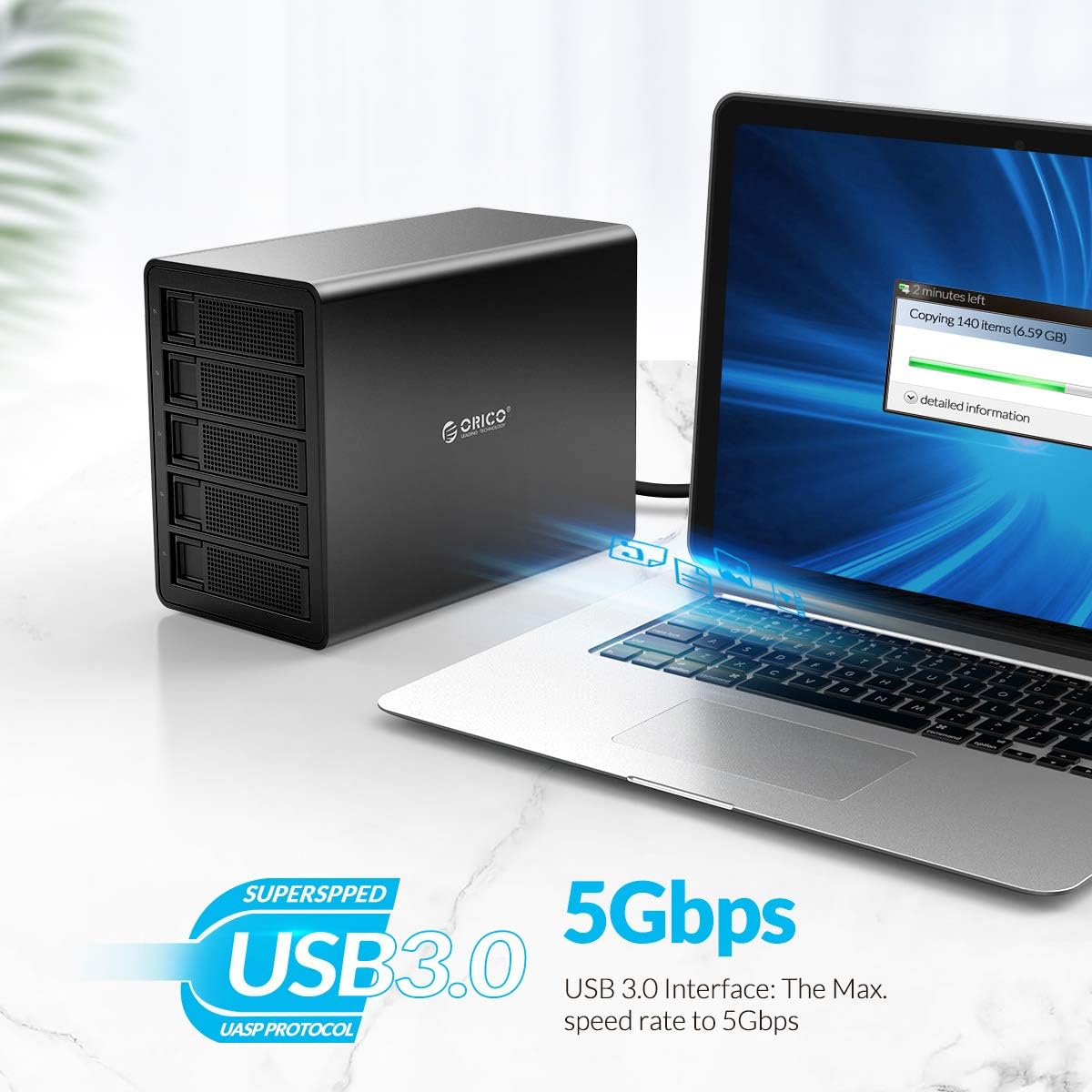
Image: Connecting the docking station to a computer via USB 3.0.
6. Hướng dẫn vận hành
6.1. Bật / Tắt nguồn
- To power on: Flip the power switch on the rear panel to the "ON" position. The power indicator light on the front will illuminate.
- To power off: Ensure all data transfer operations are complete. Safely eject or unmount the drives from your operating system. Then, flip the power switch to the "OFF" position.
6.2. Nhận dạng và định dạng ổ đĩa
- Once powered on and connected to your computer, the operating system should automatically detect the installed drives.
- New drives may need to be initialized and formatted before use. Refer to your operating system's disk management tools for this process (e.g., Disk Management in Windows, Disk Utility in macOS).
- Each drive will appear as an independent storage volume.
6.3. Chuyển dữ liệu
- Kéo và thả files to and from the recognized drives as you would with any other external storage device.
- The USB 3.0 interface supports speeds up to 5 Gbps, providing fast transfer for large files. Actual speeds may vary based on drive performance and system configuration.

Image: ORICO 5-Bay Docking Station showcasing its high storage capacity.

Image: Various applications for mass storage with the docking station.
6.4. Tháo dỡ an toàn
Always safely eject or unmount the drives from your operating system before disconnecting the docking station or powering it off to prevent data corruption.
7. Bảo trì
- Vệ sinh: Use a soft, dry cloth to clean the exterior of the docking station. Do not use liquid cleaners or aerosols. Ensure the device is powered off and disconnected from power before cleaning.
- Thông gió: Ensure the ventilation holes on the device are not obstructed to allow for proper airflow and heat dissipation.
- Môi trường: Store and operate the device in a cool, dry environment, away from direct sunlight, extreme temperatures, and humidity.
- Drive Handling: Handle hard drives and SSDs with care. Avoid dropping or subjecting them to physical shocks.
KHAI THÁC. Xử lý sự cố
8.1. Không phát hiện thiết bị
- Ensure the power cable is securely connected and the power switch is in the "ON" position.
- Verify the USB cable is securely connected to both the docking station and your computer.
- Thử kết nối với một cổng USB khác trên máy tính của bạn.
- Nếu có sẵn, hãy thử với một cáp USB khác.
- Check if the drives are properly installed in their trays and secured.
- For new drives, ensure they are initialized and formatted via your operating system's disk management tools.
8.2. Slow Data Transfer Speed
- Hãy đảm bảo bạn đã kết nối thiết bị với cổng USB 3.0 trên máy tính. Cổng USB 2.0 sẽ cho tốc độ chậm hơn đáng kể.
- Check the health and performance of the installed hard drives/SSDs. Older or failing drives can impact transfer speeds.
- Tránh chạy nhiều ứng dụng tiêu tốn nhiều tài nguyên trong quá trình truyền tải dữ liệu lớn.
8.3. Drives Not Appearing Individually
- The ORICO 3559U3-BK operates as a single-drive enclosure for each bay, meaning each installed drive should appear as a separate volume. If not, recheck connections and drive installation.
- Hãy đảm bảo rằng trình điều khiển của hệ điều hành bạn đang sử dụng đã được cập nhật.
8.4. Vấn đề quá nhiệt
- Hãy đảm bảo đặt trạm sạc ở khu vực thông thoáng.
- Check that the front and rear ventilation holes are not blocked.
- Excessive drive activity over long periods can generate heat; consider reducing continuous heavy load if overheating persists.
9. Bảo hành và Hỗ trợ
Sản phẩm ORICO được bảo hành theo tiêu chuẩn của nhà sản xuất. Để biết các điều khoản và điều kiện bảo hành cụ thể, vui lòng tham khảo thẻ bảo hành đi kèm sản phẩm hoặc truy cập trang web chính thức của ORICO. website. If you encounter any issues that cannot be resolved using the troubleshooting guide, please contact ORICO customer support for assistance.
Bộ phận hỗ trợ khách hàng của ORICO:
- Webđịa điểm: www.orico.com.cn (Please check for regional support contact information)
- Email: Refer to your product packaging or ORICO webTrang web này cung cấp địa chỉ email hỗ trợ cập nhật nhất.
Please have your product model number (3559U3-BK) and purchase information ready when contacting support.