1. Giới thiệu
This manual provides detailed instructions for the safe and efficient operation of your KODAK Dock ERA Plus Instant Photo Printer. Please read this manual thoroughly before using the product and retain it for future reference. The KODAK Dock ERA Plus allows you to print high-quality 4x6 inch photos directly from your compatible devices using dye sublimation technology.
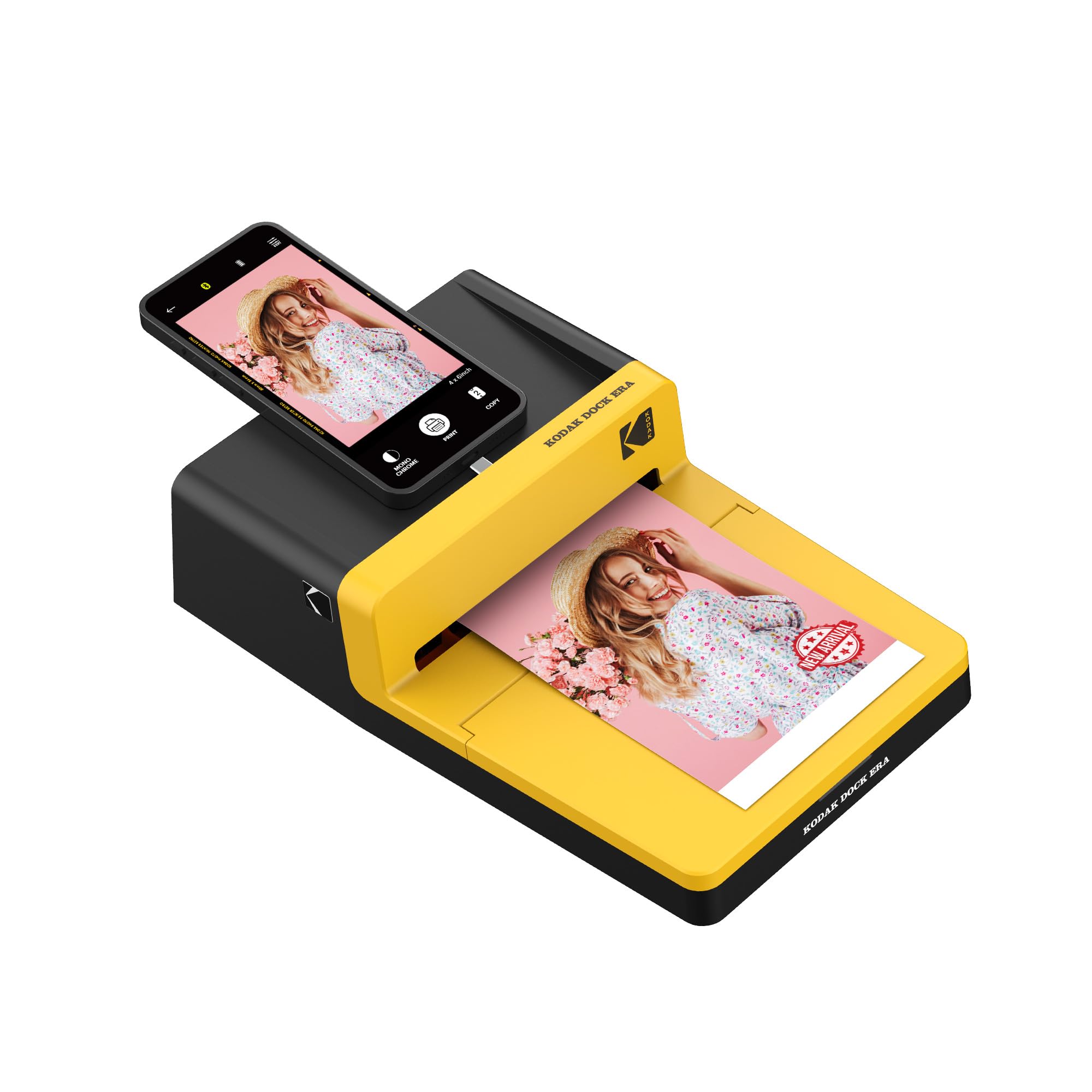
Figure 1: KODAK Dock ERA Plus Instant Photo Printer in use.
2. Thiết lập
2.1 Mở hộp và các thành phần
Trước khi cài đặt, hãy đảm bảo tất cả các thành phần đều có mặt:
- KODAK Dock ERA Plus Photo Printer (Model: PHC-120)
- 4x6 Photo Paper Cartridge (initial 10 sheets)
- Additional 80 sheets of 4x6 photo paper
- Cáp USB
- Docking Pin with Lightning Connector
2.2 kết nối nguồn
- Connect the provided USB cable to the printer's power port.
- Plug the other end of the USB cable into a compatible power adapter (not included) and then into a wall outlet.
- Press the power button on the side of the printer to turn it on. The indicator light will illuminate.
2.3 Loading Paper and Cartridge
- Mở nắp khay giấy trên máy in.
- Insert the photo paper cartridge into its designated slot until it clicks into place.
- Load the 4x6 photo paper into the paper tray with the glossy side facing up and the KODAK logo (if present) facing down. Ensure the paper stack is aligned correctly.
- Đóng nắp khay giấy.
2.4 Kết nối thiết bị
The printer supports both direct docking and Bluetooth connectivity.
- Kết nối trực tiếp: For compatible iOS devices, connect your smartphone directly to the docking pin on the printer.
- Bluetooth: For other devices (Android, Laptops, PC), ensure Bluetooth is enabled on your device. Open the KODAK Photo Printer app, navigate to settings, and pair with 'Kodak Era'.
3. Hướng dẫn vận hành
3.1 KODAK Photo Printer App
Download the 'KODAK Photo Printer' app from your device's app store. This app is essential for selecting, editing, and printing your photos.
3.2 Selecting and Editing Photos
- Open the KODAK Photo Printer app.
- Browse your device's photo gallery within the app.
- Select the photo you wish to print.
- Use the app's editing tools to adjust the image, apply filters, or choose between bordered or borderless prints.
3.3 Printing Process (4PASS Technology)
The KODAK Dock ERA Plus utilizes 4PASS (Dye Sublimation) technology for vibrant, long-lasting prints. The printing process involves four passes:
- The paper passes through the printer to apply the màu vàng lớp.
- The paper passes again to apply the màu đỏ tía lớp.
- A third pass applies the màu lục lam lớp.
- The final pass applies a protective cán mỏng layer, making the print fingerprint and water-resistant.
To initiate printing, tap the 'Print' button in the app. The printer will automatically handle the 4-pass process.
Video 1: Demonstration of the KODAK Photo Printer App and the 4-pass printing process.
4. Bảo trì
4.1 Thay thế hộp mực
When the ink cartridge is empty or the print quality degrades, replace it with a new KODAK 4x6 Photo Paper Cartridge.
- Đảm bảo máy in đã tắt nguồn.
- Mở nắp hộp mực ở bên cạnh máy in.
- Gently remove the used cartridge.
- Insert the new cartridge, ensuring it is correctly oriented, until it clicks into place.
- Đóng nắp hộp mực.
4.2 Vệ sinh máy in
Regularly clean the exterior of the printer with a soft, dry cloth. Avoid using liquid cleaners or abrasive materials.
KHAI THÁC. Xử lý sự cố
| Vấn đề | Nguyên nhân có thể | Giải pháp |
|---|---|---|
| Máy in không bật | No power, loose cable | Check power connection, ensure cable is secure. |
| Không thể kết nối qua Bluetooth | Bluetooth off, printer not in pairing mode | Ensure printer is on and Bluetooth is enabled on your device. Restart both devices. |
| Chất lượng in kém | Low ink, incorrect paper loading, low image resolution | Replace cartridge, ensure paper is loaded glossy side up, use high-resolution images. |
| kẹt giấy | Improper paper loading | Carefully remove jammed paper. Ensure paper is loaded correctly. |
6. Thông số kỹ thuật
- Thương hiệu: KODAK
- Tên mẫu: PHC-120 (Dock ERA Plus)
- Công nghệ in: Nhuộm thăng hoa
- Công nghệ kết nối: Bluetooth, USB
- Phương tiện in ấn: Giấy ảnh bóng
- Kích thước tờ: 4 x 6 inch
- Độ phân giải in màu tối đa: 1200 dpi trở lên
- Độ phân giải in đen trắng tối đa: 1200 dpi trở lên
- Độ sâu màu: 24 bpp
- Màu mực: Đen, Xanh lam, Đỏ tươi, Vàng
- Phương pháp kiểm soát: Ứng dụng
- Kích thước sản phẩm: 2.7"D x 6.53"W x 2.7"H
- Dung lượng bảng đầu vào tối đa: 120
- Output Sheet Capacity: 120
- Các thành phần bao gồm: 4x6 Photo Paper Cartridge, USB Cable, Docking Pin with Lightning Connector
7. Bảo hành và Hỗ trợ
This KODAK product is covered by a Bảo hành của nhà sản xuất. For specific warranty terms, duration, and to register your product, please refer to the warranty card included in your product packaging or visit the official KODAK support website. For technical assistance, troubleshooting, or service inquiries, please contact KODAK customer support.