
Sản phẩm trênview
The Toshiba P300 Desktop PC Hard Drive is engineered to deliver high performance for professional and everyday computing needs. This 3.5-inch internal hard drive is designed for powerful desktop workstations, all-in-one PCs, and gaming computers, offering reliable storage with fast data access.

Hình ảnh: Mặt trước view of the Toshiba P300 1TB Desktop PC Hard Drive, showing the brand, model, and capacity.
Các tính năng chính:
- Hiệu suất cao: Features 7200 RPM rotational speed and a 64 MB buffer for fast read and write speeds.
- Enhanced Data Access: Utilizes a dual-stage actuator and optimized data access sequence to improve positional accuracy and minimize mechanical workload.
- Bảo mật dữ liệu: Incorporates ramp loading technology and an internal shock sensor to protect data during transport and against impacts.
- Giao diện: SATA 6.0 Gbit/s for high-speed data transfer.
- Yếu tố hình thức: Standard 3.5-inch for desktop PC compatibility.
Thiết lập và cài đặt
This section provides instructions for physically installing your Toshiba P300 internal hard drive into a compatible desktop PC system.
Yêu cầu hệ thống:
- Desktop PC with an available 3.5-inch drive bay.
- Cổng dữ liệu SATA khả dụng trên bo mạch chủ.
- Cổng kết nối nguồn SATA có sẵn từ bộ nguồn (PSU).
- Operating system compatible with SATA storage devices (e.g., Windows, macOS, Linux).
Physical Installation Steps:
- Chuẩn bị hệ thống của bạn:
Before beginning, ensure your computer is powered off and unplugged from the wall outlet. Open the computer case to access the internal components. It is recommended to wear an anti-static wrist strap to prevent electrostatic discharge (ESD) damage to components.
- Tìm vị trí đỗ xe:
Identify an empty 3.5-inch drive bay within your computer case. Some cases may require drive rails or caddies for installation.
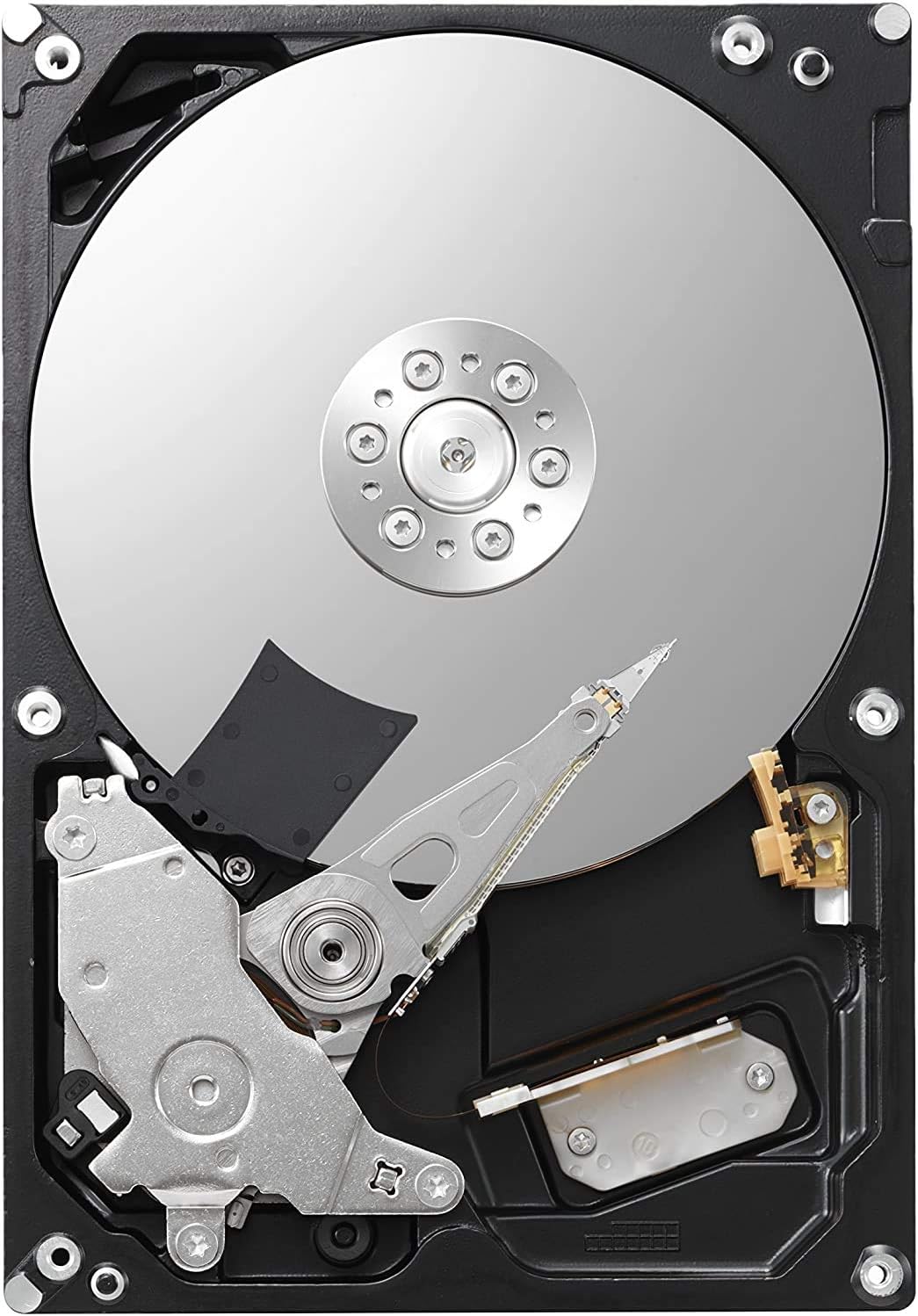
Hình ảnh: Từ trên xuống view of the internal components of the Toshiba P300 hard drive, showing the platter and read/write head.
- Lắp đặt ổ cứng:
Slide the Toshiba P300 hard drive into the chosen 3.5-inch drive bay. Secure the drive using screws provided with your computer case or the drive rails/caddy, ensuring it is firmly in place to prevent vibration.
- Kết nối cáp:
Connect one end of a SATA data cable to the data port on the hard drive and the other end to an available SATA data port on your motherboard. Then, connect a SATA power connector from your PSU to the power port on the hard drive.

Hình ảnh: Phía sau view of the Toshiba P300 hard drive, displaying the SATA data and power connectors, along with the product label.
- Đóng vỏ máy và bật nguồn:
Once all connections are secure, close your computer case and reconnect the power cable. Power on your computer.
- Initialize and Format (First Use):
For a new hard drive, you will need to initialize and format it before it can be used for storage. This process is typically done through your operating system's Disk Management utility (Windows) or Disk Utility (macOS). Refer to your operating system's documentation for detailed steps on disk initialization and formatting.
Vận hành ổ cứng
Once installed and formatted, your Toshiba P300 hard drive functions as a standard storage device within your computer system. You can use it to store operating systems, applications, documents, media files và nhiều hơn nữa.
Data Storage and Retrieval:
- File Sự quản lý: Use your operating system's file explorer (e.g., Windows Explorer, macOS Finder) to drag and drop files, create folders, and manage your data on the drive.
- Cài đặt ứng dụng: Install software applications directly onto the P300 drive.
- Hiệu suất: The 7200 RPM rotational speed and 64 MB buffer contribute to quick file transfers and responsive application loading. The dual-stage actuator enhances read/write precision.
BẢO TRÌ
Proper maintenance helps ensure the longevity and reliability of your hard drive.
- Sao lưu dữ liệu thường xuyên: It is highly recommended to regularly back up important data from your hard drive to another storage device (e.g., external hard drive, cloud storage). This protects against data loss due to unforeseen hardware failure or other issues.
- Tối ưu hóa hệ thống: Periodically run disk defragmentation (for HDDs on Windows) or TRIM commands (for SSDs, though this is an HDD) and disk cleanup utilities provided by your operating system to maintain optimal performance.
- Xử lý vật lý: Avoid dropping or subjecting the hard drive to sudden impacts, especially when it is powered on, as this can cause damage to the internal components. The P300's ramp loading technology helps mitigate risk during transport, but careful handling is always advised.
- Cập nhật chương trình cơ sở: Occasionally, Toshiba may release firmware updates for the hard drive to improve performance or address issues. Check the official Toshiba support website for your specific model for any available updates and follow their instructions carefully.
Xử lý sự cố
If you encounter issues with your Toshiba P300 hard drive, consider the following troubleshooting steps:
- Không phát hiện ổ đĩa:
- Hãy đảm bảo cả cáp dữ liệu SATA và cáp nguồn đều được kết nối chắc chắn với ổ đĩa và bo mạch chủ/nguồn điện.
- Kiểm tra cài đặt BIOS/UEFI của máy tính để xác nhận cổng SATA đã được kích hoạt và ổ đĩa được nhận diện.
- Verify that the drive is initialized and formatted in your operating system's Disk Management utility.
- Try a different SATA data cable or SATA port on the motherboard.
- Hiệu suất chậm:
- Ensure the drive is connected to a SATA 6.0 Gbit/s (SATA III) port on your motherboard for optimal speed.
- Check for excessive fragmentation (on Windows) and perform defragmentation if necessary.
- Monitor disk usage in Task Manager (Windows) or Activity Monitor (macOS) to identify any applications heavily utilizing the drive.
- Ensure your system drivers, especially chipset drivers, are up to date.
- Tiếng động bất thường:
Clicking, grinding, or loud whirring noises can indicate a potential hardware issue. Immediately back up any critical data and consider replacing the drive. Contact Toshiba support if the drive is under warranty.
Nếu các bước trên không giải quyết được vấn đề, vui lòng tham khảo mục Bảo hành và Hỗ trợ để được trợ giúp thêm.
Thông số kỹ thuật
Detailed technical specifications for the Toshiba P300 1TB Hard Drive (Model: HDWD110UZSVA).
| Tính năng | Đặc điểm kỹ thuật |
|---|---|
| Thương hiệu | Toshiba |
| Nhà sản xuất | Toshiba |
| Loạt | Toshiba PC drive |
| Số hiệu mẫu | HDWD110UZSVA |
| Yếu tố hình thức | 3.5 inch |
| Kích thước ổ cứng | 1 TB |
| Mô tả ổ cứng | Đĩa cứng cơ |
| Giao diện ổ cứng | Serial ATA (SATA 6.0 Gbit/s) |
| Tốc độ quay của ổ cứng | 7200 vòng/phút |
| Kích thước bộ đệm | 64MB |
| Kích thước sản phẩm (L x W x H) | 14.7 x 2.61 x 10.2cm |
| Trọng lượng sản phẩm | 450 gam |
| Cái gì?tage | 3.7W |
| Ngày đầu tiên có sẵn | Ngày 26 tháng 2019 năm XNUMX |
Bảo hành và Hỗ trợ
Your Toshiba P300 Hard Drive comes with a manufacturer's warranty. For specific warranty terms and conditions, please refer to the official warranty document.
- Thời hạn bảo hành: This product typically includes a 2-year local warranty in Singapore. Please verify the exact warranty period and terms with your retailer or the official Toshiba documentation.
- Tài liệu bảo hành: A detailed warranty document is available for download. You can access it via this link: Toshiba P300 Warranty Information (PDF).
- Hỗ trợ kỹ thuật: For technical assistance, troubleshooting beyond this manual, or warranty claims, please contact Toshiba's official support channels. Visit the Toshiba Storage Singapore store for more information: Toshiba Storage Singapore Store.