1. Sản phẩm hếtview
The FebSmart FS-AE120SE is a high-performance Wireless AC 1200Mbps PCIE WiFi Card designed to provide ultra-fast and stable wireless network connectivity for desktop PCs. It supports dual-band operation at 2.4GHz (up to 300Mbps) and 5GHz (up to 867Mbps), making it ideal for internet surfing, online gaming, Pro-HD video streaming, and online calls. Additionally, this card features a built-in WiFi Stereo Adapter, enabling low-latency wireless audio transmission to compatible devices such as WiFi headsets, speakers, and soundbars.
It is compatible with a wide range of operating systems, including Windows 11, 10 (32/64bit), Windows 8.1 64bit, Windows 8 64bit, and Windows Server 2012, 2012R2, 2016, 2019, 2022, as well as Linux and Chrome OS. The card utilizes a PCI-E X1 interface, ensuring compatibility with various PCI-E slots (X1, X2, X4, X8, X16) and standards (PCI-E 1.X, 2.X, 3.X, 4.X).

Image: FebSmart FS-AE120SE Wireless AC 1200Mbps PCIE WiFi Card with two antennas.

Image: Diagram illustrating 2.4GHz (150Mbps) and 5GHz (433Mbps) speeds, highlighting WiFi 5 and applications like video streaming, internet surfing, online video calls, and online phone calls.

Image: Visual representation of 5GHz (867Mbps) and 2.4GHz (300Mbps) speeds, and support for Pro-HD video quality.
2. Có gì trong hộp
Khi mở gói hàng, vui lòng kiểm tra xem có đầy đủ các thành phần sau đây không:
- 1x FS-AE120SE Wireless AC 1200Mbps PCIE WiFi Card
- 1x Hướng dẫn sử dụng
- 2x 3dBi Antennas
- Vít gắn 1x
- 1x Cáp USB 2.0
- 1x Thấp Profile Dấu ngoặc
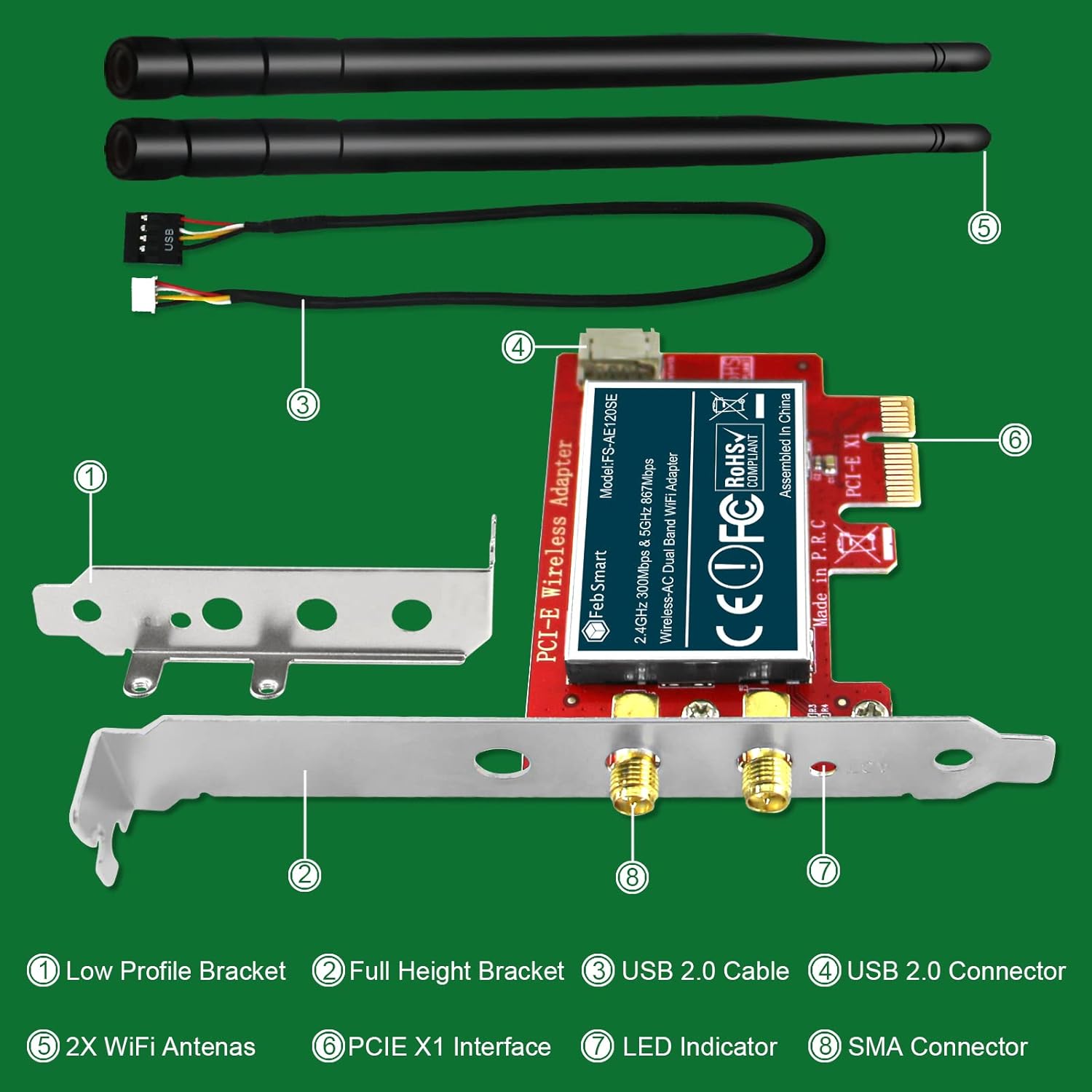
Hình ảnh: Nổ tung view of the product components, including the low profile bracket, full height bracket, USB 2.0 cable, USB 2.0 connector, WiFi antennas, PCIe X1 interface, LED indicator, and SMA connector.
3. Yêu cầu hệ thống
Trước khi cài đặt, hãy đảm bảo hệ thống của bạn đáp ứng các yêu cầu sau:
- Hệ điều hành: Windows 11, 10 (32/64bit), Windows 8.1 64bit, Windows 8 64bit, Windows Server 2012, 2012R2, 2016, 2019, 2022. Also compatible with Linux and Chrome OS.
- PCI-E Slot: At least one empty PCI-E X1, X2, X4, X8, or X16 slot available on the motherboard.
- USB Header: One empty 9-Pin USB 2.0 header on the motherboard is required for the WiFi Stereo Adapter functionality.
- Vỏ máy tính: Compatible with both standard size PCs (full height bracket pre-installed) and slim PCs (low profile bracket included for manual change).

Image: Visual representation of compatible operating systems including Linux/Unix, Windows Server, Windows 11, Windows 10, Windows 8.x, and Windows 7.

Image: Icons for Windows 11 (32/64bit), Windows 10 (32/64bit), Windows 8 (64bit), and Windows Server (32/64bit) indicating compatibility.
4. Hướng dẫn cài đặt
Follow these steps carefully to install your FebSmart FS-AE120SE WiFi Card:
- Chuẩn bị máy tính của bạn:
- Tắt máy tính và rút tất cả các dây cáp.
- Open the PC case by removing the side panel.
- Locate an empty PCI-E slot (X1, X2, X4, X8, or X16). Remove the corresponding metal bracket cover from the PC case.
- For slim PCs, you may need to replace the pre-installed full-height bracket on the WiFi card with the included low-profile dấu ngoặc.
- Install the WiFi Card:
- Carefully insert the FS-AE120SE WiFi card into the chosen PCI-E slot, ensuring it is seated firmly.
- Secure the card with the mounting screw.
- Connect USB Cable (for WiFi Stereo Adapter):
- Locate an available 9-Pin USB 2.0 header on your motherboard.
- Connect the provided USB 2.0 cable from the WiFi card to the motherboard's USB 2.0 header. Ensure correct orientation to avoid damage.
- Gắn Anten:
- Screw the two 3dBi antennas onto the SMA connectors at the back of the WiFi card.
- Close PC Case and Power On:
- Replace the PC case side panel.
- Kết nối lại tất cả các dây cáp và nguồn điện trên máy tính của bạn.
- Cài đặt trình điều khiển:
- For Windows 10 and 11 (32/64bit), the card is typically plug-and-play, and drivers should install automatically.
- For Windows 8.1 64bit, Windows 8 64bit, and Windows Server 2012, 2012R2, 2016, 2019, 2022, you may need to manually install drivers. Refer to the included user manual or the FebSmart official webtrang web cho các trình điều khiển mới nhất.
- For Linux and Chrome OS, specific driver installation steps may be required. Consult the FebSmart website or relevant OS documentation.
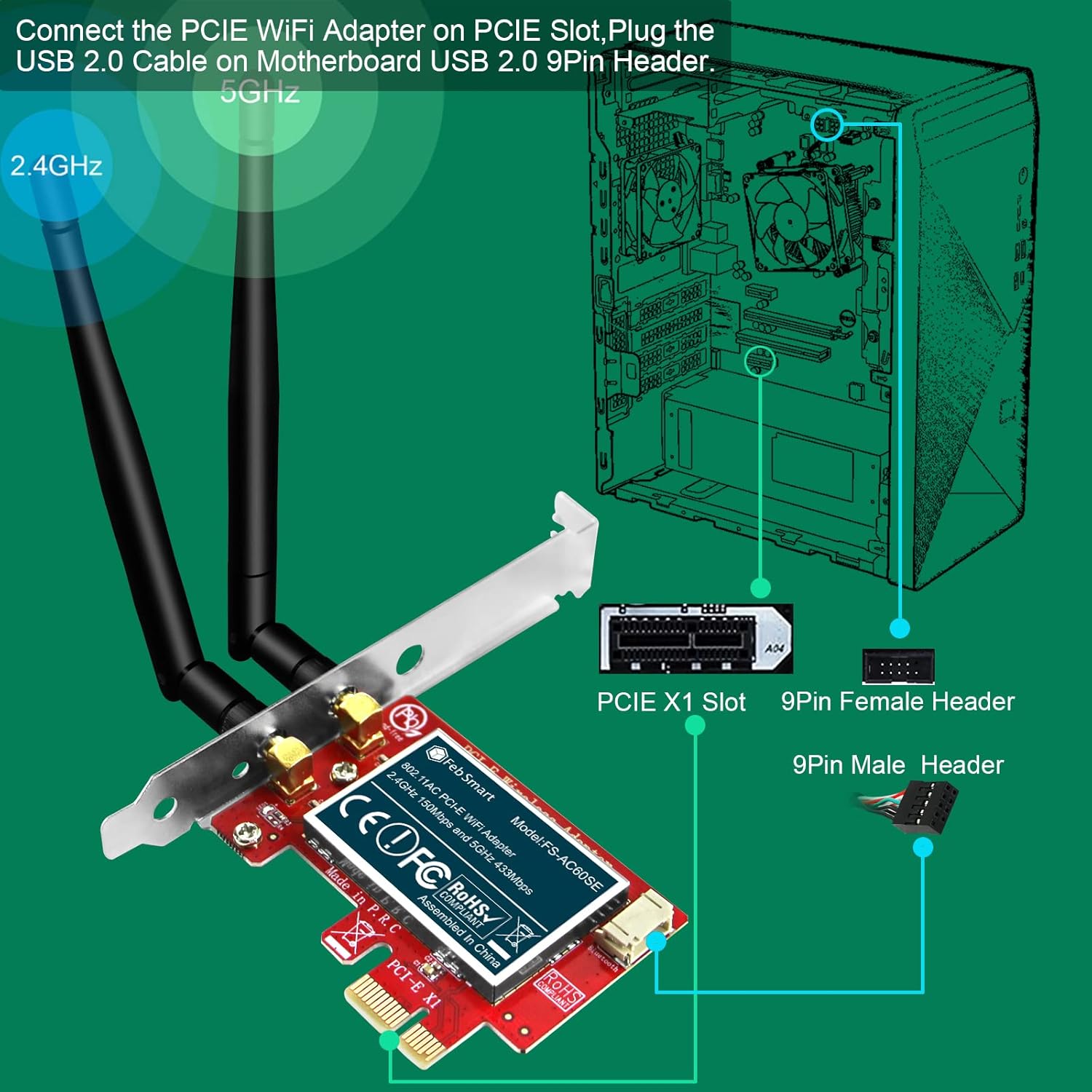
Image: Diagram showing how to connect the PCIe WiFi Adapter to a PCIe slot and plug the USB 2.0 cable into the motherboard's 9-Pin USB 2.0 header.

Image: Illustration of PCIe X1 interface compatibility with X1, X2, X4, X8, X16 slots, and the inclusion of both full height and low profile Giá đỡ dành cho máy tính để bàn tiêu chuẩn và máy tính để bàn loại mỏng.

Image: Step-by-step visual guide for installation, including removing the mount screw, removing the PC cover, finding a PCIe slot, plugging in the WiFi card and USB cable, reattaching the cover, connecting antennas, and connecting to a WiFi network.
5. Hướng dẫn vận hành
5.1 Kết nối với mạng Wi-Fi
Once the card is installed and drivers are recognized, you can connect to a wireless network:
- On Windows, click the Wi-Fi icon in the system tray (usually bottom-right corner).
- Chọn mạng Wi-Fi mong muốn từ danh sách.
- Nhấp vào "Kết nối" và nhập khóa bảo mật mạng (mật khẩu) nếu được yêu cầu.
- Your computer should now be connected to the internet.
5.2 Using the WiFi Stereo Adapter
The integrated WiFi Stereo Adapter allows for wireless audio transmission. Ensure the USB 2.0 cable is connected to your motherboard's 9-Pin USB 2.0 header for this feature to function.
- This feature enables seamless connection to WiFi audio devices such as earphones, headphones, keyboards, mice, and speakers.
- Refer to your specific WiFi audio device's instructions for pairing and connection procedures. The adapter provides the necessary wireless interface for these devices to communicate with your PC.

Image: Diagram showing the WiFi Stereo Adapter connecting to various devices like keyboards, gamepads, mice, TWS earphones, headphones, and speakers.

Image: Illustration of the WiFi Stereo Adapter enabling seamless connection to multiple WiFi audio devices such as earphones, headphones, mice, and speakers, shown with a desktop PC setup.
6. Bảo trì
To ensure optimal performance and longevity of your FebSmart FS-AE120SE WiFi Card, consider the following maintenance tips:
- Luôn cập nhật trình điều khiển: Periodically check the FebSmart official webTrang web này cung cấp các bản cập nhật trình điều khiển mới nhất. Trình điều khiển được cập nhật có thể cải thiện hiệu năng, độ ổn định và khả năng tương thích.
- Duy trì luồng không khí: Ensure good airflow within your PC case to prevent overheating, which can affect the performance of internal components.
- Làm sạch bụi: Every few months, carefully open your PC case and use compressed air to remove any dust buildup on the WiFi card and surrounding components. Dust can impede heat dissipation.
- Định vị ăng-ten: Adjust the antennas for the best signal reception. Experiment with different angles to find the optimal position for your environment.
KHAI THÁC. Xử lý sự cố
If you encounter issues with your FebSmart FS-AE120SE WiFi Card, refer to the following common troubleshooting steps:
| Vấn đề | Nguyên nhân có thể | Giải pháp |
|---|---|---|
| WiFi card not detected / No WiFi networks visible. |
|
|
| Tốc độ Wi-Fi chậm hoặc thường xuyên bị ngắt kết nối. |
|
|
| WiFi Stereo Adapter (Bluetooth) not working. |
|
|
| Issues on Windows Server OS (2012R2/2016/2019/2022). |
|
|
8. Thông số kỹ thuật
| Tính năng | Chi tiết |
|---|---|
| Số hiệu mẫu | FS-AE120 |
| Giao thức không dây | IEEE 802.11 AC WiFi 5 |
| Tần số hoạt động | 5GHz và 2.4GHz |
| Max Speed (2.4GHz) | 300Mbps |
| Max Speed (5GHz) | 867Mbps |
| Bộ chip chính | Marvell AVSTAR Wireless AC 88W8897 |
| Mã hóa không dây | WEP, WPA, WPA2, WPA3, WPA-PSK, WPA2-PSK |
| Giao diện phần cứng | PCI-E X1 (Compatible with X1, X2, X4, X8, X16 slots) |
| Thiết bị tương thích | Máy tính để bàn |
| Kích thước sản phẩm | 4.72 x 3.34 x 0.79 inches (12cm L x 7.8cm W x 1.8cm H for card) |
| Trọng lượng sản phẩm | 3.53 ounce (100 gram) |
| Màu sắc | Màu đỏ mờ |
| Nhà sản xuất | FebSmart Co.,LTD |

Image: Detailed dimensions of the WiFi card, low profile bracket, and antennas.
9. Bảo hành và Hỗ trợ
FebSmart products are designed for reliability and performance. For warranty information or technical support, please contact FebSmart Co.,LTD directly through their official webtrang web hoặc thông tin liên lạc được cung cấp trên bao bì sản phẩm của bạn.
When contacting support, please have your product model (FS-AE120SE) and purchase details ready to assist with faster service.