
1. Giới thiệu
The SteelSeries Kana Optical Gaming Mouse is engineered for precision and versatility, designed to accommodate all three primary grip styles: palm, claw, and fingertip. This ambidextrous mouse features an ergonomic button layout and size, developed in collaboration with professional gaming teams to ensure consistent performance and accuracy in competitive environments. This manual provides comprehensive instructions for setup, operation, maintenance, and troubleshooting to help you maximize your gaming experience.
2. Nội dung gói hàng
- SteelSeries Kana Optical Gaming Mouse (White)
- Quick Start Guide (integrated into this manual)
3. Sản phẩm hếtview
Familiarize yourself with the key components of your SteelSeries Kana mouse:
- Nút Nhấp chuột trái: Nút thao tác chính.
- Nút nhấp chuột phải: Nút thao tác phụ.
- Bánh xe cuộn: For scrolling and a clickable middle button. The scroll wheel is illuminated.
- CPI Toggle Button: Located centrally, allows quick switching between sensitivity settings.
- Side Buttons (x2): One on each side, large and easily accessible for rapid-fire actions. These can be customized or disabled via software.
- Cảm biến quang học: Located on the underside, provides precise tracking.
- Thiết bị kết nối USB: For connecting the mouse to your computer.
- Cáp bện: Durable, tangle-free nylon cord.
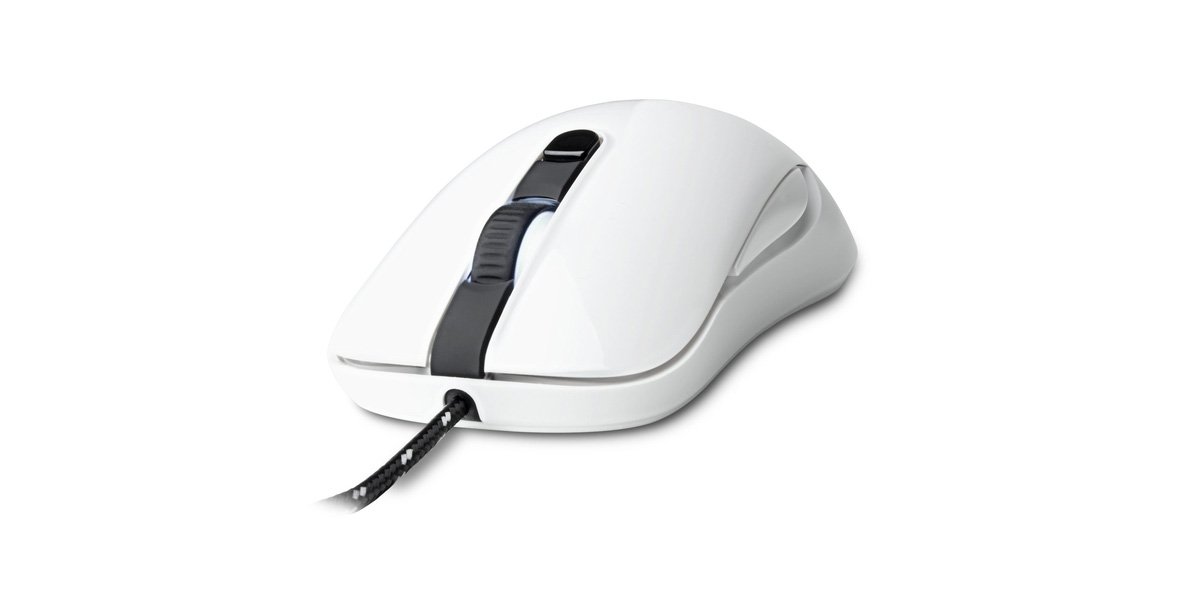
Image of the SteelSeries Kana Optical Gaming Mouse in white, showcasing its ambidextrous design, illuminated scroll wheel, and side buttons.
4. Thiết lập
4.1 Kết nối phần cứng
- Xác định vị trí cổng USB khả dụng trên máy tính của bạn.
- Plug the USB connector of the SteelSeries Kana mouse into the USB port.
- Your operating system should automatically detect and install basic drivers for the mouse.
4.2 Software Installation (SteelSeries Engine)
To unlock the full customization potential of your SteelSeries Kana mouse, including CPI settings, button programming, macros, and LED intensity, install the SteelSeries Engine software.
- Hãy truy cập trang web chính thức của SteelSeries. webđịa điểm: Steelseries.com/engine
- Download the SteelSeries Engine software compatible with your operating system (Windows or macOS).
- Làm theo hướng dẫn trên màn hình để hoàn tất cài đặt.
- Once installed, launch the SteelSeries Engine to configure your mouse settings.
Lưu ý dành cho người dùng Mac: Compatibility with macOS versions 10.9 and later for SteelSeries Engine 2.0 (required for Kana) has historically been inconsistent. Please check the official SteelSeries website for the latest software updates and compatibility information before installation.
5. Hướng dẫn vận hành
5.1 Chức năng cơ bản
- Sự chuyển động: Move the mouse across a surface to control the cursor on your screen.
- Nhấp chuột: Use the left and right buttons for primary and secondary actions.
- Cuộn: Rotate the scroll wheel to navigate documents and web pages. Press the scroll wheel for its assigned middle-click function.
5.2 Adjusting CPI (Counts Per Inch)
The centrally located CPI toggle button allows you to switch between two pre-defined sensitivity settings instantly. The default CPI settings are optimized for gaming, but can be customized using the SteelSeries Engine software. The maximum CPI supported is 3200.
- Press the CPI toggle button once to switch to the alternate CPI setting.
- Press it again to revert to the previous setting.
5.3 Customizing with SteelSeries Engine
The SteelSeries Engine software provides extensive customization options:
- CPI Settings: Fine-tune or set custom CPI values beyond the pre-defined options.
- Lập trình nút: Assign custom functions, keyboard shortcuts, or macros to any of the 6 programmable buttons (including side buttons and scroll wheel click).
- Macro: Create and assign complex sequences of commands with precise timing control.
- LED Intensity: Adjust the brightness of the illuminated scroll wheel.
- Chuyên nghiệpfiles: Tạo và lưu nhiều profiles for different games or applications, with automatic switching based on game triggers.
6. Bảo trì
6.1 Vệ sinh chuột
To ensure optimal performance and longevity, keep your mouse clean.
- Bên ngoài: Sử dụng một miếng vải mềm, không xơ vải lau nhẹampDùng nước hoặc dung dịch tẩy rửa nhẹ để lau bề mặt chuột. Tránh sử dụng hóa chất mạnh hoặc vật liệu mài mòn.
- Cảm biến quang học: Gently clean the optical sensor lens on the underside of the mouse with a dry cotton swab or compressed air to remove dust or debris.
- Chân chuột: Ensure the mouse feet are clean and free of obstructions for smooth gliding.
Thận trọng: Do not immerse the mouse in water or any cleaning solution. Avoid spraying liquids directly onto the mouse.
KHAI THÁC. Xử lý sự cố
| Vấn đề | Giải pháp khả thi |
|---|---|
| Mouse not detected / Not responding |
|
| Inaccurate or erratic tracking |
|
| Buttons not responding or performing incorrectly |
|
| SteelSeries Engine software not recognizing mouse (Mac OS) |
|
8. Thông số kỹ thuật
| Thương hiệu | Dòng sản phẩm SteelSeries |
| Số hiệu mẫu | 62029 |
| Màu sắc | Trắng |
| Công nghệ phát hiện chuyển động | Quang học |
| Số lượng nút | 6 (Có thể lập trình) |
| Hướng tay | Ambidextrous (Left, Right) |
| Nền tảng phần cứng | PC |
| Loại cáp | Nylon bện |
| Trọng lượng sản phẩm | 0.16 Kilôgam |
| Tính năng đặc biệt | Ergonomic Design, Illuminated Scroll Wheel |
9. Bảo hành và Hỗ trợ
9.1 Thông tin bảo hành
The SteelSeries Kana Optical Gaming Mouse comes with a Bảo hành có giới hạn 1 năm Kể từ ngày mua. Bảo hành này bao gồm các lỗi sản xuất và chất lượng gia công trong điều kiện sử dụng bình thường. Bảo hành không bao gồm các hư hỏng do sử dụng sai mục đích, tai nạn, sửa đổi trái phép hoặc hao mòn thông thường. Vui lòng giữ lại hóa đơn mua hàng để yêu cầu bảo hành.
9.2 Hỗ trợ khách hàng
For technical assistance, warranty claims, or further information, please visit the official SteelSeries support webđịa điểm:
You can find FAQs, driver downloads, and contact information for customer service on their webđịa điểm.