
1. تعارف
This manual provides detailed instructions for the installation, operation, and maintenance of your COLORFUL Battle-AX B550M-HD PRO V14 motherboard. Please read this manual thoroughly before proceeding with installation to ensure proper setup and to maximize the performance and longevity of your system. This motherboard is designed to support AMD AM4 socket processors, including 3rd Gen Ryzen CPUs, offering a robust platform for personal computing.
2. پروڈکٹ ختمview
2.1 کلیدی خصوصیات
- Supports AMD AM4 socket and AMD 3rd Gen Ryzen processors with AMD B550 chipset.
- Dual-channel DDR4 memory support.
- Integrated 6-channel high-definition audio codec.
- M.2 port for high-speed storage.
- PCI Express 4.0 x16 slot for graphics cards.
- Multiple USB ports: 12 USB ports (including internal headers), with USB 3.1 Gen1 and USB 2.0.
- 4 SATA 3.0 6GB/s ports.
- Integrated 1000Mbps wired LAN (10/100/1000Mbps Ethernet).
- Video output options: HDMI, DVI, and VGA ports.
- Supports CPUs up to 95W.
2.2 Motherboard Layout and Components
Familiarize yourself with the various components and connectors on your motherboard. Refer to the images below for visual guidance.
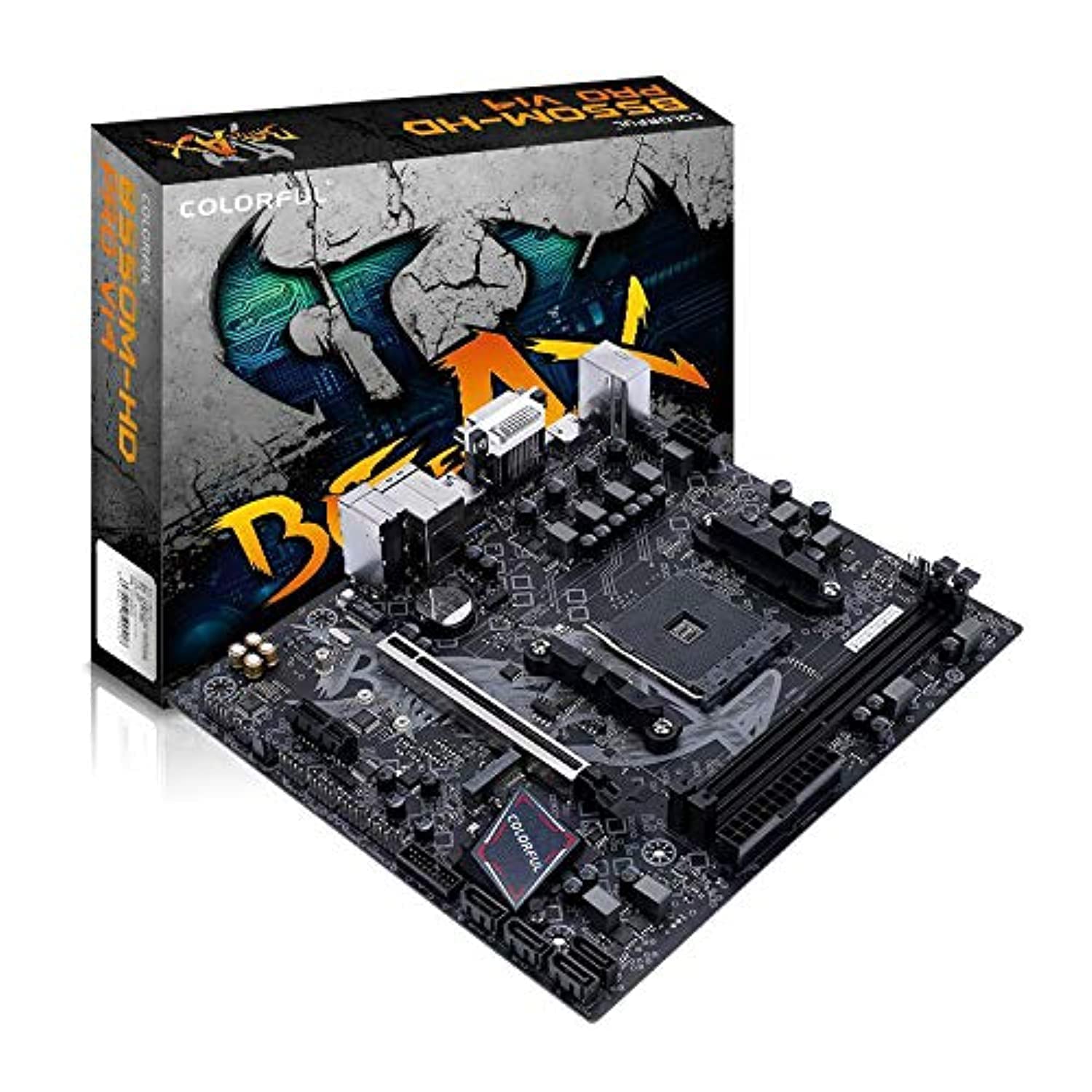
تصویر 1: اپر سے نیچے view of the COLORFUL Battle-AX B550M-HD PRO V14 motherboard, highlighting the CPU socket, RAM slots, PCIe slot, and various headers.

تصویر 2: زاویہ دار view of the motherboard, providing a clearer perspective of the CPU socket, DDR4 memory slots, and power connectors.
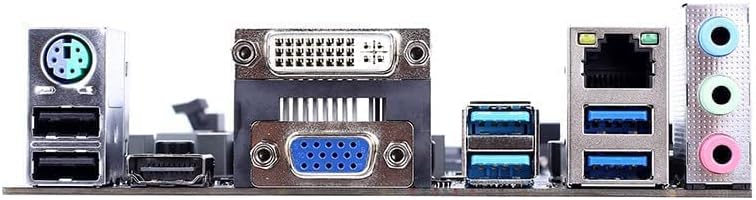
تصویر 3: Rear I/O panel connectors, including PS/2, USB, video outputs (VGA, DVI, HDMI), LAN, and audio jacks.
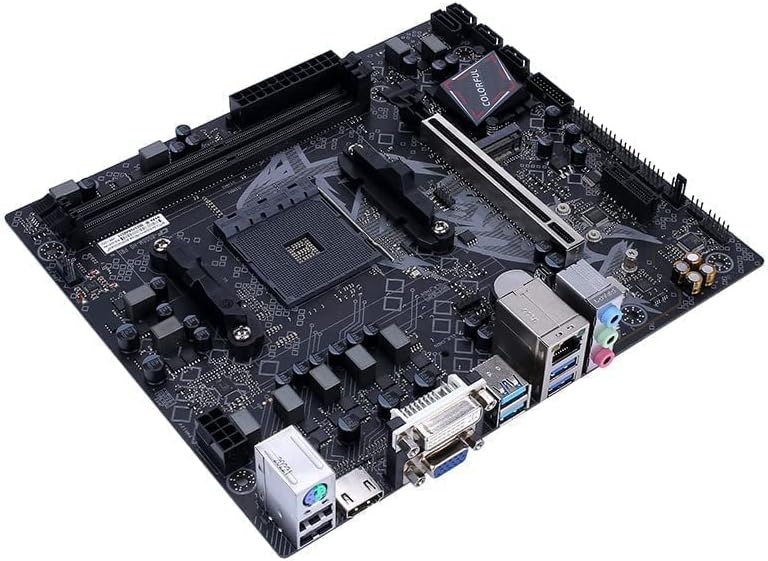
تصویر 4: An alternative angled view of the motherboard, highlighting the PCIe x16 slot and the M.2 slot.
3. سیٹ اپ اور انسٹالیشن
Before beginning installation, ensure your workspace is clean, well-lit, and static-free. It is recommended to wear an anti-static wrist strap.
3.1 CPU انسٹال کرنا
- مدر بورڈ پر AM4 CPU ساکٹ تلاش کریں۔
- ساکٹ کی طرف سے لوڈ لیور اٹھاو.
- سی پی یو پر سہ رخی نشان کو احتیاط سے ساکٹ پر متعلقہ نشان کے ساتھ سیدھ میں رکھیں۔
- سی پی یو کو بغیر مجبور کیے ساکٹ میں آہستہ سے رکھیں۔
- سی پی یو کو اپنی جگہ پر محفوظ کرنے کے لیے لوڈ لیور کو نیچے کریں۔
- تھرمل پیسٹ لگائیں اور CPU کولر کو اس کے مینوفیکچرر کی ہدایات کے مطابق انسٹال کریں۔
3.2 DDR4 میموری انسٹال کرنا
- DDR4 میموری سلاٹس کے دونوں سروں پر کلپس کھولیں۔
- میموری ماڈیول پر نشان کو DIMM سلاٹ میں کلید کے ساتھ سیدھ میں کریں۔
- میموری ماڈیول کے دونوں سروں پر مضبوطی سے نیچے دبائیں جب تک کہ کلپس اپنی جگہ پر نہ آجائیں۔
- For dual-channel operation, install memory modules into matching colored slots (if applicable, refer to motherboard manual for specific slot pairing).
3.3 اسٹوریج ڈیوائسز انسٹال کرنا
3.3.1 M.2 SSD انسٹالیشن
- مدر بورڈ پر M.2 سلاٹ تلاش کریں۔
- M.2 اسٹینڈ آف سکرو کو ہٹا دیں۔
- M.2 SSD کو 30 ڈگری کے زاویے پر سلاٹ میں داخل کریں۔
- SSD کو نیچے دھکیلیں اور اسے اسٹینڈ آف سکرو سے محفوظ کریں۔
3.3.2 SATA ڈرائیو کی تنصیب
- SATA ڈیٹا کیبل کے ایک سرے کو مدر بورڈ پر SATA 3.0 پورٹ سے جوڑیں۔
- SATA ڈیٹا کیبل کے دوسرے سرے کو اپنی SATA ہارڈ ڈرائیو یا SSD سے مربوط کریں۔
- اپنی پاور سپلائی سے SATA پاور کیبل کو SATA ڈرائیو سے جوڑیں۔
3.4 Installing the Graphics Card (PCIe)
- Locate the PCI Express 4.0 x16 slot.
- اپنے پی سی کیس سے متعلقہ توسیعی سلاٹ کور کو ہٹا دیں۔
- Align the graphics card with the PCIe slot and press down firmly until it is seated correctly and the retention clip locks.
- گرافکس کارڈ کو سکرو کے ساتھ کیس میں محفوظ کریں۔
- کسی بھی ضروری PCIe پاور کیبلز کو اپنی پاور سپلائی سے گرافکس کارڈ سے جوڑیں۔
3.5 پاور سپلائی کو جوڑنا
- 24-پن ATX مین پاور کنیکٹر کو اپنی پاور سپلائی سے مدر بورڈ سے جوڑیں۔
- Connect the 4-pin (or 8-pin, if applicable) auxiliary CPU power connector to the motherboard.
- Connect power cables to any other components as needed (e.g., SATA drives, graphics card).
3.6 Connecting Front Panel and Peripherals
- Connect the front panel headers (Power Switch, Reset Switch, HDD LED, Power LED) to their respective pins on the motherboard. Refer to the motherboard diagram for exact pin locations.
- Connect front panel USB and audio headers.
- Connect external peripherals such as keyboard, mouse, and monitor to the rear I/O ports.
4. آپریٹنگ ہدایات
4.1 ابتدائی بوٹ اور BIOS/UEFI سیٹ اپ
- After connecting all components and power, turn on your system.
- آغاز کے دوران، بار بار دبائیں ڈی ای ایل کلید (یا F2 depending on BIOS version) to enter the BIOS/UEFI setup utility.
- In the BIOS/UEFI, you can configure boot order, system time, fan speeds, and other hardware settings.
- تبدیلیاں محفوظ کریں اور بوٹنگ جاری رکھنے کے لیے BIOS/UEFI سے باہر نکلیں۔
4.2 آپریٹنگ سسٹم کی تنصیب
This motherboard supports Windows 10. To install an operating system:
- Prepare a bootable USB drive or DVD with your desired operating system installer.
- Set the boot order in BIOS/UEFI to prioritize your installation media.
- آپریٹنگ سسٹم کو انسٹال کرنے کیلئے آن اسکرین ہدایات پر عمل کریں۔
4.3 ڈرائیور کی تنصیب
After OS installation, install the necessary drivers for optimal performance. Drivers can typically be found on the COLORFUL official webسائٹ یا شامل ڈرائیور CD/USB ڈرائیو پر۔
- چپ سیٹ ڈرائیورز
- LAN ڈرائیورز
- آڈیو ڈرائیورز
- گرافکس ڈرائیور (اگر مربوط گرافکس یا ایک وقف شدہ GPU استعمال کررہے ہیں)
- USB ڈرائیورز
5 دیکھ بھال
5.1 Cleaning Your Motherboard
باقاعدگی سے صفائی بہترین کارکردگی کو برقرار رکھنے میں مدد کرتی ہے اور آپ کے مدر بورڈ کی عمر کو بڑھاتی ہے۔
- بجلی بند: Always power down and unplug your PC before cleaning.
- دھول ہٹانا: Use compressed air to remove dust from components, especially heatsinks and fan blades. Hold the can upright to prevent propellant discharge.
- نرم صفائی: ضدی گندگی کے لیے، ہلکے سے نرم، لنٹ سے پاک کپڑا استعمال کریں۔ampisopropyl الکحل کے ساتھ ختم. ضرورت سے زیادہ نمی سے بچیں۔
- رابطے سے گریز کریں: Do not touch sensitive components or circuit traces directly.
5.2 BIOS/UEFI اپڈیٹس
BIOS/UEFI updates can provide improved compatibility, stability, and new features. Always download BIOS updates from the official COLORFUL webآپ کے مخصوص مدر بورڈ ماڈل کے لیے سائٹ۔
- بیک اپ: Back up your current BIOS settings before updating.
- ہدایات پر عمل کریں: Carefully follow the update instructions provided by COLORFUL. Incorrect BIOS updates can render your motherboard inoperable.
- مستحکم طاقت: Ensure a stable power supply during the update process to prevent interruptions.
5.3 ڈرائیور اپڈیٹس
Keep your drivers updated to ensure compatibility and optimal performance with new software and hardware. Visit the COLORFUL support website regularly for the latest drivers.
6 خرابیوں کا سراغ لگانا
یہ سیکشن عام مسائل کو حل کرتا ہے جن کا آپ کو سیٹ اپ یا آپریشن کے دوران سامنا ہو سکتا ہے۔
6.1 کوئی پاور/سسٹم شروع نہیں ہو رہا ہے۔
- بجلی کے کنکشن چیک کریں: Ensure the 24-pin ATX and 4-pin/8-pin CPU power connectors are securely seated.
- بجلی کی فراہمی: Verify the power supply unit (PSU) is switched on and functioning correctly. Test with another PSU if possible.
- فرنٹ پینل ہیڈرز: Double-check that the power switch header is correctly connected to the motherboard.
- شارٹ سرکٹ: Remove the motherboard from the case and test it on a non-conductive surface to rule out short circuits.
6.2 کوئی ڈسپلے آؤٹ پٹ نہیں۔
- مانیٹر کنکشن: Ensure the monitor is properly connected to the graphics card or motherboard (if using integrated graphics) and is powered on.
- گرافکس کارڈ: If using a dedicated graphics card, ensure it is fully seated in the PCIe slot and any necessary power cables are connected.
- رام: Reseat the RAM modules. Try booting with only one RAM stick.
- BIOS ری سیٹ: Clear the CMOS by removing the motherboard battery for a few minutes or using the CLR_CMOS jumper (refer to motherboard diagram).
6.3 سسٹم کی عدم استحکام / کریش
- زیادہ گرم ہونا: Check CPU and GPU temperatures. Ensure all fans are spinning and heatsinks are clean.
- رام کے مسائل: ناقص RAM کی جانچ کرنے کے لیے میموری تشخیصی ٹول (مثال کے طور پر، MemTest86) چلائیں۔
- ڈرائیور کے تنازعات: Ensure all drivers are up-to-date and correctly installed. Uninstall and reinstall problematic drivers.
- BIOS ترتیبات: BIOS کو ڈیفالٹ سیٹنگز پر ری سیٹ کریں۔
7. وضاحتیں
| فیچر | تفصیل |
|---|---|
| برانڈ | رنگین |
| ماڈل کا نام | Battle-AX B550M-HD PRO V14 |
| سی پی یو ساکٹ | ساکٹ AM4 |
| ہم آہنگ پروسیسرز | AMD 3rd Gen Ryzen |
| چپ سیٹ کی قسم | AMD B550 |
| رام ٹیکنالوجی | DDR4 |
| میموری گھڑی کی رفتار | 2133 MHz (Base, higher speeds supported via OC) |
| OS سپورٹ | ونڈوز 10 |
| PCIe سلاٹس | 1 x PCI Express 4.0 x16 |
| اسٹوریج انٹرفیس | 1 x M.2 slot, 4 x SATA 3.0 6GB/s ports |
| USB پورٹس | Rear: 4 x USB 3.1 Gen1, 2 x USB 2.0; Internal Headers: 1 x USB 3.1 Gen1, 2 x USB 2.0 (total 12 ports including headers) |
| ویڈیو آؤٹ پٹس | 1 x HDMI, 1 x DVI, 1 x VGA |
| LAN | 1000Mbps Ethernet (RJ45) |
| آڈیو | 6-channel High Definition Audio |
| CPU Power Support | 95W تک |
| Auxiliary CPU Power Connector | 4-pin (Note: Main ATX power is 24-pin) |
8. وارنٹی اور سپورٹ
For detailed warranty information, please refer to the warranty card included with your product or visit the official COLORFUL website. Technical support and driver downloads are also available on the COLORFUL support page.
سرکاری Webسائٹ: www.colorful.cn (براہ کرم علاقائی کے لیے چیک کریں۔ websites for specific support.)