
TCL NXTPAPER 14
Посібник користувача планшета TCL NXTPAPER 14 на базі Android
Model: NXTPAPER 14
1. Вступ
This manual provides essential information for the proper setup, operation, and maintenance of your TCL NXTPAPER 14 Android Tablet. The TCL NXTPAPER 14 is designed to offer a versatile experience, functioning as a tablet, drawing pad, and digital notebook. It features a 14.3-inch 2.4K NXTPAPER display, a 4096-pressure-level T-PEN stylus, and comes with a protective flip case.
Ключові особливості:
- 14.3-inch 2.4K NXTPAPER Display for a paper-like viewнабутий досвід.
- T-PEN Stylus with 4096 pressure levels for precise input.
- NXTPAPER 3.0 display technology with anti-glare, blue light reduction, and DC dimming for eye comfort.
- Three display modes: Regular, Ink Paper, and Color Paper.
- MediaTek Helio G99 processor, 8GB RAM (plus 8GB expandable), and 256GB storage.
- 10,000mAh battery with 33W fast charging and reverse charging capabilities.
- Dual front cameras (13MP + 5MP) and an 8MP rear camera, all supporting 2K video.
- Quad stereo speaker system with Smart PA.
- Multi-window productivity features including floating windows, split screen, screen mirroring, and extended displays.
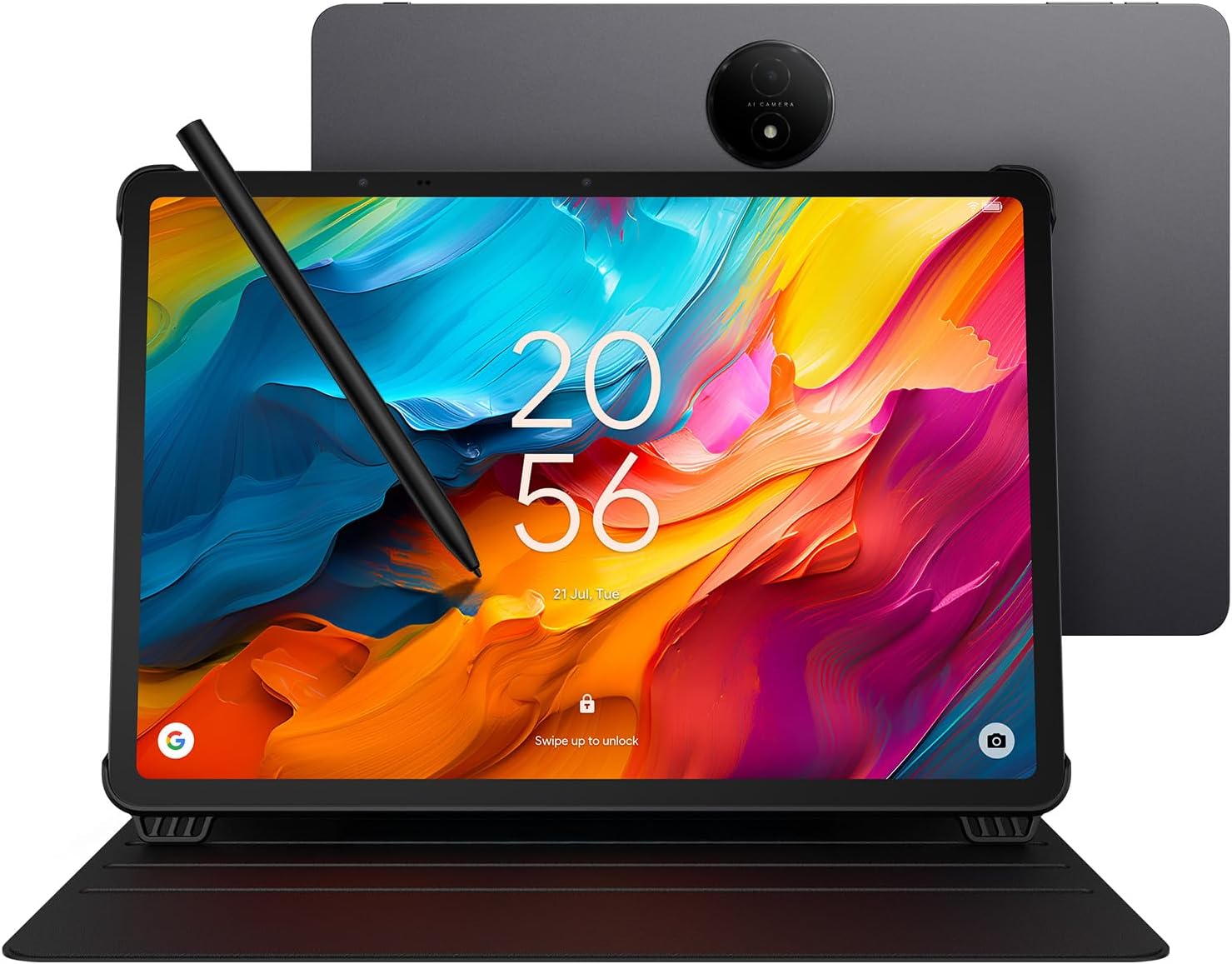
Image 1.1: The TCL NXTPAPER 14 Android Tablet with its T-PEN stylus and flip case, showcasinяскравий дисплей.
2. Що в коробці
Будь ласка, перевірте наявність усіх предметів у упаковці:
- Планшет TCL NXTPAPER 14
- T-PEN Stylus
- Відкидний футляр
- Кабель USB-C
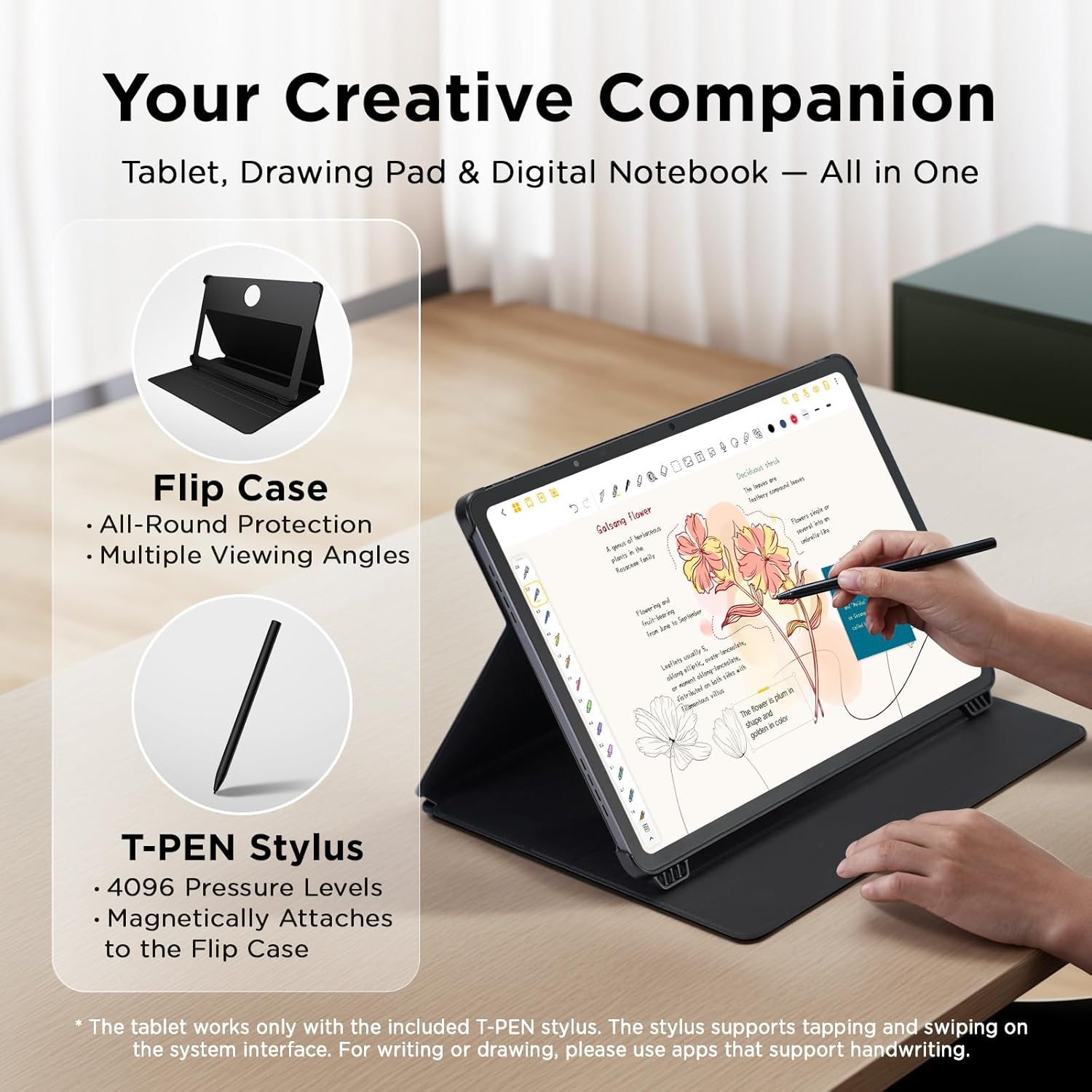
Image 2.1: The TCL NXTPAPER 14 Tablet, T-PEN Stylus, and Flip Case, as typically included in the product packaging.
3. Початкове налаштування
3.1 Заряджання планшета
Before first use, fully charge your TCL NXTPAPER 14 Tablet. Connect the included USB-C cable to the tablet's charging port and to a compatible USB wall adapter (not included). The tablet supports 33W fast charging.
3.2 Увімкнення/вимкнення
- Щоб увімкнути: Press and hold the Power button located on the side of the tablet until the TCL logo appears on the screen.
- Щоб вимкнути: Натисніть і утримуйте кнопку живлення, потім виберіть «Вимкнути живлення» з опцій, що з’являться на екрані.
- Щоб перезапустити: Натисніть і утримуйте кнопку живлення, потім виберіть «Перезавантажити» з опцій.
3.3 Attaching the Flip Case
The included flip case provides protection and acts as a stand. Align the tablet with the case and gently press it into place. Ensure all ports and buttons are accessible. The T-PEN stylus can be magnetically attached to the flip case for secure storage.
3.4 Початкове налаштування Android
Upon first power-on, follow the on-screen prompts to complete the initial Android setup. This includes selecting your language, connecting to a Wi-Fi network, signing in with your Google account, and setting up security features.
4. Операція
4.1 NXTPAPER Display Modes
The TCL NXTPAPER 14 features a dedicated NXTPAPER Key to switch between three display modes, optimizing your viewing experience for different tasks.
- Звичайний режим: Provides vibrant visuals suitable for multimedia consumption like movies and video calls.
- Режим Ink Paper: Recreates the texture of e-paper, ideal for extended reading or note-taking, reducing eye strain.
- Режим кольорового паперу: Delivers soft, low-saturation tones, perfect for digital art, comics, and creative projects.

Image 4.1: The three distinct display modes (Color Paper, Regular, Ink Paper) accessible via the NXTPAPER Key.
4.2 T-PEN Stylus Usage
The T-PEN Stylus offers 4096 levels of pressure sensitivity for precise drawing, writing, and navigation. It is compatible with the tablet for tapping and swiping on the system interface. For handwriting or drawing, use applications that support stylus input.

Image 4.2: A user drawing on the TCL NXTPAPER 14 tablet with the T-PEN stylus.
4.3 Багатозадачність та продуктивність
The tablet's Android 14 operating system and TCL's smart UI enhance productivity through several features:
- Плаваючі вікна: Allows applications to run in resizable windows over other apps.
- Розділений екран: Divides the screen to display two applications simultaneously.
- Відображення екрана: Cast your tablet's display to a larger screen.
- Extended Displays: Use your tablet as a secondary display for a PC (Windows 10 or later, both devices on the same network).

Зображення 4.3: Наприкладamples of floating window and split screen functionalities on the tablet.
4.4 Камера та аудіо
The tablet is equipped with dual front cameras (13MP + 5MP) and an 8MP rear autofocus camera, all capable of 2K video recording. The quad stereo speaker system with Smart PA delivers enhanced audio output.

Image 4.4: A user engaged in a video call, demonstrating the tablet's camera capabilities.
4.5 Керування батареєю
The 10,000mAh battery provides extended usage time. It supports 33W fast charging, allowing a full recharge in approximately two hours. The tablet also features reverse charging (requires an OTG cable, sold separately) to power other devices.

Image 4.5: An illustration detailing the 10,000mAh battery, 33W fast charging, and reverse charging capabilities.
5. Технічне обслуговування
5.1 Очищення планшета
To clean the tablet screen, use a soft, lint-free cloth specifically designed for electronics. For stubborn smudges, slightly dampПротріть тканину водою або розчином для чищення екранів. Уникайте використання агресивних хімікатів, абразивних матеріалів або надмірної вологості.
5.2 Догляд за стилусом
Keep the T-PEN stylus clean and free from debris. Store it securely, ideally attached magnetically to the flip case, to prevent loss or damage. Avoid exposing the stylus to extreme temperatures or direct sunlight.
5.3 Загальний догляд
- Avoid dropping the tablet or exposing it to strong impacts.
- Тримайте планшет подалі від води та високої вологості.
- Не піддавайте планшет впливу екстремальних температур.
- Використовуйте лише схвалені зарядні аксесуари.
6. Вирішення проблем
This section addresses common issues you might encounter with your TCL NXTPAPER 14 Tablet.
| проблема | Рішення |
|---|---|
| Планшет не вмикається. | Ensure the tablet is charged. Connect it to a power source for at least 30 minutes. If it still doesn't power on, perform a forced restart by holding the Power button for 10-15 seconds. |
| Екран не реагує. | Перезавантажте планшет. Якщо проблема не зникає, переконайтеся, що екран чистий і на ньому немає сміття. |
| T-PEN Stylus is not responding. | Ensure the stylus tip is clean. Check if the application you are using supports stylus input. Restart the tablet. |
| Акумулятор швидко розряджається. | Reduce screen brightness, close unused applications, disable Wi-Fi/Bluetooth when not in use. Check for background app activity. |
| Tablet is slow or freezes. | Close unnecessary apps, clear cache, or restart the tablet. Ensure sufficient storage space is available. |
7. Технічні характеристики
| Особливість | Деталь |
|---|---|
| Назва моделі | TCL NXTPAPER 14 |
| Розмір дисплея | 14.3 дюймів |
| Максимальна роздільна здатність екрана | 2400 x 1600 пікселів |
| Операційна система | Android 14 |
| Марка процесора | MediaTek (Helio G99) |
| Пам'ять (RAM) | 8GB (plus 8GB expandable) |
| Пам'ять (флеш-пам'ять) | 256 ГБ |
| Вага товару | 4 фунта |
| Розміри продукту (ДxШxВ) | 8.74 x 12.69 x 0.27 дюймів |
| Колір | Сірий |
| Акумулятор | 10,000 мАг (нестандартний акумулятор, в комплекті) |
| Зарядка | 33W Fast Charging, Reverse Charging capable |
| Фотоапарати | Dual Front (13MP + 5MP), Rear (8MP Autofocus) |
| Аудіо | Quad Stereo Speakers with Smart PA |
8. Гарантія та підтримка
8.1 Інформація про гарантію
For detailed warranty information, please refer to the documentation included with your product or visit the official TCL webсайт. Гарантійні умови можуть відрізнятися залежно від регіону.
8.2 Ресурси підтримки
For further assistance, you can access the following resources:
- Інструкція користувача (PDF): Завантажити PDF
- Інформація з безпеки (PDF): Завантажити PDF
- Official TCL Store: Відвідати магазин
Ask a question about this manual
Ask about setup, troubleshooting, compatibility, parts, safety, or missing instructions. Manuals+ will review the question and use this page’s manual context to help answer it.