
1. Продукт закінчивсяview
The Darmoshark M5Air is a high-performance gaming mouse designed for precision and comfort. It features a lightweight carbon fiber construction, a PAW3950 optical sensor, and versatile tri-mode connectivity (wired, 2.4GHz wireless, and Bluetooth). This manual provides instructions for setup, operation, and maintenance of your M5Air gaming mouse.
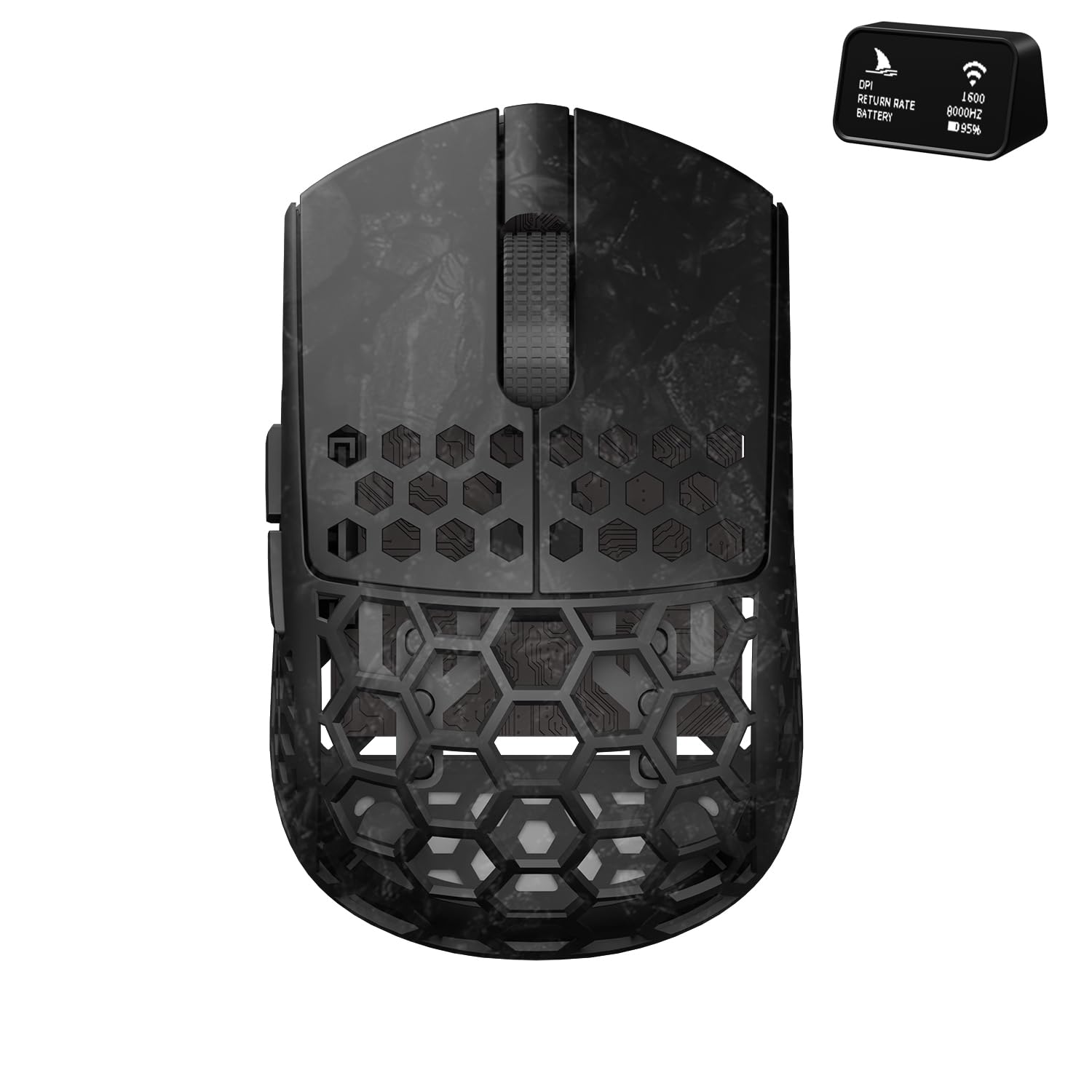
Figure 1: Darmoshark M5Air Gaming Mouse, Black. This image shows the top-down view of the M5Air mouse, highlighting its honeycomb carbon fiber shell and main buttons.
2. Вміст упаковки
Перевірте наявність усіх елементів в упаковці:
- Darmoshark M5Air Gaming Mouse
- Кабель USB-C – USB-A
- 8K Wireless Receiver with Digital Display
- Набір стрічок для захоплення
- Додаткові мишачі ковзани
- Посібник користувача (цей документ)
Відео 1: Розпакування та все іншеview of the Darmoshark M5Air Mini 8K Wireless Gaming Mouse. This video demonstrates the mouse and its included accessories, such as the cable, 8K receiver, and grip tape.
3. Налаштування
3.1 Початкове заряджання
Before first use, connect the mouse to your computer using the provided USB-C cable. The mouse will charge automatically. The 8K wireless receiver's display will show the battery level. A full charge typically takes approximately 2-3 hours.

Figure 2: USB-C charging port on the front of the Darmoshark M5Air mouse. This image highlights the location of the USB-C port for charging and wired connection.
3.2 Connecting the 8K Wireless Receiver
Plug the 8K wireless receiver into an available USB-A port on your computer. The receiver features a digital display that shows the current DPI, polling rate, and mouse battery status.

Figure 3: Darmoshark M5Air mouse alongside its 8K wireless receiver. The receiver's display shows real-time mouse information.
4. Режими роботи
The M5Air mouse supports three connectivity modes: 2.4GHz wireless (via 8K receiver), Bluetooth, and wired (via USB-C cable).
4.1 Перемикання режимів
A switch on the bottom of the mouse allows you to select between modes. The positions typically correspond to: OFF/Wired, Бездротовий 2.4GHz, і Bluetooth.
4.2 2.4GHz Wireless Mode (via 8K Receiver)
- Ensure the 8K wireless receiver is plugged into your computer.
- Set the switch on the bottom of the mouse to the 2.4GHz wireless icon (often a small antenna or Wi-Fi symbol).
- The mouse should automatically connect. The receiver's display will confirm the connection and show current settings.
4.3 Режим Bluetooth
- Set the switch on the bottom of the mouse to the Bluetooth icon.
- На комп’ютері або пристрої перейдіть до налаштувань Bluetooth і знайдіть нові пристрої.
- Select "Darmoshark M5Air" from the list of available devices to pair.
4.4 Дротовий режим
Connect the USB-C cable to the front of the mouse and the USB-A end to your computer. The mouse will function in wired mode and charge simultaneously. This mode also allows for firmware updates and software configuration.
5. Налаштування роздільної здатності
The M5Air mouse features a dedicated DPI adjustment button, typically located on the bottom of the mouse or accessible via software. Press this button to cycle through preset DPI levels. The 8K receiver's display will show the current DPI setting.
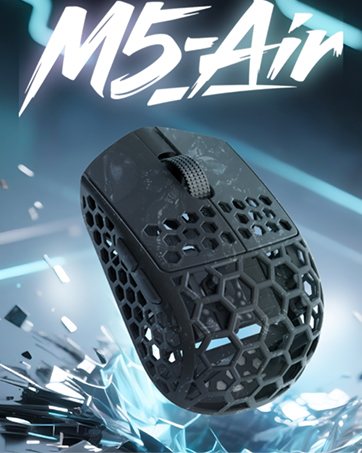
Малюнок 4: Нижня частина view of the Darmoshark M5Air mouse, showing the DPI adjustment button and mode switch.
6. Встановлення та налаштування програмного забезпечення
To unlock advanced features and customize your M5Air mouse, download the official Darmoshark software from the official webсайт. Програмне забезпечення дозволяє:
- Customizing DPI settings and profiles.
- Programming the 5 buttons.
- Adjusting polling rate (up to 8K Hz).
- Setting Lift-Off Distance (LOD).
- Creating macros.
- Оновлення мікропрограми.
Відвідайте www.darmoshark.cn for the latest software and drivers.

Малюнок 5: Впрample of the Darmoshark M5Air software interface, showing customization options for buttons, DPI, and other settings.
7. Технічне обслуговування
7.1 Очищення
Використовуйте м’яку суху тканину для очищення миші. Для стійкого бруду злегкаamp cloth can be used, ensuring no liquid enters the mouse's internal components. Avoid harsh chemicals or abrasive materials.
7.2 Догляд за акумулятором
The M5Air uses a built-in rechargeable battery. For optimal battery life, avoid fully discharging the mouse frequently. Charge the mouse when the battery indicator on the 8K receiver shows low power.
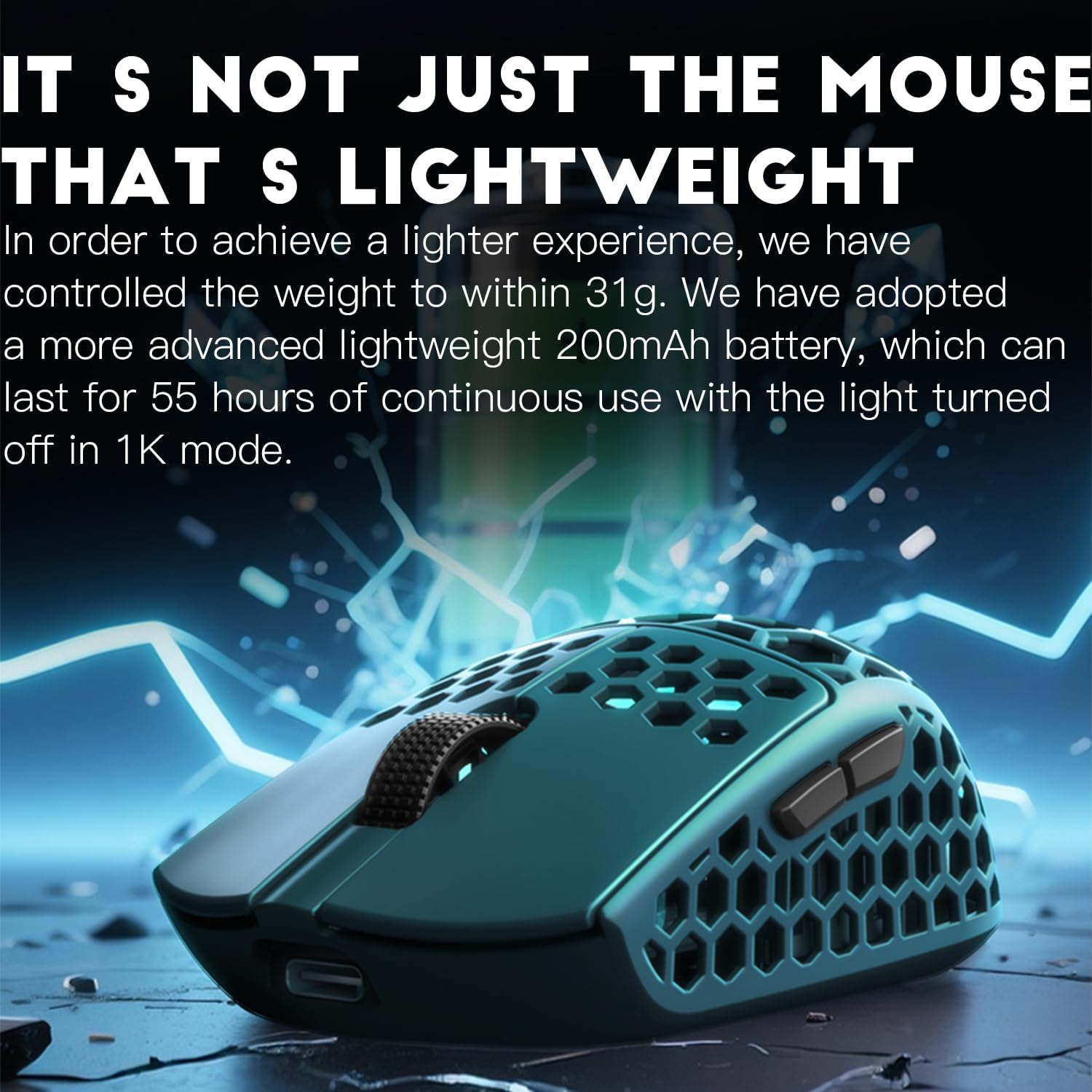
Figure 6: Illustration of the M5Air's lightweight battery, emphasizing its contribution to the mouse's overall low weight and extended usage time.
8. Вирішення проблем
8.1 Миша не реагує
- Перевірте батарею: Переконайтеся, що миша заряджена. Підключіть її за допомогою кабелю USB-C для заряджання.
- Перевірте перемикач режимів: Verify the mouse is in the correct operating mode (2.4GHz, Bluetooth, or Wired).
- Відновлення бездротової пари: For 2.4GHz, unplug and re-plug the 8K receiver. For Bluetooth, remove the device from your computer's Bluetooth settings and re-pair.
- Спробуйте дротовий режим: Connect the mouse directly with the USB-C cable to rule out wireless connectivity issues.
8.2 Переривчасте з'єднання
- Зменшення перешкод: Move the 8K receiver closer to the mouse. Avoid placing the receiver near other wireless devices or large metal objects.
- Оновлення драйверів/прошивки: Ensure your mouse drivers and firmware are up to date via the Darmoshark software.
8.3 Програмне забезпечення не розпізнає мишу
- Дротове підключення: Ensure the mouse is connected via USB-C cable when attempting to use the software for configuration or firmware updates.
- Перевстановлення програмного забезпечення: Uninstall and reinstall the Darmoshark software.
9. Технічні характеристики
| Особливість | Деталь |
|---|---|
| Модель | M5Air |
| датчик | Оптичний датчик PAW3950 |
| Підключення | Tri-Mode (2.4GHz Wireless, Bluetooth, Wired USB-C) |
| DPI | До 30000 DPI |
| Швидкість опитування | Up to 8000 Hz (8K) |
| кнопки | 5 Програмовані кнопки |
| вага | прибл. 31г |
| матеріал | Вуглецеве волокно |
| Акумулятор | 200mAh (up to 55 hours in 1K mode with lights off) |
| Операційна система | Windows 7/8/10/11, MacOS |

Малюнок 7: Закінченоview of the Darmoshark M5Air's core technical features, including the PAW3950 sensor, Nordic52840 chip, 31-gram weight, and carbon fiber material.
10. Гарантія та підтримка
The Darmoshark M5Air Gaming Mouse comes with a 1 рік обмеженої гарантії з дати покупки. Ця гарантія поширюється на виробничі дефекти та дефекти виготовлення за умов нормального використання.
Гарантія не поширюється на:
- Damage caused by accidents, abuse, misuse, or improper installation.
- Пошкодження, спричинені неавторизованим ремонтом або модифікаціями.
- Нормальний знос.
For warranty claims or technical support, please contact Darmoshark customer service through their official webсайт: www.darmoshark.cn.