
1. Вступ
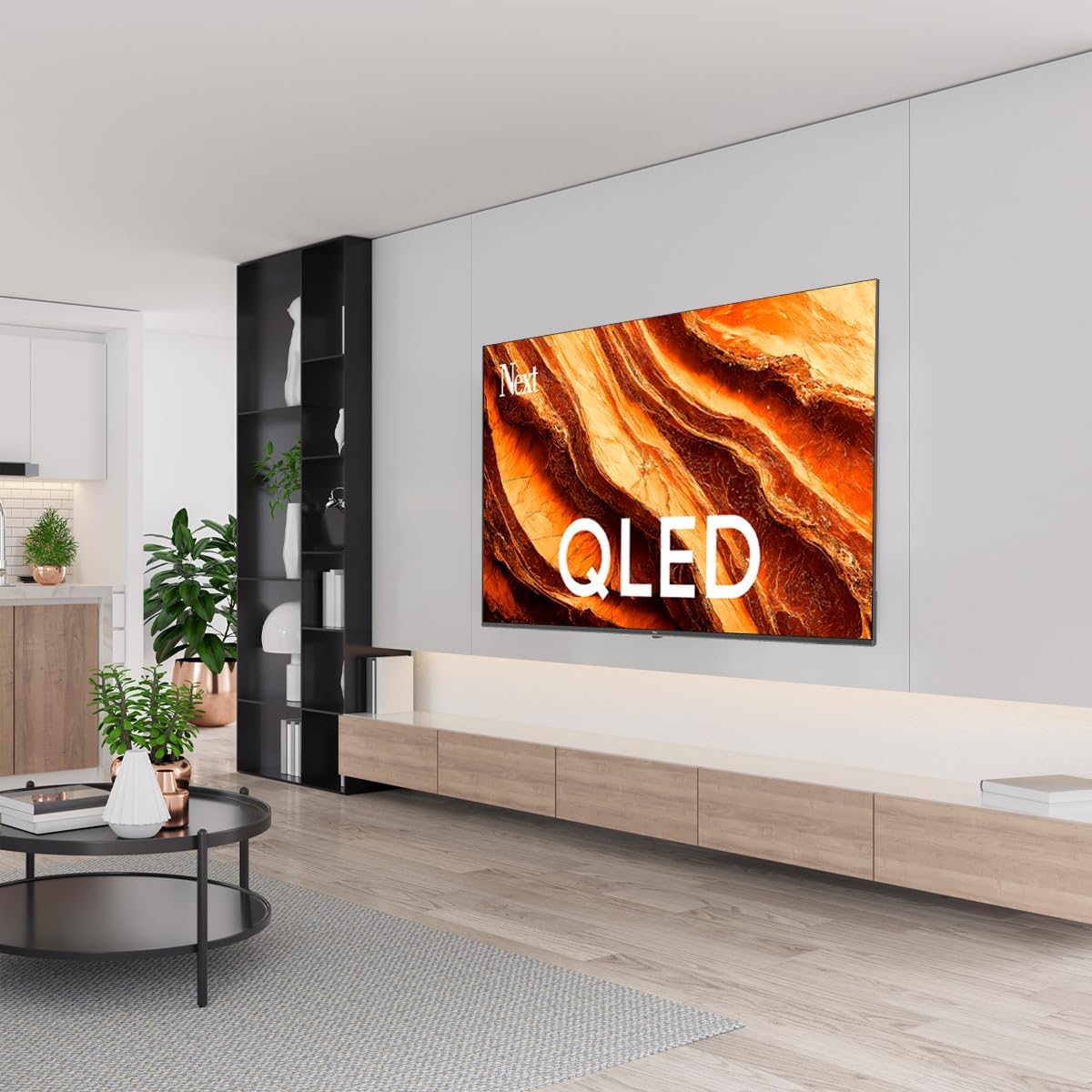
This manual provides essential information for the safe and efficient operation of your Next YE-65GFSG8-QLED 65-inch UHD 4K Google QLED TV. Please read this manual thoroughly before using the television and retain it for future reference. Your new television combines QLED display technology with the Google TV operating system, offering a high-quality viewing experience and smart features.
2. Важлива інформація з безпеки
Always follow these basic safety precautions when operating your television:
- Джерело живлення: Переконайтеся, що телевізор підключено до джерела живлення з напругою, що відповідає зазначенійtagе діапазон.
- Вентиляція: Не блокуйте вентиляційні отвори. Забезпечте достатній простір навколо телевізора для належної циркуляції повітря.
- Вода і вологість: Не піддавайте телевізор впливу дощу або вологи. Не ставте на телевізор предмети, наповнені рідинами, такі як вази.
- Прибирання: Від’єднайте телевізор від розетки перед чищенням. Використовуйте м’яку суху тканину. Не використовуйте рідкі чи аерозольні засоби для чищення.
- Розміщення: Розмістіть телевізор на стійкій рівній поверхні. Уникайте розміщення його під прямими сонячними променями або поблизу джерел тепла.
- Блискавка: During lightning storms or when unused for long periods, unplug the TV from the power outlet and disconnect the antenna.
- Обслуговування: Не намагайтеся самостійно обслуговувати цей виріб. Зверніть усі послуги до кваліфікованого обслуговуючого персоналу.
3. Вміст упаковки
Verify that all items are present in your TV package:
- Next YE-65GFSG8-QLED 65-inch UHD 4K Google QLED TV
- Пульт дистанційного керування
- Кабель живлення
- Тумба під телевізор (2 шт.) та гвинти
- Посібник користувача (цей документ)
- Короткий посібник
4. Налаштування
4.1 Фізичне встановлення
You can install your TV on a stand or mount it on a wall. Ensure the TV is placed on a stable surface or securely mounted.

зображення: TV Dimensions. This image illustrates the physical dimensions of the 65-inch television, including its width, height, and diagonal screen size of 164 cm (65 inches).
Монтаж підставки:
- Обережно покладіть телевізор екраном донизу на м’яку рівну поверхню, щоб запобігти пошкодженню екрана.
- Attach the two stand pieces to the designated slots on the bottom of the TV.
- Закріпіть стійки за допомогою наданих гвинтів.
- Обережно підніміть телевізор у вертикальне положення на стійкій поверхні.
Настінне кріплення:
For wall mounting, use a VESA-compatible wall mount kit (sold separately) that matches the TV's VESA pattern. Follow the instructions provided with your wall mount kit. It is recommended to have professional assistance for wall mounting.
4.2 Підключення периферійних пристроїв
Connect your external devices to the appropriate ports on the back of your TV.
зображення: Rear Panel Connections. This image displays the various input and output ports located on the back of the television, including HDMI, USB, DVB-S, DVB-T, CI Module, Mini AV-IN, Optical Out, and Ethernet.
- HDMI (ARC): Connect Blu-ray players, game consoles, or other HDMI devices. HDMI 1 supports Audio Return Channel (ARC).
- USB (2x): Підключіть USB-накопичувачі для відтворення медіафайлів.
- DVB-S / DVB-T: Connect satellite (DVB-S) or terrestrial (DVB-T) antenna cables.
- CI Module: Insert a Common Interface (CI) module for encrypted digital channels.
- Mini AV-IN: Connect older devices using an AV adapter cable.
- Оптичний вихід: Connect to an external audio system for digital audio output.
- Ethernet: Підключіть кабель Ethernet для дротового підключення до Інтернету.
- Потужність: Підключіть кабель живлення до телевізора, а потім до розетки.
4.3 Початкове увімкнення та перше налаштування
- After connecting all cables, plug the power cord into an electrical outlet.
- Натисніть кнопку живлення на пульті дистанційного керування або на телевізорі.
- The TV will guide you through the initial setup process, which includes:
- Вибір мови
- Підключення до Wi-Fi або Ethernet
- Signing in with your Google Account (required for Google TV features)
- Прийняття умов та положень
- Channel scanning (for DVB-S/T)
- Дотримуйтеся вказівок на екрані, щоб завершити налаштування.
5. Керування телевізором
5.1 Функції дистанційного керування
The remote control allows you to navigate the TV's features. Familiarize yourself with its buttons:
- Потужність: Вмикає або вимикає телевізор.
- Google Assistant: Активує голосові команди.
- Навігаційна панель (Вгору/Вниз/Вліво/Вправо/OK): Навігація по меню та вибір опцій.
- Назад: Повернення до попереднього екрана.
- Головна: Відкриває головний екран Google TV.
- Гучність +/-: Регулює рівень гучності.
- Канал +/-: Змінює телеканали.
- введення: Вибір джерел вхідного сигналу (HDMI, AV тощо).
- Кнопки програми: Прямий доступ до популярних потокових програм.
5.2 Navigating Google TV Interface
Google TV organizes your entertainment with a personalized home screen. Content from your apps is brought together and organized for easy discovery.

зображення: Google TV Interface. This image shows the main Google TV home screen with various streaming app icons and content recommendations, demonstrating the user interface.
- Головний екран: Displays personalized recommendations, installed apps, and quick access to content.
- Вкладка «Для тебе»: Provides tailored content suggestions based on your viewзвичок.
- Вкладка «Живий»: Accesses live TV channels from integrated services.
- Вкладка «Програми»: Shows all installed applications. You can download more from the Google Play Store.
- Вкладка «Бібліотека»: Accesses your purchased or rented content from Google Play.
5.3 Налаштування зображення та звуку
Щоб налаштувати параметри зображення та звуку:
- Натисніть Налаштування button (usually a gear icon) on your remote.
- Перейдіть до Дисплей і звук.
- Параметри зображення: Adjust brightness, contrast, color, sharpness, and select picture modes (e.g., Standard, Vivid, Movie, Game). Your QLED TV offers enhanced color saturation.
- Налаштування звуку: Adjust bass, treble, balance, and select sound modes (e.g., Standard, Music, Movie, Speech).

зображення: QLED Color Saturation. This image visually demonstrates the high color saturation achieved with QLED technology, showing a vibrant and rich color display.

зображення: HDR (High Dynamic Range). This image illustrates the visual impact of HDR, showcasing improved contrast and color detail in a scene when HDR is enabled versus when it is off.
5.4 Налаштування мережі
To connect your TV to the internet:
- Натисніть Налаштування на пульті.
- Перейдіть до Мережа та Інтернет.
- Виберіть Wi-Fi to connect to a wireless network or ensure Ethernet is connected for a wired connection.
- For Wi-Fi, select your network from the list and enter the password.
6. Технічне обслуговування
6.1 Очищення телевізора
- Завжди відключайте телевізор від мережі перед чищенням.
- Використовуйте м’яку, суху тканину без ворсу, щоб обережно протерти екран і корпус телевізора.
- Для стійких плям злегка протрітьampen the cloth with water or a specialized screen cleaner (ensure it's safe for TV screens). Never spray cleaner directly onto the screen.
- Уникайте використання абразивних засобів для чищення, воску або розчинників.
6.2 Оновлення програмного забезпечення
Your TV may receive software updates to improve performance and add new features. It is recommended to keep your TV's software updated.
- Переконайтеся, що ваш телевізор підключено до Інтернету.
- Натисніть Налаштування на пульті.
- Перейдіть до система > про > Оновлення системи.
- Виберіть Перевірте наявність оновлень.
- Дотримуйтесь підказок на екрані, щоб завантажити та встановити всі доступні оновлення.
7. Вирішення проблем
Якщо у вас виникли проблеми з телевізором, зверніться до наступних поширених проблем та способів їх вирішення:
| проблема | Можлива причина / рішення |
|---|---|
| Немає живлення | Check if the power cord is securely plugged into the TV and the wall outlet. Ensure the outlet is working. |
| Немає зображення, але звук є | Check the input source. Ensure the connected device is turned on and functioning correctly. |
| Звуку немає, але зображення є | Check the volume level and mute status. Verify audio cable connections for external devices. Check TV sound settings. |
| Пульт не працює | Замініть батарейки. Переконайтеся, що між пультом дистанційного керування та ІЧ-датчиком телевізора немає перешкод. |
| Неможливо підключитися до Wi-Fi | Ensure your Wi-Fi router is on and within range. Re-enter the Wi-Fi password carefully. Try restarting the TV and router. |
| Програми працюють повільно або зависають | Close unused apps. Clear app cache (Settings > Apps > See all apps > [App Name] > Clear cache). Ensure a stable internet connection. |
Якщо проблема не зникає після спроби цих рішень, зверніться до служби підтримки клієнтів.
8. Технічні характеристики
Technical specifications for the Next YE-65GFSG8-QLED 65-inch UHD 4K Google QLED TV:
- Бренд: Далі
- Рік моделі: 2025
- роздільна здатність: 4 тис. (3840x2160)
- Технологія дисплея: QLED
- Розмір екрана: 65 дюйма (165 см)
- Співвідношення сторін: 16:9
- Частота оновлення: 60 Гц
- Ключові характеристики: Безрамний дизайн
- Підключення: Bluetooth, Ethernet, HDMI (ARC), USB (2x), Wi-Fi
- Розміри продукту: 27.8 Г x 144.6 Ш x 88.9 В см
- вага: 16.3 кілограма
- Операційна система: Google TV
- Включені компоненти: Пульт дистанційного керування
- Країна походження: Туреччина
9. Гарантія та підтримка
Your Next YE-65GFSG8-QLED TV comes with a manufacturer's warranty. Please refer to the warranty card included in your package for specific terms and conditions, including the warranty period and coverage details.
For technical support, service requests, or further assistance, please contact Next customer service. Contact information can typically be found on the manufacturer's webсайті або в гарантійній документації.
- Інтернет-підтримка: Visit the official Next website for FAQs, troubleshooting guides, and support contact details.
- Сервісні центри: For hardware issues, locate an authorized service center near you.