
1. Вступ
This manual provides essential information for the proper setup, operation, and maintenance of your Philips USB-C to 4-Port USB 2.0 Hub, model SWL3573S/37. Please read these instructions thoroughly before using the product to ensure optimal performance and longevity.

Image 1: Philips USB-C to 4-Port USB 2.0 Hub. This image displays the compact gray hub with its integrated USB-C cable and four USB-A ports.
2. Вміст упаковки
Перевірте наявність усіх елементів в упаковці:
- 1 x Philips USB-C to 4-Port USB 2.0 Hub (Model: SWL3573S/37)
3. Особливості продукту
The Philips USB-C to 4-Port USB 2.0 Hub offers the following features:
- Four USB-A 2.0 Ports: Provides connectivity for multiple USB-A devices.
- Швидкість передачі даних: Підтримує швидкість передачі даних до 480 Мбіт/с.
- Вхід USB-C: Connects to your host device via a USB-C port.
- Підключи і грай: No driver or software installation required for most operating systems.
- Універсальна сумісність: Works with Windows 7 and up, macOS, and other USB-C compatible devices.
- Міцний дизайн: Features an aluminum housing for enhanced durability and portability.

Image 2: Key components of the Philips USB-C Hub. This image highlights the USB-C connector and the four USB-A 2.0 ports on the hub.
4. Інструкції з налаштування
Follow these steps to set up your USB-C hub:
- Підключіть концентратор: Insert the USB-C connector of the Philips hub into an available USB-C port on your laptop, tablet, or desktop computer.
- Connect USB-A Devices: Plug your USB-A accessories (e.g., keyboard, mouse, flash drive, external hard drive) into the four USB-A ports on the hub.
- Перевірте підключення: Your operating system should automatically detect the hub and connected devices. No additional drivers are typically required.

Image 3: Connecting the USB-C Hub to a laptop. This image demonstrates the hub plugged into a laptop's USB-C port, with other USB-A devices connected to the hub.
5. Інструкція з експлуатації
Once connected, the Philips USB-C hub operates as a direct extension of your computer's USB ports.
- Передача даних: Use the USB-A ports to transfer data between your connected devices and your computer. The hub supports speeds up to 480 Mbps.
- Підключення периферійних пристроїв: Connect standard USB-A peripherals such as keyboards, mice, printers, and USB-powered accessories.
- Гаряча заміна: Devices can be connected and disconnected from the hub while your computer is running without requiring a restart.
6. Сумісність
The hub is designed for broad compatibility:
- Операційні системи: Compatible with Windows 7, Windows 10, macOS, and other operating systems that support USB-C and USB 2.0 standards.
- Хост-пристрої: Works with USB-C enabled laptops, tablets, and desktop computers, including MacBook Pro, MacBook Air, and various PC models.
- Пристрої USB-A: Supports all standard USB-A 2.0 devices and is backward compatible with USB 1.1 devices.

Image 4: Universal compatibility of the USB-C Hub. This image illustrates the hub's broad compatibility with various operating systems and devices.
7. Технічне обслуговування
To ensure the longevity and proper functioning of your Philips USB-C hub:
- Прибирання: Use a soft, dry cloth to clean the exterior of the hub. Avoid liquid cleaners or solvents.
- Зберігання: Store the hub in a cool, dry place when not in use. Its compact size makes it suitable for travel.
- Обробка: Уникайте падіння пристрою або впливу екстремальних температур чи вологи.
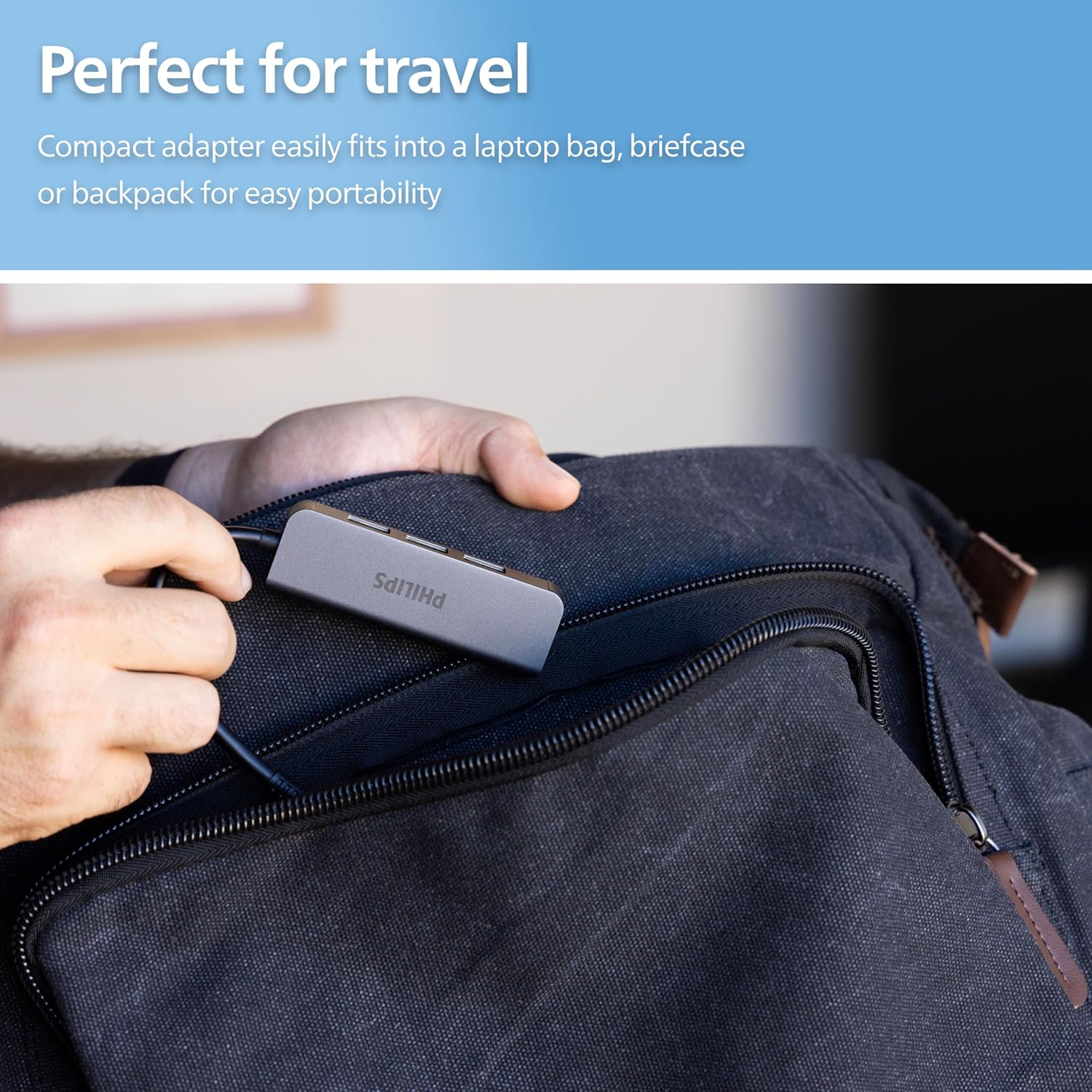
Image 5: Portability of the USB-C Hub. This image shows the compact hub being easily stored in a backpack, highlighting its suitability for travel.
8. Вирішення проблем
| проблема | Рішення |
|---|---|
| Пристрій не розпізнається комп'ютером. |
|
| Низька швидкість передачі даних. |
|
| Connected device is not receiving power. |
|
9. Технічні характеристики
- модель: SWL3573S/37
- введення: USB-C
- Вихід: 4 порти USB-A 2.0
- Швидкість передачі даних: До 480 Мбіт/с
- Сумісність: Windows 7+, macOS, USB-C compatible devices
- матеріал: Алюмінієвий корпус
- Розміри: Приблизно 6.57 x 5.94 x 1.46 дюйма (розміри упаковки)
- вага: Приблизно 2.08 унції
10. Гарантія та підтримка
This Philips product is backed by a limited-lifetime replacement pledge. For technical assistance or warranty inquiries, please contact U.S.-based technical support, available Monday-Friday, 7 AM-8 PM, Central Time.
Для отримання додаткової інформації або підтримки відвідайте офіційний веб-сайт Philips webсайт або зверніться до документації щодо придбання.