
вступ
This manual provides essential information for the proper setup, operation, and maintenance of your Philips 346B1C Curved Monitor. This 34-inch WQHD (3440 x 1440) display features a 100 Hz refresh rate, 5ms response time, and a curved VA panel for an immersive viewing experience. Key features include USB-C docking, MultiView functionality, FreeSync technology, LowBlue Mode, and FlickerFree technology for enhanced user comfort and productivity.

Зображення: спереду view of the Philips 346B1C curved monitor, showcasing its ultrawide display and key features like WQHD, USB-C Docking, and MultiView.
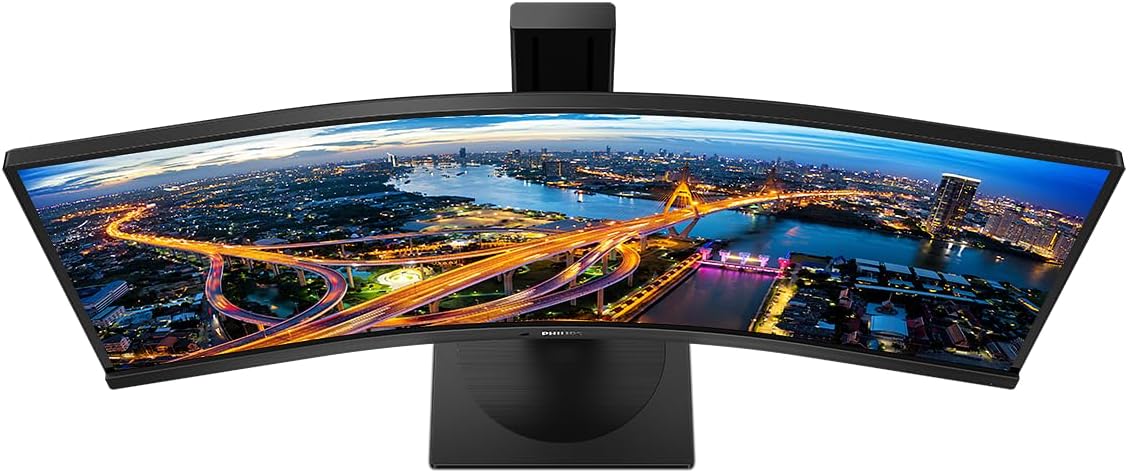
Зображення: Зверху вниз view of the Philips 346B1C curved monitor, emphasizing the curvature of the screen.
Що в коробці
Перш ніж продовжувати налаштування, перевірте наявність усіх компонентів.
- Philips 346B1C Curved Monitor
- Підставка для монітора (основа та шия)
- Кабель живлення
- Кабель HDMI
- Кабель DisplayPort
- Кабель USB-C – USB-C
- USB-A to USB-B Cable (Upstream)
- Documentation (Quick Start Guide, User Manual CD)
Інструкції з налаштування
1. Збірка підставки
- Покладіть монітор екраном вниз на м’яку, чисту поверхню, щоб запобігти подряпинам.
- Прикріпіть шийку підставки до панелі монітора. Переконайтеся, що вона надійно зафіксована на місці або закріплена гвинтами, якщо вони є в комплекті.
- Прикріпіть основу підставки до шийки підставки. Затягніть гвинт або гвинти з накатною головкою знизу основи.

Зображення: Задня частина view of the Philips 346B1C monitor, showing the stand attachment point and VESA mounting holes.
2. Підключення до комп’ютера
Підключіть монітор до комп’ютера одним із наведених нижче способів.
- Підключення HDMI: Підключіть один кінець кабелю HDMI до порту HDMI монітора, а інший кінець – до виходу HDMI комп’ютера.
- Підключення DisplayPort: Connect one end of the DisplayPort cable to the monitor's DisplayPort and the other end to your computer's DisplayPort output.
- Підключення USB-C: Connect one end of the USB-C cable to the monitor's USB-C port and the other end to your computer's USB-C port. This connection supports video, data, and power delivery (up to 90W) to your laptop.
For USB hub functionality, connect the USB-A to USB-B upstream cable from your computer to the monitor's USB-B upstream port.
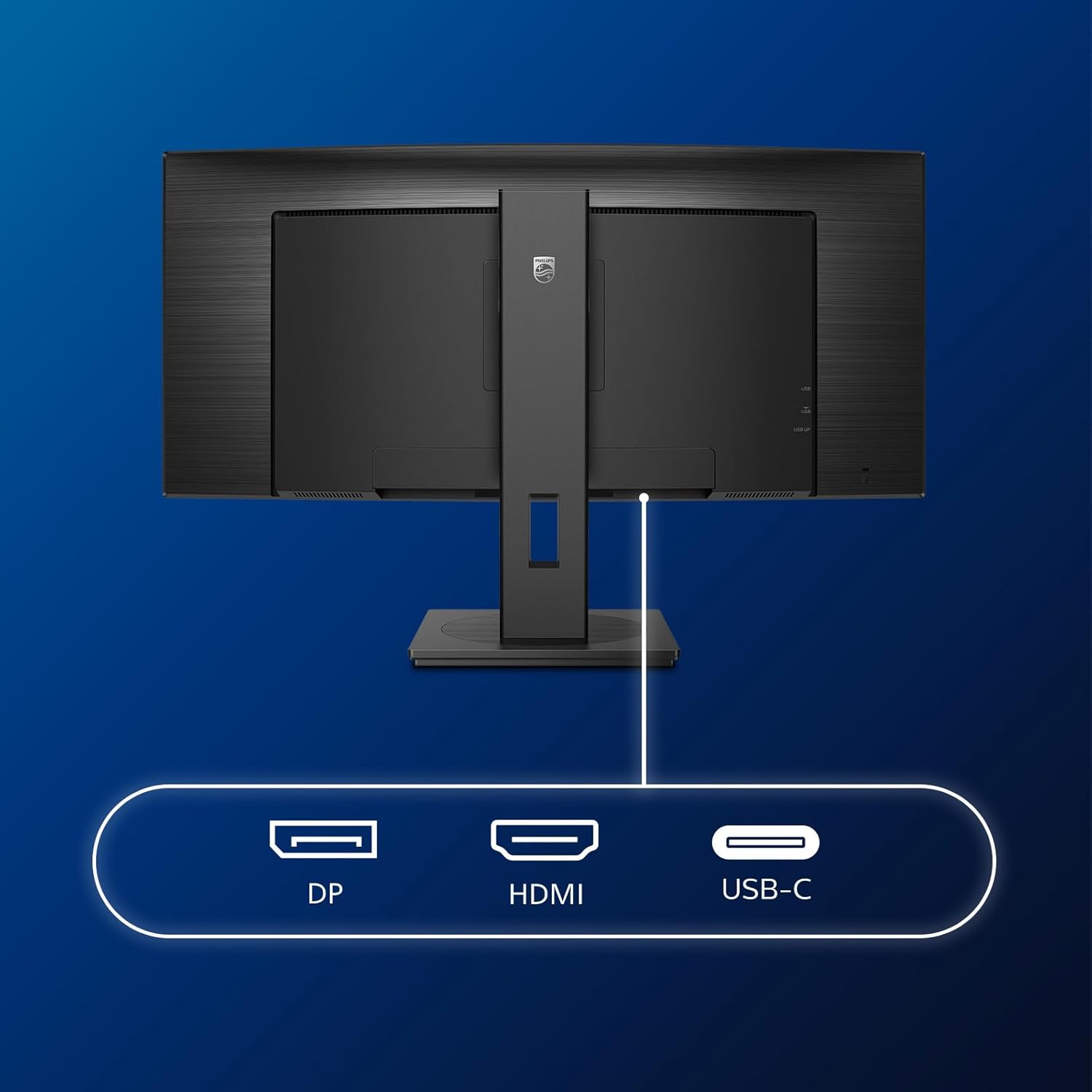
Зображення: Детальне view of the monitor's input ports, including DisplayPort (DP), HDMI, and USB-C, for connecting to various devices.
3. Підключення живлення
Підключіть кабель живлення до входу живлення монітора, а потім до заземленої електричної розетки.
4. Початкове увімкнення
Press the power button located on the monitor to turn it on. The monitor should automatically detect the input signal. If not, use the On-Screen Display (OSD) menu to select the correct input source.
Інструкція з експлуатації
Екранне меню (OSD).
The OSD menu allows you to adjust various monitor settings. Use the joystick control located on the back or bottom of the monitor to navigate the menu.
- Яскравість/Контрастність: Налаштуйте загальну яскравість та контрастність дисплея.
- Параметри кольору: Точне налаштування колірної температури, гами та колірного простору.
- Вибір входу: Ручне перемикання між входами HDMI, DisplayPort та USB-C.
- Аудіо: Adjust volume or mute the built-in speakers.
- Режим зображення: Select from preset picture modes (e.g., Standard, Gaming, Text).
МультиView Функціональність
МультиView feature allows you to connect and view content from two different sources simultaneously on the screen. Access this feature through the OSD menu to select Picture-by-Picture (PbP) or Picture-in-Picture (PiP) modes and configure input sources.
Док-станція USB-C
When connected via USB-C, the monitor acts as a docking station, providing video, data transfer through its integrated USB hub, and power delivery to charge your connected laptop (up to 90W).
SmartErgoBase and Adjustability
The monitor's SmartErgoBase allows for ergonomic adjustments including height, swivel, and tilt to optimize your viewкомфорту.

Image: Illustrations demonstrating the monitor's adjustable features, including height adjustment, tilt, and swivel capabilities for ergonomic positioning.
Комфорт для очей
- Режим LowBlue: Reduces harmful shortwave blue light emissions to prevent eye strain. Activate this mode via the OSD menu.
- FlickerFree Technology: Регулює яскравість та зменшує мерехтіння для більшого комфорту viewing. This feature is always active.
- PowerSensor & LightSensor: These sensors automatically adjust monitor brightness based on ambient light conditions and user presence, saving energy and reducing eye strain.
Технічне обслуговування
Очищення монітора
- Завжди вимикайте монітор перед чищенням.
- Злегка протріть м’якою тканиною без ворсу dampводою або м’яким, неабразивним засобом для чищення екранів.
- Do not use alcohol, solvents, or ammonia-based cleaners, as these can damage the screen surface.
- Обережно протріть екран, щоб видалити пил і плями.
- Очистіть монітор casing м’якою сухою тканиною.
Загальний догляд
- Уникайте розміщення важких предметів на моніторі або його кабелях.
- Не піддавайте монітор впливу прямих сонячних променів, надмірного тепла або сильного холоду.
- Забезпечте належну вентиляцію навколо монітора.
Усунення несправностей
Якщо у вас виникли проблеми з монітором, зверніться до наступних поширених кроків усунення несправностей:
| проблема | Можлива причина | Рішення |
|---|---|---|
| На екрані немає зображення | Відключено кабель живлення; відключено відеокабель; вибрано неправильне джерело вхідного сигналу. | Ensure power cable is securely connected; Check video cable connections (HDMI, DP, USB-C); Select correct input source via OSD menu. |
| Зображення розмите або спотворене | Неправильна роздільна здатність; проблема з драйвером графіки. | Set display resolution to 3440 x 1440; Update graphics card drivers. |
| Немає звуку з динаміків | Volume muted or too low; Incorrect audio output selected on computer. | Adjust monitor volume via OSD; Check computer's audio output settings. |
| Не працюють порти USB | Вихідний USB-кабель не підключено. | Ensure the USB-A to USB-B upstream cable is connected from the monitor to your computer. |
Для отримання додаткової допомоги зверніться до розділу підтримки або до служби підтримки клієнтів Philips.
Технічні характеристики
| Особливість | Деталь |
|---|---|
| Бренд | Philips |
| Номер моделі | 346B1C |
| Розмір екрана | 34 дюймів (86 см) |
| роздільна здатність | 3440 x 1440 (WQHD) |
| Співвідношення сторін | 21:9 |
| Поверхня екрана | Curved VA Panel |
| Частота оновлення | 100 Гц |
| Час відгуку | 5 Milliseconds (GtG) |
| Коефіцієнт контрастності | 3000:1 (типовий) |
| Яскравість | 300 кд/м² |
| Viewкут нахилу | 178° (H) / 178° (V) |
| Підключення | 1x HDMI 2.0, 1x DisplayPort 1.2, 1x USB-C 3.2 Gen 1 (upstream, power up to 90W), 1x USB-B (upstream), 4x USB 3.2 (downstream), RJ45 (Ethernet) |
| Адаптивна синхронізація | FreeSync |
| Вбудовані динаміки | 2x 5 Вт |
| Споживана потужність | 5 Watts (Eco mode) |
| вага | 7.8 Kilograms (with stand) |
Гарантія та підтримка
Інформація про гарантію
This Philips monitor comes with a 2-річна гарантія виробника. The specific terms and conditions of the warranty can be found in the detailed documentation provided with your product or on the official Philips support website. Your statutory rights as a consumer are not affected by this warranty.
Підтримка клієнтів
For technical assistance, product inquiries, or warranty claims, please visit the official Philips support website or contact their customer service department. You may need your monitor's model number (346B1C) and serial number (found on the back of the monitor) when contacting support.
Підтримка Philips Webсайт: www.philips.com/support