
Tucano TAB-SC10-IT-B
Tucano SCRIVO Bluetooth Keyboard Instruction Manual
Model: TAB-SC10-IT-B
1. Вступ
Thank you for choosing the Tucano SCRIVO Bluetooth Keyboard. This keyboard is designed to enhance your tablet experience, offering a comfortable and efficient typing solution. It features a durable ecopelle (faux leather) construction, an integrated stand for optimal viewing, and a magnetic closure for secure portability. Compatible with tablets up to 10.5 inches and iPad Pro 11 inches, it includes a long-lasting lithium battery and an Italian (IT) keyboard layout.
2. Продукт закінчивсяview
The Tucano SCRIVO keyboard combines functionality with a sleek design, providing a protective cover and a full-size keyboard for your tablet.
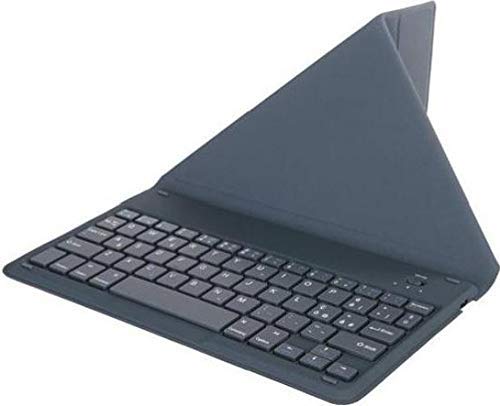
Опис зображення: The image displays the Tucano SCRIVO Bluetooth Keyboard in its closed, protective cover state. The exterior is a dark-colored ecopelle material, showcasing the magnetic closure and compact design suitable for portability. This view highlights the product's aesthetic and its function as a tablet cover.
- Bluetooth-клавіатура: Full-size keyboard with Italian (IT) layout.
- Ecopelle Cover: Durable and protective faux leather exterior.
- Вбудована підставка: Allows for comfortable tablet viewкути.
- Магнітне закриття: Secures the cover when closed.
- Акумуляторна батарея: Built-in lithium battery for extended use.
- Порт зарядки: Typically located on the side or back edge of the keyboard.
- Вимикач живлення: Used to turn the keyboard on or off.
- Bluetooth Pairing Button/Indicator: For initiating pairing and showing connection status.
3. Налаштування
3.1. Заряджання клавіатури
- Locate the charging port on the keyboard (usually a Micro USB or USB-C port).
- Connect the provided charging cable to the keyboard's charging port.
- Підключіть інший кінець зарядного кабелю до USB-адаптера живлення (не входить до комплекту) або USB-порту комп’ютера.
- Індикатор заряджання (якщо є) світитиметься, зазвичай червоним, під час заряджання.
- Once fully charged, the indicator light may change color (e.g., green or blue) or turn off. A full charge typically takes 2-3 hours.
Примітка: It is recommended to fully charge the keyboard before its first use.
3.2. Підключення Bluetooth
- Переконайтеся, що клавіатура повністю заряджена.
- Увімкніть клавіатуру, перевівши перемикач живлення у положення «УВІМК.». Індикатор живлення ненадовго засвітиться.
- Press and hold the Bluetooth pairing button (often labeled 'Connect' or with a Bluetooth symbol) for 3-5 seconds. The Bluetooth indicator light will start blinking, indicating it is in pairing mode.
- On your tablet (e.g., iPad Pro 11" or other compatible tablet), go to 'Settings' > 'Bluetooth'.
- Ensure Bluetooth is turned 'ON' on your tablet.
- Your tablet will search for available devices. Look for 'Tucano SCRIVO' or a similar name in the list of devices.
- Tap on 'Tucano SCRIVO' to connect. Your tablet may display a pairing code; type this code on the Tucano SCRIVO keyboard and press 'Enter'.
- Once successfully paired, the Bluetooth indicator light on the keyboard will stop blinking and may turn off or remain steadily lit. Your tablet will show 'Connected' next to the keyboard's name.
4. Робота з клавіатурою
4.1. Увімкнення/вимкнення живлення
- To turn on: Slide the power switch to 'ON'.
- To turn off: Slide the power switch to 'OFF' when not in use to conserve battery life.
4.2. Використання вбудованої підставки
The Tucano SCRIVO cover features an integrated stand. To use it, simply fold the cover into the desired viewing angle. The magnetic properties of the cover will help secure your tablet in position for comfortable typing or media consumption.
4.3. Функції клавіатури
The keyboard features an Italian (IT) layout. Many keys have secondary functions accessible by pressing the 'Fn' key simultaneously with the desired function key (e.g., volume control, media playback, screen brightness, home screen access). Refer to the keycap legends for specific functions.
5. Технічне обслуговування
5.1. прибирання
- Ecopelle Exterior: Обережно протріть м’якою серветкоюamp тканиною. Уникайте агресивних хімікатів або абразивних засобів для чищення.
- Клавіші клавіатури: Use a soft, dry cloth or a can of compressed air to remove dust and debris from between the keys.
- Ensure the keyboard is turned off and disconnected from any power source before cleaning.
5.2. Зберігання
When not in use, store the keyboard in a cool, dry place away from direct sunlight and extreme temperatures. Keep it closed to protect the keys and screen.
6. Вирішення проблем
- Клавіатура не підключається через Bluetooth:
- Переконайтеся, що клавіатура заряджена та ввімкнена.
- Переконайтеся, що на вашому планшеті ввімкнено Bluetooth.
- Розмістіть клавіатуру та планшет поблизу один одного (в межах 10 метрів).
- Try re-pairing the keyboard by putting it into pairing mode and searching for it on your tablet again.
- Restart your tablet and the keyboard.
- Клавіші не реагують:
- Check the battery level of the keyboard. Recharge if necessary.
- Переконайтеся, що клавіатура правильно підключена через Bluetooth.
- Очистіть будь-яке сміття навколо клавіш.
- Проблеми із зарядкою:
- Переконайтеся, що зарядний кабель надійно підключений як до клавіатури, так і до джерела живлення.
- Спробуйте використати інший кабель USB або адаптер живлення.
- Переконайтеся, що джерело живлення справне.
7. Технічні характеристики
| Особливість | опис |
|---|---|
| Бренд | Тукано |
| Назва моделі | TAB-SC10-IT-B |
| Технологія підключення | Bluetooth |
| Сумісні пристрої | Tablets up to 10.5", iPad Pro 11" |
| Опис клавіатури | Ecopelle Bluetooth keyboard with integrated stand and IT layout |
| Рекомендоване використання | Mobile computing, intensive typing, study, daily use |
| Особливість | Магнітна застібка |
| Стиль | Modern / Slim |
| матеріал | Ecopelle (Faux Leather) |
8. Гарантія та підтримка
For warranty information and customer support, please refer to the documentation included with your product at the time of purchase or visit the official Tucano website. You may also contact Tucano customer service directly for assistance with product inquiries, technical support, or warranty claims.
Ask a question about this manual
Ask about setup, troubleshooting, compatibility, parts, safety, or missing instructions. Manuals+ will review the question and use this page’s manual context to help answer it.