
1. Вступ
The SteelSeries Kana Optical Gaming Mouse is engineered for precision and versatility, designed to accommodate all three primary grip styles: palm, claw, and fingertip. This ambidextrous mouse features an ergonomic button layout and size, developed in collaboration with professional gaming teams to ensure consistent performance and accuracy in competitive environments. This manual provides comprehensive instructions for setup, operation, maintenance, and troubleshooting to help you maximize your gaming experience.
2. Вміст упаковки
- SteelSeries Kana Optical Gaming Mouse (White)
- Quick Start Guide (integrated into this manual)
3. Продукт закінчивсяview
Familiarize yourself with the key components of your SteelSeries Kana mouse:
- Ліва кнопка миші: Кнопка основної дії.
- Клацніть правою кнопкою миші: Кнопка додаткової дії.
- Колесо прокрутки: For scrolling and a clickable middle button. The scroll wheel is illuminated.
- CPI Toggle Button: Located centrally, allows quick switching between sensitivity settings.
- Side Buttons (x2): One on each side, large and easily accessible for rapid-fire actions. These can be customized or disabled via software.
- Оптичний датчик: Located on the underside, provides precise tracking.
- USB-роз'єм: Для підключення миші до комп'ютера.
- Плетений кабель: Durable, tangle-free nylon cord.
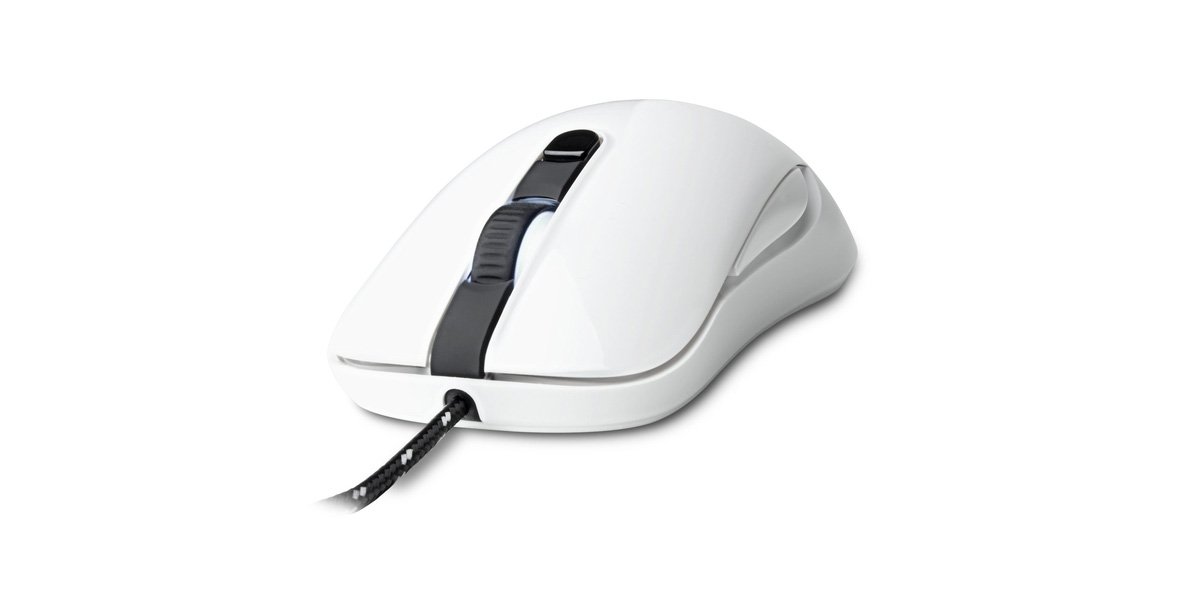
Image of the SteelSeries Kana Optical Gaming Mouse in white, showcasing its ambidextrous design, illuminated scroll wheel, and side buttons.
4. Налаштування
4.1 Підключення обладнання
- Знайдіть вільний порт USB на комп’ютері.
- Plug the USB connector of the SteelSeries Kana mouse into the USB port.
- Your operating system should automatically detect and install basic drivers for the mouse.
4.2 Software Installation (SteelSeries Engine)
To unlock the full customization potential of your SteelSeries Kana mouse, including CPI settings, button programming, macros, and LED intensity, install the SteelSeries Engine software.
- Відвідайте офіційний сайт SteelSeries webсайт: steelseries.com/engine
- Download the SteelSeries Engine software compatible with your operating system (Windows or macOS).
- Дотримуйтеся вказівок на екрані, щоб завершити встановлення.
- Once installed, launch the SteelSeries Engine to configure your mouse settings.
Примітка для користувачів Mac: Compatibility with macOS versions 10.9 and later for SteelSeries Engine 2.0 (required for Kana) has historically been inconsistent. Please check the official SteelSeries website for the latest software updates and compatibility information before installation.
5. Інструкція з експлуатації
5.1 Основні функції
- Рух: Переміщуйте мишу по поверхні, щоб керувати курсором на екрані.
- Натискання: Use the left and right buttons for primary and secondary actions.
- Прокрутка: Rotate the scroll wheel to navigate documents and web pages. Press the scroll wheel for its assigned middle-click function.
5.2 Adjusting CPI (Counts Per Inch)
The centrally located CPI toggle button allows you to switch between two pre-defined sensitivity settings instantly. The default CPI settings are optimized for gaming, but can be customized using the SteelSeries Engine software. The maximum CPI supported is 3200.
- Press the CPI toggle button once to switch to the alternate CPI setting.
- Press it again to revert to the previous setting.
5.3 Customizing with SteelSeries Engine
The SteelSeries Engine software provides extensive customization options:
- CPI Settings: Fine-tune or set custom CPI values beyond the pre-defined options.
- Програмування кнопок: Assign custom functions, keyboard shortcuts, or macros to any of the 6 programmable buttons (including side buttons and scroll wheel click).
- Макроси: Create and assign complex sequences of commands with precise timing control.
- LED Intensity: Adjust the brightness of the illuminated scroll wheel.
- Profiles: Створення та збереження кількох професіоналівfiles for different games or applications, with automatic switching based on game triggers.
6. Технічне обслуговування
6.1 Очищення миші
To ensure optimal performance and longevity, keep your mouse clean.
- Зовні: Злегка протріть м’якою тканиною без ворсу dampПротріть поверхню миші водою або м’яким миючим розчином. Уникайте використання агресивних хімікатів або абразивних матеріалів.
- Оптичний датчик: Gently clean the optical sensor lens on the underside of the mouse with a dry cotton swab or compressed air to remove dust or debris.
- Мишачі лапки: Ensure the mouse feet are clean and free of obstructions for smooth gliding.
Увага: Do not immerse the mouse in water or any cleaning solution. Avoid spraying liquids directly onto the mouse.
7. Вирішення проблем
| проблема | Можливе рішення |
|---|---|
| Mouse not detected / Not responding |
|
| Inaccurate or erratic tracking |
|
| Buttons not responding or performing incorrectly |
|
| SteelSeries Engine software not recognizing mouse (Mac OS) |
|
8. Технічні характеристики
| Бренд | SteelSeries |
| Номер моделі | 62029 |
| Колір | Білий |
| Технологія виявлення руху | Оптичний |
| Кількість кнопок | 6 (програмованих) |
| Орієнтація руки | Ambidextrous (Left, Right) |
| Апаратна платформа | PC |
| Тип кабелю | Плетений нейлон |
| Вага товару | 0.16 кілограма |
| Особливість | Ergonomic Design, Illuminated Scroll Wheel |
9. Гарантія та підтримка
9.1 Інформація про гарантію
The SteelSeries Kana Optical Gaming Mouse comes with a 1 рік обмеженої гарантії з дати покупки. Ця гарантія поширюється на виробничі дефекти та дефекти виготовлення за умов нормального використання. Вона не поширюється на пошкодження, спричинені неправильним використанням, нещасними випадками, несанкціонованими модифікаціями або нормальним зносом. Будь ласка, збережіть підтвердження покупки для пред'явлення гарантійних претензій.
9.2 Підтримка клієнтів
For technical assistance, warranty claims, or further information, please visit the official SteelSeries support webсайт:
You can find FAQs, driver downloads, and contact information for customer service on their webсайт.