
Typecase Flexbook Keyboard Case User Manual

For more support, please email us at support@typecase.co
Your questions will be answered promptly.
Overview

Connecting
First-time pairing:
-Step 1: Move ON/OFF switch to ON
-Step 2: Press the ‘Pair’ button for 2seconds to connect to your iPad, (the Bluetooth indicator flashes)
-Step 3: Toggle Bluetooth On in the Setting app  on your iPad, (the Bluetooth indicator dies, you are connected)

– Step 4: Tap “Typecase Flexbook” or “360X Keyboard” under “DEVICES” in the Bluetooth section in the Settings app.
For future pairings, please repeat steps 1-3 (if necessary). “Typecase Flexbook” or “360X Keyboard” will appear under My Devices. Tap it to connect.

Installation and Removal

- Removing back protective piece: hold iPad on both sides and use thumbs to gently push off the back cover (see photo.) Cover is held in place by two tabs.
- Proceed to “peel” cover away from iPad.
- Take iPad out.
- Take iPad out upwards.
Function Keys
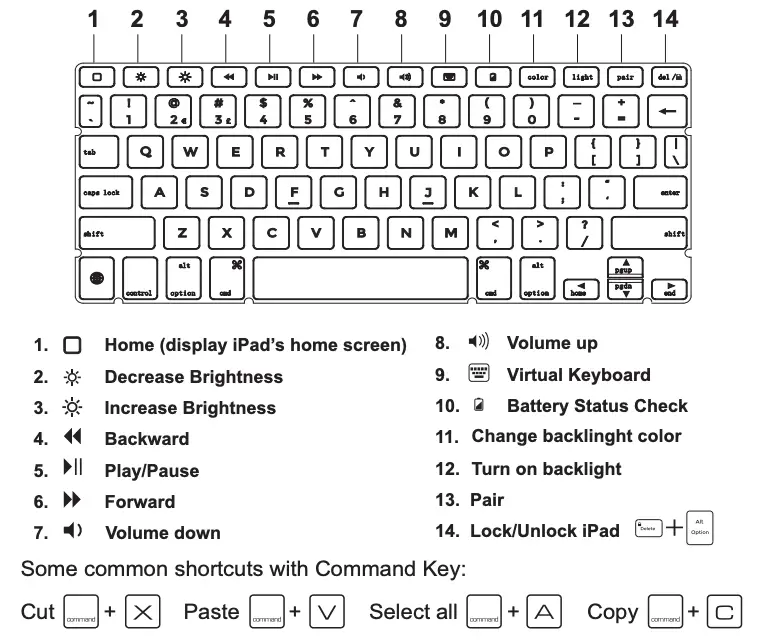
Product Specs
- Operating distance: 10 meters (33 feet)
- Modulation System: GFSK
- Working voltage: 3.0-4.2V
- Working current: 0.88-3.85mA
- Sleeping current: < 125μA
- Charging current: 500-800mA
- Standby time: 30 days
- Continuous working time without backlight: 60 hours.
- Charging time: < 2 hours
- Battery’s capacity: 500mAh
- Battery’s life span: 3 years
- Key’s life span: > 5 million strokes
- Operating temperature: -10 ±55°C
Maintenance:
Please preserve the keyboard under normal temperature and recharge under normal voltage.
Rotation

Usage

Charging

Contact Us
If you have any issues or questions, let us know ASAP! We would love to get you taken care of and happy right away! All units come with a full 12 month warranty, so you can relax and take comfort in your purchase. For the fastest & friendliest support, contact us (not Amazon) via one of the contact methods below. Our email support is open 24/7/365.
- Email: support@typecase.co
- Phone: 832-303-5080
- Support link: https://ipadkeyboards.com
Troubleshooting
If the keyboard is not working correctly, please check the following:
- The Bluetooth function on the iPad (or other Bluetooth devices) is enabled.
- The Bluetooth keyboard is within 33 feet.
- The Bluetooth keyboard is charged.
If you have unwanted auto-correction or punctuation, please try to change Wireless keyboard’s setting on your iPad: - Connect your iPad to Wireless keyboard.
- Go to iPad Settings app > General > Keyboard > Hardware Keyboard.
- Toggle OFF Auto-Capitalization, Auto-Correction, and “.” Shortcut. (please refer to the figure below)

- Make sure the keyboard is on(the battery indicator is illuminated).
- Ensure the battery has enough power
- Make sure that Bluetooth in your device (eg iPad, table pc) is on
- Press the key ‘Pair’, check the Bluetooth status.
- Ensure keyboard has already paired via Bluetooth.
If fail in connect with bluetooth, please try the following steps:- Delete bluetooth device on the iPad,
- Switch off the Bluetooth function on the iPad
- Reboot the iPad
- Switch on Bluetooth on the iPad
- Switch the keyboard off and on
- Repeat the step on page 2 and 3 to pair the keyboard
Documents / Resources
 | Flexbook Keyboard Case |
References
- Homeipadkeyboards.com
- User Manualmanual.tools
Dear Ladies and Gentlemen,
How to use question marks and other special characters.
Furthermore, y and z are swapped on my keyboard. If I press z, the letter Y appears. And vice versa.
What should I do.
Greeting
Carmen Thieme
Sehr geehrte Damen und Herren,
Wie sind Fragezeichen und andere Sonderzeichen anzuwenden.
Desweiteren ist bei meiner Tastatur y und z vertauscht, Drücke ich z erscheint der Buchstabe Y. Und umgekehrt.
Was soll ich machen.
Gruss
Carmen Thieme
How to use question marks and other special characters.
Furthermore, y and z are swapped on my keyboard. If I press z, the letter Y appears. And vice versa.
What should I do.
Greeting
Carmen Thieme</em>
Sehr geehrte Damen und Herren,
Wie sind Fragezeichen und andere Sonderzeichen anzuwenden.
Desweiteren ist bei meiner Tastatur y und z vertauscht, Drücke ich z erscheint der Buchstabe Y. Und umgekehrt.
Was soll ich machen.
Gruss
Carmen Thieme
How do I use special characters and fix the issue where the Y and Z keys are swapped?
The issue where the Y and Z keys are swapped (and special characters are not where they appear on the keys) is caused by the iPad's software keyboard layout being set to a different language than the physical keyboard hardware.
To fix this, please follow these steps on your iPad:
For further assistance with specific shortcuts, you can refer to the Function Keys section in your manual or contact Typecase support at support@typecase.co.
Read the full Q&A page
This may or may not work, just came across it accidentally when looking for something else. Try going to SETTINGS, then GENERAL, then KEYBOARDS, then ENGLISH, then select keyboard type. There are three different ones for me, QWERTY (select this one), AZERTY, AND QWERTZ. It looks like this, if not selected correctly, might switch your Y and Z keys. Not sure, I’m a newbie at this, but it’s worth a try.
How do I fix the keyboard layout if the Y and Z keys are swapped on my Typecase Flexbook?
If your Y and Z keys are swapped, it is likely because your iPad is set to a different keyboard layout (such as AZERTY or QWERTZ) instead of the standard QWERTY layout used by the Typecase Flexbook.
To fix this, follow these steps on your iPad:
Additionally, the manual suggests that for other typing issues, you can navigate to Settings > General > Keyboard > Hardware Keyboard to toggle settings like Auto-Capitalization and Auto-Correction.
Read the full Q&A page
The only letters on the top alphabet row that work for me are “T” and “Y”. All other letters and special characters work on the rest of the keyboard. Is there a fix for this?
Why are only the 'T' and 'Y' keys working on the top row of my Typecase Flexbook keyboard?
If specific keys like the top alphabet row (except 'T' and 'Y') are not responding while others work, it often indicates a hardware connection issue or a software glitch. Please try the following troubleshooting steps from the manual:
If the issue persists after a full reset and charge, it is likely a hardware defect. Since the product comes with a 12-month warranty, you should contact Typecase support at support@typecase.co or call 832-303-5080 for a replacement.
分析>
Read the full Q&A page
Good evening, I have this exact issue. Were you able to resolve?
Same here. Anyone figure this out?
I have the same problem. Anyone figure this out?
I’m also having this issue. The g, h and space bar don’t work. I tried changing to US instead of US automatic and turning off auto cap, auto correct and shortcuts but they still do not work. Keyboard was bought in October 2021 and barely used.
I am also having the same Problem, more than half the keys don’t work. Did any one figure it out?
My keyboard is turning the red light when is plugged in, but is not turning on when I toggle the on/off button. It is not working at all. I think is the battery but maybe there is something else that can be done in order to fix that problem. Thanks.
Why is my Typecase Flexbook keyboard not turning on even though the red light is on when plugged in?
Based on the Typecase Flexbook User Manual, if your keyboard shows a red light while charging but does not turn on when toggled, please try the following troubleshooting steps:
Read the full Q&A page
THE SYMBOLS DONT MATCH THE KEYS IT SEEMS THE KEYBOARD SHIFTED 1 OR 2 CHARACTERS
Why do the symbols on my Typecase Flexbook keyboard not match the keys being pressed?
If your Typecase Flexbook keyboard symbols do not match the keys being pressed, it is usually due to the iPad's software keyboard settings being set to a different language or layout than the physical keyboard.
To resolve this, please check your iPad settings:
Additionally, the manual suggests checking for unwanted auto-correction settings that might interfere with typing:
If the issue persists, try unpairing and re-pairing the device: delete the Bluetooth device from your iPad settings, reboot your iPad, and follow the pairing steps on page 2 of the manual.
Read the full Q&A page
As I change the keyboard cursor, touch
Como cambio el cursor del teclado, touch
Como cambio el cursor del teclado, touch
How do I change the keyboard cursor or touch settings?
The Typecase Flexbook Keyboard Case manual does not provide specific instructions for changing the appearance of the cursor, as cursor behavior is controlled by the iPadOS software rather than the keyboard itself. However, you can adjust these settings on your iPad by following these steps:
If you are experiencing issues with typing behavior (such as unwanted auto-corrections), the manual suggests going to Settings > General > Keyboard > Hardware Keyboard to toggle settings like Auto-Capitalization and Auto-Correction.
Read the full Q&A page
Hello
I have just received my new ipad keyboard and I cannot find the PDF instruction manual in French. Can you provide it to me please. ?
Bonjour
Je viens de recevoir mon nouveau clavier ipad et je ne trouve pas le manuel d’instructions format PDF en Français. Pouvez-vous me le fournir svp. ?
I have just received my new ipad keyboard and I cannot find the PDF instruction manual in French. Can you provide it to me please. ?<e/em>
Bonjour
Je viens de recevoir mon nouveau clavier ipad et je ne trouve pas le manuel d'instructions format PDF en Français. Pouvez-vous me le fournir svp. ?
Where can I find the French PDF instruction manual for the Typecase Flexbook Keyboard Case?
Currently, the official manual provided for the Typecase Flexbook Keyboard Case is only available in English. Typecase does not typically provide a separate French PDF on their standard support channels.
However, you can follow these steps to set up your keyboard, as the process is straightforward:
If you need specific instructions translated, you may also use a mobile translation app to scan the English manual text.
Vous pouvez contacter le support technique à support@typecase.co pour demander une version française.
You can view the English manual online here: Typecase Flexbook Keyboard Case Manual.
Note: Uncertainty exists regarding the availability of an official French PDF as it is not hosted on the primary support site.
Read the full Q&A page
Is there a manual, tips for using the ” Typecase ” flexboard keyboard
Est-ce qu’il y a un manuel, astuces d’utilisation du clavier ”Typecase” flexboard
Est-ce qu'il y a un manuel, astuces d'utilisation du clavier ''Typecase'' flexboard
Where can I find the manual and usage tips for the Typecase Flexbook Keyboard Case?
You can find the manual and usage tips for the Typecase Flexbook Keyboard Case below:
For further assistance, you can contact Typecase support at support@typecase.co or call 832-303-5080.
Read the full Q&A page
Backspace , delete and shift keys not working. Do nothing. Recently installed the os15.4.1
Why are the backspace, delete, and shift keys not working on my Typecase Flexbook after updating to iPadOS 15.4.1?
If specific keys like Backspace and Shift stop working after an iPadOS update, it is often related to software settings or a connection glitch rather than a hardware failure. Please try the following troubleshooting steps based on the Typecase Flexbook manual:
Note: If the keys still do not respond after a full reset and re-pairing, there may be a hardware defect that coincided with the update.
>
Read the full Q&A page
GOOD MORNING: MY KEYBOARD IS ACTING UP: WRITES CAPITAL LETTERS EVEN THOUGH I HAVE NOT CHOSEN TO WHEN USING KEYBOARD VIA BLUETOOTH: HAVE TRIED THE RECOMMENDATION YOU GIVE; BUT it ONLY WORKS FOR A FEW WORDS AND THEN GOES BACK TO MALFUNCTIONING: AS YOU CAN SEE IT SEEMS TO HAVE A MIND OF ITS Own:::
How do I stop my Typecase Flexbook keyboard from automatically typing in capital letters?
If your Typecase Flexbook keyboard is automatically typing in capital letters even after trying basic fixes, the issue is likely related to the iPad's software settings for external keyboards. Please follow these specific steps to disable the auto-capitalization feature:
If the problem persists after changing these settings, it may indicate a hardware fault with the Shift key. You can contact Typecase support directly at support@typecase.co or call 832-303-5080 for further assistance under your 12-month warranty.
Read the full Q&A page
Could you please tell me how to turn the touchpad off on the Typecase for IPad Pro? Many thanks
How do I turn off the touchpad on the Typecase for iPad Pro?
The provided manual for the Typecase Flexbook Keyboard Case does not contain specific instructions on how to turn off the touchpad. It primarily focuses on connecting the keyboard, troubleshooting connection issues, and adjusting iPad settings related to auto-capitalization, auto-correction, and shortcuts. There is no mention of a dedicated function key or setting to disable the touchpad.
Read the full Q&A page
Emoji Key now comes out as a capital A .
how do I get my emojis back ?
how do I get my emojis back ?
Why does the emoji key on my Typecase Flexbook keyboard type a capital A instead of opening emojis?
This issue is often caused by the iPad's software settings or a mismatch in the keyboard layout configuration. To restore your emoji functionality, please try the following steps:
If the key continues to output a capital 'A', it may be a hardware defect. You can contact Typecase support directly at support@typecase.co or call 832-303-5080 for warranty assistance.
Read the full Q&A page
Hello, my keyboard just work if I use the up and down keys. The pad doesn’t work at all, I meant is this normal?
Why is my keyboard only working with the up and down keys while the trackpad does not work at all?
It is not normal for the trackpad (pad) to be unresponsive while only specific keys work. This often indicates a connection or settings issue. Please try the following troubleshooting steps based on the manual:
Note: If only the up/down keys work, ensure you are not in a specific mode or app that limits input functionality.
Read the full Q&A page