
1. Giriş
This manual provides essential instructions for the safe and efficient operation, setup, and maintenance of your Procolored F13 Panda DTF Printer. Please read this manual thoroughly before using the printer to ensure optimal performance and longevity.
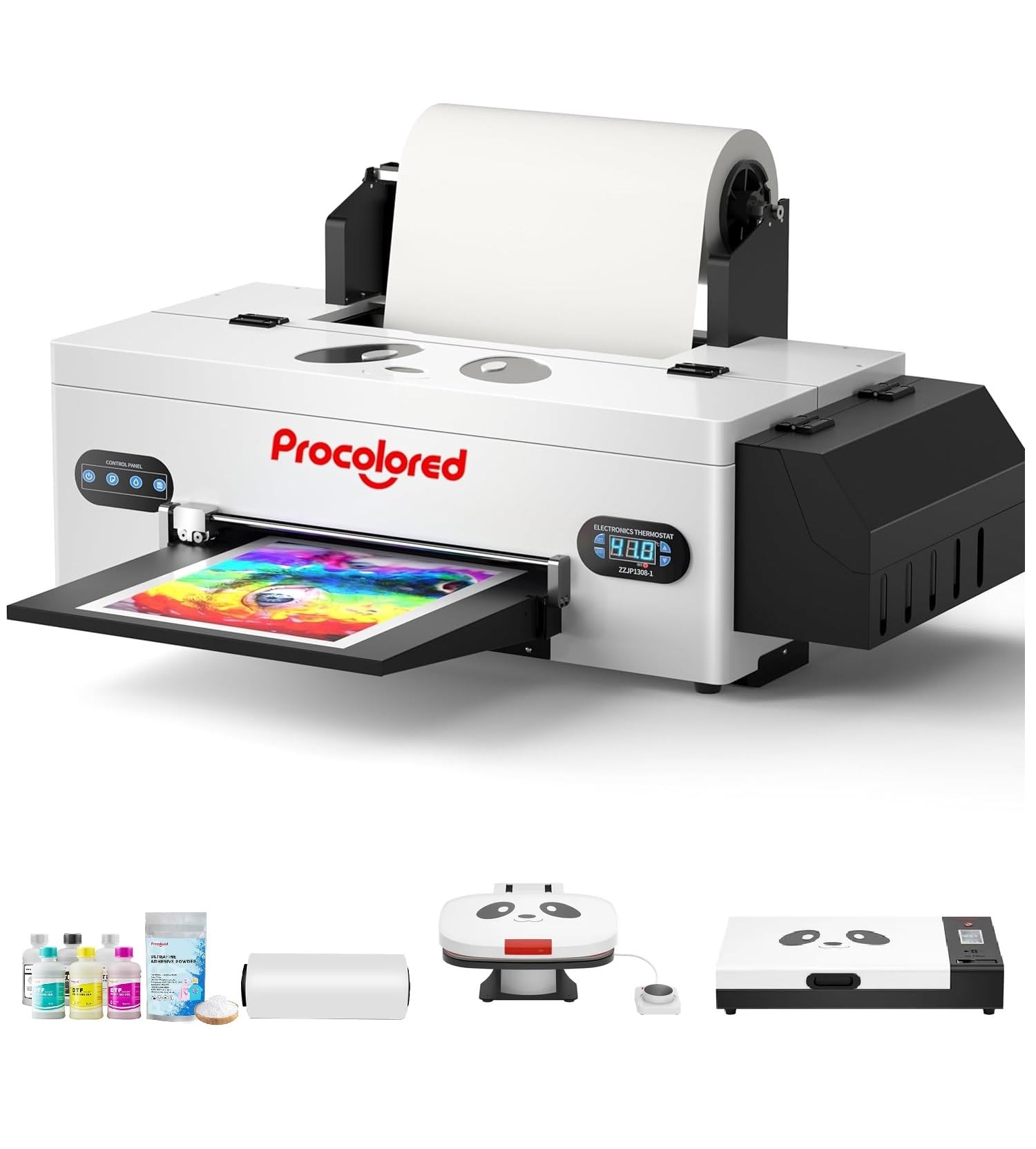
Figure 1: Procolored F13 Panda DTF Printer.
2. Güvenlik Bilgileri
Yazıcıda yaralanma veya hasar oluşmasını önlemek için her zaman aşağıdaki güvenlik önlemlerine uyun:
- Yazıcının sağlam ve düz bir yüzeye yerleştirildiğinden emin olun.
- Connect the printer to a grounded power outlet with the correct voltage (AC 100-230V).
- Yazıcıyı suya veya aşırı neme maruz bırakmayın.
- Çalışma esnasında ellerinizi hareketli parçalardan uzak tutun.
- Use only recommended inks and cleaning solutions.
- Çocukların erişemeyeceği yerde saklayınız.
3. Paket İçeriği
Paketin içinde tüm öğelerin mevcut olduğundan emin olun:
- Procolored F13 DTF Printer
- Roll Film 13"
- DTF Ink Set (CMYK+WW)
- Nozzle Protection Fluid
- DTF Tozu
- Plastik Destek
- Veri Kablosu (USB)
- Güç kablosu
- Moisturizing Device
- Atık Şişesi
- Kartuş
- Spare Ink Tube
- Silindir Braketi
- Mürekkep Pedi
- Silecek
- kesici Bıçak
- USB Dongle
- Şırınga
- Tornavida
- Silindir Çubuğu
- Uzatma Borusu
- Needle Hub
- Bahar
- Sürüntü

Figure 2: Included accessories for the Procolored F13 DTF Printer.
4. Kurulum Kılavuzu
4.1 Kutudan Çıkarma ve İlk Yerleştirme
Carefully remove the printer and all components from the packaging. Place the printer on a sturdy, level surface in a well-ventilated area.
Video 1: Procolored F13 DTF Printer Unboxing. This video demonstrates the unboxing process and initial setup steps for the printer.
4.2 Film Roll Installation
Install the 13-inch DTF film roll onto the designated holder at the rear of the printer. Ensure the film feeds smoothly into the printer mechanism.
4.3 Ink System Setup
Fill the ink tanks with the corresponding DTF pigment inks (Cyan, Magenta, Yellow, Black, White, Light Cyan). Ensure the white ink circulation system is properly connected and functioning to prevent clogging.

Figure 3: Illustration of the advanced white ink system, showing circulation, siphon effect, and automatic cleaning.
4.4 Güç Bağlantısı ve Yazılım Kurulumu
Connect the power cable to the printer and a suitable power outlet. Install the Procolored RIP software (compatible with Windows 7/10/11) on your computer. Follow the on-screen instructions for software installation and driver setup.
Şekil 4: Üzeriview of the Procolored RIP software interface and available tutorials.
5. Kullanım Talimatları
5.1 Preparing for Print
- Power on the printer using the main switch.
- Ensure the DTF film is correctly loaded and aligned.
- Open the Procolored RIP software on your computer.
- Import your design and adjust settings such as size, resolution (up to 1440x1440dpi), and color profile.
5.2 Baskı İşlemi
Initiate the print job from the software. The printer will feed the film and apply ink. The built-in cutter will automatically trim the film after printing, optimizing material usage.
Video 2: Procolored F13 DTF Printer in operation. This video demonstrates the printing process, including film feeding and ink application.
5.3 Post-Printing
After printing, apply DTF powder to the wet ink and cure it using a DTF oven or heat press. Once cured, the design is ready for transfer to textiles.

Şekil 5: Ör.amples of versatile applications for DTF prints, including shirts, flags, tote bags, and caps.
6. Bakım
6.1 Otomatik Temizleme Sistemi
The F13 Panda DTF Printer features an automatic cleaning system that operates even when the printer is powered on. This system helps prevent print head clogs and ensures consistent print quality. Regular use of this feature is recommended.
6.2 White Ink Circulation
The printer includes a white ink circulation system with a siphon filtration diaphragm pump. This system minimizes blockages and maintains the quality of white ink. Ensure the system is always active during operation.
Video 3: F13 L1800 DTF Apparel Printer features. This video highlights the white ink circulation and automatic cleaning functions.
6.3 Genel Temizlik
Yazıcının dış yüzeyini periyodik olarak yumuşak bir bezle temizleyin.amp cloth. Refer to the software's maintenance section for specific print head cleaning procedures if needed.
7. Sorun Giderme
If you encounter issues with your printer, consider the following common solutions:
- Baskı Kalitesi Sorunları: Perform a nozzle check and head cleaning through the software. Ensure ink levels are sufficient.
- Film Feeding Problems: Check for obstructions in the film path and ensure the film roll is correctly installed and aligned.
- Yazılım Hataları: Restart the software and the printer. Ensure your software and drivers are up to date.
- Bağlantı Sorunları: Verify USB cable connection and ensure the printer is powered on.
For persistent issues, contact Procolored customer service.
8. Özellikler
| Özellik | Şartname |
|---|---|
| Marka | Procoloured |
| Model Adı | F13-XMJZ |
| Bağlantı Teknolojisi | USB |
| Baskı Teknolojisi | Mürekkep püskürtmeli |
| Özel Özellik | Taşınabilir |
| Yazıcı Çıktısı | Renk |
| Maksimum Baskı Hızı (Renkli) | 1 ppm |
| Maksimum Baskı Hızı Tek Renkli | 1 ppm |
| Ürün Boyutları (D x G x Y) | 16.53"D x 34.25"G x 16.4"Y |
| Mürekkep Rengi | Cyan, Magenta, Yellow, Black, White, Light Cyan |
| Çözünürlük | 1440 x 1440 dpi |
| Maksimum Medya Boyutu | A3 (13 Inches) |
| Yazılım Desteği | Windows 7/10/11 |
| Ürünün Belirli Kullanımları | Textile Printing |
9. Garanti ve Destek
Your Procolored F13 Panda DTF Printer comes with a comprehensive warranty:
- Print Head and Related Components: Six-month warranty.
- Diğer Aksesuarlar: Bir yıl garanti.
Our dedicated customer service team is available 24/6 to address any queries or technical issues you may encounter. Please refer to your purchase documentation for specific contact details.