
1. Giriş
This manual provides detailed instructions for the setup, operation, maintenance, and troubleshooting of your ATTACK SHARK G3PRO Wireless Gaming Mouse. Please read this manual thoroughly to ensure proper use and to maximize your gaming experience.

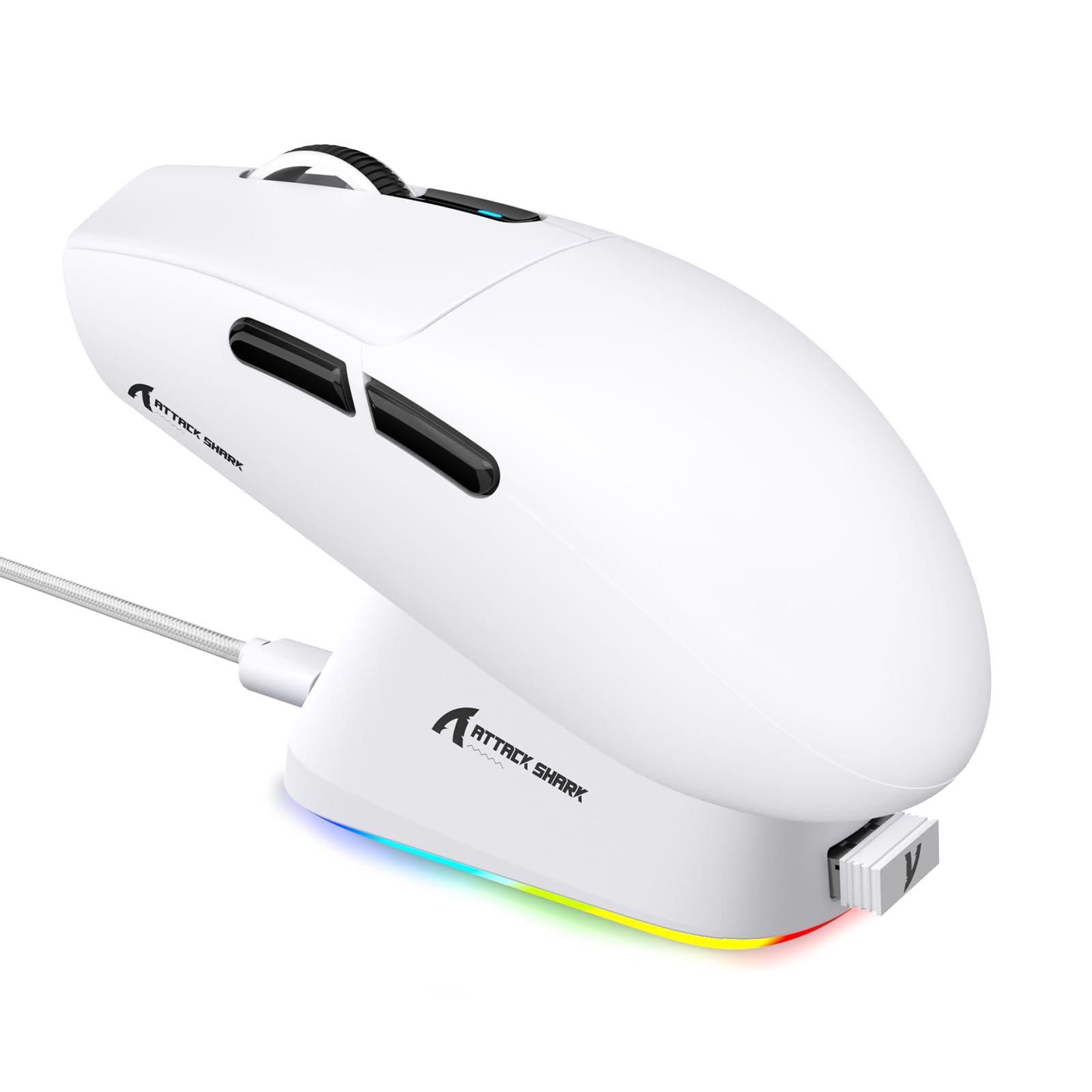
Resim: Bir overview of the ATTACK SHARK G3PRO mouse and its features, including magnetic fast charging, PAW3311 sensor, web cloud drive, RGB rapid charging dock, and lightweight design.
2. Paket İçeriği
Paketinizde tüm öğelerin mevcut olduğundan emin olun:
- ATTACK SHARK G3PRO Wireless Gaming Mouse
- RGB Magnetic Charging Dock
- 2.4G USB Alıcı
- USB-C - USB-A Şarj/Veri Kablosu
- Kullanıcı Kılavuzu
3. Kurulum
3.1 İlk Şarj
Before first use, it is recommended to fully charge the mouse. Connect the USB-C cable to the charging dock and a power source. Place the mouse onto the magnetic charging dock. The RGB lighting on the dock will indicate charging status.
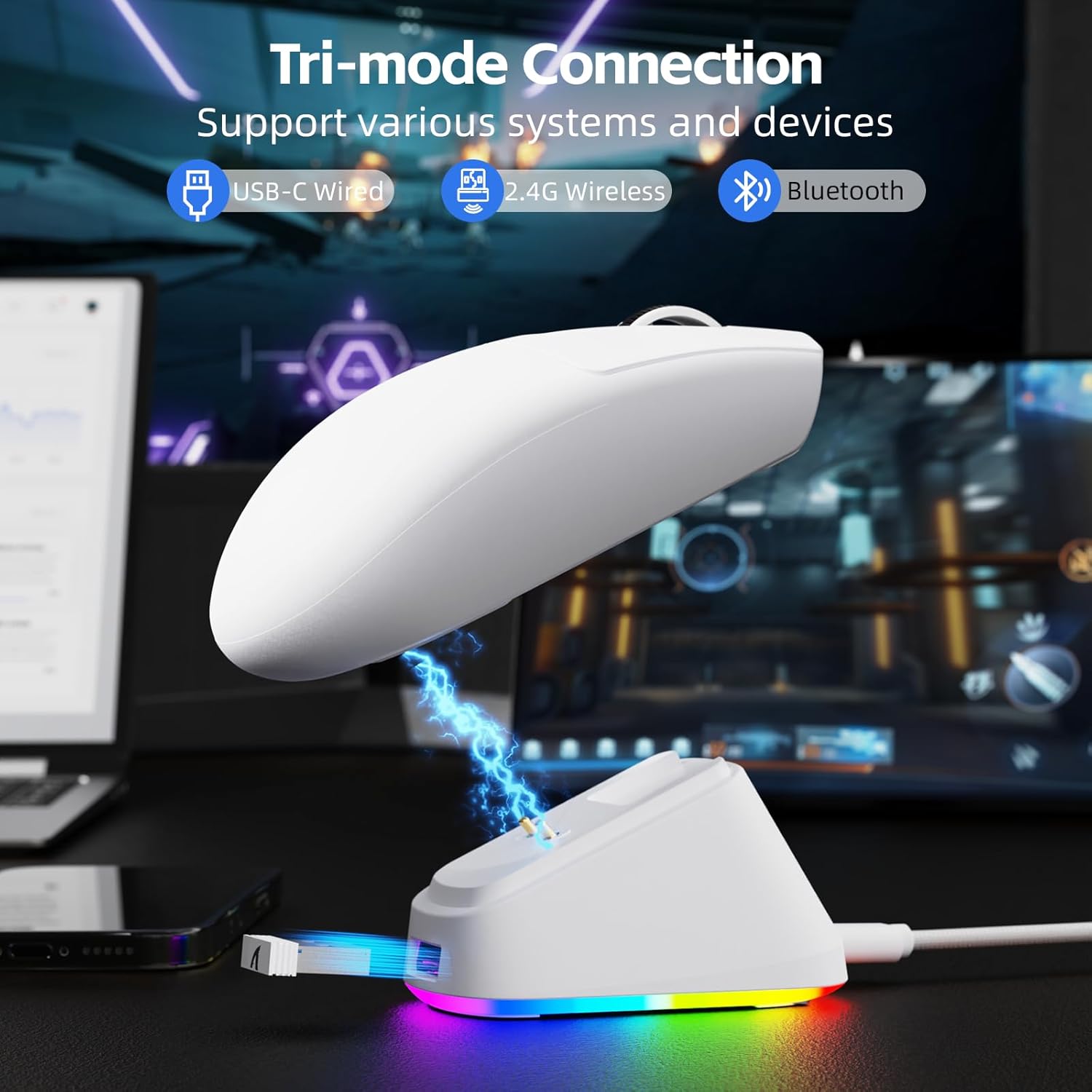
Image: The ATTACK SHARK G3PRO mouse magnetically attached to its RGB charging dock, showing the charging thimbles and USB-C port.
For a visual guide on charging, please watch the following video:
Video: This video demonstrates the magnetic charging dock and its features for the ATTACK SHARK G3PRO Wireless Gaming Mouse.
3.2 Fareyi Bağlama
The G3PRO supports three connection modes: 2.4GHz Wireless, Bluetooth, and USB-C Wired. A switch on the bottom of the mouse allows you to select the desired mode.

Image: The ATTACK SHARK G3PRO mouse with visual indicators for Wired, 2.4G, and Bluetooth connectivity modes.
2.4GHz Kablosuz Modu:
- Locate the 2.4G USB receiver, typically stored within the charging dock or the mouse itself.
- USB alıcısını bilgisayarınızdaki uygun bir USB bağlantı noktasına takın.
- Set the switch on the bottom of the mouse to "2.4G".
- Fare otomatik olarak bağlanmalıdır.
Bluetooth Modu:
- Set the switch on the bottom of the mouse to "BT".
- Bilgisayarınızda veya cihazınızda Bluetooth ayarlarına gidin ve Bluetooth'u etkinleştirin.
- Arama new devices and select "ATTACK SHARK G3PRO" to pair.
USB-C Kablolu Mod:
- USB-C kablosunu fareden doğrudan bilgisayarınıza bağlayın.
- Fare, kablolu fare gibi çalışacak ve aynı anda şarj olacaktır.
For a visual guide on product features and connectivity, please watch the following video:
Video: This video demonstrates the various color options and the magnetic charging feature of the ATTACK SHARK G3PRO Wireless Gaming Mouse, showcasinTasarımı ve işlevselliği.
4. Fareyi Çalıştırma
4.1 Düğme Fonksiyonları
The ATTACK SHARK G3PRO features 5 programmable buttons:
- Sol tık: Birincil eylem.
- Sağ tık: İkincil eylem/bağlam menüsü.
- Orta Tıklama/Kaydırma Tekerleği: Scroll up/down, middle click for universal scroll or other functions.
- İleri Düğmesi: Default for navigating forward in web Tarayıcılar/klasörler.
- Geri Düğmesi: Default for navigating backward in web Tarayıcılar/klasörler.
- DPI Anahtarı: Önceden ayarlanmış DPI seviyeleri arasında geçiş yapar.

Image: A detailed diagram illustrating the location and default functions of the multi-functional buttons on the ATTACK SHARK G3PRO mouse.

Resim: Patlamış bir view and labeled diagram of the G3PRO mouse components, including buttons, switches, charging points, and the 2.4G/OFF/BT mode switch.
4.2 DPI Ayarı
The mouse features a dedicated DPI switch to cycle through various sensitivity levels, ranging from 800 to 25,000 DPI. The current DPI setting is indicated by an LED light.

Image: A visual representation of the 25,000 DPI optical sensor's precision and how mouse movement trajectory sensitivity scales with DPI settings.
4.3 Anket Oranı
The G3PRO supports a 1000Hz polling rate in both wired and 2.4GHz wireless modes, ensuring rapid response times for competitive gaming.

Image: A diagram illustrating the 1000Hz polling rate capability in both wired and wireless modes, highlighting millisecond response times.
5. Yazılım ve Özelleştirme
Customize your G3PRO mouse settings using the intuitive web driver or downloadable software from ATTACK SHARK. This allows for personalization of DPI, polling rate, macros, and more.
- Web Sürücü: Erişim web-based configuration tool for quick adjustments without installation.
- Downloadable Software: For advanced customization and profile management, download the dedicated software.

Image: A screenshot of the ATTACK SHARK Hub software interface, showing options for mouse settings, DPI settings, parameter settings, macro editing, and personal center.

Image: The cloud-driven programming interface for the G3PRO mouse, displaying options for button settings, DPI adjustments, polling rate settings, and power management.
6. Bakım
6.1 Temizlik
En iyi performansı korumak için farenizi düzenli olarak temizleyin. Yüzeyi silmek için yumuşak, kuru bir bez kullanın. İnatçı kirler için, biraz daha ince bir bez yeterli olacaktır.amp İç bileşenlere nem girmemesini sağlayacak şekilde bez kullanılabilir. Sert kimyasallardan veya aşındırıcı malzemelerden kaçının.
6.2 Depolama
When not in use for extended periods, store the mouse and charging dock in a cool, dry place. Ensure the USB receiver is securely stored, ideally within the charging dock's designated slot, to prevent loss.
7. Sorun Giderme
| Sorun | Olası Neden | Çözüm |
|---|---|---|
| Fare yanıt vermiyor (2.4G) | Low battery; Receiver not plugged in; Incorrect mode selected; Driver issue. | Charge the mouse; Ensure receiver is firmly plugged in; Set mouse to "2.4G" mode; Reinstall mouse drivers. |
| Fare yanıt vermiyor (Bluetooth) | Low battery; Bluetooth not enabled on device; Not paired; Incorrect mode selected. | Charge the mouse; Enable Bluetooth on your device; Re-pair the mouse in Bluetooth settings; Set mouse to "BT" mode. |
| Charging dock RGB not lighting up | Cable not connected; Power source issue. | Ensure USB-C cable is securely connected to dock and power source; Try a different USB port or power adapter. |
| Inconsistent tracking | Dirty sensor; Uneven surface; Interference (wireless). | Clean the optical sensor; Use a clean, even mouse pad; Reduce wireless interference by moving other devices or using wired mode. |
| Düğmeler yanıt vermiyor | Yazılım çakışması; Fiziksel hasar. | Check software settings for button remapping; Test on another computer; Contact support if physical damage is suspected. |
8. Özellikler
| Özellik | Detay |
|---|---|
| Marka | SALDIRI KÖPEKBALIĞI |
| Örnek | G3 PRO |
| Renk | Beyaz |
| Bağlantı Teknolojisi | 2.4 GHz Kablosuz, Bluetooth, USB-C Kablolu |
| Hareket Algılama Teknolojisi | Optik (PAW3311 Sensörü) |
| Maks. DPI | 25,000 DPI |
| Anket Oranı | 1000Hz |
| Hızlanma | 40G |
| İzleme Hızı | 400 IPS |
| Anahtarlar | Mechanical (100 Million Clicks) |
| Pil Kapasitesi | 500mAh |
| Pil Ömrü | 200 saate kadar |
| Ağırlık | 59 g ± 3 g |
| Düğmeler | 5 |
| El Yönelimi | İki elini de kullanabilen |
| Uyumlu Cihazlar | Dizüstü Bilgisayar, Kişisel Bilgisayar, Akıllı Telefon, Tablet |
| İşletim Sistemi | Windows, macOS |
For a comparison of G3 and G3PRO models, refer to the image below:

Image: A table comparing the specifications of the ATTACK SHARK G3 and G3PRO models, highlighting differences in components and features.
9. Güvenlik Bilgileri
- Cihazı aşırı sıcaklıklara veya neme maruz bırakmayın.
- Cihazı düşürmekten veya güçlü darbelere maruz bırakmaktan kaçının.
- Çocukların erişemeyeceği yerde saklayınız.
- Cihazı sökmeye veya üzerinde değişiklik yapmaya çalışmayın, çünkü bu garantiyi geçersiz kılacak ve hasara neden olabilir.
- Use only the provided charging cable and dock.
10. Garanti ve Destek
The ATTACK SHARK G3PRO Wireless Gaming Mouse comes with a standard manufacturer's warranty. For detailed warranty information, please refer to the warranty card included in your package or visit the official ATTACK SHARK webalan.
For technical support, troubleshooting assistance, or to inquire about replacement parts, please contact ATTACK SHARK customer service through their official website veya ürün ambalajınızda yer alan iletişim bilgileri.
Resmi Webalan: ATTACK SHARK Mağazası Amazon'da