
1. Giriş
This user manual provides essential information for the proper setup, operation, maintenance, and troubleshooting of your new acer Aspire Laptop. Please read this manual thoroughly before using your device to ensure optimal performance and longevity. Keep this manual for future reference.

Image 1.1: The acer Aspire Laptop, showcasinŞık tasarımı ve ekranıyla dikkat çekiyor.
2. Paket İçeriği
Verify that all items listed below are included in your product package. If any items are missing or damaged, please contact your retailer or acer support.
- acer Aspire Laptop
- USB Type-C Güç Adaptörü
- Güç Kablosu
- TWE Mouse Pad (bundled accessory)
3. Kurulum
3.1 İlk Güç Açma ve Şarj Etme
- Dizüstü bilgisayarı ve tüm aksesuarlarını kutudan çıkarın.
- Connect the USB Type-C Power Adapter to the laptop's USB Type-C port (which supports Power Delivery) and then plug the power cord into an electrical outlet.
- Dizüstü bilgisayarı ilk kullanımdan önce en az 30 dakika şarj edin veya pil göstergesi yeterli şarj seviyesini gösterene kadar bekleyin.
- Dizüstü bilgisayarın kapağını açın. Dizüstü bilgisayar otomatik olarak açılabilir veya güç düğmesine basmanız gerekebilir.
3.2 İlk Windows 11 Kurulumu
Follow the on-screen instructions to complete the Windows 11 Home setup process. This typically includes:
- Bölgenizi ve klavye düzeninizi seçin.
- Connecting to a Wi-Fi network (IEEE 802.11ax, Wi-Fi 6E supported).
- Lisans sözleşmesini kabul ediyorum.
- Microsoft hesabı oluşturma veya Microsoft hesabıyla oturum açma.
- Setting up security features like Windows Hello (if applicable).
3.3 Çevre Birimlerini Bağlama
Your acer Aspire Laptop offers various ports for connecting external devices:
- USB 3.2 Gen 1 Bağlantı Noktaları: Fare, klavye veya harici depolama aygıtları gibi USB aygıtlarını bağlamak için kullanılır.
- USB Type-C Ports (USB4, Thunderbolt 4): Versatile ports for data transfer (up to 40 Gbps), video output, and power delivery.
- HDMI 2.1 Bağlantı Noktası: Harici ekranlara veya projektörlere bağlanmak için.
- 3.5 mm Headphone/Microphone Combo Jack: Ses girişi/çıkışı için.
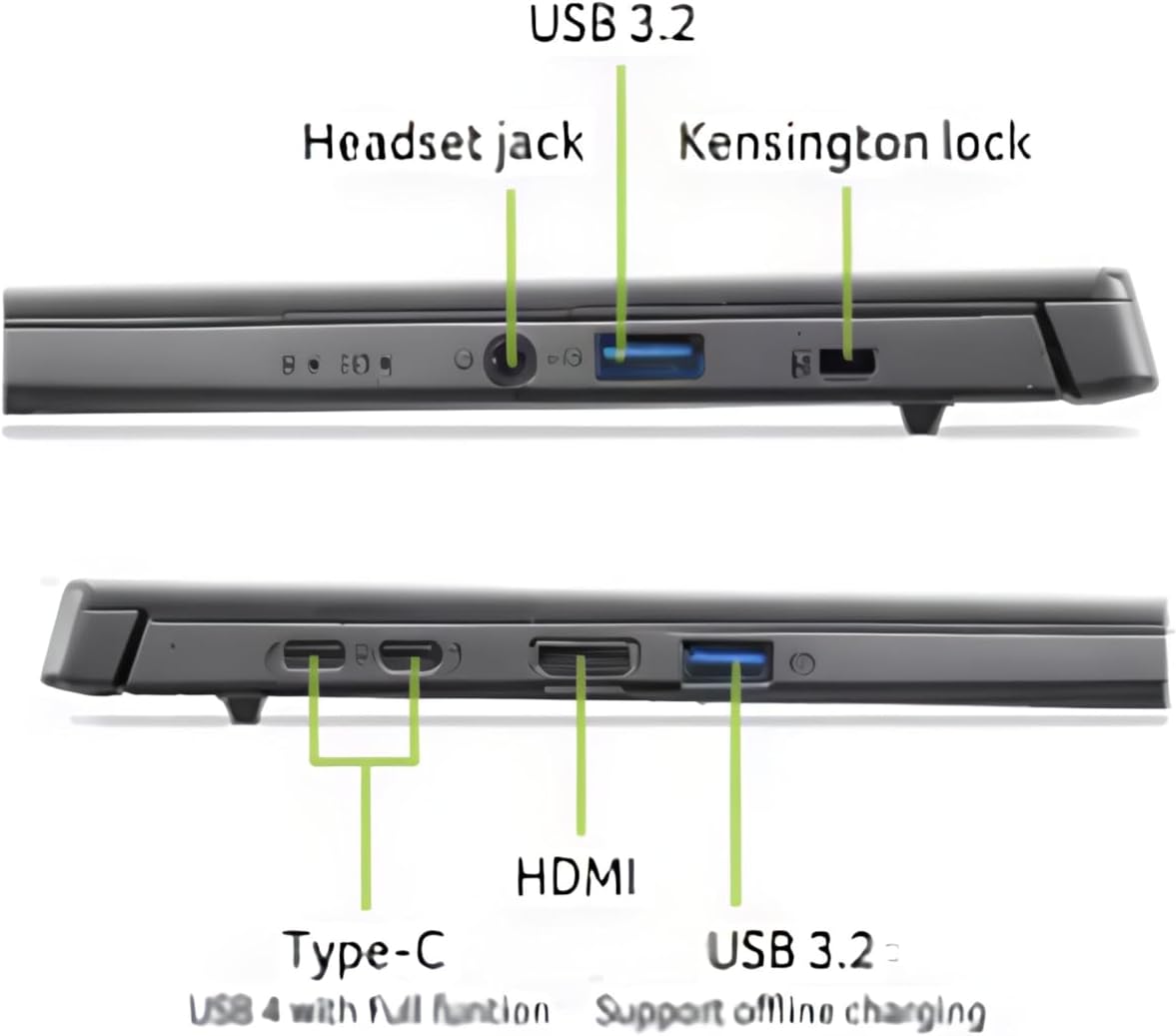
Resim 3.1: Üzeriview of the laptop's connectivity ports.
4. Dizüstü Bilgisayarınızı Çalıştırma
4.1 Ekran ve Dokunmatik Ekran
The laptop features a 14-inch WUXGA (1920 x 1200) IPS LED Backlit TFT LCD Touchscreen display. This display supports touch input for intuitive interaction with Windows 11. Use gestures similar to a smartphone or tablet for navigation.
4.2 Klavye ve Dokunmatik Yüzey
The integrated keyboard is backlit, allowing for comfortable typing in various lighting conditions. The touchpad supports multi-touch gestures for navigation and control. Refer to Windows settings for customizing touchpad gestures.

Resim 4.1: Üst view klavye ve dokunmatik yüzey.
4.3 Güç Yönetimi
Your laptop is equipped with a battery providing approximately 8 hours of usage. To optimize battery life, adjust power settings in Windows 11. Always use the provided USB Type-C Power Adapter for charging.
4.4 AI Copilot+PC Features
This laptop is an AI Copilot+PC, integrating advanced AI capabilities through its Intel Core Ultra 5 processor with CPU, GPU, and NPU. Key AI features include:
- Yardımcı pilot: An AI-powered assistant in Windows 11 for productivity, creativity, and information retrieval.
- AcerSense: Acer's experience zone for managing system performance and features.
- AcerLiveArt & Acer AlterView: Tools for creative applications.
- Acer Assist: Your smart AI assistant for system optimization and support.
- Acer ArıtılmışView™ 2.0 & Acer PurifiedVoice™: Enhanced video call and audio quality.

Image 4.2: The Copilot+PC branding on the laptop screen, indicating advanced AI capabilities.

Image 4.3: Users interacting with the laptop, demonstrating features like Acer PurifiedView and PurifiedVoice for enhanced communication.
5. Bakım
5.1 Dizüstü Bilgisayarınızı Temizleme
- Yumuşak, tiftiksiz bir bez kullanın ve hafifçe kurulayın.ampened with water or a screen cleaner to clean the display. Do not spray liquid directly onto the screen.
- Klavye ve kasa için yumuşak ve kuru bir bez kullanın. Basınçlı hava spreyi, tuşlar arasındaki tozu temizlemeye yardımcı olabilir.
- Temizlemeden önce dizüstü bilgisayarınızın kapalı ve fişinin çekilmiş olduğundan emin olun.
5.2 Yazılım Güncellemeleri
Regularly check for and install Windows updates to ensure your system has the latest security patches and performance improvements. Acer may also provide driver and firmware updates through AcerSense or their official support webalan.
5.3 Depolama ve Taşıma
- Dizüstü bilgisayarı aşırı sıcaklıklara, doğrudan güneş ışığına veya yüksek neme maruz bırakmaktan kaçının.
- Dizüstü bilgisayarın üzerine ağır nesneler koymayın.
- Transport the laptop in a protective sleeve or bag to prevent scratches and impacts.

Image 5.1: The laptop's 180-degree hinge design and durable aluminum chassis.
6. Sorun Giderme
This section addresses common issues you might encounter with your acer Aspire Laptop.
6.1 Güç Sorunları
- Dizüstü bilgisayar açılmıyor: Ensure the power adapter is securely connected to both the laptop and a working electrical outlet. Check if the battery is charged. Try holding the power button for 10-15 seconds to perform a hard reset.
- Pil şarj olmuyor: Verify the power adapter and cable are not damaged. Try a different outlet. Ensure the USB Type-C port used for charging is functional.
6.2 Ekran Sorunları
- Ekranda görüntü yok: Connect an external monitor via the HDMI port to check if the issue is with the laptop's internal display. If the external monitor works, the internal display may require service.
- Ekranda titreme veya bozulma: Grafik sürücülerinizi güncelleyin. Windows ayarlarından ekran çözünürlüğünü ve yenileme hızını ayarlayın.
6.3 Bağlantı Sorunları
- Wi-Fi bağlanmıyor: Windows ayarlarında Wi-Fi'nin etkin olduğundan emin olun. Yönlendiricinizi ve dizüstü bilgisayarınızı yeniden başlatın. Güncel kablosuz sürücülerini kontrol edin.
- Bluetooth cihazı eşleşmiyor: Ensure Bluetooth is enabled on both the laptop and the device. Place devices close to each other. Remove and re-add the device in Bluetooth settings.
6.4 Performans Sorunları
- Dizüstü bilgisayar yavaş: Close unnecessary applications. Check Task Manager for processes consuming high CPU or RAM. Ensure sufficient free space on the 512GB PCIe Gen 4 SSD. Run a malware scan.
7. Özellikler
| Özellik | Şartname |
|---|---|
| Marka | asalak |
| Model Adı | Acer Aspire Dizüstü Bilgisayar |
| Ekran Boyutu | 14 inç |
| Ekran Çözünürlüğü | 1920 1200 (WUXGA) x |
| Görüntü Türü | IPS LED Backlit TFT LCD, Touchscreen |
| İşlemci | 2nd Gen Intel Ultra 5-226V (8 Cores, 2.1GHz ~ 4.5 GHz) |
| Grafikler | Intel ARC 130V Integrated Graphics |
| Veri deposu | 16GB LPDDR5X RAM |
| Depolamak | 512 GB PCIe 4. Nesil SSD |
| İşletim Sistemi | Windows 11 Ev |
| Kablosuz Bağlantı | IEEE 802.11ax (Wi-Fi 6E), Bluetooth 5.3 |
| Limanlar | 1x HDMI 2.1, 2x USB 3.2 Gen 1, 2x USB Type-C (USB4, Thunderbolt 4, Power Delivery), 1x 3.5mm Headphone/Mic Combo Jack |
| Webkam | 1080p Full HD |
| Klavye | Arkadan aydınlatmalı |
| Pil Ömrü | 8 Saate Kadar |
| Boyutlar (U x G x Y) | 12.56" x 8.86" x 0.46"-0.67" |
| Ağırlık | 3.04 lbs (1.38 kg) |
8. Garanti Bilgileri
Your acer Aspire Laptop comes with a Sınırlı Garanti. The specific terms and duration of the warranty may vary by region and retailer. Please refer to the warranty card included in your product packaging or visit the official acer support website for detailed warranty information, including coverage, limitations, and how to make a claim.
Garanti hizmeti için gerekli olacağından, satın alma belgenizi (makbuz veya fatura) saklayın.
9. Destek
For further assistance, technical support, or to download updated drivers and manuals, please visit the official acer support webalan:
You may also contact acer customer service directly through the contact information provided on their webBölgenize özel site.